How to Structure Professional Documents in Word: Reports, Proposals, Policies and Manuals
Match structure to the genre so each document gets the response it needs: executive summaries, decision-ready proposals, clear policies and manuals people can follow.
- Level
- Expert
- Time
- 13 min read
- Updated:
- Applies to:
- Word for Microsoft 365, Word 2024, Word 2021, Word for the web
What you'll learn
- Pick the right structure for a report, a proposal or grant, a policy and a manual or SOP
- Write a one-page executive summary that gives the answer first
- Turn label headings into statements, and plan the front matter: title page, table of contents and revision history
- Use styles, numbered headings, captions, cross-references and appendix sections to hold the structure together
- Apply plain-language rules and score high-stakes documents with a review rubric
Example file
Expert Word - Professional Documents.docx
Download the practice document used in this tutorial and follow along in Word.
Word document (.docx) · 38 KB
The Tutoring Club now writes documents that decide things: an annual report for the community center board, a grant proposal to a local foundation, a safety policy every site must follow, and a volunteer manual people use in the middle of a busy session. Each one has a different reader asking a different question. A document that answers the wrong question, or hides the answer on page 11, fails even if every sentence is correct.
In this tutorial you will match structure to genre, write an executive summary, turn headings into statements, plan front matter, and use Word's structure features so the document stays organized when you move whole sections. Then you will review the result with a rubric. The practice file is a messy annual report for you to restructure.
Match structure to the genre
Before you write, ask two questions: who will read this, and what do I need them to do afterwards? Approve money, follow a rule, finish a task, make a decision. The genre is the standard answer to those questions, and readers expect its structure. Use it.
| Genre | The reader's question | Structure | Tutoring Club example |
|---|---|---|---|
| Report | What happened, and what should we do? | Executive summary first, findings, recommendations, appendix (methods, data) | Annual report for the community center board |
| Proposal or grant | Why should we fund this, and will it work? | Need, plan, budget, evaluation, the ask | Grant proposal for a third site |
| Policy | What must I do, and does this apply to me? | Purpose, scope, definitions, rules, responsibilities, review date | Site safety policy |
| Manual or SOP | How do I do this task, right now? | Task-based sections with numbered steps, warnings before the risky step, troubleshooting | Volunteer manual: signing students in and out |
- Reports are read by busy people who may read only page 1. Put the conclusions there and the evidence after.
- Proposals are scored. If the funder gives headings or a scoring sheet, use their headings, in their order, with their words. Reviewers look for each item where they expect it.
- Policies are looked up, not read. Number every rule so people can point to "rule 3.2", define words that could be argued about, and say who owns the policy and when it will be reviewed.
- Manuals and SOPs (standard operating procedures) are used mid-task. Organize by task, not by topic: Sign a student out, not Pickup procedures. One action per numbered step.
- Task-based heading
- Warning before the step
- Troubleshooting at the end
Write an executive summary that answers first
An executive summary is the whole document in one page, for the reader who will read nothing else. It is not an introduction, which tells readers what is coming. It tells them what you found and what you want.
- The answer. One or two sentences: the main finding and the main recommendation.
- The ask. What you need from the reader, and by when.
- Key findings. Three to five bullets, each with a number.
- Where to find more. Cross-references to the sections with the details.
Write it last, when you know what the document says, and put it first, right after the title page and table of contents. Keep it to one page. If it doesn't fit, you haven't decided what matters most yet. Test it: someone who reads only the summary should be able to make the decision.
Headings as statements, and the front matter
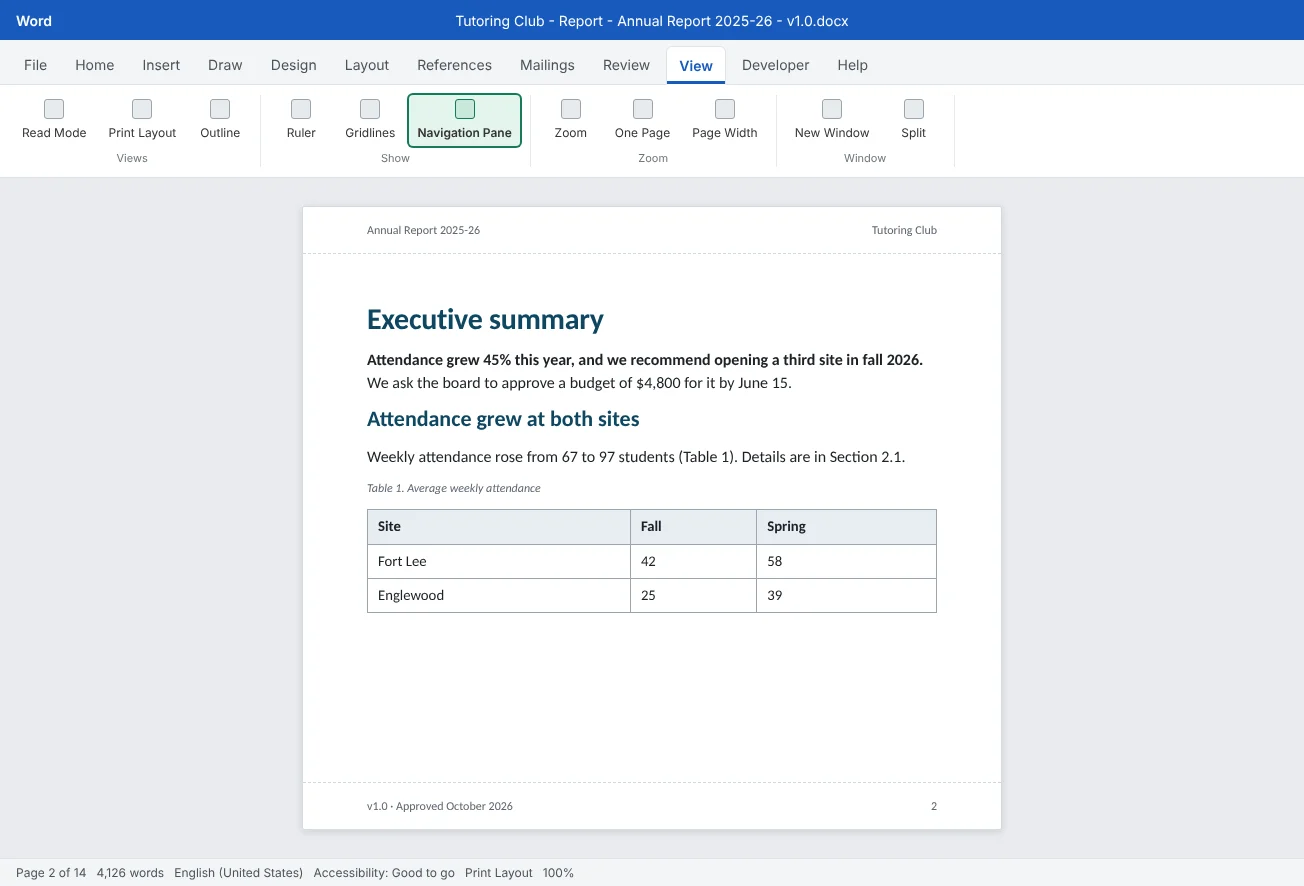
In reports and proposals, turn label headings into statement headings that carry the message. Then the Navigation pane (View
| Label heading | Statement heading |
|---|---|
| Attendance | Attendance grew 45% across both sites |
| Volunteers | Volunteer hours rose, but sign-ups fell in spring |
| Budget | A third site costs $4,800 for the first year |
| Next steps | Open the Leonia site in September 2026 |
Not every heading should be a statement. Keep labels for reference parts readers look for by name, such as Definitions, Budget in a funder's template, or Appendix A. Attendance data. In manuals, use task headings that start with a verb: Sign a student out.
Front matter is what comes before the main text. For any document longer than a few pages, plan three parts:
- Title page. Title, subtitle, organization, date and version. Use Insert
then Pages then Cover Page or your template kit's own cover. Insert the title with Insert then Text then Quick Parts then Document Property then Title so the cover always matches the Title property from the previous tutorial. Turn on Different First Page in the header and footer options so the cover has no page number. - Table of contents. References
then Table of Contents, built from the heading styles, as in Intermediate Tutorial 2. Statement headings make the TOC itself worth reading. - Revision history. A small table that shows which version this is and what changed, so nobody acts on an old copy.
- Matches the version in the file name
- Shows who approved it
Word features that hold the structure together
A professional document gets reorganized many times before it is final. Built with Word's structure features, a section can move and every number, reference and contents entry follows. Built by hand, every move breaks something.
| Feature | How | Why it matters here |
|---|---|---|
| Styles | Title, Heading 1 to 3, Caption and your kit's custom styles, such as Warning | Every structure feature below depends on them |
| Numbered headings | Home | Policies need clause numbers people can quote; numbers renumber themselves when sections move |
| Numbered steps | Home | Manuals need steps that start at 1 for every task |
| Tables with captions | Select the table, then References | Numbered captions (Table 1) let you refer to data and build a table of figures |
| Cross-references | References | "See Section 2.1" and "Table 1" stay correct after you move things. Press Ctrl+A then F9 to update |
| Appendices in their own section | Layout | The appendix can have its own header, page numbering or landscape pages without affecting the main text |
You learned these tools one at a time in Advanced Tutorial 1 and Advanced Tutorial 4. What is new at this level is using them as a system: decide the genre, build the outline with heading styles in View
Write in plain language
Plain language is not simple thinking. It is writing your reader can understand the first time they read it. For high-stakes documents it matters more, not less: a board member reading on a phone, a parent reading in a second language, or a volunteer reading during a busy session all need the point fast.
- Short sentences. Aim for an average of 15 to 20 words. One idea per sentence, one topic per paragraph.
- Active voice and real people. Say who does what: The site coordinator updates the pickup list.
- Common words. Use, not utilize. Before, not prior to.
- Define each term once and then use the same word every time. Don't switch between site, location and branch.
- Lists for steps and choices, tables for comparisons, prose for reasons.
- In policies, choose words on purpose: must for requirements, should for recommendations, may for permissions. Say what each means in the definitions.
| Instead of | Write |
|---|---|
| It is recommended that volunteers arrive prior to the commencement of the session. | Arrive 10 minutes before the session starts. |
| In the event that a student is not collected, the front desk is to be notified. | If no one picks up a student by 5:15, call the front desk. |
| Attendance was observed to have increased significantly. | Attendance grew 45%. |
| Volunteers may wish to consider wearing a badge. | Volunteers must wear a badge. (Or: should, if it is optional.) |
Word can help you spot long sentences and wordy phrases. Run Review
Review high-stakes documents with a rubric
A rubric turns "looks good to me" into specific checks that two reviewers can agree on. Score each row 0 (not yet), 1 (needs work) or 2 (ready). Send the document on only with no zeros and at least 12 of 14 points. Use it at the review stage of the workflow from Tutorial 3 of this level, and add the accessibility record from the previous tutorial.
| Criterion | Ready (2) means |
|---|---|
| Answer first | Page 1 states the main finding or request and what the reader must do, by when |
| Genre structure | All the parts of the genre are there (for example the budget and evaluation in a proposal, the review date in a policy) |
| Headings | Read alone in the Navigation pane, the headings tell the story or name the tasks, with no skipped levels |
| Evidence | Every number checked against its source, totals add up, dates and names consistent, sources cited |
| Plain language | Short active sentences, terms defined once, must and should used on purpose |
| Word structure | Styles only, numbered headings, captions and cross-references updated, TOC updated, Accessibility Checker clean |
| Control | Title page, revision history and file name show the same version; the right person approved it |
Common mistakes
| Mistake | What happens | Fix |
|---|---|---|
| Telling the story in the order it happened | The answer is on the last page, and busy readers never reach it | Put the executive summary first: answer, ask, key findings |
| Using label headings like Data and Other | Skimmers learn nothing from the Navigation pane or TOC | Write statement headings in reports and task headings in manuals |
| Ignoring a funder's headings | Reviewers can't find what they score, and the proposal loses points | Use their headings, in their order, with their words |
| Writing policies as paragraphs of advice | Nobody can tell what is required or quote a rule | Number every rule and use must, should and may on purpose |
| Typing "see section 3" and "Table 2" by hand | Numbers go wrong as soon as sections move | Use numbered headings, captions and cross-references, then update fields |
| Putting the appendix in the same section as the text | Changing its header or orientation changes the whole report | Start appendices with a Next Page section break and unlink the header |
| Reviewing only for typos | Structure problems survive to the final version | Score with the rubric, big things first, details second |
Practice
Practice
Restructure the annual report
Guided practice
Download the example file above. It is a draft annual report with the classic problems: it starts with the club's history, its headings are labels, the data is buried in a wall of text, the table has no caption, and the findings and the request only appear in the last paragraph.
- Map it: open View
then Show then Navigation Pane and read only the headings. Then find the sentence that says what the club is asking the board for. Note which page it is on. - Plan: decide the genre (a report) and write the new outline as Heading 1 entries: Executive summary, Findings, Recommendations and plan, Appendix.
- Summarize: write a one-page executive summary that starts with the answer and the ask, with three to five findings that each contain a number. Put it first.
- Headings: rewrite each label heading as a statement. Drag headings in the Navigation pane to move the findings above the history, and cut the history to a short paragraph.
- Break the wall: split the long paragraph into short paragraphs and a bulleted list. Add a caption to the table with References
then Captions then Insert Caption and refer to it with a cross-reference. - Number and section: link a multilevel list to Heading 1 and 2, then move the detailed table into an appendix that starts with a Next Page section break and its own header.
- Front matter: add a title page with the Title document property, a table of contents and a revision history table. Make the version match the file name.
- Review: do a plain-language pass, update all fields with Ctrl+A then F9, and score the report with the rubric. Fix the lowest row first.
Independent challenge: One report, three genres
Take the findings from your restructured report and outline two more documents from them: a one-page grant proposal for the third site (need, plan, budget, evaluation, ask) and a short policy for the waiting list (purpose, scope, definitions, rules, responsibilities, review date). Compare the three outlines. Which facts appear in all three, and what does each genre add?
Reflect: which document you write regularly would get a better response if you put the answer and the ask on the first page?
Check your understanding0 of 4 correct
Pick an answer to see whether it's right and why.
When should you write the executive summary, and where does it go?
You only know what to summarize once the document is done, but busy readers need it before anything else.
Which is a statement heading?
A statement heading carries the message, so the Navigation pane and TOC read like a summary.
Which structure fits a site safety policy?
Readers look up a policy to find what they must do and whether it applies to them, so it needs scope, defined terms, numbered rules, owners and a review date.
You moved Section 3 above Section 2, and the text says "see Section 3.2". It was made with a cross-reference. What should you do?
Cross-references follow their targets, but you need to update fields to see the new numbers. Do it before every export.
You're ready to move on when
Tick each one off as you go. Your ticks are saved in this browser only.
Related
Sources and further reading
Was this guide helpful? Spot a mistake? Send feedback · admin@arumsoft.com