Expert Word Capstone: Build a Template Kit, Automation and Review System
Package a team template kit, prove one automation, document governance and publishing rules, and coach a learner through a mentor-reviewed revision.
- Level
- Expert
- Time
- 13 min read
- Updated:
- Applies to:
- Word for Microsoft 365, Word 2024, Word 2021, Word for the web
What you'll learn
- Package a versioned template kit (letter, report and form templates, a style guide and samples) that coordinators can start from
- Build, test and document one automation: a VBA macro in a .dotm or a python-docx script
- Write a review and governance policy with stages, roles, naming, accessibility, protection and AI-use rules
- Take a high-stakes report through a tracked review round to sign-off, a tagged PDF and a view-only link
- Coach a less experienced volunteer through a revision with a feedback rubric, and show the before and after
Example file
Expert Word - Capstone Kit Planning Workbook.docx
Download the practice document used in this tutorial and follow along in Word.
Word document (.docx) · 38 KB
Every tutorial in this level was about work that outlasts you: kits other people start from, macros that do a chore the same way every time, review stages that stop the wrong file from going out, rules for accessibility and sharing, and the way you give feedback. Each one is useful alone. Together they are a document system, and a system is only proven when someone else can run it.
The Tutoring Club now runs three sites with a team of volunteer coordinators. In this capstone you build the club's document system and prove it: a template kit, one working automation, a written policy, one high-stakes report taken all the way from draft to published PDF, and one coached revision. Each stage links to the tutorial in this level that taught the skill. This is the last lesson of the whole Word course.
The project brief
Here is the request from the club director: "We have three sites now and six coordinators. Every site sends families letters that look different, and last month two versions of the safety policy were going around. I need one kit everyone starts from, one place that says how documents get checked and approved, and our first proper annual report for the grant funders. And please teach the new coordinators, so this doesn't all depend on you."
Turn the request into five deliverables, each with a test you can check:
| Deliverable | Done when | Skill from |
|---|---|---|
1. Template kit v1.0: at least three .dotx files (letter, handout or report, form), a one-page style guide, a sample document for each template and a version number | A coordinator finds the templates in File | Tutorial 1 |
2. One automation: a VBA macro stored in a .dotm, or a python-docx script, with a half-page how-to | It ran on a copy of a real document, the result was checked, and the how-to names its limits | Tutorial 2 |
| 3. Review and governance policy: stages, roles, naming and versioning, accessibility standard, protection and sharing rules, AI-use rule | Two coordinators read it and give the same answer to who approves this and where does it go? | Tutorial 3, Tutorial 4, Tutorial 5 |
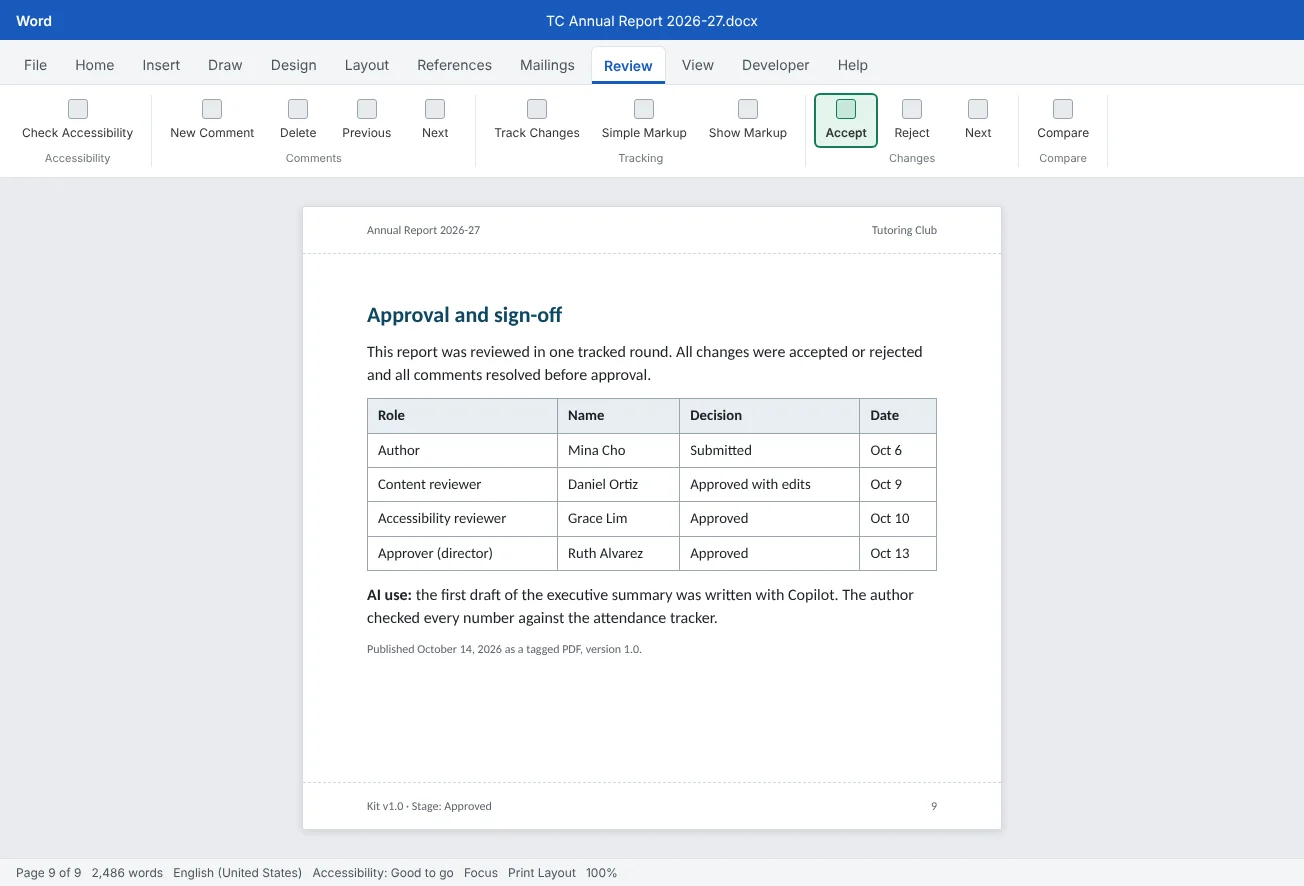
| 4. Annual Report 2026-27 built from the kit and taken through the workflow: a tracked review round, a sign-off table, a tagged PDF with bookmarks and a view-only link | The PDF passes your accessibility standard and every reviewer is in the sign-off table | Tutorial 6, Tutorial 7 |
| 5. Coached revision: you mentor a less experienced volunteer through fixing one of their documents with the feedback rubric | Their document improved, they made the changes themselves, and you have the before, the after and a mentoring log | Tutorial 8 |
The example file above is a kit-planning workbook: a kit inventory table to fill in, the policy outline headings, the raw text of a short annual report draft and a mentoring log template. You don't write the report's content from scratch; you build the system around it and push the report through it.
Plan the system
The parts depend on each other. The report must be built from the kit, so the kit comes first. The automation checks things the policy requires, so you write the policy outline before you write the macro. The coached revision uses the same rubric and standard as the report review. Plan about three weeks of evenings:
| When | Stage | You produce | Checkpoint |
|---|---|---|---|
| Week 1, days 1 to 2 | Inventory and outline | Kit inventory filled in; policy outline with one sentence per heading | You can name every template and who owns it |
| Week 1, days 3 to 5 | Stage 1: Template kit | Three .dotx files, style guide, samples, version 1.0 | A test letter from each template has no manual formatting |
| Week 2, days 1 to 2 | Stage 2: Automation | TC Tools.dotm with one macro (or one script) and a how-to | All test cases pass on copies |
| Week 2, days 3 to 4 | Stage 2: Policy | Review and governance policy, 2 to 3 pages, made from the report template | Two coordinators agree on the answer to three test questions |
| Week 2, day 5 to week 3, day 3 | Stage 3: Annual report | Report drafted from the kit, one tracked review round, sign-off, tagged PDF, view-only link | Every sign-off row filled in; PDF bookmarks match the headings |
| Week 3, days 4 to 5 | Stage 4: Coached revision | Before and after of a volunteer's document, mentoring log | The volunteer made every change themselves |
| End of week 3 | Finish | Kit v1.0 release note, rubric score, onboarding session | A new coordinator uses the kit without you |
Write down three decisions before Stage 1, because every later stage depends on them:
- Who owns the kit. One kit owner changes templates; everyone else sends requests. Without an owner, six people will improve the letter six ways.
- How versions are numbered. The club uses
v1.0for a release,v1.1for small fixes (a typo, a color) andv2.0for changes that make old documents look different (new styles, a new layout). - Which tool automates. If every coordinator uses Word for Windows or Mac, a VBA macro in a
.dotmis fine. If some only use Word for the web, which doesn't run VBA, choose a script you run yourself on the files, or a check people do by hand.
Stage 1: The template kit
A kit is more than templates. It is the templates plus what people need to use them correctly without you: a style guide, a sample of each document done well, and a version number so everyone knows whether they have the current one (Tutorial 1).
| Kit item | What it contains | Notes |
|---|---|---|
TC Letter.dotx | Letterhead in the header, date, address block and signature as content controls, Normal and one Heading style | One page; a different first page header so page 2 has only the page number |
TC Report.dotx | Cover, contents, Heading 1 to 3, Caption, a table style, a TC Note style, a sign-off table at the end | Used for the annual report, policies and manuals |
TC Form.dotx | Titled content controls (text, drop-down, date, check boxes), protected with Review | Used for sign-up and permission forms |
TC Style Guide (one page) | Fonts, colors, which style to use for what, naming rule, where the kit lives, how to request a change, change log | Made from the report template, published as PDF |
| Samples | One finished document per template: a family letter, a two-page handout, a filled-in sign-up form | Real content, no placeholders; people copy good examples more than they read rules |
Build each template on purpose. Start from a clean document, set the theme fonts and colors in Design[Family name], Choose the site), then use File
Stamp the version. Keep the template file names stable, because people learn them; put the version inside. Open each template, go to FileKit version, choose type Text, type the value 1.0 and click Add. Show it in the footer with Insert
Deploy it. Put the templates in the Kit folder synced to each coordinator's computer. Each coordinator opens File
- Which style for what, on one page
- Naming rule and change log
- Says how to request a change
Stage 2: Automation and the policy
Pick one chore (Tutorial 2). A good first automation is short, runs often and checks something your policy requires. The club's choice is a publish check: before any document becomes a PDF, update all fields and list what would block publishing (open tracked changes, open comments, an empty Title property, pictures without alt text). It doesn't change the text, which makes it safe to share.
Store it in a .dotm. Create a blank document and save it as Word Macro-Enabled Template (*.dotm) named TC Tools.dotm in the Kit folder. With the .dotm open, press Alt+F11 to open the Visual Basic Editor, select TC Tools in the Project pane, choose Insert
Option Explicit

Sub TC_PublishCheck()
    ' Tutoring Club kit v1.0: update fields, then list
    ' what still blocks publishing. It changes no text.
    Dim doc As Document, t As TableOfContents
    Dim pic As InlineShape, msg As String, noAlt As Long
    Set doc = ActiveDocument

    doc.Fields.Update
    For Each t In doc.TablesOfContents
        t.Update
    Next t

    If doc.Revisions.Count > 0 Then
        msg = msg & doc.Revisions.Count & " tracked changes open" & vbCr
    End If
    If doc.Comments.Count > 0 Then
        msg = msg & doc.Comments.Count & " comments open" & vbCr
    End If
    If Trim(doc.BuiltInDocumentProperties("Title").Value) = "" Then
        msg = msg & "Title property is empty" & vbCr
    End If
    For Each pic In doc.InlineShapes
        If Trim(pic.AlternativeText) = "" Then noAlt = noAlt + 1
    Next pic
    If noAlt > 0 Then
        msg = msg & noAlt & " in-line pictures without alt text" & vbCr
    End If

    If msg = "" Then msg = "All clear: fields updated, nothing open."
    MsgBox msg, vbInformation, "Tutoring Club publish check"
End SubMake it available. Load TC Tools.dotm as a global template: choose DeveloperTC_PublishCheck.
Test it on copies. Make a copy of the annual report draft and plant one problem per test. A check that has never caught a planted problem hasn't been tested.
| Test copy | Planted problem | Expected message |
|---|---|---|
| A | None (a clean, finished copy) | All clear: fields updated, nothing open. |
| B | Two tracked changes and one comment | 2 tracked changes open and 1 comments open |
| C | Title property deleted in File | Title property is empty |
| D | A picture with its alt text removed | 1 in-line pictures without alt text |
| E | A heading renamed, contents not updated | Contents shows the new heading after the run |
Write the results in a half-page how-to: what the macro does, how to load it, when to run it (before every PDF), what it doesn't check (floating pictures, headers and footers, color contrast, reading order) and who to tell if it fails. Say also that doc.Fields.Update only updates fields in the main text, and that in-line pictures marked as decorative are reported as missing alt text, so check those by eye. Limits are part of the documentation; a check people over-trust is worse than none.
from pathlib import Path
from docx import Document

APPROVED = {"Normal", "Title", "Heading 1", "Heading 2", "Heading 3",
            "List Bullet", "List Number", "Caption", "TC Note"}

for path in sorted(Path("Drafts").glob("*.docx")):
    doc = Document(path)
    title = doc.core_properties.title or "(no title)"
    off = sorted({p.style.name for p in doc.paragraphs
                  if p.style.name not in APPROVED})
    print(path.name, "|", title, "|", ", ".join(off) or "styles OK")
Write the policy (Tutorial 3, Tutorial 4, Tutorial 5). Use the policy outline in the practice file and the report template, and keep it to two or three pages. Every rule should answer a real question a coordinator will have.
| Policy part | What the club's version says |
|---|---|
| Stages | Draft (in Drafts, co-authored) → Review (one tracked round, comments) → Approved (sign-off table complete) → Published (PDF in Published) → Archived (after a year or when replaced) |
| Roles | Author writes; content reviewer checks facts and tone; accessibility reviewer checks the standard; approver (director or site lead) signs off; kit owner maintains templates and the .dotm |
| Naming and versioning | One working file per document, no final or new in names; OneDrive version history keeps earlier states. Published files: YYYY-MM-DD Title vX.Y.pdf; a correction after publishing makes v1.1 and moves v1.0 to Archive |
| Accessibility standard | Made from a kit template; Accessibility Checker shows no errors; Title property set; every picture has alt text or is marked decorative; tables have a header row; manual check of reading order, link text and color contrast; tagged PDF with bookmarks |
| Protection and sharing | Drafts shared with named people only; published files shared as Can view links; forms protected with Restrict Editing; Document Inspector before anything leaves the club; no student names, grades or contact details in shared or published files; sensitivity labels if your organization uses them |
| AI use | Copilot (in Microsoft 365 with a Copilot license) or another approved tool may draft or summarize; the author checks every fact, number and name against the source; never paste student or family personal data into a tool the club hasn't approved; the sign-off table notes which sections were AI-drafted |
Test the policy before you publish it: ask two coordinators three questions, for example Who approves a safety policy?, What do you call the second published version? and Can you put a student's first name in a newsletter? If their answers differ, the policy is unclear, not the coordinators.
Stage 3: The annual report through review
The annual report goes to grant funders, so it is the high-stakes test of the whole system. Create it from TC Report.dotx, paste the raw draft from the practice file with Ctrl+Shift+V (Keep Text Only), and give it the structure of a report readers act on (Tutorial 6): an executive summary with the three key numbers first, then programs by site, volunteers, finances, next year's goals and the sign-off page.
Run one tracked review round (Tutorial 3, Tutorial 4).
- Save the draft in
Draftsand turn on Reviewthen Tracking then Track Changes (Ctrl+Shift+E). To stop reviewers turning it off, use Review then Tracking then Track Changes then Lock Tracking. - Share the file with the reviewers only, with a deadline and a scope for each: the content reviewer checks facts and numbers, the accessibility reviewer checks the standard.
- Reviewers edit the shared file at the same time, with tracked changes and comments. If someone works offline on a copy, bring it back with Review
then Compare then Combine. - As author, go through every change with Review
then Changes then Next and accept or reject it; reply to each comment, then resolve it. Questions you can't settle go to the approver. - Run
TC_PublishCheck. When it reports nothing open, fill in the sign-off table and ask the approver to add their name and date.
Publish (Tutorial 7). Save a copy as the final .docx, run File2026-10-14 Annual Report 2026-27 v1.0.pdf and save it in Published.
Open the PDF and check it like a funder would: the bookmarks match the headings, the document title shows in the title bar, links work and the tables read in order. Then share it with Share and set the link to Can view in the link settings, so funders can read and download it but can't edit the club's copy. The exact wording of the link settings varies between OneDrive and SharePoint versions; what matters is that the link doesn't allow editing.
Stage 4: A coached revision
The last deliverable proves you can grow other people, not only documents (Tutorial 8). Ask a newer volunteer for a real document they made, such as a site flyer or a session handout. Agree on the goal first: they keep ownership, and you coach. You don't fix it for them.
- Diagnose. Rate their document with the feedback rubric from Tutorial 8: Beginning, Developing or Strong in each of its six areas (Structure, Formatting, Alignment and lists, Spacing and pages, Accessibility, Wording). Pick the one or two areas that would make the biggest difference. Ten comments at once teach nothing.
- Comment, don't rewrite. Add comments with Review
then Comments then New Comment (Ctrl+Alt+M) that name the problem and the skill, for example These four lines look like headings but are bold Normal text, so the contents and the Navigation pane can't see them. Try Heading 2. - Demonstrate one skill. Show the fix once, on one paragraph, in a test file, and let them do the rest in their own document.
- Review the revision. Rate the new version with the same rubric and compare it with the first. Write both sets of ratings, what changed and what's next in the mentoring log.
- Move them onto the kit. End by recreating their document from the right kit template, so the next one starts right.
Finish and score it
Release the kit. Put everything in its place: the three templates, TC Tools.dotm and its how-to, the style guide and samples in Kit; the policy and the annual report PDF in Published. Add a short release note at the top of the style guide's change log: v1.0, October 2026: letter, report and form templates; publish check macro; review and governance policy. From now on, a change to any template follows your own policy: a request, a test, a new version number and a line in the change log.
Score it with the rubric. Score your system, then ask the director or another coordinator to score it too. Give each row 0, 1 or 2 points.
| Criterion | Needs work (0) | Good (1) | Great (2) |
|---|---|---|---|
| Templates | Old documents copied as templates | Three .dotx files, but test documents still need manual fixes | Letter, report and form templates; test documents need no manual formatting |
| Style guide and versioning | No guide or version | Guide exists, but no version or change process | One-page guide, v1.0 in properties and change log, change request process |
| Deployment | Templates sent by email | In a shared folder, but people can't find them in Word | Appear under File > New > Personal for each coordinator; web path documented |
| Automation | None, or a macro nobody can run | Works on your computer only, untested | Stored in a .dotm (or a script), tested with planted problems on copies |
| How-to | No instructions | Says how to run it | Says how to load, when to run, what it doesn't check and who to tell |
| Policy | Missing or vague | Covers stages and roles only | Stages, roles, naming, accessibility, protection and sharing, AI use; tested with coordinators |
| Review round | Edits made without tracking | Tracked, but changes or comments left open | One tracked round, every change decided, comments resolved, sign-off table complete |
| Publishing | Only the .docx shared | PDF without tags or bookmarks, or an edit link | Tagged PDF with bookmarks, title set, inspected, view-only link, named by the rule |
| Coached revision | You fixed it for them | Comments given, but no before and after ratings | Focused comments, one demonstration, volunteer's own changes, rubric before and after, log |
| Handoff | The system lives in your head | Files are in place but nobody else has used them | A new coordinator onboarded with only your documents (see the challenge) |
Total: 20 points. 18 to 20: release v1.0. 14 to 17: fix the rows that scored 0 or 1 and release v1.0 after a second check. Below 14: return to the tutorial linked in the project brief for your lowest row, then come back to the system.
Common mistakes
| Mistake | What happens | Fix |
|---|---|---|
| Building the report first and the kit later | The report becomes the template, with its content and manual fixes copied into every new document | Build and test the kit first, then create the report from it |
| Putting the version in the template file name | Coordinators keep old shortcuts and old names, and nobody knows which file is current | Keep names stable; put the version in the custom Kit version property and the change log |
| Asking coordinators to enable all macros | Every macro-enabled file, including malicious ones, can now run | Use a trusted location for the .dotm, or a script if macros aren't allowed |
| Testing the macro only on a clean document | It reports "all clear" on documents it never really checked | Plant one problem per test copy and check that each one is reported |
| Writing a policy nobody tested | Two coordinators read it differently and send different versions | Ask three test questions; rewrite every rule that got two answers |
| Exporting the PDF with markup still in the file | Funders see tracked changes or comments, depending on the markup view | Decide every change, delete comments, inspect, then export and open the PDF |
| Fixing the mentee's document yourself | It looks better once, and they make the same mistakes next time | Comment, demonstrate once on a test file, and let them make every change |
Practice
Practice
Build and prove the Tutoring Club document system
Guided practice
Download the example file above. It is your kit-planning workbook: a kit inventory table, the policy outline headings, the raw text of a short Annual Report 2026-27 draft and a mentoring log template. Work through the project in order; each step is one stage of this lesson.
- Plan: fill in the kit inventory table (item, purpose, owner, version, status) and write one sentence under each policy heading. Set up the four folders.
- Kit: build
TC Letter.dotx,TC Report.dotxandTC Form.dotx, add a customKit versionproperty (Text,1.0) to each one, show it in the footer with a DocProperty field and make a sample document from each. - Style guide: write the one-page guide from the report template, with styles, colors, naming, where the kit lives, how to request a change and a change log. Point your personal templates location at
Kitand check Filethen New then Personal. - Automation: put
TC_PublishCheckinTC Tools.dotm(or write the script), load it, test it on five planted copies and write the half-page how-to. - Policy: turn the outline into a two- to three-page policy and test it with three questions on two coordinators.
- Report: create the annual report from the kit with the raw draft, run one tracked review round, settle every change and comment, run the publish check and complete the sign-off table.
- Publish: inspect the final copy, export a tagged PDF with heading bookmarks, check it, save it in
Publishedby the naming rule and share a Can view link. - Coach: run a coached revision with a newer volunteer, keep the mentoring log, then score the whole system with the rubric.
Independent challenge: Onboard a new coordinator in 30 minutes
Hand the whole kit to a coordinator who has never seen it, and run a 30-minute onboarding using only your documents. You may point, but not explain anything the documents don't say. A suggested agenda: 5 minutes reading the style guide; 10 minutes making a family letter from File
Reflect: which question from the new coordinator surprised you most, and what does it tell you about what your documents assumed?
Check your understanding0 of 4 correct
Pick an answer to see whether it's right and why.
Coordinators keep asking whether they have the current letter template. What is the best fix?
Stable names in one shared location mean everyone uses the same file, and the version inside it, plus a change log and one owner, tells people what changed and when.
Two of the six coordinators only use Word for the web. You want an automated publish check. What should you do?
Word for the web doesn't run VBA macros. Choose the tool that fits how people work and document the path for everyone.
The annual report has been reviewed. What must happen before you export the PDF for funders?
Turning off tracking doesn't remove existing markup, and depending on the markup view a PDF can show it. Settle every change, remove comments, inspect and get sign-off, then export and check the PDF.
A newer volunteer's flyer has fake headings, spaces for alignment and a picture without alt text. As their mentor, what do you do first?
Focused comments and one demonstration let the volunteer learn the skill. Fixing it yourself or listing every problem at once doesn't change what they do next time.
You're ready to move on when
Tick each one off as you go. Your ticks are saved in this browser only.
Related
Sources and further reading
Was this guide helpful? Spot a mistake? Send feedback · admin@arumsoft.com