How to Co-Author in Word with OneDrive, SharePoint, and Copilot
Edit the same document at once without conflicts, recover work with version history, and use Copilot for drafts and summaries while checking every claim.
- Level
- Expert
- Time
- 14 min read
- Updated:
- Applies to:
- Word for Microsoft 365, Word 2024, Word 2021, Word for the web
What you'll learn
- Set up a document for real-time co-authoring and know what can block it
- Work in the same file as others with presence, section owners and clear etiquette
- Use @mentions, assigned comments and the Editing, Reviewing and Viewing modes
- Restore an earlier version with Version History when something goes wrong
- Use Copilot in Word to draft, rewrite and summarize, check every claim, and follow a team AI policy
Example file
Expert Word - Co-authoring Plan.docx
Download the practice document used in this tutorial and follow along in Word.
Word document (.docx) · 38 KB
The annual report has six sections and five writers. In the previous tutorial you built a review pipeline for documents that pass from person to person. Drafting is different: everyone needs to write at the same time, in the same file, without overwriting each other.
This tutorial shows how real-time co-authoring works in Word, what it needs, and what quietly breaks it. Then it covers Copilot in Word: what it can help with, how to check what it writes, and how to agree as a team on when AI help is fine. Everything here also works without Copilot, and the practice shows that path too.
What co-authoring needs
Co-authoring means several people edit one document at the same time and see each other's changes within seconds. It isn't a separate feature you turn on. It happens when four conditions are true:
| Requirement | Why it matters | How to check |
|---|---|---|
| The file is saved in OneDrive or SharePoint (including Teams files) | Everyone must open the same copy online, not a copy on their own computer | The title bar shows the cloud location when you click the file name |
| The file is a .docx document | Older formats can't be co-authored | The title bar doesn't say Compatibility Mode |
| AutoSave is on | Changes are sent and received continuously | The AutoSave switch in the top-left corner is on |
| Co-authors have edit permission | With view permission, they can read and sometimes comment, but not edit | Check the link settings when you share |
To share the file, click Share near the top-right corner of the Word window. Type names or email addresses, or copy a link, and make sure the permission says the people can edit. A link is better than an attachment: an attachment creates a separate copy, and you are back to merging emailed versions.
Co-authors can use Word for Microsoft 365 on Windows or Mac, Word for the web, or the mobile apps. Older perpetual versions of Word may open the file but co-author poorly or not at all, so ask your team to use a current version or Word for the web.
Work together without collisions
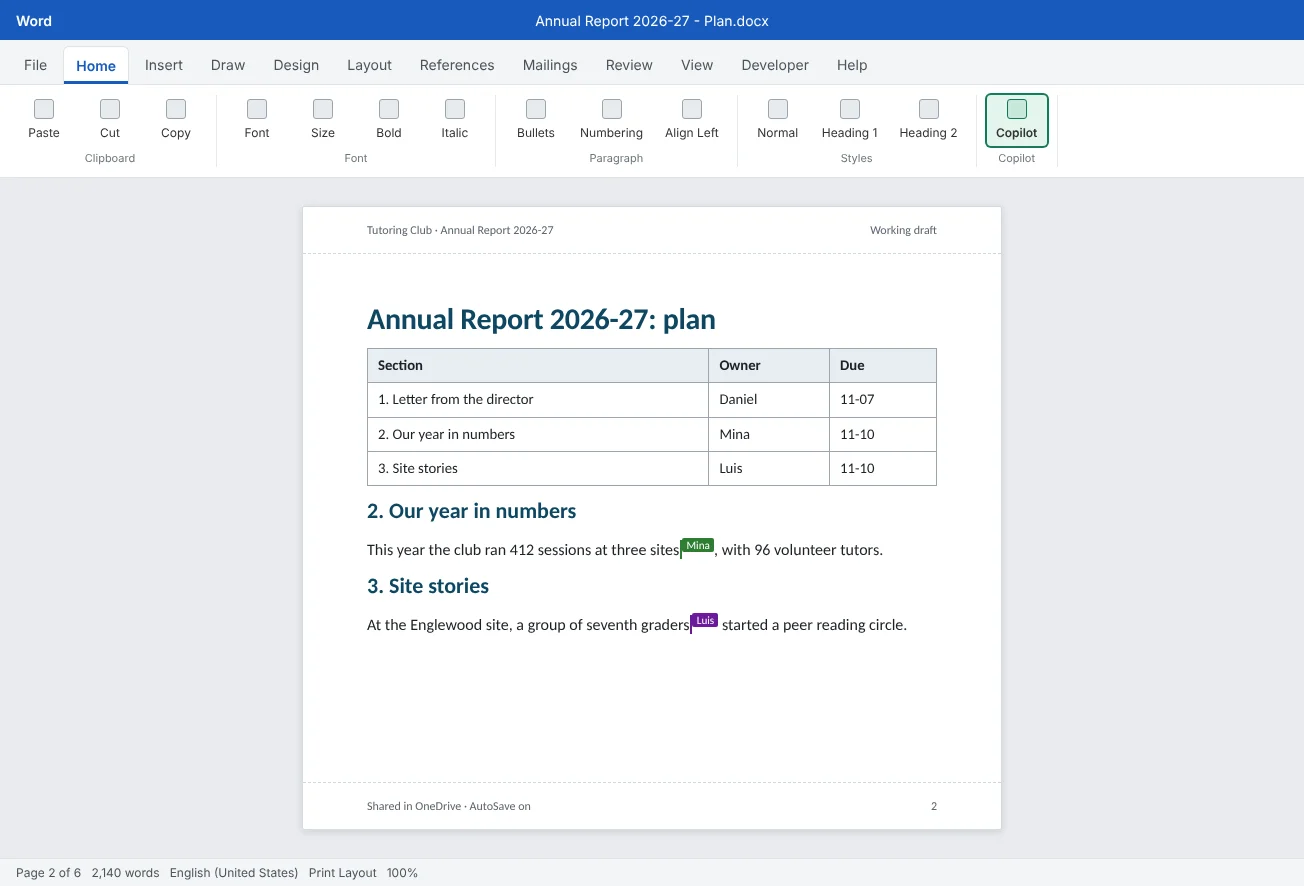
When others open the file, their pictures or initials appear near the top-right corner of the window. In the text, a colored flag or cursor shows where each person is working. Hover over it to see the name. Word sends changes every few seconds, so you see their typing appear almost live.
Word handles two people typing in different places well. Problems start when people work on top of each other. A few habits prevent almost all of them:
- Assign sections. Put an owner and a due date next to every heading, as in the plan above. Write in your own section; comment on everyone else's.
- Use headings as boundaries. With Heading styles applied, the Navigation pane (View
then Show then Navigation Pane) lets each person jump to their section, and nobody needs to scroll through others' work. - Don't change shared things while others write. Changing a style definition, the theme, margins or section breaks affects everyone's text. Agree on a time for those changes, or leave them to one person.
- Paste carefully. Pasting large blocks from other files brings in stray styles. Use Ctrl+Shift+V (Keep Text Only) and apply the template's styles.
- Say when you're done. Change your section's status in the plan table, or reply in a comment, so nobody has to guess.
What can block co-authoring
When co-authoring stops working, Word usually shows a message such as the file being locked or read-only, or it stops showing other people's changes. Check these common causes first:
| Cause | What you notice | What to do |
|---|---|---|
Old format (.doc) or Compatibility Mode | Compatibility Mode in the title bar; others can't edit at the same time | Use File |
| File opened from a downloaded or emailed copy | AutoSave is off and there are no other people in the file | Close it and open the file from OneDrive or SharePoint, or from the shared link |
| File is checked out in a SharePoint library | Others see it as locked or read-only | The person who checked it out checks it back in |
| Protection or encryption | Editing is restricted, or the file is marked as final or encrypted with a password | Remove the restriction if co-authoring is needed; some protection settings and password encryption can prevent it |
| Someone uses an old version of Word | That person's changes appear only after they save, or the file locks | Ask them to update Word or use Word for the web |
Microsoft's support article on co-authoring lists the current requirements and the features that can prevent co-authoring. The list changes as Word is updated, so check it when you hit a problem that isn't in this table.
Comments, @mentions and editing modes
Comments are where co-authors talk without changing each other's text. In a shared file they become a lightweight task list.
- @mention a co-author by typing
@and their name in a comment. In files on OneDrive or SharePoint, they usually get an email or notification with a link to the comment. - Assign a task. In Microsoft 365, especially with work or school accounts, a checkbox to assign the comment to the mentioned person may appear below your comment. The comment then shows who it is assigned to, and that person is notified. If you don't see the option, an @mention with a clear request works almost as well.
- Resolve a thread when the task is done, so open comments show only what is still left.
Editing modes. Recent versions of Word for Microsoft 365 and Word for the web have a mode button near the top-right corner of the ribbon. Its name and position vary by version, but the choices are usually:
| Mode | What it does | Use it when |
|---|---|---|
| Editing | Normal editing | You are writing your own section |
| Reviewing | Your edits are tracked as suggestions | You want to suggest a change in someone else's section |
| Viewing | You can read and comment, but not change the text | You are reading the whole report and don't want to change anything by accident |
Reviewing mode is a polite way to edit other people's sections: the owner sees your change as a tracked change and decides whether to keep it.
Restore work with Version History
With several people writing, sooner or later someone deletes a paragraph they shouldn't have, or pastes over a section. Undo (Ctrl+Z) only reverses your own recent actions. For anything bigger, use Version History.
- Go to File
then Info then Version History. You can also click the file name in the title bar and choose Version History. - The pane lists earlier versions with dates, times and, in many cases, who edited them.
- Click a version to open it in a separate window, read-only. Find the text you need.
- Either copy the missing part and paste it into the current document, or click Restore to make that version the current one.
Copying a single paragraph back is usually better than restoring, because restoring also removes everyone else's work since that version. Before you restore the whole file, tell your co-authors.
Use Copilot in Word
Copilot in Word is an AI assistant built into Word for Microsoft 365. You need a Microsoft 365 plan or license that includes Copilot; work and school accounts often need a separate Copilot license from the organization. Copilot is changing fast, so the buttons and menu names below may look different in your version.
There are two main ways in. The Copilot button on the Home tab opens a chat pane beside the document. In the document itself, a small Copilot icon may appear in the left margin next to an empty line or next to text you select; click it to see what Copilot offers there.
| Task | Where to start | Check afterward |
|---|---|---|
| Draft new text | On an empty line or a new document, choose the Copilot drafting option (often called Draft with Copilot) and describe what you want | Every fact, number, name and date. Copilot can state things confidently that are wrong |
| Rewrite a paragraph | Select the text, click the Copilot icon in the margin and choose a rewrite option | That the meaning hasn't changed and nothing important was dropped |
| Summarize the document | Open the Copilot pane and ask, for example, Summarize the main points of this document | That the summary matches the text, including the numbers |
| Ask about the document | In the pane, ask questions such as Which sections don't have an owner yet? | Find the answer in the document yourself before acting on it |
| Turn text into a table | Select a list or paragraph, click the margin icon and look for an option to show it as a table | That rows and columns are correct and nothing was invented |
Give Copilot clear instructions: who the text is for, how long it should be, the tone, and which facts to use. Write a 120-word opening for the Site stories section, for donors, warm but factual, using only the facts in the bullet list below works far better than write something about site stories.
Set a team policy for AI use
When five people write one report, they need the same rules for AI, or the report ends up with an uneven voice and unchecked facts. A short policy, written as part of the template kit or the review policy, is enough:
| Rule | Example for the Tutoring Club |
|---|---|
| What AI can be used for | Outlines, first drafts of descriptive sections, rewording, summaries for internal use, turning notes into tables |
| What it can't be used for | Final numbers, quotes from real people, safety rules, anything signed by the director |
| What never goes into a prompt | Students' and families' personal information, grades, health details, donor bank details |
| Who checks | The section owner checks every fact against the source before marking the section done |
| Disclosure | Mention AI help in a comment on the section, so reviewers know to check it closely, and copy it into the sign-off note before comments are deleted |
| Responsibility | The person who keeps the text owns it, exactly as if they had written it |
Pair the policy with a verification checklist that section owners run on any AI-assisted text: every number traced to a source, every name and date checked, no invented quotes or sources, the meaning of rewritten text unchanged, and the tone matching the template. The review pipeline then catches anything that slips through.
Common mistakes
| Mistake | What happens | Fix |
|---|---|---|
| Sharing the report as an email attachment | Everyone edits a separate copy and nobody co-authors | Save to OneDrive or SharePoint and share a link with edit permission |
| Opening a downloaded copy instead of the shared file | AutoSave is off and your edits never reach the others | Open the file from OneDrive, SharePoint or the shared link |
Keeping the file in .doc format | Co-authoring doesn't work, and Compatibility Mode appears | Use File |
| Changing styles or margins while others write | Everyone's sections change at once | Agree on a time for shared formatting changes, or give them to one person |
| Restoring an old version without warning anyone | Other people's recent work disappears | Copy back the part you need, or tell co-authors before restoring |
| Pasting Copilot's draft without checking | Wrong numbers or invented claims go into the report | Check every fact against the source and follow the verification checklist |
| Putting student details into a prompt | Personal information leaves your control and may break club rules | Describe the situation without names or personal details |
Practice
Practice
Co-author the annual report plan
Guided practice
Download the example file above and save it to OneDrive (a free Microsoft account works). It is a planning document for the Tutoring Club's annual report with sections assigned to people, a set of Copilot prompts to try, and a verification checklist. Ask a friend or classmate to co-author with you. If you work alone, open the file in Word for the web in a second browser window or on your phone to see presence.
- Check the requirements: confirm the file is a .docx, AutoSave is on and the title bar doesn't say Compatibility Mode. Click the file name in the title bar and note where the file is saved.
- Share: click Share, give your partner edit permission, and send the link. When they open it, find their picture or initials and their colored cursor.
- Write in parallel: each of you writes two or three sentences in your own assigned section at the same time. Use the Navigation pane to jump there.
- Comment and assign: in your partner's section, add a comment with an @mention asking for one missing number. If the assign option appears, assign it. Your partner answers and resolves it.
- Switch modes: if your Word has the mode button, switch to Reviewing and suggest a change in your partner's section, then switch to Viewing and try to type.
- Break and restore: delete one whole section, wait a minute, then open File
then Info then Version History, find a version that still has it, and copy the section back. - Copilot or by hand: if you have Copilot, try two prompts from the file and check each result with the verification checklist. Without Copilot, follow the Without Copilot instructions in the file for the same two tasks.
- Team AI rules: fill in the three empty rows of the AI policy table with rules you and your partner agree on.
Independent challenge: Catch the invented facts
Ask Copilot (or a partner, if you don't have Copilot) to write a 150-word donor update from the bullet list in the file, without giving it any numbers. Mark every claim in the result that isn't in the bullet list: highlight it, and add a comment saying what the source should be. Count how many claims needed checking, then rewrite the update so every statement can be traced to the list.
Reflect: which parts of your team's documents would you trust an AI draft for, and which parts would you always want a person to write and check?
Check your understanding0 of 4 correct
Pick an answer to see whether it's right and why.
A coordinator says co-authoring isn't working. The title bar shows Compatibility Mode. What is the likely fix?
Compatibility Mode means the file uses an older format such as .doc, which can't be co-authored. Converting it fixes that.
Someone pasted over Luis's whole section an hour ago, and others have written since. What is the safest way to get it back?
Copying only the lost section back keeps everyone else's newer work. Restoring the whole file would remove it, and Undo only covers your own recent actions.
Copilot drafted a paragraph that says the club served over 1,000 students. What should you do?
Copilot can produce confident but wrong statements. The person who keeps the text is responsible for it, so every claim gets checked against a source.
You want to suggest a change in a co-author's section without changing their text directly. What fits best?
Reviewing mode tracks your edits as suggestions, so the section owner decides whether to accept them.
You're ready to move on when
Tick each one off as you go. Your ticks are saved in this browser only.
Related
Sources and further reading
Was this guide helpful? Spot a mistake? Send feedback · admin@arumsoft.com