How to Run a Document Review and Version Workflow for a Team in Word
Move documents through clear stages, name versions so nobody edits the wrong file, assign reviewers, and merge feedback without losing changes.
- Level
- Expert
- Time
- 13 min read
- Updated:
- Applies to:
- Word for Microsoft 365, Word 2024, Word 2021, Word for the web
What you'll learn
- Move a document through clear stages, from draft to published, with an exit rule for each stage
- Write a simple who-does-what table so every stage has one person accountable
- Keep one source of truth and name versions so nobody edits the wrong file
- Set up each review stage with Track Changes, comments and Restrict Editing, and merge emailed copies with Combine
- Record sign-off, archive the published version as PDF and restore earlier versions when needed
Before you start
Example file
Expert Word - Review Workflow.docx
Download the practice document used in this tutorial and follow along in Word.
Word document (.docx) · 38 KB
The Tutoring Club now has several sites and a team of volunteer coordinators. When the Site Safety Policy needs an update, five people want a say: the author, two site coordinators, the director who approves it, and whoever posts it. Without a plan, you get six attachments called final, comments that never get answered, and a published PDF that is missing the director's last change.
This tutorial turns review into a repeatable pipeline. You will define the stages, decide who does what, keep a single shared file, use a version convention that everyone understands, and set up Word's review tools so each stage gets the kind of feedback it needs. The same pipeline works for the grant proposal, the annual report and the volunteer manual.
Map the stages from draft to published
A review workflow is a short list of stages that every important document passes through, in order. Each stage has a purpose, an owner and an exit rule: the condition that must be true before the document moves on. Five stages are enough for most teams:
| Stage | Purpose | Version | Exit rule |
|---|---|---|---|
| 1. Draft | The author writes and restructures freely | v0.1, v0.2… | Every section is written; the author has run Editor and the Accessibility Checker |
| 2. Peer review | Colleagues improve clarity and catch errors | next v0.x | Every comment is answered and every tracked change is accepted or rejected |
| 3. Content approval | The approver decides whether the content is right | next v0.x | The approver records a decision: approved, or approved with changes |
| 4. Final check | One person checks format, links, accessibility and hidden data | v1.0 candidate | The review checklist is complete and no markup is left |
| 5. Published | The document goes out and an archive copy is kept | v1.0 | A PDF is archived and the team knows where the current version lives |
Two rules keep the stages honest. First, content questions belong in stages 2 and 3, not in stage 4. If the final checker finds a content problem, the document goes back to the approver; it doesn't get quietly rewritten. Second, only move forward when the exit rule is met. A document with three open comments isn't finished with peer review, however close the deadline is.
Write the stages, owners and due dates into the document itself, in a short document control table on the first page or in an appendix. Anyone who opens the file can then see where it is in the pipeline without asking.
Decide who does what
Most review problems are really role problems: two people both think the other one is approving, or nobody owns the final check. A RACI table fixes this by giving each person one letter per stage:
- R, Responsible: does the work at this stage.
- A, Accountable: makes the decision and signs off. Exactly one person per stage.
- C, Consulted: gives input before the decision, usually as comments.
- I, Informed: is told when the stage is done.
| Person | Draft | Peer review | Content approval | Final check | Published |
|---|---|---|---|---|---|
| Ana (author) | A/R | R | R | C | I |
| Mina, Luis (site coordinators) | C | C | I | I | |
| Daniel (director) | I | A | I | A | |
| Sofia (final checker) | I | A/R | R |
Keep the table small. Use real names, not job titles alone, so there is no doubt who is meant. If one row has an A in every column, that person is a bottleneck; share the load. If a column has no A, nobody can say the stage is done.
Put the RACI table in the document control section, or in a short review plan document the whole team can open. In the practice file for this tutorial you will fill in one yourself.
Keep one source of truth and a version convention
The single most useful rule is this: there is one working file, and everyone edits it in the same place. Save it to OneDrive or a SharePoint site the team can reach, and share it with a link instead of attaching copies to email. Everyone then sees the same text, AutoSave keeps it saved, and Word keeps a version history for you.
Use a version number that everybody reads the same way:
| Version | Meaning | Example |
|---|---|---|
| v0.1 to v0.9 | Drafts. Raise the number each time the document moves to a new stage or round | v0.3 sent to peer review |
| v1.0 | The first published version | Approved and posted on 2026-10-21 |
| v1.1 | A small published correction, such as a phone number | Fixed the emergency contact |
| v2.0 | A major revision that went through the full pipeline again | Yearly update for the new sites |
Write dates as YYYY-MM-DD (2026-11-02). It is clear in every country and sorts correctly by name in any folder. Never use final, new or latest in a file name: the next round always proves them wrong.
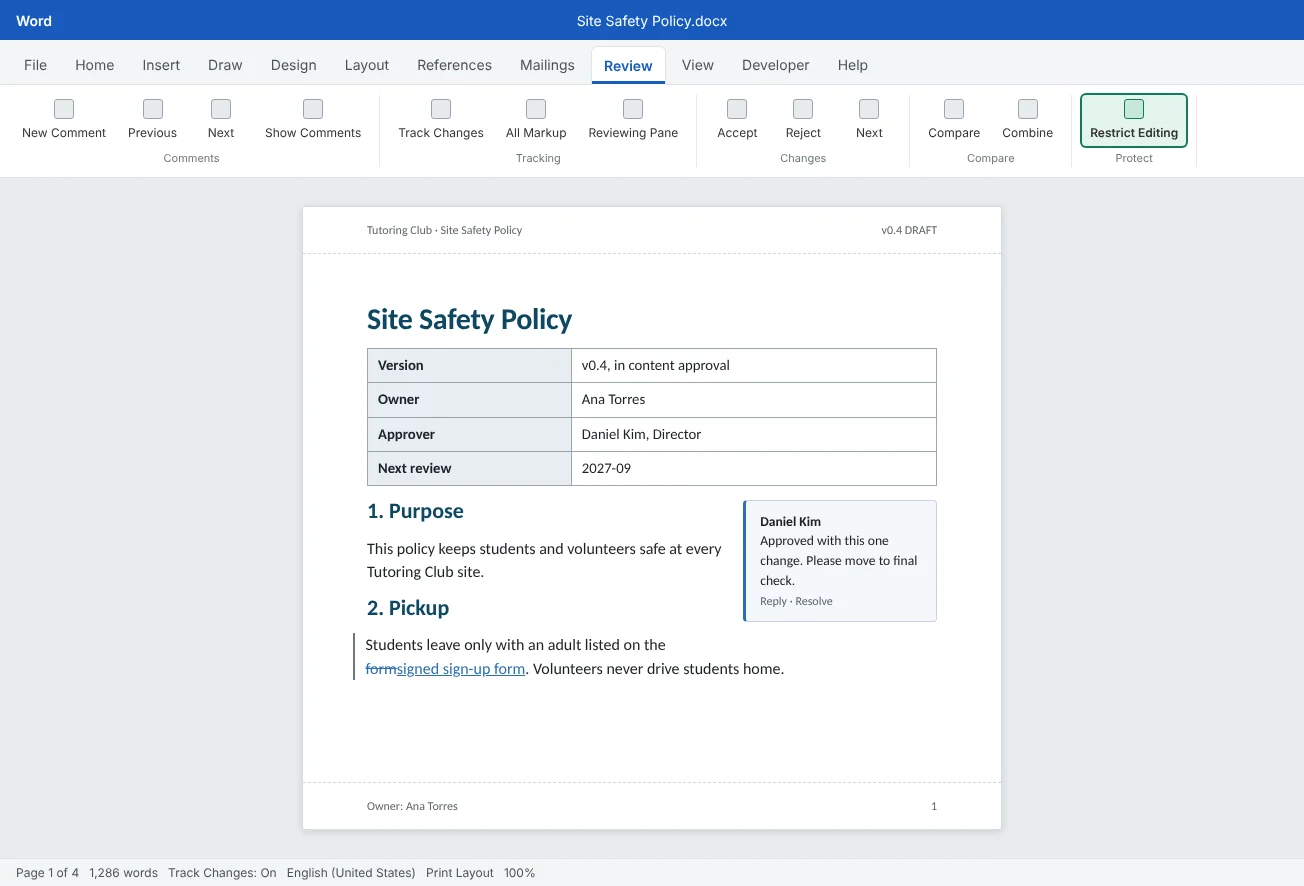
Where does the version number go? In the shared working file, keep the file name stable and put the version in the document control table and the header. Renaming a shared file every round confuses people who saved the link. Put the version and date in the file name only for copies that leave the shared folder, such as published PDFs or a copy you must email: Site Safety Policy v0.4 - for Daniel.docx.
Set up Word for each review stage
Each stage asks for a different kind of feedback, so set Word up to match. You learned the tools in Intermediate Tutorial 6; here you decide which one each stage uses.
| Stage | Track Changes | Comments | Restrict Editing |
|---|---|---|---|
| Draft | Off. The author restructures freely | Notes to self, if any | None |
| Peer review | On, for everyone | Questions and suggestions | Tracked changes only |
| Content approval | On | The approver's decision and any required changes | Comments only |
| Final check | On for the final checker's small fixes | Only if something must go back | None, then remove all markup |
| Published | Off, with no markup left | All deleted | Publish as PDF |
Restrict Editing turns these choices into rules Word enforces, so a reviewer can't edit without tracking or rewrite text you only wanted comments on.
- Go to Review
then Protect then Restrict Editing. - Under Editing restrictions, tick Allow only this type of editing in the document.
- Choose Tracked changes for peer review, or Comments for content approval.
- Click Yes, Start Enforcing Protection. Type a password if you want one, and store it where the team keeps shared passwords.
- When the stage ends, open the pane again and click Stop Protection.
With Tracked changes, every edit is recorded and nobody can turn tracking off. With Comments, people can add comments but can't change the text at all. The pane can also exempt parts of the document for certain people, but for most review rounds one setting for the whole document is enough.
Merge feedback and resolve conflicts
Sometimes a reviewer can't use the shared file: a board member without an account, or someone on a train with no connection. Send them a copy named with the version, and when the copies come back, merge them instead of retyping their edits.
- Go to Review
then Compare then Combine. - Under Original document, choose the first copy (or your working version). Under Revised document, choose a reviewer's copy.
- If the reviewer forgot to turn on Track Changes, type their name next to Label unmarked changes with, so their edits still show who made them.
- Click OK. Word creates a combined document with everyone's changes and comments, each labeled with its author.
- To add a third reviewer, combine the result with the next copy. Then save the combined file and bring its changes into the working file.
If both copies contain formatting changes, Word may ask which set of formatting changes to keep, because it can only store one. Choose the document whose formatting you trust, and check the result.
Resolving conflicts. When two reviewers change the same sentence in different ways, Word shows both edits. Word won't choose for you, and the author shouldn't guess either. Use a simple rule:
- Facts and policy rules: the person who is Accountable for content approval decides.
- Wording and style: the author decides, following the team's style guide.
- If the decision isn't obvious, reject both edits for now, write one comment that quotes both options and @mention the approver.
Record sign-off, publish and archive
An approval that only exists in someone's memory, or deep in an email thread, can't be checked later. Record it in the document. A short approval table at the end of the document control section is enough:
If you prefer, the approver can sign off in a comment ("Approved for v1.0, Daniel Kim, 2026-10-16"), and the author copies that line into the table before deleting the comments. Either way, the decision ends up in the text, where it survives the final cleanup.
Publish. After the final check, remove every comment and tracked change, update the control table to v1.0, and export a PDF with File2026-10-21 Site Safety Policy v1.0.pdf, and save it in a Published folder that only a few people can edit. That folder is the archive: when someone asks what the policy said last year, you open the matching PDF.
Version history. Because the working file lives in OneDrive or SharePoint, every saved state is kept. Go to File
Use a review checklist at the final check
The final checker works from the same list every time, so nothing depends on memory. Keep the checklist in the review plan, and tick it in the document control section or in a comment.
| Check | How |
|---|---|
| Content approval is recorded | The approval table has the approver's name, date and decision |
| No markup is left | All Markup view, Review |
| Version and dates match | Control table, header and PDF name all say the same version |
| Structure works | Headings use styles, the table of contents is updated (F9), cross-references point to the right place |
| Accessible | Review |
| Hidden data removed | File |
| Archived | The PDF is in the Published folder, and the team is told where the current version lives |
When the checklist is complete, the final checker writes the date in the approval table and publishes. If any check fails on content, the document goes back to the approver, not forward to readers.
Common mistakes
| Mistake | What happens | Fix |
|---|---|---|
| Emailing attachments for every round | Edits split across copies and someone edits an old one | Share one working file in OneDrive or SharePoint; email copies only when someone can't use the link, then Combine |
| Naming files final or final_final | Nobody can tell which is current or which was published | Use v0.x for drafts, v1.0 for published, and YYYY-MM-DD dates |
| Two people both think they are approving | Conflicting decisions, or no decision at all | Give each stage exactly one Accountable person in the RACI table |
| Letting reviewers edit without tracking | Changes slip in that nobody saw | Use Restrict Editing with Tracked changes for peer review |
| Rewriting content during the final check | The published version differs from what was approved | Send content problems back to the approver |
| Approval only in an email | Nobody can show later who approved what | Record the decision in the approval table inside the document |
| Relying on version history as the archive | It is hard to say exactly what was published, and when | Archive each published version as a dated PDF in a read-only folder |
Practice
Practice
Plan and run a review of the Site Safety Policy
Guided practice
Download the example file above. It contains a short draft of the Site Safety Policy, a document control table, an empty review plan table, an approval table and a list of file names a coordinator found in their inbox. Save it to OneDrive if you can, so you can try version history at the end.
- Fix the names: under Files found in the inbox, write the correct name for each item using the convention from this tutorial: a stable name for the working file, and dated, versioned names for the emailed copy and the published PDF.
- Fill in the review plan: complete one row per stage with the version, the Responsible person, the one Accountable person, the Restrict Editing setting and a due date. Check that every stage has exactly one A.
- Update the control table: change the version to v0.2 and the status to Peer review. Put the same version in the header.
- Protect for peer review: go to Review
then Protect then Restrict Editing, allow only Tracked changes and start enforcing protection without a password. Try to turn off Track Changes and notice that you can't. - Review as a peer: change your user name in File
then Options then General to Mina Park, make two tracked edits to the Pickup section and add one comment. Then stop protection. - Combine a copy: save a copy as
Site Safety Policy v0.2 - Luis.docx, make a different edit to the same Pickup sentence as Luis Romero, and use Reviewthen Compare then Combine to merge it with your working file. Resolve the conflict with the rule from this tutorial. - Sign off and publish: accept or reject everything, delete comments, fill in the approval table, set the version to v1.0, and export
2026-10-21 Site Safety Policy v1.0.pdf. - Version history: if the file is on OneDrive, open File
then Info then Version History and open an earlier version to see the draft before your review round.
Independent challenge: Write the team's one-page review policy
Turn what you decided into a one-page Document Review Policy for the Tutoring Club: the five stages with exit rules, the version and date convention, where working files and published PDFs live, which documents get the full pipeline, and the final checklist. Then send it through its own pipeline: one peer reviewer with Tracked changes only, one approver with Comments only.
Reflect: which document in your own work would have gone better with clear stages and one accountable approver, and what would you put in its review plan?
Check your understanding0 of 4 correct
Pick an answer to see whether it's right and why.
The final checker notices that a pickup rule contradicts the school district's policy. What should happen?
Content decisions belong to content approval. The final check covers format, links, accessibility and hidden data, so content problems go back to the approver.
Which file name follows the convention from this tutorial for a published version?
Published copies carry the date in YYYY-MM-DD form and a whole-number version. Words like final and new don't tell you anything.
You want peer reviewers to edit the text, but every edit must be recorded and nobody may switch tracking off. Which setting fits?
Allowing only Tracked changes lets reviewers edit while Word records every change and keeps tracking on.
Three reviewers sent back emailed copies with tracked changes. How do you bring their feedback together?
Combine merges the tracked changes and comments from two documents into one, labeled by author. Repeat it to add the next reviewer.
You're ready to move on when
Tick each one off as you go. Your ticks are saved in this browser only.
Related
Sources and further reading
Was this guide helpful? Spot a mistake? Send feedback · admin@arumsoft.com