Intermediate Word · Tutorial 7 of 9
How to Use Templates, Quick Parts, and AutoText in Word
Start from a template, save reusable blocks like signatures and notices as Quick Parts, and set up AutoCorrect entries that save typing.
- Level
- Intermediate
- Time
- 14 min read
- Updated:
- Applies to:
- Word for Microsoft 365, Word 2024, Word 2021, Word for the web
What you'll learn
- Explain the difference between a template (.dotx) and a document (.docx), and where Normal.dotm fits
- Start new documents from featured and personal templates without changing the template
- Save your own letter as a Word template and edit it safely later
- Save a signature block and a contact box as Quick Parts or AutoText and insert them in seconds
- Set up AutoCorrect entries for long phrases and insert document property fields
Before you start
Example file
Intermediate Word - Templates and Quick Parts.docx
Download the practice document used in this tutorial and follow along in Word.
Word document (.docx) · 37 KB
By now the Tutoring Club writes the same kinds of documents again and again: letters to families, flyers, sign-up sheets and chapters of the handbook. If every new letter starts by opening last month's letter and deleting the old details, sooner or later someone sends a family another child's name. Templates and reusable building blocks fix that problem at the root.
In this tutorial you will turn the club's family letter into a real Word template, save the signature block and the contact box as Quick Parts, and set up a few typing shortcuts. The handbook team can then start every new document from the same clean, correct starting point.
Templates versus documents
A template is a starting file. When you open it the normal way, Word does not open the template itself. It creates a brand-new, untitled document that copies everything in the template: text, styles, margins, headers and footers, and any building blocks stored in it. The template stays untouched, ready for next time.
| File | Extension | What it is |
|---|---|---|
| Word Document | .docx | A normal document. Opening it opens that exact file, and saving changes it |
| Word Template | .dotx | A starting file. Opening it with a double-click gives you a new copy to fill in |
| Word Macro-Enabled Template | .dotm | A template that can also hold macros. You won't need it for this course |
| Normal.dotm | .dotm | The hidden template behind every blank document. It stores Word's default styles, and it can also store your AutoText and Quick Parts |
Why bother with a template instead of reusing an old document? Three reasons. A new document from a template has no name yet, so you can't save over last month's letter by accident. It starts with placeholders such as [Family name] instead of real details that you might forget to change. And when the club changes its phone number, you fix one template instead of hunting through twenty old letters.
Start a document from a template
Go to File
- Featured (or Office): templates from Microsoft.
- Personal: templates you saved yourself. This tab appears once Word knows where your personal templates live, which is set up in the next section.
Click a template, look at the preview, and click Create. Word opens a new document with a name like Document2 in the title bar. That tells you that you are working on a copy. When you press Ctrl+S, Word asks for a new file name, which is exactly what you want.
Many Microsoft templates use placeholder text inside small boxes. Click a placeholder once and the whole sample text is selected, so you can type over it. Some templates also use their own theme and styles, so check Home
Save your own template
Any document can become a template. Start with a finished, correct letter, then make it general:
- Replace the details that change every time with clear placeholders in square brackets, such as
[Date],[Family name]and[Write your message here.]. - Keep everything that stays the same: the letterhead, styles, margins, footer and the closing.
- Go to File
then Save As, click Browse, and change Save as type to Word Template (*.dotx). - Word switches to your personal templates folder, usually
Documents\Custom Office Templates. Leave it there, name the fileTutoring Club Letter, and click Save. - Close the template. Now go to File
then New, open the Personal tab, and click your template to test it.
If the Personal tab doesn't appear, check FileC:\Users\you\Documents\Custom Office Templates. Add it, click OK, and look at File
Save reusable blocks as Quick Parts
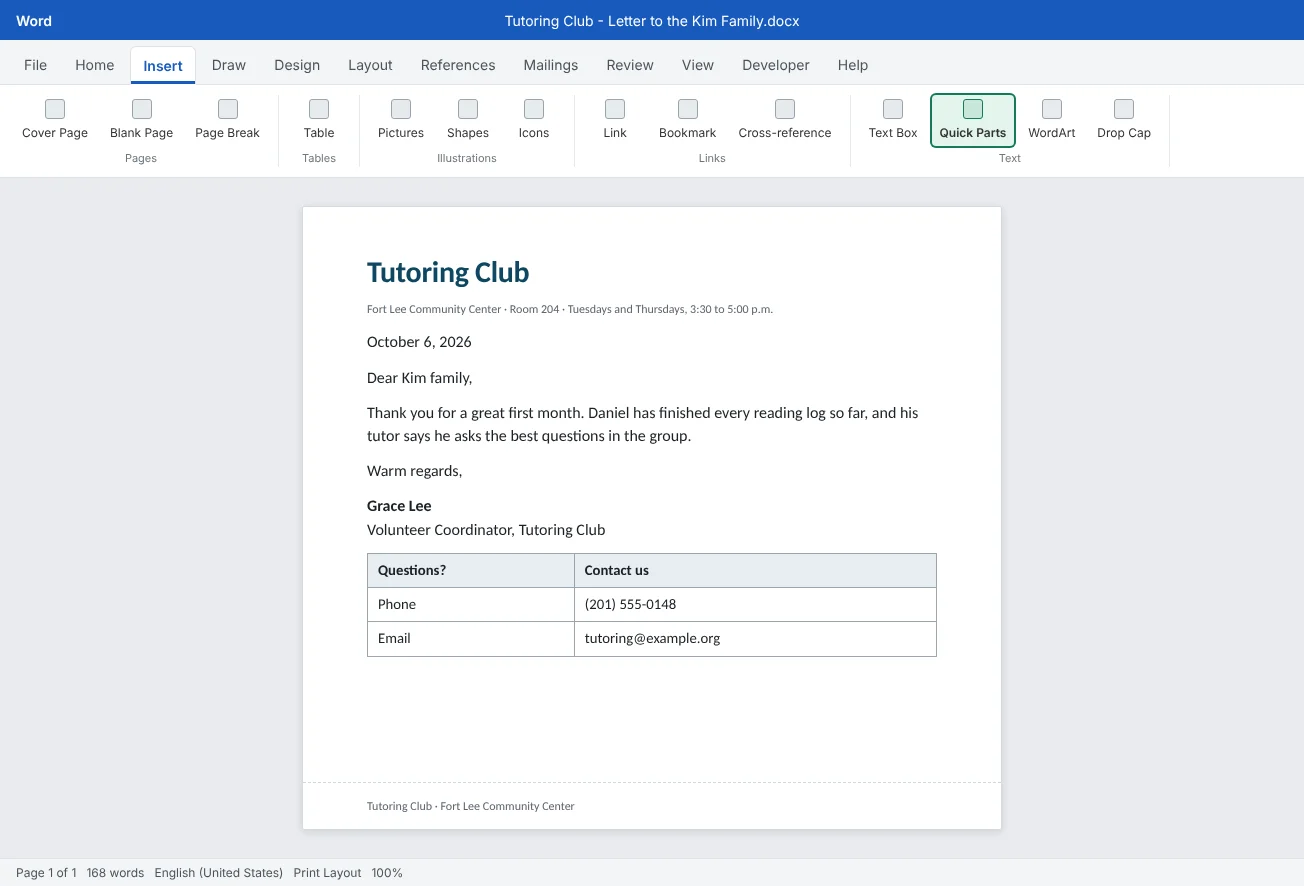
A template gives you a whole starting document. A Quick Part (Word calls it a building block) is a smaller piece you reuse inside any document: the coordinator's signature, the contact box, a photo permission notice, a standard table. Formatting, tables and pictures are saved with it.
To save one:
- Turn on Home
then Paragraph then Show/Hide ¶ (Ctrl+Shift+8) and select the signature block. Include the last ¶ mark so the paragraph formatting comes along. - Go to Insert
then Text then Quick Parts then Save Selection to Quick Part Gallery. - Fill in the Create New Building Block box (see the table below) and click OK.
| Box | What to enter |
|---|---|
| Name | A short, clear name, such as TC contact box, so you can find it in the gallery |
| Gallery | Quick Parts for things you pick from the menu. Other galleries include AutoText, Headers, Footers and Tables |
| Category | Optional. Create one such as Tutoring Club to keep the club's blocks together |
| Description | Optional. A short note shown when you point at the block |
| Save in | Which file stores the block. See the next section |
| Options | Insert content only, Insert content in its own paragraph, or Insert content in its own page. For a signature or a box, choose its own paragraph |
To use it, click where it should go, open Insert
AutoText, the Organizer and where blocks are saved
AutoText is another gallery of building blocks, made for things you insert by typing. Select the text, then use Inserttcsig, so they are quick to type and Word can tell where the name starts.
Over time the galleries fill up. Insert
| Save in | Where the block is available | Choose it when |
|---|---|---|
| Building Blocks.dotx | Every document on this computer | The block is for you, in any kind of document |
| Normal.dotm | Every document on this computer | Also fine for personal blocks. AutoText is often saved here by default |
| Your template (such as Tutoring Club Letter) | Documents made from that template, on any computer that has the template | Other volunteers should get the block too. Edit the template itself to save into it |
A simple rule: keep your personal blocks in Building Blocks.dotx or Normal.dotm, and put blocks the whole club needs in the club's template, so they travel with it when you share the .dotx file.
AutoCorrect entries for long phrases
AutoCorrect fixes typos as you type, such as teh into the. You can add your own entries to expand a short code into a long phrase, with no extra key to press. Word replaces the code as soon as you type a space or punctuation after it.
- Go to File
then Options then Proofing then AutoCorrect Options and stay on the AutoCorrect tab. - In Replace, type a code that is not a real word, such as
tcfl. - In With, type the full phrase:
Tutoring Club at the Fort Lee Community Center. - Click Add, then OK.
To keep formatting such as bold or italics, select the formatted text in your document before you open AutoCorrect Options, and choose Formatted text. Plain-text entries are shared with your other Office apps on this computer, which is handy for names you type in email too.
| Tool | How you insert it | Best for |
|---|---|---|
| AutoCorrect | Type the code and a space. Automatic | A long phrase or a name you type many times a day |
| AutoText | Type the name and press F3 | Several lines, such as a signature, that you want only when you ask for it |
| Quick Parts | Pick it from Insert | Larger blocks with tables or pictures, like the contact box |
Insert document property fields
Some details belong to the whole document, such as its title, the author or the company. Word stores them in File
The property appears in a small box called a content control. Type a new title into any copy and Word updates the property and every other copy in the document, which keeps the handbook consistent. Fill in the properties once in File
For automatic information such as the file name or the date the file was last saved, use Insert
Common mistakes
| Mistake | What happens | Fix |
|---|---|---|
| Reusing last month's letter as the starting point | Old names, dates and details slip into the new letter | Save one clean letter as a .dotx template with placeholders |
| Double-clicking the template to change it | Edits go into a new copy, and the template stays the same | Right-click the .dotx and choose Open; check the title bar ends in .dotx |
Saving the template as a .docx | Opening it edits the file itself, and it never shows on the Personal tab | Choose Word Template (*.dotx) in Save as type |
| Clicking Don't Save for Building Blocks.dotx when closing Word | New Quick Parts and AutoText disappear | Click Save when Word asks about building blocks |
| Using a real word as an AutoCorrect code | The word expands every time you type it | Use codes that aren't words, such as tcfl |
| Saving club blocks only in your own Normal.dotm | Other volunteers using the template don't get them | Save shared blocks in the club's template and share the .dotx |
Practice
Practice
Build the Tutoring Club letter template
Guided practice
Download the example file above. It is a real letter to one family, with a letterhead, a signature block and a contact box. You will turn it into a reusable template and save its repeating parts as building blocks.
- Placeholders: replace the date, the family name and the message paragraph with
[Date],[Family name]and[Write your message here.]. Leave the letterhead, the closing and the footer alone. - Quick Part: show ¶ marks, select the whole contact box table, and use Insert
then Text then Quick Parts then Save Selection to Quick Part Gallery. Name it TC contact box, make a category called Tutoring Club, and choose Insert content in its own paragraph. - AutoText: select the three-line signature block and save it with Insert
then Text then Quick Parts then AutoText then Save Selection to AutoText Gallery as tcsig. - Save as template: use File
then Save As with Word Template (*.dotx), keep the Custom Office Templates folder, and name it Tutoring Club Letter. Close it. - Test it: go to File
then New and open the template from the Personal tab (or double-click the file). Check that the title bar says Document, not .dotx. Fill in a short letter to the Park family. - Insert blocks: delete the signature, type
tcsigand press F3. Delete the contact box and put it back from Insertthen Text then Quick Parts. - AutoCorrect: add an entry that turns
tcflinto Tutoring Club at the Fort Lee Community Center. Type it in a sentence of the new letter and watch it expand. - Organizer: open the Building Blocks Organizer, find your two blocks, and look at which file each one is saved in. When you close Word, click Save if it asks about building blocks.
Independent challenge: A template for the handbook
Make a second template for new handbook chapters: a Heading 1 placeholder, two Heading 2 placeholders, a footer with the page number, and a Title property in the header from Insert
Reflect: which pieces of text do you type or copy most often, and which tool (template, Quick Part, AutoText or AutoCorrect) fits each one best?
Check your understanding0 of 4 correct
Pick an answer to see whether it's right and why.
You double-click Tutoring Club Letter.dotx in File Explorer. What opens?
Opening a template the normal way creates a new document from it. To edit the template itself, right-click it and choose Open.
You want to type a short name and press F3 to insert the coordinator's three-line signature. Which feature is that?
AutoText entries are inserted by typing their name and pressing F3. AutoCorrect replaces text automatically as you type.
Other volunteers will use the club's template on their own computers. Where should you save the club's contact box building block?
Building blocks saved in a template travel with it. Normal.dotm and Building Blocks.dotx stay on your own computer.
Which AutoCorrect code is the best choice for Tutoring Club at the Fort Lee Community Center?
A code that is not a real word only expands when you mean it. A real word like club would be replaced every time you typed it.
You're ready to move on when
Tick each one off as you go. Your ticks are saved in this browser only.
Related
Sources and further reading
Was this guide helpful? Spot a mistake? Send feedback · admin@arumsoft.com