How to Publish Word Documents as Tagged PDF, Web Pages and Print-Ready Files
Pick the right output for each reader, export accessible tagged PDFs, prepare print-ready files, turn documents into web pages, and keep every version in sync.
- Level
- Expert
- Time
- 14 min read
- Updated:
- Applies to:
- Word for Microsoft 365, Word 2024, Word 2021, Word for the web
What you'll learn
- Choose the right output for each audience: editable .docx, tagged PDF, PDF/A, printed booklet, web page or plain text
- Export a PDF with the right options: page range, heading bookmarks, document properties and accessibility tags
- Check a finished PDF for bookmarks, working links and tags before anyone else sees it
- Prepare print-ready files, including paper size, margins and a folded booklet with Book fold
- Publish to the web and keep every output in sync with one source .docx and a version number
Example file
Expert Word - Volunteer Manual.docx
Download the practice document used in this tutorial and follow along in Word.
Word document (.docx) · 38 KB
The Tutoring Club now runs at several sites, and the volunteer manual has many readers. New volunteers read it on a phone. The coordinators edit it. The community center wants a printed booklet for the front desk, the grant office wants an archived copy, and the website needs a page that says the same thing. If each of those is made by hand, they drift apart within a month.
In this tutorial you will treat the Word file as the single source and publish it in several formats: a tagged PDF with bookmarks, a PDF/A archive copy, a folded booklet, a web version and a plain-text summary. You will check each output and set up a simple system so the next update takes minutes, not an afternoon.
Pick the right output for each audience
Start with the reader, not the file type. Ask two questions: Does this person need to change it? and Where will they read it? The answers point to one format.
| Output | Best for | Watch out for |
|---|---|---|
| Editable .docx (or a shared link) | Coordinators who update the manual; reviewers who add comments | Only people who should edit get it. Everyone else gets a fixed copy |
| Tagged PDF | Volunteers, families and partners who read, print or use a screen reader | Tags only help if the Word file has real headings, alt text and table header rows |
| PDF/A | Archive copies: the version the grant office or board must keep for years | Embeds fonts and blocks some features, such as a password. Keep a normal PDF for everyday sharing |
| Printed booklet | The front desk binder and new-volunteer packets | Page count should be a multiple of 4. Check margins and a test print first |
| Web page | The club website, where people search and read on phones | Word's HTML is messy. Usually better to paste clean text into the site or link to the PDF |
| Plain text or email body | A short update or summary in an email or a text message | Loses all formatting, tables and pictures. Write a short version on purpose |
Most documents need two or three of these, not all six. For the volunteer manual the club picks: the .docx for coordinators, a tagged PDF for volunteers, a booklet for the front desk, and a PDF/A copy once a year for the records.
Export a PDF well
Before any export, run Review
Then go to File
| Option | What to choose | Why |
|---|---|---|
| Page range | All, Current page, Selection, or Page(s) from/to | Leave out a sign-up slip or publish one chapter on its own |
| Publish what | Document, not Document showing markup | Otherwise tracked changes and comments appear in the PDF. Better still, accept or reject them first |
| Create bookmarks using: Headings | Ticked | Readers get a clickable outline of the manual in their PDF reader's bookmarks panel |
| Document properties | Ticked | Carries the Title, author and other properties from File |
| Document structure tags for accessibility | Ticked | Screen readers can follow headings, lists, tables and alt text |
| ISO 19005-1 compliant (PDF/A) | Ticked only for the archive copy | Makes a self-contained PDF for long-term storage |
| Optimize for (in the Save box) | Standard for print and most uses; Minimum size for a quick email | Minimum size lowers picture quality. Never use it for the booklet |
Name the file so the reader knows what it is and which version, such as Tutoring Club - Volunteer Manual v1.3.pdf, and tick Open file after publishing so you go straight to checking it.
Check the PDF before you send it
Opening the PDF and scrolling is not a check. Spend five minutes on these tests, every time you publish.
| Check | How | If it fails |
|---|---|---|
| Bookmarks | Open the bookmarks or outline panel in your PDF reader. Every chapter and section should be there, in order | A missing entry is a fake heading. Apply the right heading style in Word and export again |
| Links | Click the table of contents entries, a cross-reference and one web link | Rebuild the link in Word with Ctrl+K; update the table of contents with F9 |
| Title | Look at the reader's title bar or document properties | Fill in Title in File |
| Tags and reading order | Use a reader's read-aloud feature, or a PDF editor or free checker that shows the tag tree | Fix the Word structure, not the PDF. Edits made in the PDF are lost at the next export |
| Pages and pictures | Page through at full-page zoom. Look for a blank last page and pictures that moved | Fix the layout in Word, then export again |
That difference matters. Print to PDF sends the pages to a virtual printer, so you get what a printer would get: ink on paper, no structure. Save as PDF (or Export) writes the document's structure into the file. Use Print to PDF only when an app has no other way to make a PDF.
Prepare print-ready files
A file that looks right on screen can still print badly. Settle these before you send anything to a printer or a print shop.
- Paper size. US printers use Letter (8.5 × 11 in); most other countries use A4. Set it in Layout
then Page Setup then Size in the source, not only in the Print screen. If you share files with a partner abroad, say which size the file is in. - Margins. Most office printers can't print to the edge of the paper. Keep at least about 0.5 in (1.27 cm) of margin and keep text and page numbers well inside it.
- Bleed is not a Word strength. Print shops use bleed (color or pictures that run past the trim edge) and crop marks. Word doesn't create either. For a full-color cover that runs to the edge, ask the shop what they accept, or design the cover in a layout app and keep the inside pages in Word.
A folded booklet. Word can arrange pages so that a stack of printed sheets folds into a booklet, with pages in the right order:
- Open the full Page Setup dialog: click the small arrow in the corner of Layout
then Page Setup, or Layout then Page Setup then Margins then Custom Margins. - On the Margins tab, under Pages, set Multiple pages to Book fold. Word switches the orientation to landscape; each Word page becomes half a sheet.
- Set Sheets per booklet to All for a short manual. Add a small Gutter for the fold, then click OK.
- Check the page count: each sheet holds 4 pages, so aim for a multiple of 4 (8, 12, 16). Add a notes page at the end rather than leave odd blanks in the middle.
- Print with File
then Print and choose Print on Both Sides with Flip pages on short edge, or Manually Print on Both Sides.
Always print one test booklet. Fold it, read the page numbers in order, and check that nothing sits in the fold. Print preview (Ctrl+P) shows each half page, but only paper shows you how the fold and the printer's margins really behave.
Publish to the web and share a view-only link
Word can save a web page with File_files folder. It rarely fits the look of your website, and it is hard to update.
Better options, from best to good:
- Paste clean text into the website's editor (CMS). Copy from Word and paste with Ctrl+Shift+V or the editor's paste as plain text, then apply the site's own headings and lists. Short pages stay readable on phones.
- Link to the tagged PDF. For a long manual, a short web page with a summary and a link such as Volunteer Manual (PDF, 8 pages, updated October 2026) is often best. Say it's a PDF in the link text.
- Link to the live document. If the file is on OneDrive or SharePoint, click Share, open the link settings, choose who can use the link and set it to Can view. People always see the latest version and can't change it.
Plain text and email. For an email update, write a short version on purpose: three or four sentences and a link. If a system needs a .txt file, use File
Keep every version in sync
The rule that keeps outputs honest: one source .docx, and every other file is made from it. Nobody edits the PDF, the booklet or the web page directly. To change anything, change the source and regenerate the outputs.
| Habit | How | Why it helps |
|---|---|---|
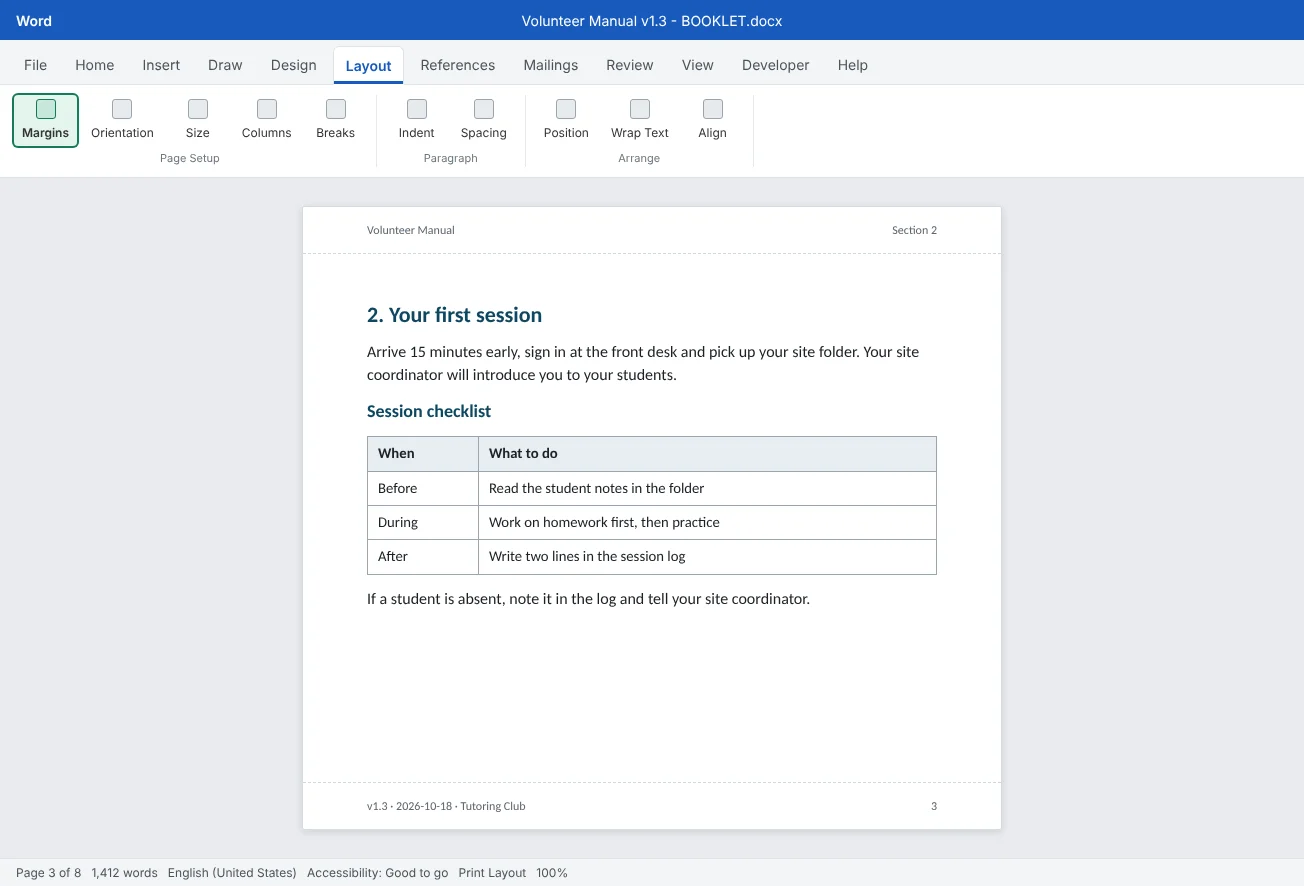
| Version number in the footer | Type a version and date in the footer, such as v1.3 · 2026-10-18, and update it each release | Anyone holding a printout can tell if it's current |
| An outputs folder | Keep Source and Outputs folders side by side, with one subfolder per version: Outputs/v1.3/ | You can find old outputs quickly, and you are less likely to send one by mistake |
| Matching file names | Same base name plus the version and format: Volunteer Manual v1.3.pdf, ... v1.3 - BOOKLET.pdf, ... v1.3 - ARCHIVE (PDF-A).pdf | You can see at a glance which files belong together |
| A release checklist | Accessibility Checker, update fields (Ctrl+A, then F9), export each output, check each output, upload, replace old links | The same steps in the same order every time |
| One place for links | The website and emails link to one stable page or file name, not to old copies in inboxes | Updates reach everyone without resending |
If several people edit the source, connect this to your review workflow (Tutorial 3 of this level): publish only from a version that has been approved, and record the version number in the approval note. In Tutorial 8 you'll coach other volunteers, and this folder system is one of the first habits worth teaching them.
Common mistakes
| Mistake | What happens | Fix |
|---|---|---|
| Sending the .docx to everyone | People change it by accident and send back different versions | Send a tagged PDF to readers; give edit access only to editors |
| Using Print to PDF | No bookmarks, links or tags; screen readers get nothing | Use File |
| Exporting with tracked changes still in the file | Comments and markup appear in the PDF, or vanish in some views and confuse readers | Accept or reject all changes first, and set Publish what to Document |
| Fixing typos in the PDF | The fix disappears at the next export | Fix the source .docx and regenerate every output |
| Setting Book fold in the source file | The everyday PDF comes out as landscape half-pages | Make a separate booklet copy and set Book fold there |
| Pasting Word HTML into the website | Pages look different from the rest of the site and break on phones | Paste as plain text into the site's editor or link to the PDF |
| No version on the page | Old printouts circulate and nobody notices | Put a version number and date in the footer of every output |
Practice
Practice
Publish the volunteer manual three ways
Guided practice
Download the example file above. It is a short Tutoring Club volunteer manual with real headings, a session checklist table and a picture placeholder. You will make it the single source and publish a tagged PDF with bookmarks, a printed booklet and a short plain-text summary.
- Set up folders: create a
Sourcefolder and anOutputs/v1.0folder. Save the file inSourceasVolunteer Manual - SOURCE.docx. - Version: open the footer and change it to
v1.0 ·plus today's date and the club name. Fill in Title in Filethen Info. - Check: run Review
then Accessibility then Check Accessibility. Add alt text to the picture placeholder (or mark it decorative) and make sure the table has a header row. - Tagged PDF: File
then Save As, type PDF, then Options…: All pages, Document, bookmarks from Headings, Document properties and structure tags ticked. Save as Volunteer Manual v1.0.pdfinOutputs/v1.0. - Check the PDF: open the bookmarks panel, click every entry, and confirm the title shows. Note anything missing and fix it in the source, not in the PDF.
- Booklet: save a copy as
Volunteer Manual v1.0 - BOOKLET.docx. In the Page Setup dialog set Multiple pages to Book fold, check that the page count is a multiple of 4, and look at the print preview. Save a PDF of it inOutputs/v1.0. - Plain text: write a four-sentence email summary of what changed, with a placeholder for the link to the PDF.
- Release: change one sentence in the source, update the footer to
v1.1, and regenerate only the outputs you need intoOutputs/v1.1. Time yourself.
Independent challenge: The archive copy
Export a third PDF with ISO 19005-1 compliant (PDF/A) ticked and name it Volunteer Manual v1.0 - ARCHIVE (PDF-A).pdf. Compare it with the everyday PDF: file size, whether the bookmarks are there, and which options Word greyed out. Then write two sentences for the club's governance policy that say when each PDF is used.
Reflect: which readers get which format from you now, and what would have to change so that an update reaches all of them on the same day?
Check your understanding0 of 4 correct
Pick an answer to see whether it's right and why.
The grant office must keep a copy of this year's safety policy that will still open correctly in ten years. Which output fits best?
PDF/A is the archiving standard. It embeds fonts and avoids features that depend on anything outside the file.
Your exported PDF has no entry for the chapter 'Safety and conduct' in its bookmarks panel. What is the most likely cause?
Create bookmarks using Headings builds the outline from heading styles. A fake heading gets no bookmark. Apply the style in Word and export again.
What is the best way to put a long volunteer manual on the club website?
Word's HTML is messy and hard to keep in sync. A summary page plus a link to the PDF or a Can view link keeps one source and stays readable.
A coordinator finds a typo after the PDF and booklet are published. What should happen?
One source, regenerated outputs. Fixes made in an output are lost at the next export, and the version number tells readers which copy is current.
You're ready to move on when
Tick each one off as you go. Your ticks are saved in this browser only.
Related
- How to Proofread, Print, and Save a Word Document as PDF
- How to Check Accessibility and Share a Word Document
- How to Set Up Pages in Word: Margins, Breaks, Headers, Footers, and Page Numbers
- How to Add a Table of Contents, Captions, and Cross-References in Word
- How to Teach Word and Give Document Feedback That Improves Writing
Sources and further reading
Was this guide helpful? Spot a mistake? Send feedback · admin@arumsoft.com