How to Format Text and Paragraphs in Word: Fonts, Spacing, and Alignment
Choose readable fonts and sizes, set line and paragraph spacing instead of pressing Enter twice, align text, and copy formatting with Format Painter.
- Level
- Beginner
- Time
- 15 min read
- Updated:
- Applies to:
- Word for Microsoft 365, Word 2024, Word 2021, Word for the web
What you'll learn
- Tell character formatting from paragraph formatting and apply each one the right way
- Choose a readable font, size and emphasis, and clear formatting that doesn't belong
- Align paragraphs and pick left, center or justified for the right reasons
- Set line spacing and space before and after paragraphs instead of pressing Enter twice
- Indent with the ruler or the Paragraph dialog, copy formatting with Format Painter, and use ¶ marks to find problems
Before you start
Example file
Word Basics - Session Guide.docx
Download the practice document used in this tutorial and follow along in Word.
Word document (.docx) · 36 KB
A document can have perfect words and still be hard to read: three fonts, a rainbow of colors, empty lines everywhere and every paragraph centered. Good formatting is mostly about being consistent and letting Word do the spacing for you.
In this tutorial you will take a messy session guide for the Tutoring Club and turn it into a clean, readable page. You will learn which settings belong to the characters and which belong to the whole paragraph, and you'll replace blank lines and typed spaces with real spacing and indents.
Character and paragraph formatting
Word has two kinds of formatting, and knowing which is which saves a lot of confusion.
| Character formatting | Paragraph formatting | |
|---|---|---|
| Examples | Font, size, bold, italic, underline, color, highlight | Alignment, line spacing, space before and after, indents |
| Applies to | Only the characters you select | The whole paragraph, from one ¶ mark to the next |
| To apply it | Select the exact text first | Click anywhere in the paragraph, or select several paragraphs |
| Where to find it | Home | Home |
The important difference is in the third row. To center a paragraph, you don't need to select it; the insertion point anywhere inside it is enough. To make one word bold, you do need to select that word (or have the insertion point inside it).
A paragraph's formatting is stored in its ¶ mark, the hidden mark Word adds when you press Enter. That's why a new paragraph keeps the alignment and spacing of the one before it: pressing Enter copies the ¶ mark's settings.
Choose fonts, sizes and emphasis
Select text, then use the Font group on the Home tab. Hover over a font in the list to preview it on your text before you click.
| Press | To |
|---|---|
| Ctrl+B / Ctrl+I / Ctrl+U | Turn bold, italic or underline on and off |
| Ctrl+] / Ctrl+[ | Make the text one point bigger or smaller |
| Ctrl+D | Open the Font dialog with every character setting |
A few rules keep documents readable:
- One or two fonts. One font for everything is fine. If you want two, use one for headings and one for body text. Word's default, Aptos, is a good body font.
- Body text at 11 or 12 pt. Smaller is hard to read when printed. Make headings bigger, not the body text.
- Bold for a few key words. If half the page is bold, nothing stands out. Use italic for titles of books and for light emphasis.
- Skip underline for emphasis. On screen, underlined text looks like a link.
- Dark text on a light background. Black or dark gray body text prints well and reads clearly. Save color for one or two accents, such as headings.
Clear formatting and start fresh
When text has been copied from several places, it is often faster to remove all its formatting than to fix it piece by piece.
- Clear All Formatting (Home
then Font then Clear All Formatting, the letter A with an eraser) removes everything from the selected text and returns it to the Normal style. - Ctrl+Space removes only character formatting (font, size, bold, color) from the selection.
- Ctrl+Q removes only paragraph formatting (alignment, indents, spacing) from the paragraph.
Align text
Alignment decides where each line of a paragraph lines up. Click in a paragraph and pick one of the four buttons in Home
| Alignment | Shortcut | Use it for |
|---|---|---|
| Align Left | Ctrl+L | Body text. The default and the easiest to read, because every line starts in the same place |
| Center | Ctrl+E | Titles, a flyer headline, a short line such as a date or a signature. Not for paragraphs |
| Align Right | Ctrl+R | A date or address at the right edge of a letter, page numbers |
| Justify | Ctrl+J | Newsletter columns or formal reports. Word stretches the spaces so both edges are straight |
Centered paragraphs are hard to read because each line starts somewhere new and your eye has to hunt for it. Justified text can leave wide gaps between words, especially in narrow columns or with long words. When in doubt, use Align Left for everything except the title.
Set line and paragraph spacing
There are two kinds of spacing, and both live in the paragraph settings:
- Line spacing is the space between the lines inside a paragraph.
- Paragraph spacing (Spacing Before and Spacing After) is the extra space between paragraphs.
The quickest place for both is Home
For exact numbers, use Layout
Why not press Enter twice? Empty paragraphs give uneven gaps, they can land at the top of a new page and push everything down, and you have to remember to add or remove them every time you edit. Spacing After changes every gap at once.
Indent paragraphs
An indent moves a paragraph, or one of its lines, in from the margin. Don't type spaces to do it: spaces never line up exactly, and they move when you change the font. Use one of these instead.
| Indent | What it looks like | Use it for |
|---|---|---|
| Left indent | The whole paragraph moves in | A quotation or a note set apart from the text |
| First line | Only the first line moves in | Book-style paragraphs, often with no space between them |
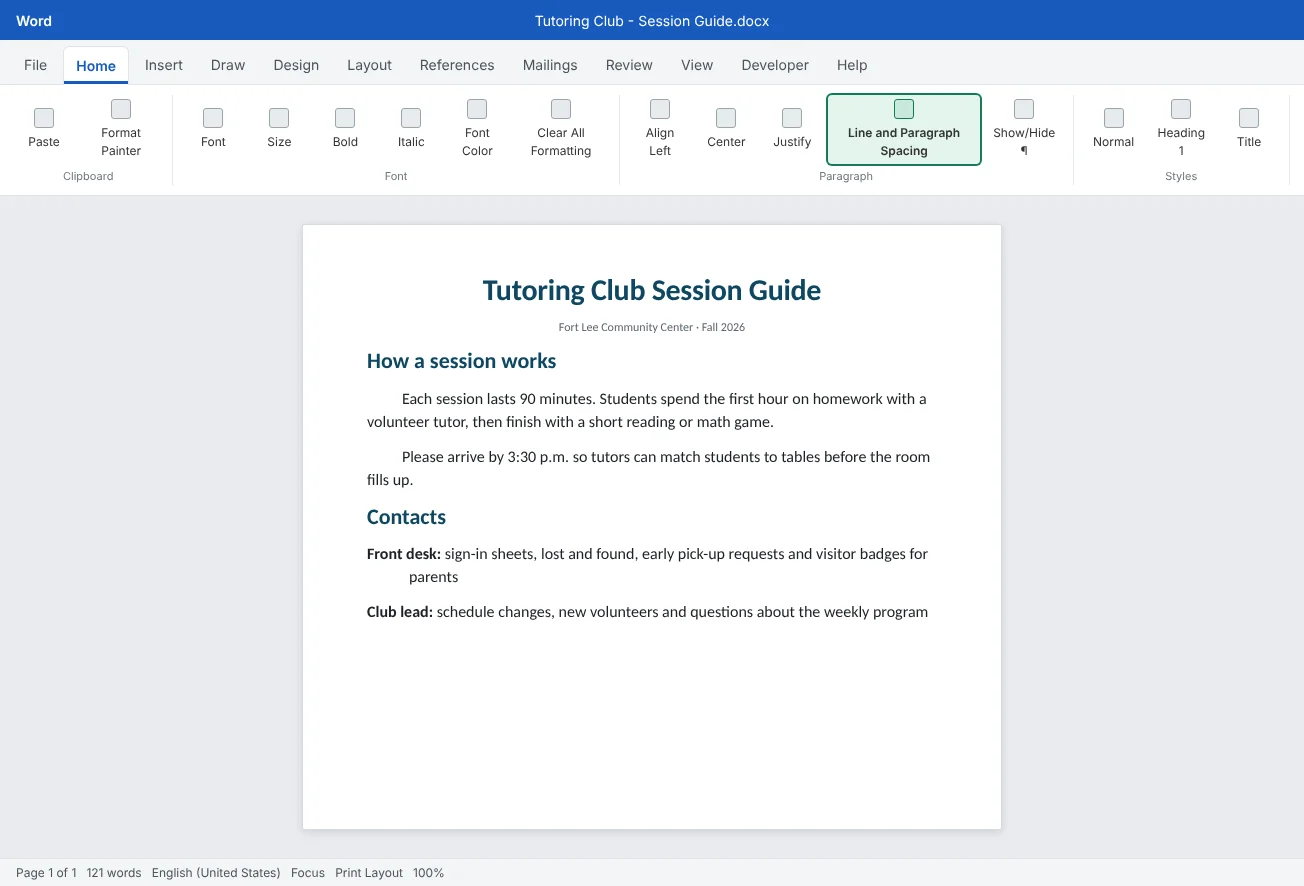
| Hanging | Every line except the first moves in | Lists of terms, contacts or references (bibliographies) |
In the Paragraph dialog. Click in the paragraph and open Home
On the ruler. Turn it on with View
Keyboard shortcuts: Ctrl+M moves the left indent in one step and Ctrl+Shift+M moves it back. Ctrl+T creates a hanging indent. Home
- Hanging 0.5" set in the Paragraph dialog
- Lines stay aligned at any font size
Format Painter and formatting marks
Format Painter copies formatting from one place and paints it onto another, so you don't have to remember which font, size and spacing you used.
- Click in the text that already looks right.
- Click Home
then Clipboard then Format Painter. The pointer turns into a paintbrush. - Drag across the text you want to change. To copy paragraph settings such as spacing and indents as well, paint over the whole paragraph.
Single click vs. double-click. A single click paints once, then the brush turns off. A double-click keeps the brush on, so you can paint several places in a row, such as every subheading. Press Esc or click Format Painter again to turn it off.
Use formatting marks to diagnose. When something looks wrong and you can't see why, turn on Home
- Dots = spaces, → = tab, ¶ = paragraph
- Marks never print
Common mistakes
| Mistake | What happens | Fix |
|---|---|---|
| Pressing Enter twice between paragraphs | Uneven gaps, and empty lines at the top of pages | Delete the empty paragraphs and set Spacing After |
| Typing spaces to indent | Lines never quite line up and shift when the font changes | Use a first-line or left indent on the ruler or in the Paragraph dialog |
| Centering every paragraph | Each line starts in a different place, so it is slow to read | Align body text left; center only titles and short lines |
| Using four fonts and lots of colors | The page looks messy and nothing stands out | Use one or two fonts, dark body text and color only for accents |
| Selecting a whole paragraph to change its alignment | Not wrong, but slower than needed | Click anywhere in the paragraph; alignment applies to all of it |
| Fixing pasted text one setting at a time | It takes ages and something is always missed | Select it and use Clear All Formatting, then reapply what you need |
| Forgetting Format Painter is still on | Every click changes more formatting | Press Esc after a double-click session |
Practice
Practice
Format the Tutoring Club session guide
Guided practice
Download the example file above and open it in Word. The session guide has the right words but the wrong formatting: mixed fonts and colors, empty paragraphs for spacing, spaces typed to indent and body text that is centered.
- Diagnose: press Ctrl+Shift+8 to show formatting marks. Find the empty ¶ lines and the rows of dots at the start of paragraphs.
- Clear: hold Ctrl and select the three body paragraphs in odd fonts and colors (not the headings between them), then click Home
then Font then Clear All Formatting. Leave the title alone. - Align: click in each centered body paragraph and press Ctrl+L. Keep only the title and the subtitle line centered.
- Spacing: delete every empty paragraph. Then select the body paragraphs and set Layout
then Paragraph Spacing After to 8 pt, and line spacing to 1.15 with Home then Paragraph then Line and Paragraph Spacing. - Indent: remove the spaces at the start of each paragraph in How a session works. Open the Paragraph dialog and set Special: First line, By: 0.3".
- Hanging indent: click in the first contact line and press Ctrl+T, or set Special: Hanging in the Paragraph dialog.
- Format Painter: click in the contact line you just fixed, double-click Format Painter, paint the other contact lines, then press Esc.
- Check: turn formatting marks off and zoom out with View
then Zoom then One Page. The page should have one body font, even gaps and straight left edges. Save the file.
Independent challenge: Two looks, one document
Save a copy of the finished guide. In the copy, change only the paragraph settings to create a book style: no space after paragraphs, a first-line indent of 0.3" and justified text. Compare the two versions side by side with View
Reflect: which formatting habit, such as pressing Enter twice or centering everything, did you use before, and what will you do instead now?
Check your understanding0 of 4 correct
Pick an answer to see whether it's right and why.
You want to center a paragraph. What do you need to select first?
Alignment is paragraph formatting, so it applies to the whole paragraph where the insertion point is. You only need to select when you change several paragraphs at once.
What is the best way to put more space between paragraphs?
Spacing After gives every gap the same size and changes them all at once. Empty paragraphs give uneven gaps and can land at the top of a page.
A list of contacts should have the second line of each entry lined up under the text, not the label. Which indent do you need?
A hanging indent moves every line except the first, so the wrapped lines line up neatly. Ctrl+T sets one quickly.
You want to copy one heading's formatting to six other headings. How should you use Format Painter?
A double-click keeps Format Painter on so you can paint many places in a row. A single click only paints once.
You're ready to move on when
Tick each one off as you go. Your ticks are saved in this browser only.
Related
Sources and further reading
Was this guide helpful? Spot a mistake? Send feedback · admin@arumsoft.com