Intermediate Word · Tutorial 1 of 9
How to Use Styles and the Navigation Pane in Word
Format headings and body text with styles instead of by hand, change a whole document at once, and move sections around in the Navigation Pane.
- Level
- Intermediate
- Time
- 15 min read
- Updated:
- Applies to:
- Word for Microsoft 365, Word 2024, Word 2021, Word for the web
What you'll learn
- Explain the difference between a style and direct formatting, and why styles save time
- Apply Normal, Title and Heading 1 to 3 from the gallery, the Styles pane or the keyboard
- Change a style once so every paragraph that uses it updates
- Restyle a whole document with Style Sets, theme fonts and theme colors
- Use the Navigation Pane to jump to, move and collapse whole sections, and diagnose odd formatting
Before you start
Example file
Intermediate Word - Styles.docx
Download the practice document used in this tutorial and follow along in Word.
Word document (.docx) · 37 KB
In Word Basics you made headings by clicking Heading 1 in the Styles gallery. That one click does much more than make text big and blue. It tells Word "this is a heading", and Word builds a lot on top of that: the Navigation Pane, a table of contents, PDF bookmarks and screen reader navigation.
In this tutorial you will clean up the club's 12-page Tutoring Handbook, where volunteers made headings by hand with bold and bigger fonts. You will turn them into real heading styles, change how every heading looks in one step, and reorganize chapters by dragging them in the Navigation Pane.
Styles vs. direct formatting
There are two ways to make text look a certain way. Direct formatting is what you apply by hand: select text, click Bold, pick 16 pt, choose a color. A style is a named set of formatting (font, size, color, spacing, indents and more) that you apply in one click, such as Heading 1 or Normal.
On a one-page flyer the difference hardly matters. On a 12-page handbook it matters a lot. If ten volunteers each make chapter titles "bold and big", you get ten slightly different headings, and Word has no idea any of them are headings at all.
| What styles give you | Why it matters in the handbook |
|---|---|
| Consistency | Every chapter title looks exactly the same, no matter who typed it |
| One-step changes | Change Heading 1 once and all 6 chapter titles update |
| Navigation | Headings appear in the Navigation Pane, so you can jump to any chapter and move it |
| Table of contents | Word builds the contents page from heading styles (next tutorial) |
| Accessibility | Screen reader users can jump from heading to heading, and an exported PDF gets bookmarks |
The rule of thumb: use styles for anything that repeats (headings, body text, notes) and keep direct formatting for small one-off touches, such as bolding a single word for emphasis.
Four ways to apply styles
To apply a paragraph style, click anywhere in the paragraph. You don't need to select the text first. Then use whichever of these is fastest for you.
| Method | How | Best for |
|---|---|---|
| Styles gallery | Home | Seeing what each style looks like |
| Keyboard | Ctrl+Alt+1, Ctrl+Alt+2, Ctrl+Alt+3 for Heading 1 to 3; Ctrl+Shift+N for Normal | Styling a long document quickly |
| Apply Styles box | Press Ctrl+Shift+S, type a style name, press Enter | Styles that aren't in the gallery |
| Styles pane | Click the dialog box launcher in Home | Seeing every style and managing them |
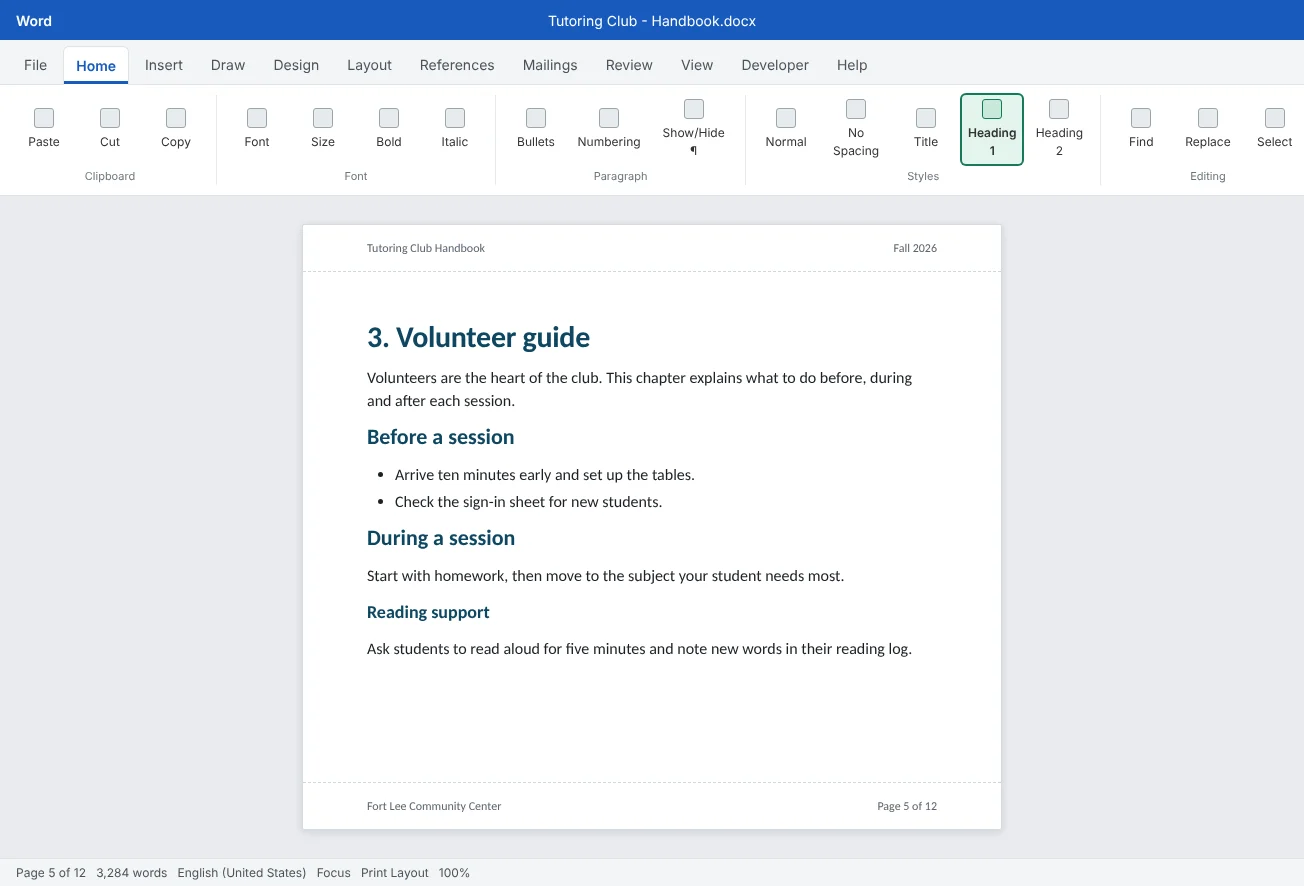
For the handbook, use this structure:
- Title for the cover title, Tutoring Club Handbook. Use it once.
- Heading 1 for each chapter: Welcome, Session rules, Volunteer guide, Subjects and materials, Schedule, Contacts.
- Heading 2 for sections inside a chapter, such as Before a session.
- Heading 3 for the rare sub-section under that, such as Reading support.
- Normal for all body text.
Don't skip levels. A Heading 3 directly under a Heading 1 confuses screen readers and makes the table of contents look odd. Go 1, 2, 3 in order.
Change a style once, update everywhere
Here is the real payoff. The club wants chapter titles in dark green to match its logo. Instead of recoloring six headings by hand, you change the Heading 1 style itself.
- In Home
then Styles, right-click Heading 1 and choose Modify. - In the Modify Style box, change the font, size or color with the quick buttons. For more, click Format at the bottom left and choose Font, Paragraph, Border or others.
- Leave Only in this document selected, so you don't change Heading 1 for every new document you create.
- Click OK. Every Heading 1 in the handbook changes at once.
There is a second way that feels more natural to many people: format one heading by hand until it looks right, keep the cursor in it, then right-click Heading 1 in the gallery and choose Update Heading 1 to Match Selection. Word copies that look into the style and every other Heading 1 follows.
| Setting in Modify Style | What it means |
|---|---|
| Style based on | The style it inherits from. Most styles are based on Normal, so changing Normal's font changes them too, unless they set their own |
| Style for following paragraph | What you get when you press Enter at the end. After Heading 1 it is Normal, so you can keep typing body text |
| Add to the Styles gallery | Shows the style in the Home |
| Only in this document / New documents based on this template | Whether the change stays in this file or becomes your default for new documents |
Restyle the whole document with Style Sets and themes
Sometimes you don't want to tweak one style; you want a different overall look. The Design tab changes all styles together.
- Style Sets (the gallery in the middle) change the look of Title, headings and Normal together: fonts, sizes, spacing and borders.
- Colors swaps the theme colors. Headings use theme colors, so they all change.
- Fonts swaps the theme font pair: one font for headings and one for body text.
- Paragraph Spacing sets spacing and line spacing for the whole document in one go.
This only works on text that uses styles and theme settings. In the Font list on the Home tab, the two fonts at the top, marked Headings and Body, are the theme fonts. If a volunteer picked Georgia by hand, that paragraph ignores the theme and stays Georgia. That is another reason to remove direct formatting before you restyle.
Move around with the Navigation Pane
Once your headings use styles, the Navigation Pane becomes a live outline of the handbook. Turn it on with View
| To do this | In the Navigation Pane |
|---|---|
| Jump to a chapter | Click its heading. The heading you're in is highlighted as you scroll |
| Move a whole chapter | Drag the heading up or down. All its text, pictures, tables and sub-headings move with it |
| Hide detail | Click the small triangle next to a heading to collapse its sub-headings |
| Change a level | Right-click a heading and choose Promote or Demote (Heading 2 becomes Heading 1, and so on) |
| Select a section | Right-click a heading and choose Select Heading and Content |
The club decided families should read Schedule before Volunteer guide. Without styles, you would cut two pages of text and paste them carefully in the right spot. With the Navigation Pane, you drag Schedule above Volunteer guide and you're done. If you numbered your headings by hand ("3. Volunteer guide"), remember to fix the numbers afterwards.
- Collapse only changes the view
- Collapsed text still prints
Collapsing works in the page too: hover over any heading and a small triangle appears to its left. Click it to hide everything under that heading while you work on another chapter. Right-click a heading and use Expand/Collapse to open or close all of them.
Diagnose formatting that looks wrong
Sometimes a heading looks right but doesn't show in the Navigation Pane, or one paragraph refuses to match the others. Word can tell you exactly why.
- Styles pane. Open it (Alt+Ctrl+Shift+S) and click in the paragraph. The style it uses is highlighted. If a "heading" shows Normal, it was faked.
- Style Inspector. At the bottom of the Styles pane, click the Style Inspector button. It shows the paragraph style and, separately, any direct formatting added on top. Use its eraser buttons to remove the extra formatting.
- Reveal Formatting. Press Shift+F1 to open a pane that lists every font, paragraph and section setting for the selected text, with links to change each one.
To strip direct formatting and let the style show through, select the text and press Ctrl+Space (removes character formatting such as bold and font size) or Ctrl+Q (removes paragraph formatting such as indents and spacing). The style stays; only the hand-made extras go.
Common mistakes
| Mistake | What happens | Fix |
|---|---|---|
| Making headings with bold and a bigger size | They don't appear in the Navigation Pane or a table of contents, and never quite match | Apply Heading 1, 2 or 3; use Ctrl+Alt+1 to go fast |
| Recoloring each heading by hand | Slow, and you will miss one | Right-click the style and choose Modify, or Update to Match Selection |
| Turning on Automatically update | One small change to one paragraph changes every paragraph with that style | Untick it in the Modify Style box |
| Skipping heading levels (Heading 1, then Heading 3) | The outline and table of contents look broken, and screen readers get confused | Use levels in order: 1, then 2, then 3 |
| Picking fonts from the list instead of using theme fonts | Changing the theme or Style Set doesn't affect those paragraphs | Clear direct formatting with Ctrl+Space and let the style set the font |
| Cutting and pasting pages to reorder chapters | Text gets lost or duplicated, pictures end up in the wrong place | Drag the heading in the Navigation Pane |
Practice
Practice
Turn a messy handbook draft into a styled one
Guided practice
Download the example file above and open it in Word. It is a shortened draft of the Tutoring Handbook. Every heading was made by hand with bold, sizes and fonts, and no two look quite the same.
- Look first: open the Navigation Pane with View
then Show then Navigation Pane and click Headings. It is empty, because none of the headings are real. - Title: click in Tutoring Club Handbook at the top and apply Home
then Styles then Title. - Chapters: click in each chapter title (Welcome, Session rules, Volunteer guide, Subjects and materials, Schedule, Contacts) and press Ctrl+Alt+1. Watch the Navigation Pane fill in.
- Sections: apply Heading 2 (Ctrl+Alt+2) to the smaller headings inside chapters, such as Before a session.
- Clean up: select the whole document with Ctrl+A and press Ctrl+Space to remove leftover fonts and colors. The styles stay.
- Modify: right-click Heading 1, choose Modify, and make it dark green and 18 pt. Check that every chapter title changed.
- Reorder: in the Navigation Pane, drag Schedule above Volunteer guide. Scroll through to confirm the whole chapter moved.
- Restyle: try three Style Sets in Design
then Document Formatting, then pick one you like and save the file.
Independent challenge: Make a club style
Create your own style for the short Tip for volunteers notes in the handbook. Format one note the way you like (for example, italic with a light left border and some space before), then open the Styles pane and click New Style. Name it Volunteer Tip, make sure it is based on Normal, and apply it to the other notes. Then change the style once and watch every note update.
Reflect: which document you work on often would be easier to manage if its headings were real styles, and what would you put in its Navigation Pane?
Check your understanding0 of 4 correct
Pick an answer to see whether it's right and why.
Why is Heading 1 better than making a heading bold and 16 pt by hand?
A style labels the paragraph as a heading. Word uses that label for navigation, the table of contents and accessibility, and you can restyle every heading in one step.
You want all 12 Heading 2 headings in the handbook to be dark green. What is the best way?
Changing the style itself updates every paragraph that uses it, including ones you add later.
In the Navigation Pane you drag the heading "Schedule" above "Volunteer guide". What moves?
Dragging a heading in the Navigation Pane moves the entire section under it, down to the next heading of the same or higher level.
A paragraph looks exactly like a chapter heading but doesn't show in the Navigation Pane. What is the most likely reason?
The Navigation Pane lists heading styles only. Open the Styles pane or Style Inspector to see that the paragraph uses Normal, then apply Heading 1.
You're ready to move on when
Tick each one off as you go. Your ticks are saved in this browser only.
Related
Sources and further reading
Was this guide helpful? Spot a mistake? Send feedback · admin@arumsoft.com