How to Use Bullets, Numbered Lists, and Tabs in Word
Make bulleted and numbered lists that renumber themselves, nest sub-points, and line up text with tab stops instead of spaces.
- Level
- Beginner
- Time
- 14 min read
- Updated:
- Applies to:
- Word for Microsoft 365, Word 2024, Word 2021, Word for the web
What you'll learn
- Make bulleted and numbered lists that renumber themselves when you add or move items
- Control Word's automatic lists and undo them when you don't want one
- Add sub-points with list levels, and restart or continue numbering
- Change bullet symbols and adjust how far a list is indented
- Line up text with left, center, right and decimal tab stops, with leader dots, instead of spaces
Example file
Word Basics - Lists and Tabs.docx
Download the practice document used in this tutorial and follow along in Word.
Word document (.docx) · 36 KB
Lists and columns of text are everywhere in real documents: steps to follow, things to bring, a weekly schedule, a price list. If you build them by typing 1. yourself or pressing the spacebar until things line up, they break the moment you add an item or change the font.
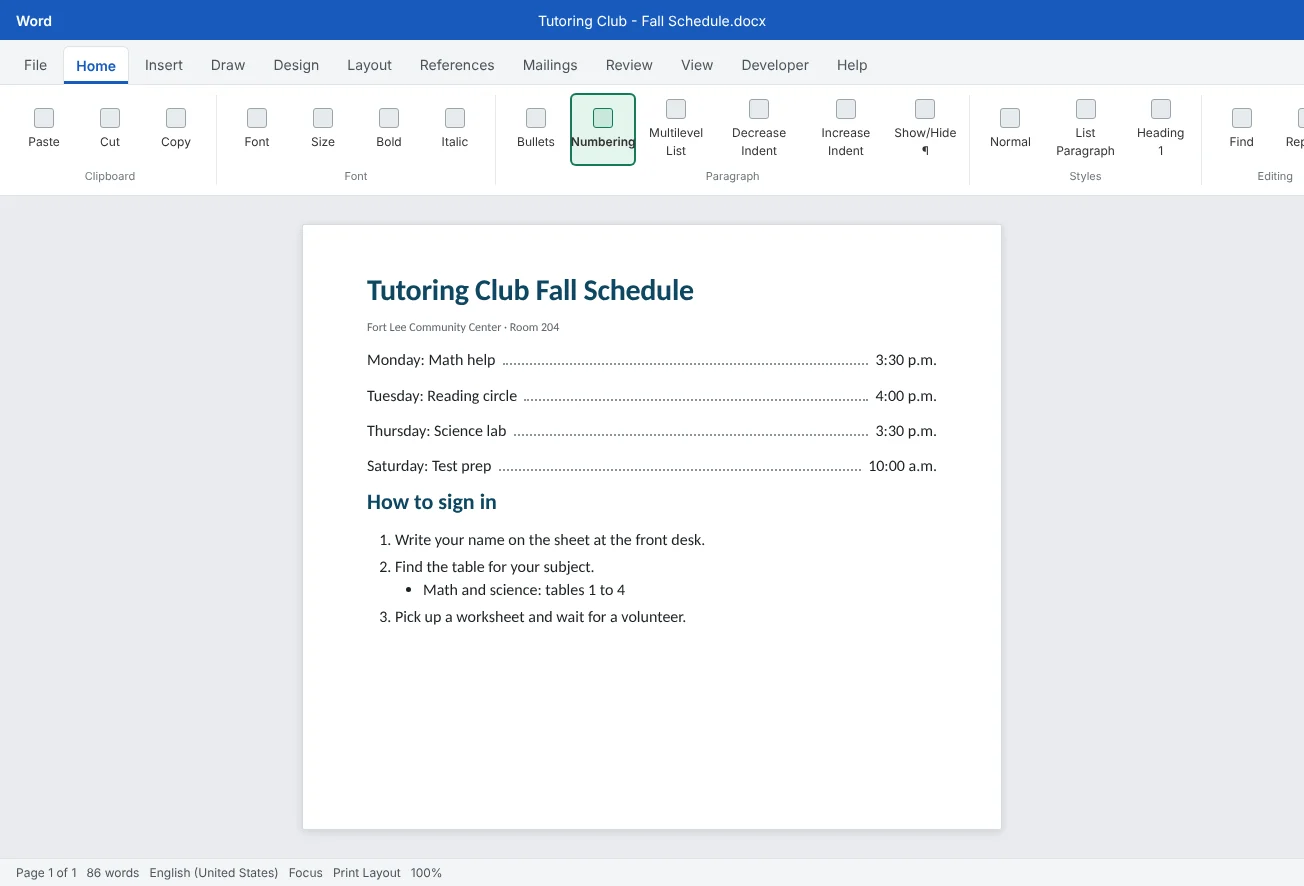
In this tutorial you will fix the Tutoring Club's weekly schedule and sign-in steps. You will turn hand-typed lines into real lists that number themselves, add sub-points, and line up the schedule with tab stops so it stays straight no matter what you change.
Make bulleted and numbered lists
Select the lines you want in a list (or click on an empty line to start a new one) and click Home
To end a list, press Enter twice: the second Enter on an empty item turns the list off. To remove the bullet or number from one item only, click at the start of it and press Backspace. To turn a whole list back into normal paragraphs, select it and click the same button again.
Automatic lists. Word also starts a list when you type 1. or - (or *) at the start of a line and press Space. This is part of AutoFormat As You Type. If you didn't want a list, press Ctrl+Z right away: Word keeps what you typed and drops the list. You can also click the small AutoCorrect Options button (a lightning bolt) that appears next to the item and choose to undo it, or to stop creating lists automatically.
| Use | When the order… | Examples |
|---|---|---|
| Bullets | doesn't matter | What to bring, club rules, topics covered |
| Numbers | matters, or people will refer to an item by number | Sign-in steps, a ranked list, questions on a worksheet |
Add sub-points with list levels
A list can have levels: a main point with smaller points under it. Click at the very start of an item (before its text) and press Tab to move it one level down. Press Shift+Tab to move it back up. Word changes the indent and the bullet or number style for each level.
The buttons do the same thing: Home
- Tab at the start of an item = one level down
Keep it shallow. Two levels read clearly; three or more usually means the list should be split into separate lists under their own headings.
Restart or continue numbering
A real numbered list renumbers itself: add, delete or drag an item and the numbers update. A list typed by hand doesn't, which is exactly how sign-in sheets end up with two step 2s.
Sometimes Word guesses wrong. A new list may carry on from an earlier one (starting at 5), or one list may restart at 1 halfway through. Right-click the number where it goes wrong and choose:
- Restart at 1 to begin a new list from 1.
- Continue Numbering to carry on from the list above.
- Set Numbering Value to start at any number you choose, such as 10.
Right after you click Numbering, a small AutoCorrect Options button may also offer Restart Numbering or Continue Numbering. Either way works.
Change bullets and list indents
Click the arrow next to Bullets to open the Bullet Library: dots, squares, check marks, arrows and more. Hover to preview, click to apply. The arrow next to Numbering works the same way for styles such as 1., 1), A. and i..
For a bullet that isn't in the library, choose Home
Indents. If the list sits too far right, or the text after the number wraps oddly, change the indent instead of adding spaces:
- With the ruler (View
then Show then Ruler): select the list and drag the markers on the ruler. The upper triangle moves the bullet or number; the lower triangle moves the text. - With a dialog: right-click any item and choose Adjust List Indents. Set the number position and the text indent exactly, and choose what follows the number: a tab, a space or nothing.
Why tabs, not spaces
Spaces look like a quick way to line up columns, but every letter in a normal font has a different width. Words that line up on your screen drift apart when you change the font, the size, or when someone opens the file on another computer. A tab stop is a fixed position on the line. Press Tab and the text jumps to the next stop, exactly, every time.
Without any tab stops of your own, Word uses default tab stops every half inch. That's why pressing Tab sometimes jumps too little or too far. Setting your own tab stops fixes this: then you need exactly one tab between columns.
| Tab stop | Ruler symbol | Text lines up… | Good for |
|---|---|---|---|
| Left | L | starting at the stop | Most columns: names, subjects, rooms |
| Center | ⊥ | centered on the stop | A title or label in the middle of a line |
| Right | ⅃ | ending at the stop | Times, page numbers, prices at the right margin |
| Decimal | ⊥. | on the decimal point | Amounts such as $1.50 and $12.00 |
Turn on Home
Set tab stops on the ruler
Tab stops belong to paragraphs, so always select first. To set them by eye:
- Turn on the ruler with View
then Show then Ruler. - Select all the lines of the schedule.
- Click the tab selector, the small box at the left end of the ruler, until it shows the type you want (left, center, right or decimal).
- Click the bottom edge of the ruler where you want the stop. A small tab marker appears.
- Repeat for each column, then put one Tab between the items on each line.
To move a stop, select the same lines and drag its marker along the ruler; the column moves with it. To clear a stop, drag its marker down off the ruler and let go.
If you need many rows and columns, or text that wraps inside a column, a table is usually the better tool. Tables are in Tutorial 6. Tabs are best for short, one-line rows like a schedule, a menu or a list of contacts.
Use the Tabs dialog and leader dots
For exact positions, or for leader dots (the row of dots between an item and its price or time), use the Tabs dialog. Select the lines, click the dialog box launcher in the corner of Home
- In Tab stop position, type where the stop goes, such as
6.5", the right margin of a Letter page with 1-inch margins. - Under Alignment, choose Right.
- Under Leader, choose option 2 (dots).
- Click Set, then OK.
- On each line, type the item, press Tab, and type the time or price. Word fills the gap with dots.
The same dialog clears stops: pick one in the list and click Clear, or click Clear All to remove every stop from the selected paragraphs. Default tab stops at the top sets the spacing Word uses where you haven't set your own.
Common mistakes
| Mistake | What happens | Fix |
|---|---|---|
Typing 1., 2., 3. by hand | Numbers don't update when you add, delete or move a step | Delete the typed numbers and use Home |
| Lining up columns with the spacebar | Columns drift when the font or size changes | Set tab stops and use one Tab between columns |
| Pressing Tab several times to reach a column | Adding one word pushes the rest of the line to the next stop | Set a tab stop where the column should be, then press Tab once |
| A new list continues from an old one (starts at 5) | Readers think steps are missing | Right-click the first number and choose Restart at 1 |
| Changing tab stops with only one line selected | That line no longer matches the others | Select every line of the schedule first, then set or drag the stops |
| Typing dots by hand between an item and its price | The dots never end in the same place | Use a right tab stop with a dot leader in the Tabs dialog |
| Fighting an unwanted automatic list | Word keeps adding bullets or numbers as you type | Press Ctrl+Z right away, or use the AutoCorrect Options button |
Practice
Practice
Fix the Tutoring Club schedule and sign-in steps
Guided practice
Download the example file above and open it in Word. It holds a weekly schedule lined up with spaces, sign-in steps typed with numbers by hand, and a snack price list with typed dots. You will rebuild all three properly.
- Look first: turn on Home
then Paragraph then Show/Hide ¶ and look at the schedule. Count the dots (spaces) between columns. Notice how uneven they are. - Numbers: delete the typed numbers in front of each sign-in step, select the four steps and click Home
then Paragraph then Numbering. If the list starts at 2 or 5, right-click the first number and choose Restart at 1. - Sub-point: click at the end of step 2, press Enter, press Tab and type Math and science: tables 1 to 4. Check that steps 3 and 4 kept their numbers.
- Bullets: the "What to bring" lines start with a typed dash. Remove the dashes, select the lines and click Bullets. Try a different symbol from the Bullet Library.
- Tabs: in the schedule, replace each run of spaces with a single Tab. Select all the schedule lines and set left tab stops on the ruler for the Subject and Room columns, and a right tab stop for Time.
- Leaders: in the price list, delete the typed dots and spaces and put one Tab before each price. Select the lines, open the Tabs dialog, and set a right tab at the right margin with leader 2.
- Test it: select the whole document and change the font size to 14 pt, then back. Your columns and numbers should stay perfectly in line. Save the file.
Independent challenge: A decimal price list
Add a second column of prices for members, such as $0.75 and $10.50. Use a decimal tab stop for it so all the decimal points line up, even when one price has more digits than another. Then clear the old stops you no longer need with Clear in the Tabs dialog.
Reflect: which document you use often, such as a menu, schedule or contact list, is lined up with spaces right now, and how would tab stops make it easier to update?
Check your understanding0 of 4 correct
Pick an answer to see whether it's right and why.
You typed "1." and a space, and Word turned the line into a numbered list you didn't want. What is the quickest fix?
Ctrl+Z straight after the automatic change undoes the list but keeps what you typed. The AutoCorrect Options button offers the same choice.
How do you turn a list item into a sub-point one level down?
Tab at the start of an item moves it down a level; Shift+Tab moves it back up. Increase Indent and Decrease Indent do the same.
Which tab stop should you use to line up prices like $1.50 and $12.00 on their decimal points?
A decimal tab stop lines up numbers on the decimal point, so amounts with different numbers of digits still line up.
A new numbered list starts at 5 because it continues an earlier list. What should you do?
Restart at 1 begins a new list from 1. Continue Numbering does the opposite, and Set Numbering Value lets you choose any start number.
You're ready to move on when
Tick each one off as you go. Your ticks are saved in this browser only.
Related
Sources and further reading
Was this guide helpful? Spot a mistake? Send feedback · admin@arumsoft.com