How to Build a Word Template Kit Your Team Can Use
Turn a good template into a kit: tested styles, building blocks, sample documents and a one-page guide, deployed so everyone starts from the same file.
- Level
- Expert
- Time
- 15 min read
- Updated:
- Applies to:
- Word for Microsoft 365, Word 2024, Word 2021, Word for the web
What you'll learn
- List what belongs in a template kit and why each part is there
- Build one template per document type that shares one style system and its building blocks
- Test a template the way a new volunteer will use it before you share it
- Deploy the kit so everyone's File > New shows the current templates
- Name, version, retire and improve templates without breaking existing documents
Before you start
Example file
Expert Word - Template Kit.docx
Download the practice document used in this tutorial and follow along in Word.
Word document (.docx) · 38 KB
In the Advanced tutorial on custom templates you built one solid template. That works while one person uses it. Now the Tutoring Club has three sites and a team of volunteer coordinators, and each of them makes letters, handouts, reports and forms. If everyone copies an old file, the club soon has twelve slightly different logos and fonts.
A template kit fixes that. It is a small, tested set of templates plus the things that help people use them well: a one-page guide, sample documents, shared building blocks and approved images, all kept in one place with a version number. In this tutorial you will plan the kit, build and test it, deploy it to the team, and set up a simple way to update it.
What goes in a template kit
A kit answers the question every new coordinator has: which file do I start from, and how do I use it? Each part does one job.
| Part | What it is | Why it's there |
|---|---|---|
| Templates | One .dotx per document type: TC Letter, TC Handout, TC Report, TC Sign-up Form | Each type has its own page setup and placeholders, but all of them share the same styles and theme |
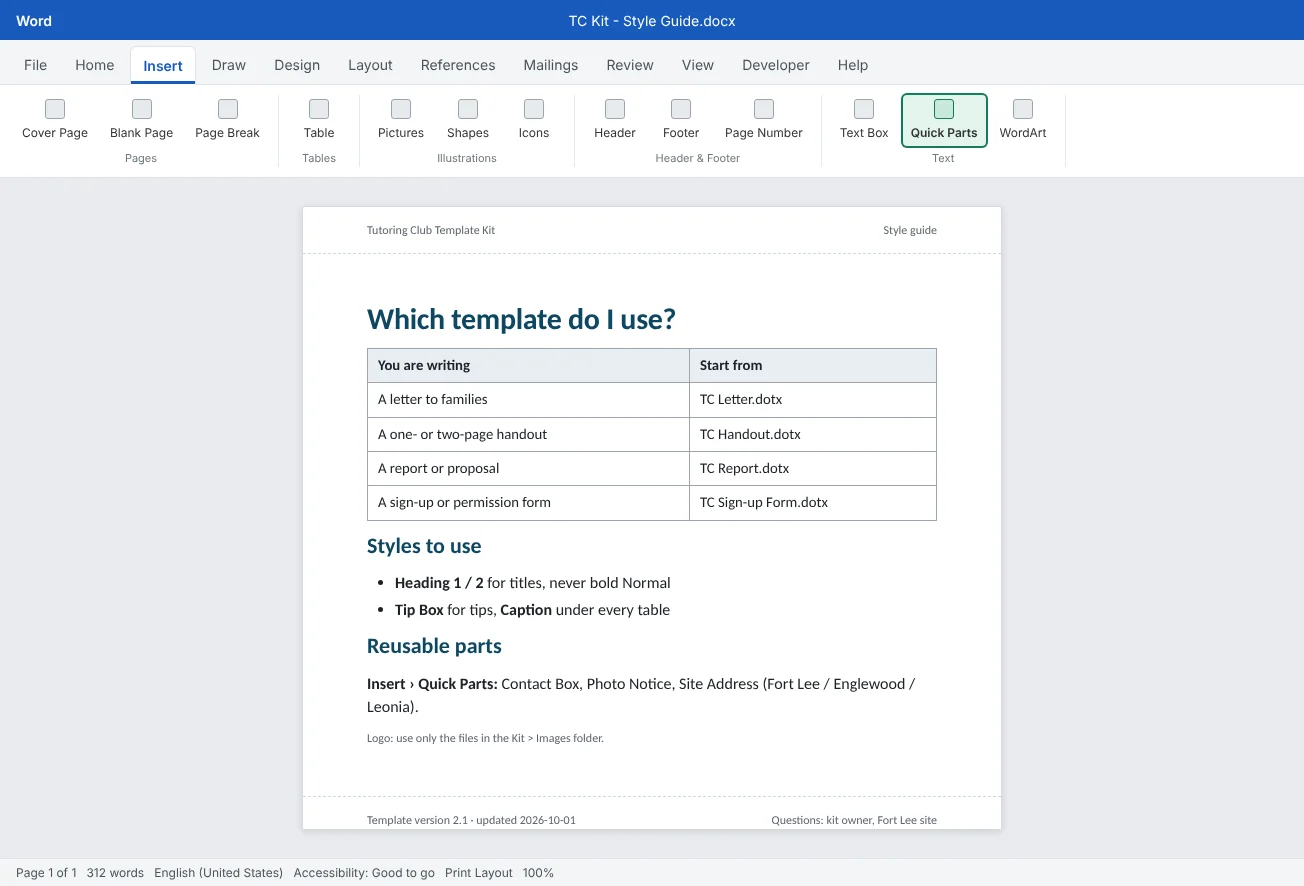
| Style guide | A one-page document: which template for what, which styles to use, where the logo goes | People read one page. They won't read a ten-page manual |
| Sample documents | A filled-in letter, handout and report made from the templates | Shows what "done right" looks like and gives people text to copy |
| Building blocks | Quick Parts saved inside each template: contact box, photo notice, site addresses | They travel with the template, so every computer has them |
| Approved images | The logo in two or three sizes, plus a few photos with permission | Stops people pasting a blurry logo from an old PDF |
| Version and changelog | A version number in each template's properties and a short list of what changed | Anyone can tell which version a document came from |
Keep it small. Four templates that people actually use beat ten that confuse them. If a document type is made once a year, a sample document is usually enough; it doesn't need its own template.
Build the templates from one style system
Build the first template, usually the handout, with the style system from the Advanced tutorial: theme fonts and colors, Normal as the root style, Heading 1 to 3, and a few custom styles such as Tip Box. Then make the other templates from it, so they all start with identical styles:
- Open
TC Handout.dotxitself (right-click the file and choose Open, not double-click, which creates a new document). - Use File
then Save As to save a copy as TC Letter.dotx, still as Word Template (*.dotx). - Change only what is different for a letter: margins, the address block placeholders, a first-page header with the logo.
- Repeat for the report and the sign-up form.
If you change a style later, change it in one template and copy it to the others with the Organizer (Home
Store the building blocks in the templates. Open each template, select the contact box, and use InsertTC Handout.dotx), not Normal.dotm or Building Blocks.dotx. Give the block a Category such as Tutoring Club so the kit's blocks appear together. Then save the template.
Put a version number inside each template. Go to FileTemplate version, choose type Text, type the value 2.1 and click Add. To show it in the footer, use Insert
Test a template before you share it
A template that only works for the person who made it isn't finished. Run these tests on every template in the kit, each time you change it:
| Test | How to run it | What you're looking for |
|---|---|---|
| Fresh new document | File | The title bar says Document1, not the template's name. Placeholders, header, footer and version field all appear |
| Paste test | Paste a paragraph from an email and one from a web page, once with Ctrl+V and once with Ctrl+Shift+V | Pasted text takes on Normal. No new styles with odd names appear in the Styles pane |
| Long-document test | Paste 15 to 20 pages of sample text with headings, then add a table of contents | Heading numbering, page numbers, headers and the TOC still work across many pages |
| Accessibility check | Review | No errors. Placeholder images have alt text or are marked decorative; tables have a header row |
| Print and PDF | Print one page, and File | Colors are readable in grayscale; the PDF has bookmarks from headings; nothing falls off the margins |
| Mac and web | Open a document made from the template on a Mac and in Word for the web | Fonts and layout survive. A font that isn't installed gets replaced and can push text onto a new page |
Ask one coordinator who didn't build the kit to make a real handout from it while you watch, without helping. Every place they hesitate is something to fix in the template or explain in the style guide.
Deploy the kit so everyone starts from the same file
Emailing a .dotx to the team works once. A week later someone has an old copy on their desktop. Put the kit in one shared place and point Word at it.
| Option | How it works | Good for |
|---|---|---|
| Shared OneDrive or SharePoint folder | One Template Kit folder that the team can read but only the kit owner can edit | Every team. It is where the kit lives, whichever option below you add |
| Default personal templates location | Each coordinator syncs the kit folder to their PC, then puts that local folder path in File | Small teams. The kit appears on the Personal tab of File |
| Workgroup templates | File | Keeping your own templates and the team's separate. Often set by IT on managed computers |
| Organization assets library | A SharePoint admin registers a library as an organization assets library | Larger organizations with Microsoft 365. Templates can then show up under File |
For the Tutoring Club, the second option is enough. On each coordinator's PC:
- Open the club's SharePoint or shared OneDrive folder in a browser and click Sync (or Add shortcut to My files), so the kit folder appears in File Explorer.
- In File Explorer, open the synced
Templatesfolder, click the address bar and copy the path, for exampleC:\Users\you\Tutoring Club\Template Kit - Templates. - In Word, go to File
then Options then Save, paste the path into Default personal templates location and click OK. - Check File
then New: the Personal tab now lists the kit templates.
Name, version and retire templates
Pick naming rules once and write them in the style guide, so everyone can read a file name.
- Stable names. The live template keeps the same file name forever, so pinned shortcuts and synced folders keep working.
- Version numbers. Use
2.1style numbers: change the first number for a new look or a removed style, the second for small fixes. Update theTemplate versionproperty every time. - Changelog. Keep a short
Kit changelog.docxin the kit folder: date, version, what changed, who to ask. - Retiring. Before you save a new version, move the old one to
Archiveand add its version and date to the name. Documents made from it keep their formatting, because a document stores its own copy of the styles. They only stop seeing that template's building blocks.
Collect feedback and keep the kit alive
A kit gets worse if nobody owns it. Name one kit owner and give the job a simple routine:
- One place for requests. A short form or a shared feedback document linked from the style guide: what you were making, what didn't work, a screenshot.
- Look at real documents. Once a term, open five recent documents from each site. Hand formatting in the same place every time means a style or a building block is missing.
- Batch the changes. Collect requests and release a new version a few times a year, not every week. Each release: update, run the tests, bump the version, write the changelog, tell the team.
- Say no politely. If only one site needs a special layout, a sample document is often a better answer than a fifth template.
Many kit chores repeat: checking which documents still use an old version, updating fields before a PDF goes out, cleaning hand formatting. The next tutorial, Automate Word, shows how to hand those to a macro or a script.
Common mistakes
| Mistake | What happens | Fix |
|---|---|---|
| Emailing the template to each coordinator | Old copies stay on desktops and keep being used | Keep the kit in one shared folder and point Word at it |
| Building each template from scratch | Styles drift apart; a heading looks different in letters and reports | Build one template, then save copies and change only what differs |
| Saving the kit's building blocks in Normal.dotm | They exist only on your computer | Set Save in to the template when you create the Quick Part |
| Putting the version in the file name of the live template | Shortcuts break and people can't tell which file is current | Keep a stable name; put the version in the properties and footer |
| Testing only by opening the .dotx | You edit the template instead of testing a new document, and miss what users see | Create a new document from File |
| Pasting a web link into Default personal templates location | The Personal tab stays empty | Sync the folder and use its local path |
Practice
Practice
Plan a kit and rebuild a flyer as a kit template
Guided practice
Download the example file above and open it in Word. Page 1 is a kit plan checklist to fill in. Page 2 is a fall tutoring flyer that a coordinator formatted by hand. You will turn its formatting into a TC Flyer.dotx template that belongs in the kit.
- Plan: fill in the checklist table on page 1: which templates the club needs, who owns the kit, where it will live and the first version number.
- Audit the flyer: on page 2, turn on Ctrl+Shift+8 and list every piece of hand formatting: fonts, colors, spaces used for alignment, blank paragraphs, the typed contact line.
- Rebuild: copy page 2 into a new document made from your handout template (or a blank document with your style system). Apply Title, Heading 1, Normal and Tip Box; press Ctrl+A, Ctrl+Space to clear leftover character formatting.
- Building block: turn the contact line into a Contact Box Quick Part. Leave it for now; you will save it into the template in the next step.
- Save as template: replace the event details with content control placeholders and save as
TC Flyer.dotx. Open the template itself, create the Quick Part again with Save in set toTC Flyer.dotx, and save. - Version: add a
Template versioncustom property with the value1.0and show it in the footer with a DocProperty field. - Test: create a new document from the template and run the six tests from this tutorial. Write each result in the checklist on page 1.
- Deploy: put the template in a
Template Kitfolder, point Default personal templates location at it, and check that it appears on the Personal tab.
Independent challenge: Version 1.1
Pretend a coordinator says the flyer's title is too big to fit long event names. Make the change as a proper release: move the 1.0 template to Archive with its version in the name, change the Title style, update the property to 1.1, rerun the tests, and add a line to a Kit changelog.docx. Then open a flyer you made from version 1.0 and confirm it still looks the same.
Reflect: which document does your team rebuild by hand most often, and what is the smallest kit that would stop that?
Check your understanding0 of 4 correct
Pick an answer to see whether it's right and why.
A coordinator at the Englewood site needs the club's contact box Quick Part on her own laptop. Where should you have saved it?
Building blocks saved in a template travel with that template. Normal.dotm and Building Blocks.dotx stay on the computer where you made them.
You release version 2.1 of TC Handout.dotx. What should happen to the file name of the live template?
A stable name keeps shortcuts and synced folders working. The version belongs in the Template version property, the footer and the changelog.
You set Default personal templates location to a link copied from the browser, starting with https://. What happens?
Word needs a folder path on the computer. Sync the shared folder first and use its local path.
Which test best shows whether pasted text from an email will break the template's look?
The paste test shows whether pasted text takes on Normal or brings its own fonts and stray styles with it.
You're ready to move on when
Tick each one off as you go. Your ticks are saved in this browser only.
Related
Sources and further reading
Was this guide helpful? Spot a mistake? Send feedback · admin@arumsoft.com