Advanced Word · Tutorial 1 of 9
How to Plan and Structure Long Documents in Word: Outline View and Multilevel Numbering
Outline a long document before you write, link multilevel numbering to heading styles, and reorganize chapters in Outline view without breaking anything.
- Level
- Advanced
- Time
- 15 min read
- Updated:
- Applies to:
- Word for Microsoft 365, Word 2024, Word 2021, Word for the web
What you'll learn
- Plan a long document's units, heading levels and numbering scheme before you write
- Build and reorganize the structure in Outline view without losing or duplicating text
- Link a multilevel list to Heading 1 to 3 so numbers like "Unit 1" and "1.1" update by themselves
- Control where pages break with Keep with next, Keep lines together and Page break before
- Move around a 25-page file with the Navigation Pane, and judge when splitting a file is worth it
Before you start
Example file
Advanced Word - Long Document Structure.docx
Download the practice document used in this tutorial and follow along in Word.
Word document (.docx) · 37 KB
Short documents forgive bad structure. Long ones don't. Once a file passes 20 pages, typed chapter numbers drift out of order, a heading lands alone at the bottom of a page, and moving one unit means cutting and pasting five pages and hoping nothing gets lost.
In this tutorial you will set up the skeleton of the club's 25-page Course Workbook for the fall math and reading program. You will plan the units first, shape them in Outline view, replace typed numbers with numbering that Word manages for you, and set the heading styles so every unit starts cleanly on a new page.
Plan the structure before you write
The most useful work on a long document happens before the first paragraph of body text. Decide three things up front, because changing them later means touching every page:
- The outline. What are the units, and what sections go inside each one? Write them as a plain list first.
- The heading levels. Which style does each kind of heading get? Three levels are plenty for a workbook. If you find yourself needing a fourth, the unit is probably too big.
- The numbering scheme. What do the numbers look like, and which headings don't get one? Front matter and back matter usually stay unnumbered.
| Part of the workbook | Style | Numbered? | Example |
|---|---|---|---|
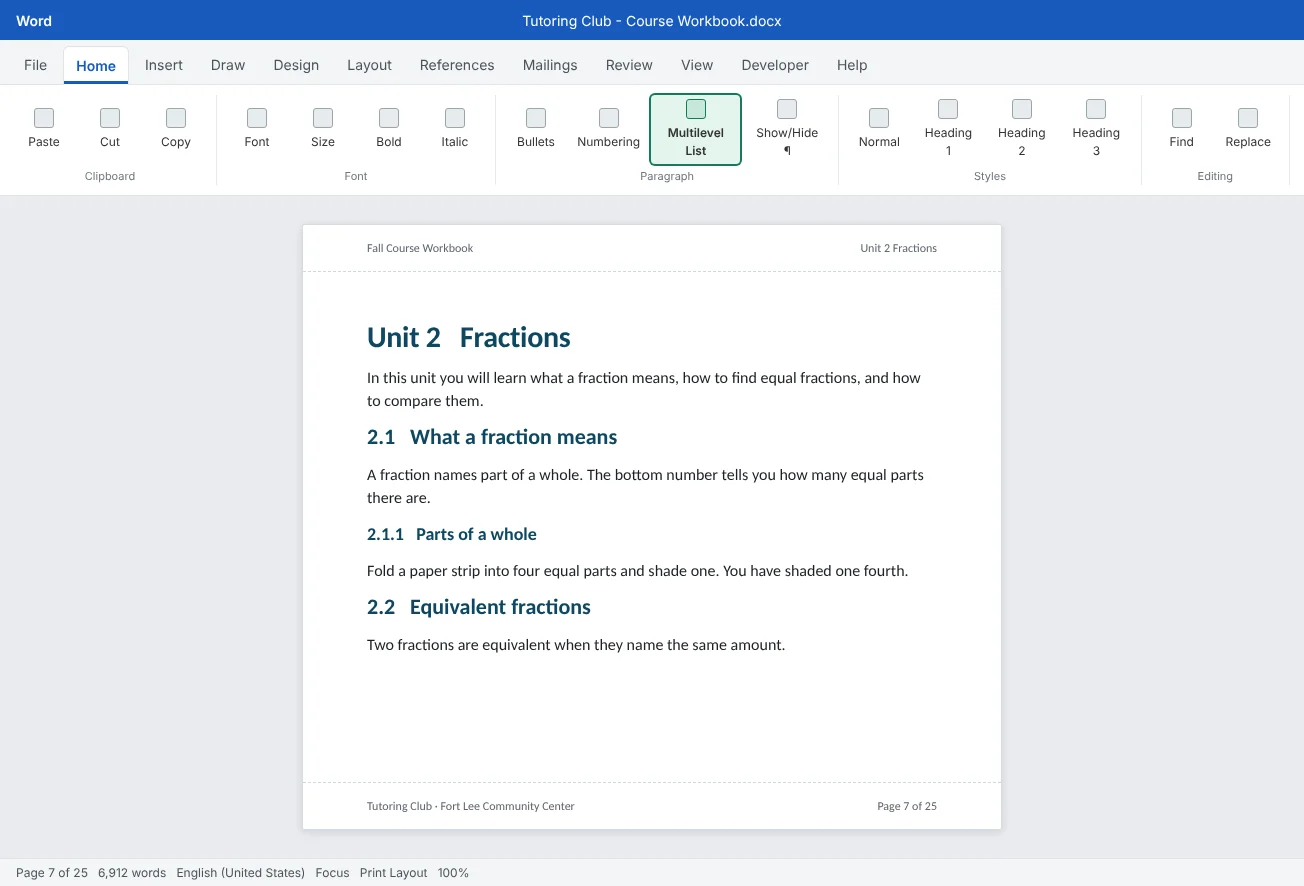
| Unit title | Heading 1 | Yes: Unit 1, Unit 2… | Unit 2 Fractions |
| Section in a unit | Heading 2 | Yes: 2.1, 2.2… | 2.1 What a fraction means |
| Topic in a section | Heading 3 | Yes: 2.1.1… | 2.1.1 Parts of a whole |
| How to use this workbook, Glossary, Answer key | A Heading 1 variant without a number | No | Glossary |
| Body text, exercises, tips | Normal and a few custom styles | Exercises get their own numbers later | Exercise 2.3 |
For the workbook, the plan is five units (Whole numbers, Fractions, Decimals and percents, Reading for meaning, Writing short answers), with an unnumbered How to use this workbook at the front and a Glossary and Answer key at the back.
Build and reorganize in Outline view
The Navigation Pane (from Intermediate Tutorial 1) is good for jumping and dragging. Outline view goes further: it shows only the levels you choose, lets you change levels from the keyboard, and moves whole units safely. Turn it on with View
| Outlining tool | What it does | Keyboard |
|---|---|---|
| Show Level | Shows only headings down to the level you pick. Choose Level 2 to see units and sections without body text | |
| Promote / Demote | Moves a heading up or down one level (Heading 2 becomes Heading 1, and so on) | Alt+Shift+Left / Alt+Shift+Right |
| Promote to Heading 1 / Demote to Body Text | The double arrows at either end: jump straight to the top level, or turn a heading back into normal text | |
| Move Up / Move Down | Moves the selected paragraphs above the previous or below the next one | Alt+Shift+Up / Alt+Shift+Down |
| Expand / Collapse | Opens or hides what is under a heading. Double-clicking the ⊕ symbol does the same | |
| Show First Line Only | Shrinks each body paragraph to one line, so you see where text is without reading it | |
| Show Text Formatting | Untick it to show all levels in plain text, which makes long outlines easier to scan |
Each paragraph gets a symbol in the left margin: ⊕ is a heading with something under it, ⊖ is a heading with nothing under it, and a small ○ is body text. Promoting and demoting in Outline view applies the real Heading 1 to 9 styles, so everything you do here also shows up in the Navigation Pane and the table of contents.
- ⊕ has content under it
- ○ is body text
Reorganize safely. The club wants Decimals and percents to come before Reading for meaning. Here is the safe way to move a whole unit:
- Set Show Level to Level 1, so every unit is collapsed to its title.
- Click the ⊕ symbol next to the unit you want to move. That selects the heading and everything under it, including hidden text.
- Press Alt+Shift+Up or Alt+Shift+Down, or click Move Up / Move Down, until it is in the right place. You can also drag the ⊕ symbol.
- Set Show Level to All Levels and check the result.
Why typed numbers break
Typing Unit 3 or 2.1 at the start of a heading feels quick, but in a long document it causes problems every time the structure changes.
- Moving breaks the order. Drag Unit 3 above Unit 2 and it still says Unit 3. Every number under it is wrong too.
- Copying breaks the sections. Copy a section from Unit 2 into Unit 3 as a starting point, and it keeps its old
2.1. - Formats drift. Different people type
Unit 1.,Unit 4 -and3., and nobody notices until the table of contents shows them side by side. - Other features can't use them. A cross-reference can point to a heading number only if Word made the number. The same goes for captions such as Figure 2-1 that include the unit number.
The fix is to let the heading styles carry the numbers. Then a number is not text you typed; it is something Word works out from where the heading sits in the document.
Link a multilevel list to the heading styles
A multilevel list is a numbering scheme with up to nine levels. When you link each level to a heading style, every paragraph with that style is numbered automatically, including headings you add next week. You met list levels in Word Basics Tutorial 4; here the levels are headings instead of list items.
Before you start, delete every typed number from the headings, so you don't end up with Unit 1 Unit 1. Whole numbers. Then:
- Click in the first Heading 1 paragraph and go to Home
then Paragraph then Multilevel List then Define New Multilevel List. - Click More >> at the bottom left to show all the options.
- Under Click level to modify, choose 1. Set Link level to style to Heading 1. In Enter formatting for number, the shaded
1is the number itself; click before it and typeUnit(with a space). - Choose level 2 and link it to Heading 2. Clear the formatting box, choose Level 1 in Include level number from, type a period, then pick
1, 2, 3, …in Number style for this level. The box now shows1.1. - Choose level 3, link it to Heading 3, and build
1.1.1the same way (Level 1, period, Level 2, period, level 3 number). - For each level, set Aligned at to 0 so headings stay flush with the margin, and set Follow number with to a tab character or a space.
- Click OK. Every Heading 1, 2 and 3 in the document is numbered.
| Level | Linked style | Number format | Result |
|---|---|---|---|
| 1 | Heading 1 | Unit + level 1 number | Unit 1, Unit 2… |
| 2 | Heading 2 | level 1 number + . + level 2 number | 1.1, 1.2, 2.1… |
| 3 | Heading 3 | level 1 + . + level 2 + . + level 3 | 1.1.1, 1.1.2… |
Notice that Include level number from adds only the number of Unit 2, not the word "Unit", so the section reads 2.1, not Unit 2.1. Never type the shaded numbers by hand. A typed 1 stays 1 forever.
Unnumbered headings. The Glossary and Answer key still need to appear in the Navigation Pane and table of contents, but without a unit number. Create a new style named Heading 1 No Number based on Heading 1, and in its Modify Style box choose Format
Control page breaks from the heading styles
In a 25-page file, every edit pushes text down and moves page breaks. If you fix page flow by hand with blank paragraphs or Ctrl+Enter, one added exercise can leave a blank page or a heading stranded at the bottom. Put the rules into the styles instead. They live in the Paragraph box on the Line and Page Breaks tab.
| Setting | What it does | Use it for |
|---|---|---|
| Widow/Orphan control | Stops a single line of a paragraph from sitting alone at the top or bottom of a page | Body text. It is on by default |
| Keep with next | Keeps this paragraph on the same page as the next one | Headings, an exercise's question line, a caption above a table |
| Keep lines together | Stops the paragraph from splitting across two pages | Headings, short tips, answer lines |
| Page break before | Always starts this paragraph on a new page | Heading 1, so each unit starts on a fresh page |
The built-in Heading styles already use Keep with next and Keep lines together, which is one more reason to use them. To start every unit on a new page:
- Right-click Heading 1 in Home
then Styles and choose Modify. - Click Format
then Paragraph and open the Line and Page Breaks tab. - Tick Page break before and click OK twice.
- Delete the manual page breaks and blank paragraphs that used to push units to new pages.
With formatting marks on (Ctrl+Shift+8), a small black square appears in the left margin next to any paragraph that uses Keep with next, Keep lines together or Page break before. Widow/Orphan control doesn't show it. It is a quick way to spot why a page breaks early.
Navigate a long file, and when to split it
With numbered heading styles in place, the Navigation Pane (ViewUnit 1, 1.1 and so on, exactly as they appear on the page. In a long file, a few right-click options in the pane help most:
- Collapse All and Expand All to switch between an overview and the detail.
- Show Heading Levels to limit the pane to, say, units and sections.
- New Heading Before / After to add a section at the right level without leaving the pane.
- Select Heading and Content before you cut, copy or format a whole unit.
Should you split the file? A 25-page workbook with pictures is fine as one file in current Word. Splitting is optional and has real costs:
| Approach | Good for | Watch out for |
|---|---|---|
| One file | Most documents up to a few hundred pages | Only one person should do big restructuring at a time |
| One file per unit, combined at the end | Several writers working at once | Every file must use the same template and styles. Combine with Insert |
| Master document (subdocuments) | Rarely worth it | Fragile: links to subdocuments break when files are moved or renamed, and damaged files are a known risk |
The Master Document group on the Outlining tab still exists, but treat it as a caution, not a tool. If you inherit a master document, make a backup copy of the whole folder before you open it.
Common mistakes
| Mistake | What happens | Fix |
|---|---|---|
Typing Unit 3 or 2.1 into headings | Numbers go out of order after any move, and formats drift | Delete typed numbers and link a multilevel list to Heading 1 to 3 |
| Moving an expanded heading in Outline view | Its sections stay behind under the wrong unit | Collapse first, or click the ⊕ symbol to select the whole unit |
| Applying a numbered list to headings one by one | New headings don't get numbers, and levels restart oddly | Use Link level to style in Define New Multilevel List |
| Typing the shaded number in Enter formatting for number | That level shows the same number everywhere | Delete it and insert the number with Number style for this level |
| Using blank paragraphs or Ctrl+Enter to start units on new pages | Edits leave blank pages and stranded headings | Turn on Page break before in Heading 1 |
| Giving the Glossary a plain Normal paragraph so it has no number | It vanishes from the Navigation Pane and the table of contents | Use an unnumbered style based on Heading 1 |
| Splitting the workbook into a master document | Broken links and a risk of a damaged file | Keep one file, or combine separate unit files at the end |
Practice
Practice
Give the Course Workbook a real structure
Guided practice
Download the example file above and open it in Word. It is a shortened draft of the Course Workbook. Headings have typed numbers in three formats, some units use the wrong heading level, two sections are fake bold headings, and Unit 3 sits after Unit 4.
- Inspect: switch to View
then Views then Outline and set Show Level to Level 2. Note which headings are at the wrong level and which are missing. - Fix levels: make every unit Heading 1 and every section Heading 2 with Promote and Demote (Alt+Shift+Left / Alt+Shift+Right). Turn the bold 1.2 Rounding and 3.2 Percents paragraphs into real Heading 2s.
- Reorder: set Show Level to Level 1, click the ⊕ next to Decimals and percents, and move it above Reading for meaning with Alt+Shift+Up. Expand all levels and check that its sections came along.
- Remove typed numbers: close Outline view and delete
Unit 1.,2.1,3.and the other typed numbers from the start of each heading. - Link numbering: use Home
then Paragraph then Multilevel List then Define New Multilevel List and link levels 1 to 3 to Heading 1 to 3, with the formats Unit 1,1.1and1.1.1. - Unnumbered headings: create a
Heading 1 No Numberstyle based on Heading 1 with numbering set to None, and apply it to How to use this workbook, Glossary and Answer key. - Page flow: modify Heading 1 to use Page break before, then delete the manual page break and the blank paragraphs that were pushing headings down.
- Check: open the Navigation Pane, collapse all, and confirm the order reads How to use, Unit 1 to Unit 5, Glossary, Answer key. Save the file.
Independent challenge: Move a unit and watch everything follow
Insert a table of contents on page 2 (see Intermediate Tutorial 2) and add a cross-reference in Unit 4 that says see section 3.2, inserted as a heading number. Now move Unit 2 to the end of the units in Outline view. Update all fields with Ctrl+A then F9. Did the headings, the table of contents and the cross-reference all renumber correctly? Move it back when you're done.
Reflect: which long document you work on would be easiest to restructure if its numbers came from the heading styles, and what levels would its outline have?
Check your understanding0 of 4 correct
Pick an answer to see whether it's right and why.
In Outline view, you select only the heading line of an expanded unit and press Alt+Shift+Up. What happens?
Move Up moves exactly what is selected. Collapse the unit first, or click its plus symbol, so the heading and all its content move together.
You want sections numbered 2.1, 2.2 under "Unit 2". In Define New Multilevel List, how do you get the 2 at the start of each section number?
Include level number from inserts the current number of a higher level, so it updates when units move. A typed 2 would never change.
What is the best way to make every unit in a 25-page workbook start on a new page?
A style setting follows the headings wherever they move. Blank paragraphs and manual breaks stay put and cause blank pages after edits.
The Glossary should not get a unit number but must still appear in the table of contents. What should you do?
A style based on Heading 1 keeps outline level 1, so it is listed in the Navigation Pane and table of contents, while numbering None removes the unit number.
You're ready to move on when
Tick each one off as you go. Your ticks are saved in this browser only.
Related
Sources and further reading
Was this guide helpful? Spot a mistake? Send feedback · admin@arumsoft.com