Advanced Word · Tutorial 3 of 9
How to Add Footnotes, Citations, and a Bibliography in Word
Insert footnotes and endnotes, manage sources, cite in APA or MLA style, and generate a bibliography that updates as you write.
- Level
- Advanced
- Time
- 15 min read
- Updated:
- Applies to:
- Word for Microsoft 365, Word 2024, Word 2021, Word for the web
What you'll learn
- Choose between footnotes, endnotes and in-text citations for a given document
- Insert footnotes and endnotes and control their numbering, position and restarts
- Add sources once in the Source Manager and reuse them across documents
- Cite in APA, MLA or Chicago style, with page numbers, and switch styles in one click
- Generate a bibliography that updates itself, and know when to freeze it as static text
Before you start
Example file
Advanced Word - Citations.docx
Download the practice document used in this tutorial and follow along in Word.
Word document (.docx) · 38 KB
The Course Workbook's reading units quote research, borrow exercises from library guides and point families to extra material. Right now those sources are typed by hand: "(Rivera 2021 page 14)" in one place, "Rivera, p.14" in another, and a source list at the end that nobody keeps in step with the text.
In this tutorial you will replace all of that with Word's own tools: real footnotes and endnotes that number themselves, a list of sources you enter once, citations in a consistent style, and a bibliography Word builds from the citations you actually used. You will also see where Word's built-in tools stop and a reference manager such as Zotero becomes worth it.
Footnote, endnote or citation?
Word has two separate systems that people often mix up. Footnotes and endnotes are numbered notes: a small mark in the text and the note itself at the bottom of the page or the end of the document. Citations and a bibliography are built from a list of sources: a short reference such as (Rivera, 2021) in the text and a full, formatted list at the end. You can use both in the same document.
| Tool | Where the detail appears | Best for |
|---|---|---|
| Footnote | Bottom of the same page | Short side comments the reader should see right away, or full citations in Chicago notes style |
| Endnote | End of the document or of each section | Longer notes that would crowd the page, or documents where notes are optional reading |
| Citation + bibliography | Short reference in the text, full list at the end | APA or MLA papers, and any document that cites the same sources many times |
| Typed reference | Wherever you typed it | Almost never: it doesn't number, sort or update |
For the workbook, the plan is: footnotes for short notes to families and volunteers, APA citations for research claims, and a References list at the back. A teacher's version could add endnotes per unit with answer explanations, which keeps them out of the students' pages.
Insert footnotes and endnotes
Click right after the word or punctuation mark the note belongs to, then:
- Choose References
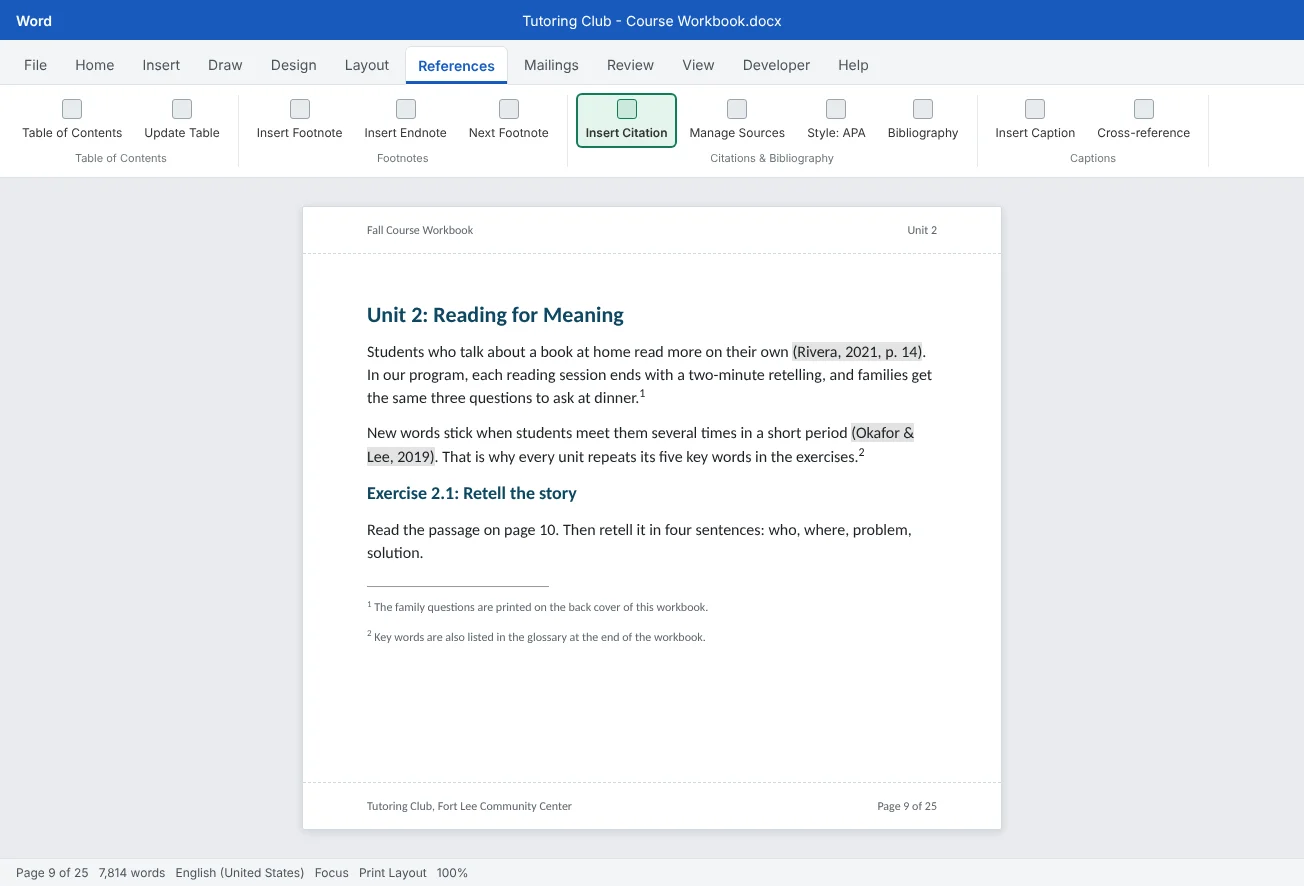
then Footnotes then Insert Footnote or press Ctrl+Alt+F. For an endnote, use Insert Endnote or Ctrl+Alt+D. - Word adds a superscript number in the text and moves the cursor to the note area. Type the note.
- Double-click the number at the start of the note to jump back to its place in the text, or press Shift+F5 to return to where you were.
- Renumber when notes are added or moved
- Footnote Text style controls the look
A few things that save time in a 25-page document:
- Delete a note by deleting its mark. Select the small number in the text and press Delete. The note text goes with it and the rest renumber. Deleting only the note text leaves an empty note behind.
- Move a note by moving its mark. Cut and paste the number in the text, and Word renumbers everything.
- Find notes fast. References
then Footnotes then Next Footnote steps through footnotes and endnotes. Show Notes jumps between the text and the note area. - Style them once. Notes use the Footnote Text or Endnote Text style, and the numbers use Footnote Reference. Change those styles instead of formatting notes one by one. If you built a template in the previous tutorial, add them to it.
Control numbering, position and conversion
Click the small arrow at the bottom right of the Footnotes group to open the Footnote and Endnote dialog. Choose Footnotes or Endnotes at the top, then:
| Setting | Choices | Workbook example |
|---|---|---|
| Location | Footnotes: Bottom of page or Below text. Endnotes: End of document or End of section | Endnotes at the end of each section put answer notes after each unit |
| Number format | 1, 2, 3 or a, b, c or i, ii, iii or symbols | Footnotes default to 1, 2, 3 and endnotes to i, ii, iii, so readers can tell them apart |
| Custom mark | A symbol such as * instead of a number | One-off notes only: custom marks don't renumber |
| Start at | The first number | Useful when a document is split into several files |
| Numbering | Continuous, Restart each section, Restart each page (footnotes only) | Restart each section gives every unit its own 1, 2, 3 |
| Apply changes to | Whole document or this section | Pick Whole document unless sections really need different rules |
Remember that Restart each section and End of section work on Word sections, not on headings. Each unit must start after a section break (see Sections and columns) for these options to do what you expect.
Convert. The Convert button in the dialog changes all notes at once: footnotes to endnotes, endnotes to footnotes, or swap the two. To convert one note, right-click inside the note text and choose Convert to Endnote or Convert to Footnote.
Add sources and cite them
Citations start with a source: one record with the author, title, year and publisher. You enter it once, and Word formats it for every citation and for the bibliography.
- Pick the citation style first with References
then Citations & Bibliography then Style, so the dialog shows the fields that style needs. The workbook uses APA. - Click where the citation goes, usually before the period, and choose References
then Citations & Bibliography then Insert Citation then Add New Source. - Choose the Type of Source: Book, Journal Article, Web site and so on. The fields below change to match.
- Fill in the author, title, year and publisher. For several authors, click Edit next to Author and add them one at a time, so Word can order and abbreviate the names correctly. For an organization, tick Corporate Author.
- Tick Show All Bibliography Fields if you need more, such as a URL or volume and issue. Fields marked with a red star are the ones the style recommends.
- Click OK. Word inserts the citation, such as (Rivera, 2021).
To cite a source again, click References
Placeholders. Writing before you have the details? Choose Insert Citation > Add New Placeholder and type a short name, such as LibraryTips. Word shows the name in the text and keeps writing moving. Before you finish, fill in every placeholder in the Source Manager (next section). A placeholder that is never filled in shows up as its name, and it is left out of the bibliography.
Manage sources, change style and edit citations
References
| List | Where it is stored | What it is for |
|---|---|---|
| Master List (left) | On your computer, in a file named Sources.xml in your user profile | Every source you have ever created, available to all your documents |
| Current List (right) | Inside this document | The sources this document can cite. A check mark means cited, a question mark means a placeholder |
Select a source and click Copy to move it between the lists, Edit to fix a field, or Delete to remove it. When you start the next workbook, copy the reading sources from the Master List into its Current List and cite them right away. To fill in a placeholder, select it in the Current List and click Edit.
Change the style. Pick a different style in References
Edit a single citation. Click the citation, then the small arrow on its right edge, and choose Edit Citation:
- Pages: adds the page number for a quotation, such as p. 14.
- Suppress Author, Year or Title: leaves out parts you already named in the sentence. "Rivera (2021) found that..." needs the year and page in the citation, not the name again.
The same menu has Edit Source, which changes the source record everywhere it is used.
Build the bibliography and keep it current
Put the cursor where the list belongs, usually on its own page at the end (press Ctrl+Enter first). Then open References
Updating. The bibliography is a field inside a content control. It doesn't change while you type. After you add or remove citations or edit sources, click the list and choose Update Citations and Bibliography on the small tab at its top. Updating before you print or export, as you do with the table of contents, catches it too.
Converting to static text. The arrow on a citation or the bibliography also offers Convert citation to static text (or Convert bibliography to static text). Word turns it into ordinary text: you can then format or correct it freely, but it no longer updates or changes style. Use it only on a final copy, for example when a teacher needs a small correction Word's style can't make, and keep the editable version.
When to use a reference manager. Word's tools are fine for one document with a few dozen sources. For bigger projects, a free reference manager such as Zotero or Mendeley adds a Word add-in that inserts citations from a library you build in your browser, with many more styles. Pick one system per document: mixing Word citations and add-in citations in one file leads to two separate, incomplete lists.
Common mistakes
| Mistake | What happens | Fix |
|---|---|---|
| Typing note numbers or "*" by hand | Numbers go wrong as soon as a note is added or moved | Use References |
| Deleting the note text instead of the mark | An empty note and its number stay in the document | Select the reference mark in the text and press Delete |
| Copying a citation and editing its text | The citation no longer matches its source or updates | Insert the source again from References |
| Leaving placeholders unfilled | The bibliography is missing sources and the text shows tag names | Edit each placeholder (marked ?) in the Source Manager |
| Typing the source list at the end | It drifts from what the text actually cites | Insert a Bibliography and update it before sharing |
| Converting citations to static text too early | Style changes and updates stop working | Convert only on a final copy and keep the editable version |
| Expecting Restart each section to work per heading | Numbering doesn't restart where you expect | Start each unit with a section break |
Practice
Practice
Turn typed references in the reading unit into real citations
Guided practice
Download the example file above and open it in Word. It is Unit 2 of the Course Workbook. Its sources (all fictional, for practice) are typed in a plain list at the end, the in-text references are typed by hand, and the notes use typed asterisks.
- Style: set References
then Citations & Bibliography then Style to APA. - Sources: use References
then Citations & Bibliography then Manage Sources and click New to enter the four sources the text cites. Use the right Type of Source for each (book, journal article, web site). Skip Chen: nothing in the unit cites it. - Citations: find each typed reference (search for
(with Ctrl+F), delete it, and insert a citation from Insert Citation. Add page numbers with Edit Citation where the text gives one. - Suppress: in the sentence that starts with Park, edit the citation so it suppresses the author.
- Footnotes: replace the two typed asterisks with real footnotes (Ctrl+Alt+F) and move the note text into them. Delete the typed notes at the bottom.
- Bibliography: delete the typed source list and insert References
then Citations & Bibliography then Bibliography then References in its place. Check that it lists exactly the four sources in the Current List. - Switch: change the style to MLA, then Chicago, and watch every citation and the list change. Switch back to APA.
- Endnotes: open the Footnote and Endnote dialog and use Convert to turn the footnotes into endnotes, look at the result, then convert them back.
Independent challenge: Reuse your sources in a second document
Start a new blank document for the teacher's guide to Unit 2. Open the Source Manager, copy two sources from the Master List into the Current List, and cite them in two sentences. Insert a Works Cited list in MLA style. Then add a placeholder citation for a source you haven't found yet, update the list, and note what happens to the placeholder.
Reflect: which documents you write would benefit from a shared Master List of sources, and which ones need a full reference manager instead?
Check your understanding0 of 4 correct
Pick an answer to see whether it's right and why.
You want a short note to families to appear on the same page as the sentence it explains. What should you insert?
Footnotes appear at the bottom of the same page as their reference mark. Endnotes collect at the end of the document or section.
Your citations are in APA and your teacher now asks for MLA. What is the fastest correct fix?
Citations built from sources follow the selected style. Changing the style reformats every citation and the bibliography at once.
In the Source Manager, what is the difference between the Master List and the Current List?
The Master List is your personal library across documents. The Current List is what this document can cite. Copy sources between them to reuse them.
After converting the bibliography to static text, you add two new citations. What happens to the list?
Static text has lost its link to the sources. Keep an editable copy and convert only the final version.
You're ready to move on when
Tick each one off as you go. Your ticks are saved in this browser only.
Related
Sources and further reading
Was this guide helpful? Spot a mistake? Send feedback · admin@arumsoft.com