Advanced Word · Tutorial 7 of 9
How to Link Excel Tables and Charts to Word Without Breaking Your Document
Choose between pasting, linking and embedding Excel data, update and repair links, and keep reports in sync with their source workbook.
- Level
- Advanced
- Time
- 14 min read
- Updated:
- Applies to:
- Word for Microsoft 365, Word 2024, Word 2021, Word for the web
What you'll learn
- Explain the difference between pasting, linking and embedding Excel data, and pick the right one
- Choose the right Paste Option or Paste Special format for an Excel range or chart
- Embed or link a whole workbook as an object and display it as an icon
- Update, change and break links, and repair a link after the workbook moves or is renamed
- Freeze a final version so readers see exactly the numbers you approved
Before you start
Example file
Advanced Word - Linked Excel Data.docx
Download the practice document used in this tutorial and follow along in Word.
Word document (.docx) · 38 KB
The Course Workbook ends with an appendix of attendance and quiz scores. The numbers live in an Excel workbook that a volunteer updates every week. If you copy and paste them into Word, the appendix is out of date the moment someone enters a new score. If you link them carelessly, the appendix breaks the day someone renames the workbook.
In this tutorial you will learn the three ways Excel data can live in a Word document: as a plain copy, as a link to the workbook, or as an embedded copy of the workbook. You will see what each Paste Option really does, how to keep links updated and repair them, and when to turn everything into a picture before you send the final version.
Paste, link or embed: three different things
When Excel data goes into Word, it ends up in one of three states. They look the same on the page, which is why people mix them up. The difference is where the data lives and what happens when it changes.
| Pasted (copy) | Linked | Embedded | |
|---|---|---|---|
| Where the data lives | In Word, as an ordinary table, text or picture | In the Excel workbook. Word stores the path and shows the last result | In Word, as a complete copy of the workbook hidden inside the document |
| When Excel changes | Nothing happens | Word can update to the new numbers | Nothing happens. The copy is independent |
| Editing | Edit like any Word table | Edit in the source workbook, then update | Double-click to edit with Excel's tools inside Word |
| File size | Small | Small | Grows with the size of the workbook |
| Needs the workbook? | No | Yes, at the same path, to update | No |
| Best for | Numbers that won't change | Reports you refresh again and again | A self-contained file someone else needs to recalculate |
For the Course Workbook, the weekly attendance table is a good candidate for a link: one volunteer owns the numbers in Excel, and the workbook author refreshes Word before each family meeting. A one-time list of room numbers is better pasted. You will rarely want to embed a big workbook, for reasons you'll see in the embedding section.
Paste Options for an Excel range
Copy the cells in Excel (Ctrl+C), click in Word where the table should go, and look at the Paste Options. You can open them before pasting with the arrow under Home
| Paste Option | What you get | Linked? |
|---|---|---|
| Keep Source Formatting | A Word table that keeps Excel's fonts, fills, borders and column widths | No |
| Use Destination Styles | A Word table that uses your document's styles, so it matches the rest of the workbook | No |
| Link & Keep Source Formatting | A table with Excel's formatting that is connected to the workbook | Yes |
| Link & Use Destination Styles | A connected table that uses your document's styles | Yes |
| Picture | An image of the cells. Nobody can change the numbers, but you can't edit or update them either | No |
| Keep Text Only | Plain text with the columns separated by tabs. All formatting and the table itself are gone | No |
A plain Ctrl+V uses the setting in File
Which to choose? Inside a designed document like the Course Workbook, the Use Destination Styles pair usually wins, because you can then apply your own table style from Intermediate Tutorial 4. Be aware that a linked table can lose manual formatting you add in Word when it updates, because Word rebuilds it from the workbook. Format the table with a table style, or format the cells in Excel.
Paste Special: choose the exact format
Paste Options cover everyday cases. Paste Special gives you every format the clipboard holds and lets you choose between pasting and linking separately. Copy the cells in Excel, then in Word open Home
At the left of the dialog, choose Paste (a copy) or Paste link (connected to the workbook). Then pick a format in the As list:
| Format in the As list | With Paste | With Paste link |
|---|---|---|
| Microsoft Excel Worksheet Object | Embeds the workbook. Double-click to edit with Excel tools inside Word | A linked object. Double-click to open the workbook in Excel |
| HTML Format | A Word table, close to Keep Source Formatting | A linked Word table |
| Formatted Text (RTF) | A Word table with basic formatting | A linked Word table |
| Unformatted Text | Tab-separated text, like Keep Text Only | Linked plain text |
| Picture (Windows Metafile) or Bitmap | A picture of the cells | A linked picture that redraws when the data changes |
The Display as icon checkbox is available for the Excel Worksheet Object. Instead of the cells, the page shows an Excel icon that readers double-click to open. That is useful for a large data sheet you want to supply, not print.
Embed or link a whole workbook
To put a whole file into Word without copying cells first, use Insert
Two checkboxes decide what you get:
- Link to file ticked: a linked object. Word shows the sheet that was active when the workbook was last saved, and updates from the file. Unticked: the workbook is embedded.
- Display as icon ticked: a clickable icon instead of the cells. Click Change Icon to change the caption under it, for example Fall scores (Excel).
Embedding sounds convenient, because the data travels with the document. Know the costs before you choose it:
- The whole workbook travels. Even if only six rows are visible, every sheet goes along, including hidden sheets, other classes' scores, phone numbers and notes. Anyone who double-clicks the object can read all of it.
- The file grows. A large workbook makes the Word file large too, and several embedded copies add up. Check the size in File
then Info under Properties. - It doesn't update. An embedded copy is frozen at the moment you inserted it. Edits in the original workbook never reach it.
Update, manage and repair links
A link doesn't change by itself while you work. You decide when Word fetches new numbers:
- One link: right-click the linked table or object and choose Update Link, or click in it and press F9.
- Every link: press Ctrl+A to select the whole document, then press F9. This also updates other fields, such as cross-references.
- On opening: when a document has automatic links, Word asks whether to update it with data from the linked files. Choose Yes only if you trust where the file came from.
All links are listed in one place: File
| Control | What it does |
|---|---|
| Update Now | Fetches the latest data for the selected links. Select several with Ctrl or Shift |
| Open Source | Opens the workbook so you can check or edit the data |
| Change Source | Points the link at a different file, such as the renamed or moved workbook |
| Break Link | Cuts the connection. The current numbers stay, but they will never update again |
| Automatic / Manual update | Automatic updates when you open the document (after the prompt) and when the source changes while both are open. Manual updates only when you ask |
| Locked | Blocks updates for that link until you untick it |
When the workbook moves or is renamed. Word stores the full path to the workbook. If someone renames Fall Attendance.xlsx or moves it to another folder, the link still shows the last numbers it fetched, so nothing looks wrong. The problem appears only when you update: Word reports that it can't find or open the source. Open the Links dialog, select the link, click Change Source and choose the workbook in its new place. The same happens when you email the document: the reader's computer has no workbook at that path, so their copy can't update.
Linked and embedded charts
Charts have their own set of Paste Options, because a Word chart always keeps its data in a workbook, either the original one or an embedded copy:
| Paste Option for a chart | Look | Data |
|---|---|---|
| Use Destination Theme & Embed Workbook | Takes on the Word document's theme colors and fonts | Embedded copy of the workbook |
| Keep Source Formatting & Embed Workbook | Keeps Excel's look | Embedded copy of the workbook |
| Use Destination Theme & Link Data | Takes on the Word document's theme | Linked to the original workbook. This is what a plain Ctrl+V does |
| Keep Source Formatting & Link Data | Keeps Excel's look | Linked to the original workbook |
| Picture | Frozen image | None. You can't edit or update it |
A linked or embedded chart is still a real chart in Word, not a picture. Click it and the Chart Design and Format tabs appear, so you can change the chart style, colors and titles in Word.
- Chart Design
then Data then Edit Data opens the data behind the chart. For a linked chart that is the original workbook; for an embedded chart it is the copy stored in Word. - Chart Design
then Data then Refresh Data fetches the latest numbers for a linked chart after the workbook has changed.
The same trade-offs apply as for tables: a chart with an embedded workbook carries that whole workbook with it. If you pasted a chart from a workbook full of student details, the full data travels with the chart unless you paste a link or a picture.
Freeze the final version
Links are for the drafting stage. The version you print or send to families should show exactly the numbers you checked, and it shouldn't depend on a workbook the reader doesn't have. Before you send the Course Workbook:
- Update every link one last time (Ctrl+A, then F9, or Update Now in the Links dialog) and read the numbers.
- Use File
then Save a Copy to make the final file, such as Course Workbook - Final.docx. Keep the linked original for next term. - In the copy, open File
then Info then Edit Links to Files, select all the links and click Break Link. Linked tables become ordinary Word tables; linked charts keep their last data but stop following the workbook. - For a chart or object that must not change at all, cut it and paste it back with the Picture option. Give the picture alt text that states the key numbers.
- Export the copy as a PDF if readers only need to read it.
Common mistakes
| Mistake | What happens | Fix |
|---|---|---|
| Pasting with a plain Ctrl+V and assuming it is linked | Excel ranges paste as a copy by default, so the table never updates | Use Link & Use Destination Styles or Paste Special > Paste link |
| Renaming or moving the workbook after linking | Updates fail and the old numbers stay without warning | Keep both files in one folder; repair with Change Source |
| Embedding a workbook full of student data | Readers can double-click the object and see every sheet | Embed a trimmed copy, paste a link, or paste a picture |
| Formatting a linked table by hand in Word | The formatting can be lost when the link updates | Use a table style, or format the cells in Excel |
| Adding rows below the linked range in Excel | The new rows never appear in Word | Copy the larger range and paste the link again |
| Breaking links in the working document | Next month's update has nothing to update | Break links only in a copy made with Save a Copy |
| Sending a linked document by email | The reader's copy can't update and may show prompts | Send a copy with links broken, or a PDF |
Practice
Practice
Link the attendance table and chart
Guided practice
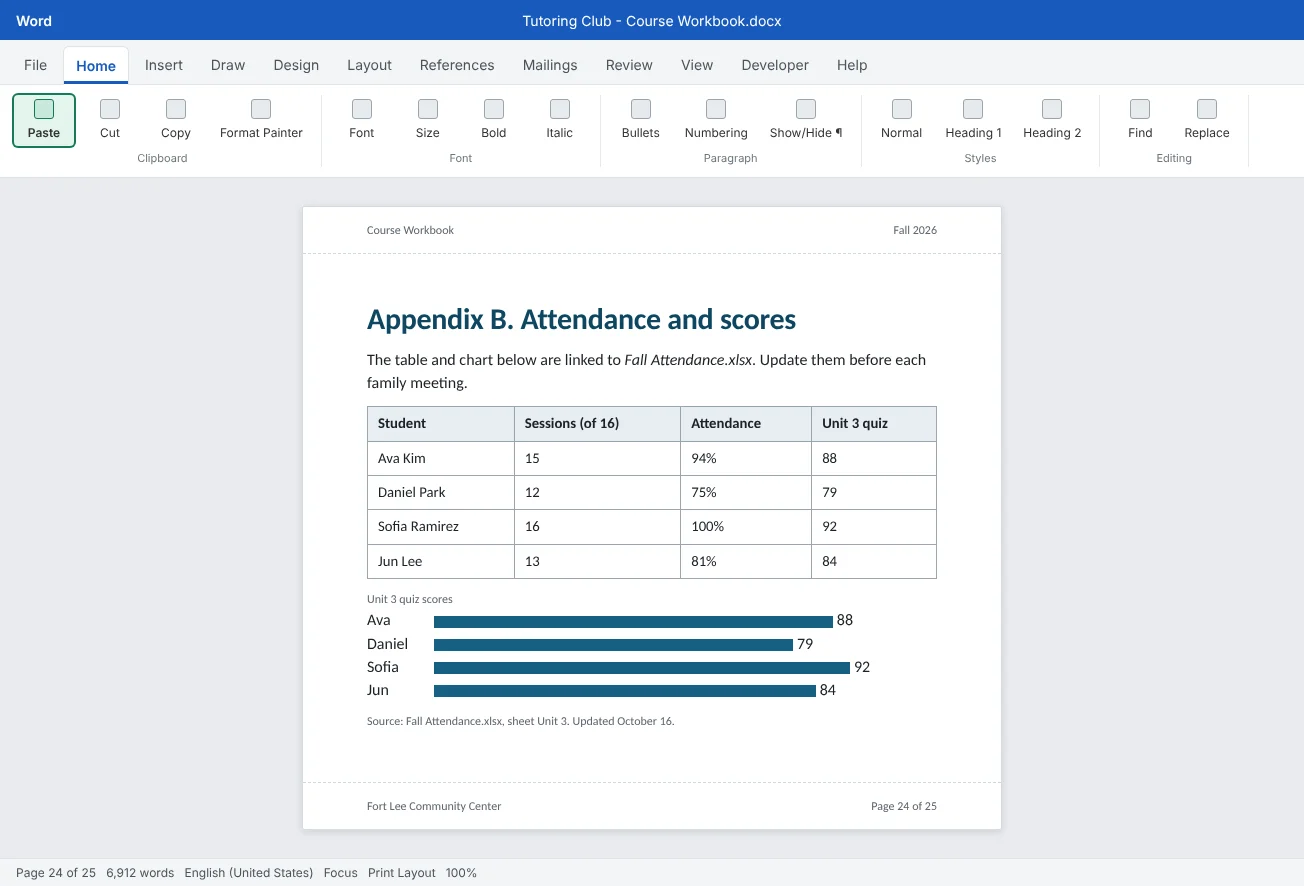
Download the example file above. It contains a Course Workbook appendix page with a small attendance table. Word can't create an Excel file for you here, so you will first move the table into Excel, then link it back.
- Make the workbook: in the example file, select the whole table and press Ctrl+C. Open a blank Excel workbook, click cell A1 and press Ctrl+V. Save it as
Fall Attendance.xlsxin the same folder as the Word file. - Copy vs. link: in Excel, select the table and copy it. In Word, under the heading Plain copy, paste with Use Destination Styles. Under Linked table, paste with Link & Use Destination Styles.
- Test the link: in Excel, change Daniel Park's quiz score from 79 to 85 and save. In Word, right-click the linked table and choose Update Link. Check that only the linked table changed.
- Chart: in Excel, select the names and quiz scores and insert a column chart. Copy it and paste it into Word under Quiz chart with Ctrl+V. Change one score in Excel, save, then use Chart Design
then Data then Refresh Data in Word. - Embed as an icon: under Full data, use Insert
then Text then Object, Create from File, choose the workbook, tick Display as icon and leave Link to file unticked. Double-click the icon and notice it is a separate copy. - Manage links: open File
then Info then Edit Links to Files. Set both links to Manual update, then change a score in Excel and use Update Now. - Break and repair: close Excel and rename the workbook to
Fall Attendance 2026.xlsx. Try Update Link in Word and read the error. Fix it with Change Source. - Freeze: use File
then Save a Copy to make Advanced Word - Linked Excel Data (Final).docx. In the copy, break all links and paste the chart back as a picture.
Independent challenge: What travels with the file?
Add a second sheet to the workbook called Contacts with two made-up phone numbers, then hide it. Embed the workbook in a new Word document, save it, and compare its size in File
Reflect: which tables and charts in your own documents should be linked, which should be pasted, and at what point will you freeze them?
Check your understanding0 of 4 correct
Pick an answer to see whether it's right and why.
You paste an Excel range into Word with a plain Ctrl+V. What do you usually get?
Unless the setting for pasting from other programs was changed, Ctrl+V uses Keep Source Formatting, which makes an unlinked copy.
A volunteer renamed the score workbook. The linked table in Word still shows numbers. What is true?
A link stores the full path. After a rename, Word keeps showing the last result, and updates fail until the link points to the new file.
Why is embedding a workbook risky for a document you send to families?
An embedded object is a complete copy of the workbook. Anyone who opens it can see every sheet, not only the visible rows.
You want the final PDF to show exactly the numbers you checked. What is the best order?
Update first so the numbers are current, then freeze them in a copy. The original keeps its links for the next update.
You're ready to move on when
Tick each one off as you go. Your ticks are saved in this browser only.
Related
Sources and further reading
Was this guide helpful? Spot a mistake? Send feedback · admin@arumsoft.com