Intermediate Word · Tutorial 3 of 9
How to Use Section Breaks, Columns, and Different Headers in Word
Split a document into sections so one part can be landscape, use columns, restart page numbers, and give each section its own header.
- Level
- Intermediate
- Time
- 15 min read
- Updated:
- Applies to:
- Word for Microsoft 365, Word 2024, Word 2021, Word for the web
What you'll learn
- Explain the difference between a page break and a section break, and pick the right section break type
- See and check section breaks with Show/Hide 
- Turn one page of a portrait document to landscape without changing the rest
- Set text in two columns with a line between, and mix one- and two-column text on a page
- Give each section its own header, footer and page numbering, including roman numerals for front matter
Example file
Intermediate Word - Sections and Columns.docx
Download the practice document used in this tutorial and follow along in Word.
Word document (.docx) · 38 KB
In Word Basics you set margins, orientation and page numbers for a whole document at once. That works until one part of the document needs to be different: a wide schedule that only fits sideways, a newsletter page in two columns, or front pages numbered i, ii, iii before the chapters start at 1.
The tool for all of these is the section break. In this tutorial you will split the 12-page Tutoring Handbook into sections, so the schedule page can be landscape, the volunteer news can run in two columns, and every part gets the header and page numbers it needs.
Page break or section break?
A page break (Ctrl+Enter) only says "continue on the next page". The next page has the same margins, orientation, columns, header and footer as the one before it.
A section break divides the document into separate sections. Each section keeps its own page setup: margins, paper size, orientation, columns, headers and footers, page number format and the starting number. A document with no section breaks is one section, which is why the settings you changed in Word Basics applied to every page.
| Page break | Section break | |
|---|---|---|
| Starts a new page | Always | Depends on the type (a Continuous break does not) |
| Can change orientation or margins after it | No | Yes |
| Can change columns after it | No | Yes |
| Can have a different header, footer or page numbering after it | No | Yes |
| Shortcut | Ctrl+Enter | None by default; use Layout |
Rule of thumb: if you only need the next chapter to start on a fresh page, use a page break. If anything about the page itself must change, use a section break.
The four section break types, and how to see them
Click where the new section should begin, open Layout
| Type | Where the new section starts | Use it for |
|---|---|---|
| Next Page | At the top of the next page | A new chapter that needs different page setup, such as a landscape page or a new header |
| Continuous | On the same page, right after the break | Switching from one column to two (and back) in the middle of a page |
| Even Page | On the next even-numbered page | Printed booklets where a part must start on a left-hand page |
| Odd Page | On the next odd-numbered page | Printed booklets where every chapter starts on a right-hand page |
Even Page and Odd Page breaks can leave a page blank. If chapter 3 ends on page 5 and chapter 4 must start on an odd page, page 6 is left empty. Word does not show that empty page in Print Layout, but it appears when you print or save a PDF. For a handbook that will mostly be read on screen, use Next Page.
Section breaks are invisible until you turn on Home
- The break type is written on the line
Make one page landscape in a portrait document
The handbook's weekly schedule has eight columns, which is too wide for a portrait page. Changing Layout
Method 1: add the breaks yourself.
- Click at the start of the schedule heading and choose Layout
then Page Setup then Breaks then Next Page. - Click at the start of the heading that follows the schedule and insert another Next Page break.
- Click anywhere in the schedule page, which is now a section of its own, and choose Layout
then Page Setup then Orientation then Landscape.
Method 2: let Word add the breaks. Select the schedule heading and the table. Open the Page Setup dialog with the small launcher arrow in the corner of Layout
Check the result with View
Set text in columns
Narrow columns are easier to scan for short news items, tips or a glossary. Click in the text and choose Layout
More Columns opens the Columns dialog, where you can set the number of columns, tick Line between to draw a thin rule between them, and change the width and spacing. Its Apply to box matters most:
- Selected text: if you select text first, Word puts Continuous section breaks before and after it, so only that text goes into columns.
- This section or Whole document: everything in the section or document changes.
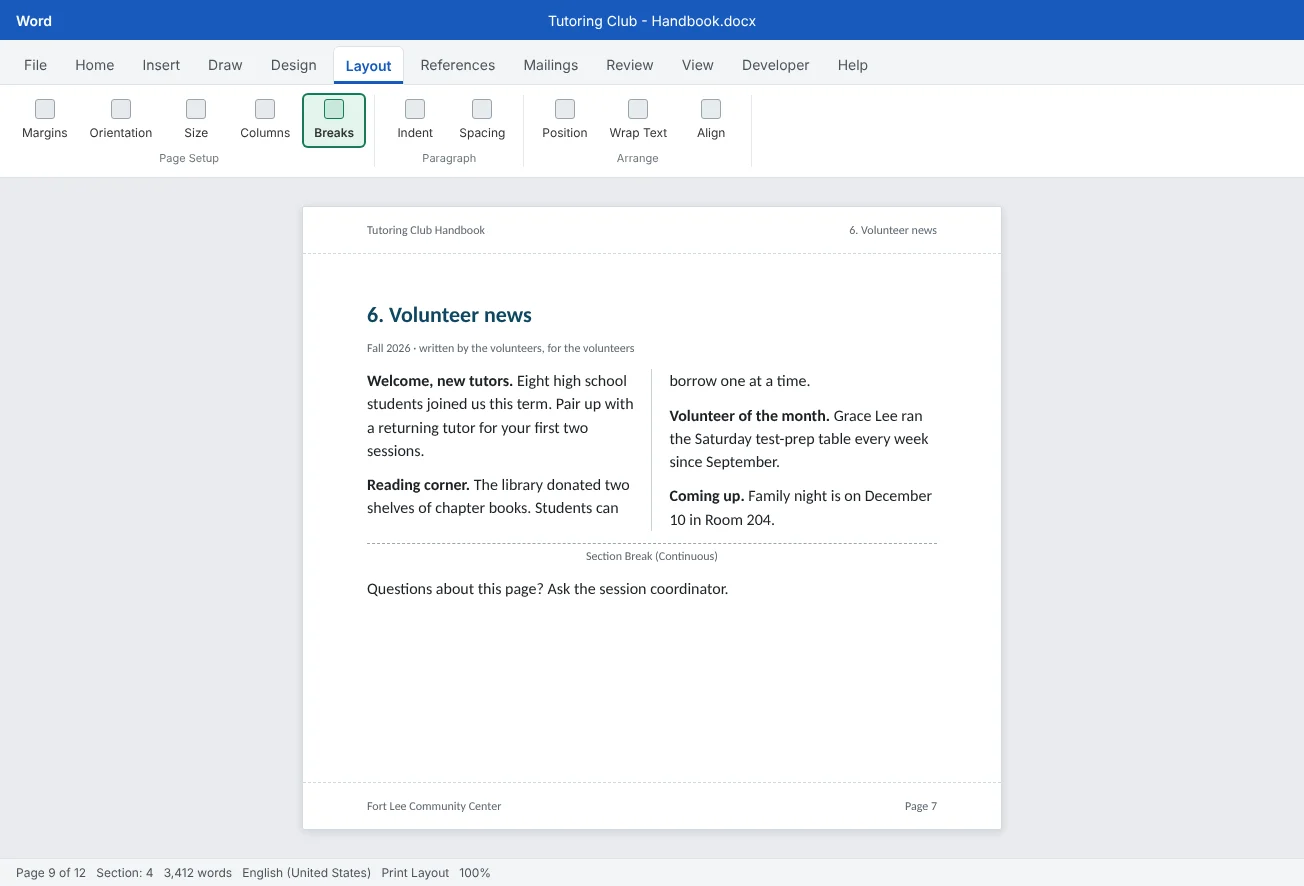
That is how you mix one and two columns on the same page: the heading sits above a Continuous break at full width, the news items run in two columns, and a second Continuous break returns to one column below.
Word fills the first column to the bottom before it starts the second. To push a paragraph to the top of the next column, click before it and press Ctrl+Shift+Enter to insert a column break (also in Layout
Give each section its own header and footer
When you add a section break, the new section's header and footer start out linked to the section before. Double-click the header and you will see Same as Previous on its right edge. Anything you type there changes the previous section too.
To give a section its own header:
- Double-click the header of the first page of that section.
- On the Header & Footer tab, in the Navigation group, click Link to Previous to turn it off. Same as Previous disappears.
- Type the new header. Earlier sections keep theirs.
- Click Go to Footer and repeat. Headers and footers are linked separately, so unlinking the header does not unlink the footer.
| Option on the Header & Footer tab | Applies to | What it does |
|---|---|---|
| Link to Previous | One header or footer in the current section | On: shows the same text as the previous section. Off: this section has its own |
| Different First Page | The current section | Gives the first page of the section a separate header and footer, such as a chapter opening page with no header |
| Different Odd & Even Pages | The whole document | Separate headers for left and right pages in a printed booklet |
| Previous / Next | Navigation | Jump to the header or footer of the previous or next section |
Because Different First Page is set per section, you can use it on the cover section only, or on every chapter. If a section has a different first page, its first-page header has its own Link to Previous setting too.
Restart page numbers and use roman numerals
Many handbooks number the front matter (cover, contents, a welcome note) as i, ii, iii and start the first chapter at page 1. That needs a Next Page section break between the front matter and chapter 1, and then two settings:
- In the front matter section, double-click the footer, choose Insert
then Header & Footer then Page Number then Format Page Numbers, and pick i, ii, iii as the number format. - Go to the first footer of the chapter section with Next, turn off Link to Previous, and open Format Page Numbers again. Choose 1, 2, 3 and, under Page numbering, choose Start at
1instead of Continue from previous section.
The page number format belongs to the section, not to the footer text. If you set roman numerals and every page changes, the document has only one section. Add the section break first, then format each section.
Delete section breaks safely
To remove a section break, turn on Show/Hide ¶, click right before the double dotted line (or select it) and press Delete. In Draft view (View
To change a break's type instead of deleting it, for example from Next Page to Continuous, click in the section after the break, open the Page Setup dialog, go to the Layout tab and change Section start. This keeps the section's formatting in place.
Before sharing the handbook, step through it with View
Common mistakes
| Mistake | What happens | Fix |
|---|---|---|
| Changing Orientation to Landscape with no section breaks | Every page in the handbook turns sideways | Put the wide page in its own section first, or use Apply to: Selected text |
| Typing a new header in section 2 while it is still linked | The header in section 1 changes too | Turn off Link to Previous before typing, for the header and the footer |
| Clicking Two columns with nothing selected | The whole section, heading included, goes into columns | Select only the text, or add Continuous breaks around it |
| Using Odd Page breaks in a document read on screen | Blank pages appear in the PDF and printout | Use Next Page unless you are printing a two-sided booklet |
| Deleting a section break to tidy up | The section above takes the formatting of the section below | Check with Show/Hide ¶ first, and press Ctrl+Z if the layout jumps |
| Setting Start at 1 in the wrong section | Front matter and chapters both start at 1, or numbering doesn't restart | Click in the chapter section's footer before you open Format Page Numbers |
| Pressing Enter many times to balance two columns | Columns shift as soon as you edit | Use a column break (Ctrl+Shift+Enter) or a Continuous break after the columns |
Practice
Practice
Split the Tutoring Handbook into sections
Guided practice
Download the example file above and open it in Word. It is a draft of the handbook with a cover, a contents page, five chapters, a wide weekly schedule that does not fit the page, and a volunteer news page. Every chapter starts after a plain page break, so it is all one section.
- Look first: turn on Home
then Paragraph then Show/Hide ¶ and right-click the status bar to show Section. Find the page breaks; every page says Section 1. - Front matter: delete the page break before 1. Welcome and insert Layout
then Page Setup then Breaks then Next Page in its place. Chapter 1 is now in section 2. - Landscape schedule: select the 4. Weekly schedule heading and its table, open the Page Setup dialog, choose Landscape and set Apply to to Selected text. Check the new section breaks around it, and delete any leftover page breaks next to them.
- Two columns: select the four news paragraphs under 6. Volunteer news (not the heading), choose Layout
then Page Setup then Columns then More Columns, pick Two, tick Line between and click OK. - Column break: click before Volunteer of the month and press Ctrl+Shift+Enter so it starts at the top of the second column.
- Headers: double-click the header on the 1. Welcome page, turn off Link to Previous, and type
Tutoring Club Handbook. Then go to the cover page and tick Different First Page so the cover has no header. - Page numbers: in the front matter footer, insert a page number and format it as i, ii, iii. In the section 2 footer, turn off Link to Previous, choose 1, 2, 3 and Start at
1. - Check: use View
then Zoom then Multiple Pages to look at all the pages. Then try deleting the section break before the schedule, watch what happens to the page above, and press Ctrl+Z. Save the file.
Independent challenge: A chapter name in every header
Put the name of each chapter in the right side of its header, for example 3. Volunteer guide. You will need a Next Page section break before each chapter and Link to Previous turned off for each header, while the footers stay linked so the page numbers keep running. Check that the page numbers still count up without restarting after chapter 1.
Reflect: which document you have made before had one awkward page, like a wide table or a page that needed its own header, and how would a section break have solved it?
Check your understanding0 of 4 correct
Pick an answer to see whether it's right and why.
You need the next chapter of a handbook to start on a new page, with the same margins and header. What should you insert?
Nothing about the page changes, so a page break is enough. Section breaks are for when the page setup, columns, headers or numbering must change.
You want a heading at full width and the text below it in two columns, on the same page. Which break goes between them?
A Continuous section break starts a new section on the same page, so the text after it can have two columns while the heading stays in one.
You typed a new header in section 3 and the header in section 2 changed too. What was still turned on?
A new section's header starts out linked to the previous one and shows Same as Previous. Turn off Link to Previous before typing.
You delete the section break right before a landscape page. What happens to the portrait pages above it?
Deleting a section break merges the text before it into the following section, which takes that section's formatting. Use Ctrl+Z if the layout jumps.
You're ready to move on when
Tick each one off as you go. Your ticks are saved in this browser only.
Related
Sources and further reading
Was this guide helpful? Spot a mistake? Send feedback · admin@arumsoft.com