Intermediate Word · Tutorial 2 of 9
How to Add a Table of Contents, Captions, and Cross-References in Word
Build a table of contents that updates itself, number figures and tables with captions, and point to them with cross-references that never go stale.
- Level
- Intermediate
- Time
- 15 min read
- Updated:
- Applies to:
- Word for Microsoft 365, Word 2024, Word 2021, Word for the web
What you'll learn
- Explain why an automatic table of contents depends on heading styles
- Insert a table of contents and choose how many heading levels it shows
- Update the table correctly: page numbers only or the entire table
- Number figures and tables with captions, and list them in a table of figures
- Point to headings, figures and pages with cross-references that update themselves
Before you start
Example file
Intermediate Word - Table of Contents.docx
Download the practice document used in this tutorial and follow along in Word.
Word document (.docx) · 38 KB
A 12-page handbook needs a contents page, and readers need to find "the schedule table" without flipping through every page. You could type all of that by hand, but the moment someone adds a paragraph on page 3, every page number after it is wrong.
In this tutorial you will finish the club's Tutoring Handbook with a table of contents that Word builds and updates for you, numbered captions for its pictures and tables, and cross-references such as "see Table 2" that stay correct when things move. All of it builds on the heading styles from the previous tutorial.
How an automatic table of contents works
Word's table of contents is not typed text. It is a field: a small piece of instructions that tells Word "list every paragraph with Heading 1, 2 or 3, and the page it is on". When you update the field, Word looks through the document again and rebuilds the list.
That means the table of contents is only as good as your headings. A chapter title that is bold Normal text is invisible to it. Before you insert one, open the Navigation Pane (View
Because it is a field, the table also works as a set of links. In Word, hold Ctrl and click an entry to jump to that chapter. In a PDF exported from Word, the entries are clickable too.
Insert a table of contents
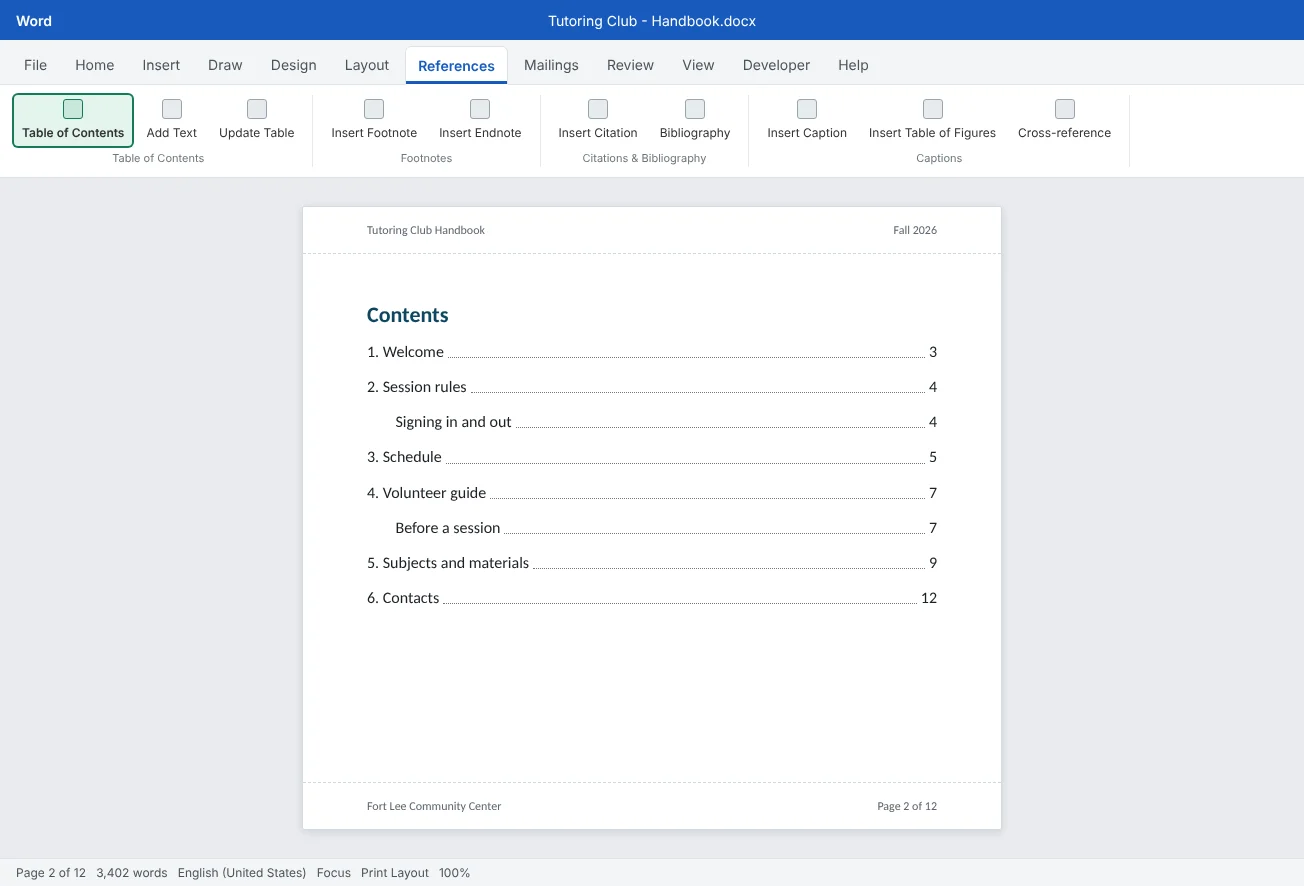
Put the cursor where the contents should go. In the handbook that is an empty page after the cover: click at the start of 1. Welcome and press Ctrl+Enter to push it onto the next page, then click on the new empty page.
| Choice in the menu | What you get | Use it when |
|---|---|---|
| Automatic Table 1 or 2 | A table built from Heading 1 to 3, with a heading of Contents or Table of Contents | Almost always |
| Manual Table | A layout you type into yourself. It never updates | Rarely. It has the same problems as a typed list |
| Custom Table of Contents | A dialog box with every option | You want different levels, leaders or formats |
In Custom Table of Contents, the settings worth knowing are:
- Show levels: how many heading levels to list. The default is 3. For the handbook, 2 is cleaner: chapters and their main sections.
- Tab leader: the dots (or dashes, or nothing) between the entry and its page number.
- Show page numbers and Right align page numbers: leave both ticked for a printed document.
- Options: choose which styles feed which level. You can add your own style, for example to include an appendix heading.
Need a heading in the table that isn't styled as one? Click in it and use References
Update the table the right way
The table of contents does not change while you type. It is a snapshot from the last update. Update it whenever you add, remove, rename or move headings, and always before you print or export a PDF.
- Click anywhere in the table.
- Click Update Table on the small tab that appears above it, or use References
then Table of Contents then Update Table, or press F9. - Choose an option and click OK.
| Option | What changes | Choose it when |
|---|---|---|
| Update page numbers only | Only the numbers on the right | You added or removed text, but didn't change any headings |
| Update entire table | Every entry and every number | You renamed, added, removed or moved headings. When unsure, pick this one |
If the table says No table of contents entries found, none of your headings use heading styles. Go back to the Navigation Pane, fix the headings, and update again.
Number figures and tables with captions
A caption is a numbered label such as Figure 1: Room 204 layout or Table 2: Weekly schedule. Like the table of contents, the number is a field, so Word counts for you.
- Click the picture or table you want to label.
- Go to References
then Captions then Insert Caption (or right-click the picture and choose Insert Caption). - Pick a Label: Figure for pictures and charts, Table for tables. Word fills in the next number.
- After the number, type a colon and a short description, such as
: Room 204 layout. - Pick a Position: below the item is common for figures; above is common for tables. Click OK.
- Number counts itself
- Uses the Caption style
Every caption uses the Caption style, so you can restyle all of them at once with Modify, the same way as a heading. Need a label Word doesn't have, such as Map? Click New Label in the Insert Caption box.
Table of figures. Once your captions are in, you can list them like a table of contents. Click where the list should go and choose References
Point to things with cross-references
The handbook says "see the schedule in Table 2 on page 5" in several places. If you type that, it is right today and wrong after the next edit. A cross-reference inserts the number, title or page as a field that updates with the document.
- Click where the reference should go and type the words around it, such as
see. - Go to References
then Captions then Cross-reference (it is also at Insert then Links then Cross-reference). - Choose the Reference type: Heading, Figure, Table and others.
- Choose what to Insert reference to, then pick the exact item from the list.
- Keep Insert as hyperlink ticked so readers can Ctrl-click to jump there. Click Insert, then Close.
| Insert reference to | Inserts | Example sentence |
|---|---|---|
| Only label and number | Table 2 | The times are in Table 2. |
| Entire caption | Table 2: Weekly schedule | See Table 2: Weekly schedule. |
| Heading text | Volunteer guide | Read Volunteer guide before your first session. |
| Page number | 5 | The schedule is on page 5. |
| Above/below | above or below | The table below lists every room. |
You can insert two references in a row: one for the label and number, one for the page number. The dialog stays open, so type on page in the document between them without closing it.
Update fields and fix what breaks
Captions and cross-references are fields, and like the table of contents they update when you ask. The simple habit: before you print or share, press Ctrl+A to select the whole document, then F9. Word updates every field in the main text. When it reaches the table of contents, it asks whether to update page numbers only or the entire table.
| What you see | Why | Fix |
|---|---|---|
| Error! Reference source not found. | The heading, caption or figure the cross-reference pointed to was deleted | Delete the broken reference and insert a new one with References |
| Figure numbers out of order | Figures were moved or deleted and fields weren't updated | Ctrl+A, then F9 |
Text like { SEQ Figure \* ARABIC } | Field codes are showing instead of results | Press Alt+F9 to switch back |
| A chapter is missing from the contents | Its heading isn't a heading style, or you updated page numbers only | Apply Heading 1, then Update entire table |
| Clicking an entry does nothing | Word needs Ctrl held down to follow links | Ctrl+click, or change it in File |
To see which text in your document is a field, go to File
Common mistakes
| Mistake | What happens | Fix |
|---|---|---|
| Typing the table of contents by hand | Page numbers are wrong as soon as anything changes | Delete it and use References |
| Headings faked with bold text | Those chapters are missing from the table of contents | Apply Heading 1 to 3, then update the entire table |
| Editing entries inside the table of contents | Your changes vanish at the next full update | Change the heading in the document, or modify the TOC styles |
| Choosing Update page numbers only after renaming headings | Old chapter names stay in the table | Choose Update entire table |
| Typing "see Figure 3" or "on page 7" | The reference is wrong after the next edit | Insert a cross-reference instead |
| Deleting a figure that something points to | The reference shows Error! Reference source not found. | Fix or remove the reference, then update fields with Ctrl+A, F9 |
| Forgetting to update before printing or exporting | The PDF has wrong numbers | Press Ctrl+A, then F9, as the last step |
Practice
Practice
Add a contents page, captions and cross-references to the handbook
Guided practice
Download the example file above and open it in Word. Its headings already use real heading styles. It also has a typed contents list, a picture placeholder and two tables without captions, and typed references like "see Table 3".
- Check headings: open the Navigation Pane and make sure all six chapters are listed under Headings.
- Replace the typed contents: delete the typed Contents list (keep its page break), click on that empty page and choose References
then Table of Contents then Automatic Table 1. - Levels: open References
then Table of Contents then Custom Table of Contents and set Show levels to 2. Replace the old table when Word asks. - Captions: click the room layout placeholder (or replace it with any picture) and add the caption Figure 1: Room 204 layout. Add Table 1: Weekly schedule and Table 2: Volunteer contacts above the two tables.
- Cross-references: find each typed reference (press Ctrl+F and search for
TableandFigure). Delete the typed number and insert a cross-reference using Only label and number. Replace typed page numbers with a Page number reference. - Test: Ctrl+click a cross-reference and a table of contents entry. Each should jump to the right place.
- Break it on purpose: add a new table with its own caption before the schedule. Press Ctrl+A, then F9, and choose Update entire table. Check that the references now say Table 2 and Table 3.
- Finish: turn Field shading to Always in File
then Options then Advanced and scroll through. Any reference still white was typed by hand.
Independent challenge: Add a list of tables
On the contents page, under the table of contents, add a short heading Tables in this handbook (use a style that isn't a heading, so it doesn't appear in the contents) and insert References
Reflect: what long document do you write or read that would be easier to use with a table of contents and cross-references, and what would break first if they were typed by hand?
Check your understanding0 of 4 correct
Pick an answer to see whether it's right and why.
Your table of contents is missing the chapter "Schedule". What is the most likely cause?
The table of contents lists paragraphs with heading styles. Apply Heading 1 to the chapter title, then choose Update entire table.
You renamed two chapter headings. Which update option should you choose?
Update page numbers only keeps the old wording. Update entire table rebuilds every entry from the current headings.
What is the safest way to write "see Table 2" in a long document?
A cross-reference is a field linked to the caption. When tables move or new ones are added, updating fields fixes the number.
Before exporting the handbook to PDF, how do you update every caption number and cross-reference at once?
Ctrl+A selects the main text and F9 updates every field in it. Alt+F9 only switches between field codes and results.
You're ready to move on when
Tick each one off as you go. Your ticks are saved in this browser only.
Related
Sources and further reading
Was this guide helpful? Spot a mistake? Send feedback · admin@arumsoft.com