Advanced Word · Tutorial 5 of 9
How to Use Mail Merge and Fields for Letters, Labels, and Certificates in Word
Connect Word to an Excel list, merge personalized letters, labels and certificates, add rules and fields, and check every record before you print.
- Level
- Advanced
- Time
- 16 min read
- Updated:
- Applies to:
- Word for Microsoft 365, Word 2024, Word 2021, Word for the web
What you'll learn
- Prepare an Excel roster that Word can merge without surprises
- Connect a letter to the roster, then sort, filter and remove duplicate recipients
- Insert merge fields, an Address Block and a Greeting Line, and add If...Then...Else rules
- Format merged numbers and dates with field switches by editing field codes
- Preview, check for errors and finish the merge as letters, labels and name certificates
Before you start
Example file
Advanced Word - Mail Merge.docx
Download the practice document used in this tutorial and follow along in Word.
Word document (.docx) · 38 KB
At the end of the fall program the Tutoring Club sends three things to every family: a letter with the student's attendance and final review score, a name certificate for finishing the 25-page Course Workbook, and a mailing label for the envelope. With 18 students, copying and pasting each name is slow. With 60 students next spring, it is a recipe for sending one family another child's score.
Mail merge solves this. You write each document once, connect it to the club's Excel roster, and Word produces one personalized copy per student. In this tutorial you will prepare the data, insert fields and rules, format numbers and dates with field switches, and check every record before anything is printed or sent.
How mail merge works
Every merge has three parts:
- The main document: the letter, label sheet or certificate, with the text that is the same for everyone.
- The data source: a list with one row per person and one column per detail, such as an Excel sheet or a Word table.
- Merge fields: placeholders like
«FirstName»in the main document. Word replaces each one with the value from the current row.
All the commands live on the Mailings tab, and they run from left to right in the order you use them: start, choose recipients, insert fields, preview, finish. The first choice, Mailings
| Type | What Word produces | Club example |
|---|---|---|
| Letters | One copy of the document per record, each starting on a new page | Family letters and name certificates |
| E-mail Messages | One email per record, sent through classic Outlook | A reminder about the certificate ceremony |
| Envelopes | One envelope per record, with the address in the right spot | Envelopes for mailing the workbook |
| Labels | A sheet of labels, with one record per label | Address labels or name tags |
| Directory | All records in one document, one after another, without page breaks | A one-page roster for volunteers |
Prepare the data in Excel
Most merge problems start in the data, not in Word. Word reads the sheet as a database: the first row is the list of field names, and every row below it is one record. Anything that breaks that pattern breaks the merge. Before you connect, check the sheet against these rules:
- One header row, in row 1. No title, logo or empty rows above it. Use short, unique names without spaces, such as
FirstNameandZIP. Word may change spaces and symbols in names to underscores. - No blank rows or columns inside the list, no merged cells and no totals row at the bottom. Word treats a blank row as an empty record, and a totals row as a student called Total.
- One detail per column. Keep first and last names, street, city, state and ZIP in separate columns, so you can build a greeting from
LastNamealone. - ZIP codes as text. Fort Lee's ZIP code is
07024. Stored as a number, it becomes7024. Format the column as Text before you type, or type an apostrophe first ('07024). - Save and close the workbook before you connect, so Word isn't blocked by a file that is in use.
Word reads the value in each cell, not the way Excel displays it. A score that shows as 92.5 in Excel may arrive as 92.5000000001, and a date may arrive as 12/17/2026 when you wanted December 17, 2026. Don't fight this in Excel. You will fix the display in Word with field switches later in this tutorial.
Connect and edit the recipient list
Open the family letter and choose Mailings
- Choose Mailings
then Start Mail Merge then Select Recipients then Use an Existing List. - Browse to
Fall Program Roster.xlsxand click Open. - In the Select Table box, pick the sheet that holds the list, such as Roster$. Keep First row of data contains column headers checked, and click OK.
Now open Mailings
| Tool | What it does | Club example |
|---|---|---|
| Sort | Orders records by up to three fields | Sort by LastName so printed letters come out alphabetically |
| Filter | Keeps only records that match conditions (Field, Comparison, Compare to) | Status Equal to Completed, so withdrawn students get no certificate |
| Find duplicates | Lists records that look the same, so you can clear the extra copy | A student entered twice when the sign-up form was sent again |
| Find recipient | Searches for a name or value in the list | Check that a new student is on the roster |
Filtering and clearing check boxes changes only which records this document merges. The Excel file stays the same. If you find a real mistake, such as a misspelled name, fix it in Excel, save, and in the Mail Merge Recipients box select the file under Data Source and click Refresh.
Insert merge fields, Address Block and Greeting Line
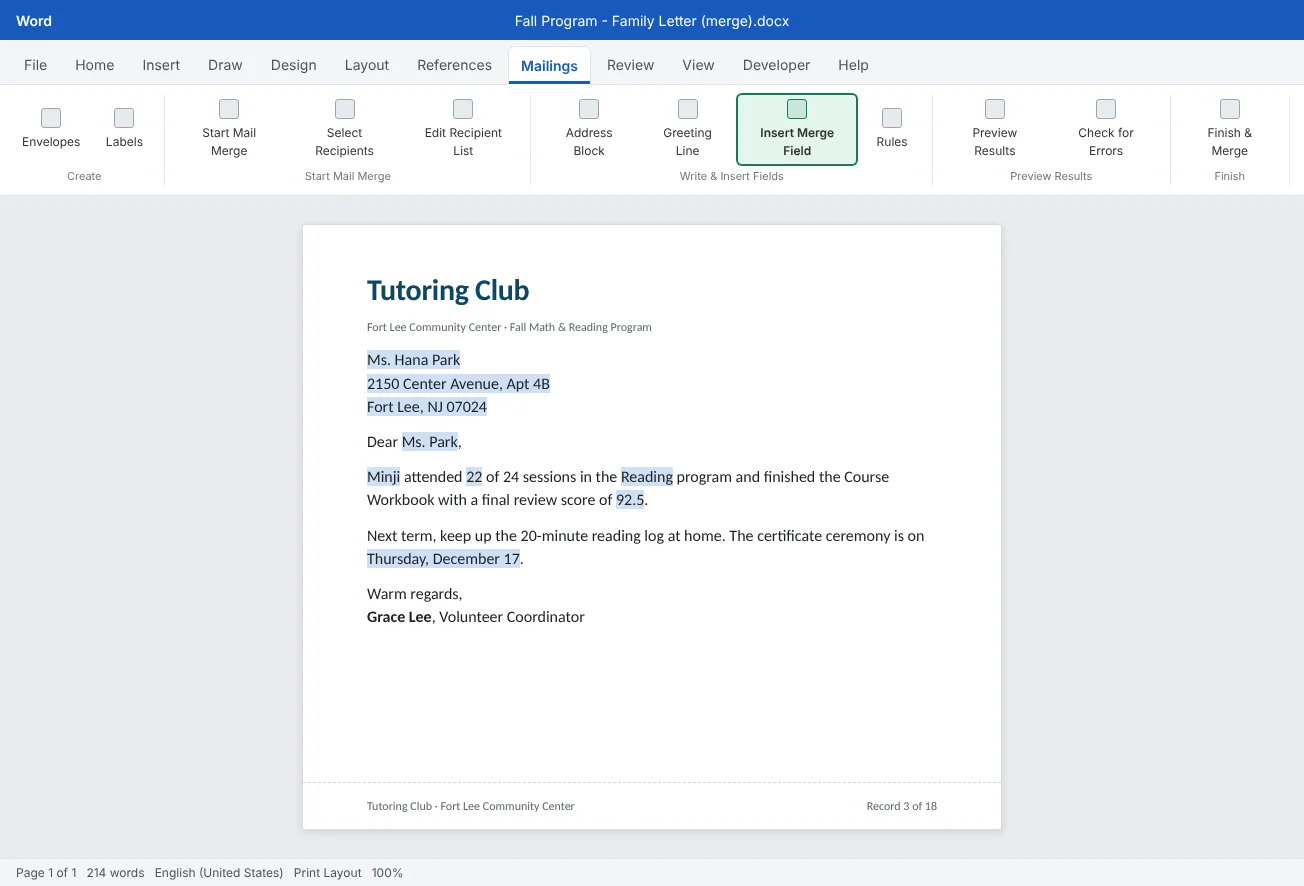
Click where a value should go and choose Mailings«FirstName» with chevrons. Type spaces and punctuation around fields the same way you would around words: «FirstName» «LastName» needs the space between them.
Two composite fields save time:
- Address Block builds a full mailing address from several columns. In its box, choose how the name looks (Ms. Hana Park or Hana Park) and check the preview on the right.
- Greeting Line builds the salutation line, for example Dear Ms. Park, at the top of each letter. You choose the greeting word, the name format and the punctuation, and a fallback such as Dear Family, for records with no usable name.
If the preview in either box shows blanks, Word didn't recognize your column names. Click Match Fields and tell Word, for example, that its Postal Code is your ZIP column and its Last Name is your GuardianLast. Word remembers the match for this document.
Merged values keep the formatting you give the field, so format the chevron text like any other text: bold «FirstName» and every merged name comes out bold.
Rules and field switches
Mailings
- If...Then...Else inserts one text or another depending on a field. Set Field name to
Program, Comparison to Equal to, Compare to toMath, then type the Math advice in Insert this text and the Reading advice in Otherwise insert this text. Each family gets the sentence that fits their child. - Skip Record If leaves out records that match a condition, such as
StatusEqual toWithdrawn. A filter in Edit Recipient List does the same job and is easier to see and undo, so prefer the filter when you can.
Behind every merge field and rule is a field code. Press Alt+F9 to show all field codes in the document, and press it again to hide them. Shift+F9 toggles only the field your cursor is in. With codes showing, the score field looks like { MERGEFIELD Score } and the rule like { IF { MERGEFIELD Program } = "Math" "Next term, try the Unit 6 challenge sets." "Next term, keep up the 20-minute reading log." }.
You can add a switch inside the braces to control how a value is shown. \# formats numbers and \@ formats dates. Click right before the closing brace, type the switch, press Alt+F9 to hide the codes, then press F9 or preview a record to see the result.
| Field code | Excel value | Merged result |
|---|---|---|
{ MERGEFIELD Score \# "0.0" } | 92.5000000001 | 92.5 |
{ MERGEFIELD Sessions \# "0" } | 22 | 22 |
{ MERGEFIELD Fee \# "$#,##0.00" } | 1250 | $1,250.00 |
{ MERGEFIELD Ceremony \@ "MMMM d, yyyy" } | 12/17/2026 | December 17, 2026 |
{ MERGEFIELD Ceremony \@ "dddd, MMMM d" } | 12/17/2026 | Thursday, December 17 |
Preview, check for errors and finish
Click Mailings
Next, use Mailings
Finally, open Mailings
| Choice | What happens | When to use it |
|---|---|---|
| Edit Individual Documents | Creates a new document (such as Letters1) with every merged copy as normal text | Almost always first. Read through it, fix single letters, save it as a PDF or print from it |
| Print Documents | Sends every merged copy straight to the printer | A main document you have already checked and trust |
| Send Email Messages | Sends one email per record. You choose the email column, a subject line and the format | Short notices. Needs classic Outlook (not the new Outlook for Windows) set up with your account on this computer |
All three let you merge All records, the Current record or a range From and To. Merging only the current record is a good test: print one letter and check it on paper before printing eighteen.
Labels and name certificates
Labels. Start a new blank document and choose Mailings
- Connect the roster with Select Recipients and filter it as before.
- In the first label only, insert an Address Block.
- Click Mailings
then Write & Insert Fields then Update Labels. Word copies the layout to every label and adds a «Next Record»field to each one, so each label moves to the next student. - Preview, then Finish & Merge
then Edit Individual Documents, and print one test sheet on plain paper. Hold it against a label sheet to check the alignment.
If you can't see where the labels are, turn on Layout
Name certificates. A certificate is a one-page letter merge. Design the page once, in landscape, with a border and the club logo. Where the name goes, insert «FirstName» «LastName» and format it large, such as 36 pt. Add «Program» to the line for completing the «Program» Course Workbook, and a ceremony date field with a \@ switch. Filter the recipients to Status = Completed, then finish with Edit Individual Documents and print on card stock.
Common mistakes
| Mistake | What happens | Fix |
|---|---|---|
| Leaving a title row or blank rows in the Excel sheet | Word reads the title as field names, or merges empty letters | Put one header row in row 1 and remove blank and totals rows |
| Storing ZIP codes as numbers | 07024 prints as 7024 | Format the ZIP column as Text, or type '07024 |
Typing { } braces on the keyboard | The field code shows as plain text and never updates | Press Ctrl+F9 for real field braces, or edit an existing field with Alt+F9 |
| Trusting Excel's number formatting | Scores show long decimals and dates show as 12/17/2026 | Add \# "0.0" or \@ "MMMM d, yyyy" switches to the fields |
| Going straight to Print Documents | A wrong field or rule is printed on every copy | Check for Errors, then Edit Individual Documents and read the result first |
| Typing labels by hand into every cell | One change means editing every label | Insert fields in the first label and click Update Labels |
| Moving or renaming the roster after connecting | Word can't find the data source when the letter opens | Keep both files in one folder and reconnect with Select Recipients if needed |
Practice
Practice
Merge family letters, labels and certificates
Guided practice
Download the example file above. It contains the family letter with bracketed placeholders, the certificate text, and the fall roster as a Word table on the last page. You will turn the table into a data source and merge all three documents.
- Data source: copy the roster table into a new blank document and save it as
Fall Roster.docxin the same folder. (Or paste it into Excel, check that ZIP codes keep their zero, and saveFall Program Roster.xlsx.) Delete the roster page from the letter file. - Connect: in the letter, choose Mailings
then Start Mail Merge then Start Mail Merge then Letters, then Select Recipients then Use an Existing List and pick your roster. - Clean the list: in Edit Recipient List, sort by
LastName, use Find duplicates to clear the student who appears twice, and filterStatustoCompleted. - Fields: replace the address placeholder with an Address Block, the greeting with a Greeting Line, and
[First name],[Sessions],[Program],[Score]and[Ceremony]with merge fields. - Rule: replace
[Advice]with an If...Then...Else rule that gives Math students the Unit 6 sentence and everyone else the reading log sentence. - Switches: press Alt+F9, add
\# "0.0"to the Score field and\@ "dddd, MMMM d"to the Ceremony field, press Alt+F9 again and preview three records. - Check and finish: run Check for Errors (simulate), then Finish & Merge
then Edit Individual Documents. Read the merged letters and save them as a PDF. - Labels: in a new document, merge Avery 5160 address labels from the same roster using Address Block and Update Labels.
Independent challenge: Certificates and a directory
Build the name certificate from the certificate text in the practice file: landscape page, a large «FirstName» «LastName», the program and a formatted ceremony date. Merge only completed students. Then make a Directory merge that lists every student on one page as LastName, FirstName · Program · Sessions, for the volunteers' clipboard.
Reflect: which mistakes in your own lists, such as blank rows, combined names or numbers stored the wrong way, would have broken this merge, and how will you set up the next list to avoid them?
Check your understanding0 of 4 correct
Pick an answer to see whether it's right and why.
Your merged labels show 7024 instead of 07024. Where is the best place to fix this?
A number can't keep a leading zero. Stored as text, 07024 merges exactly as typed.
Which field code shows a ceremony date as December 17, 2026?
The \@ switch formats dates. The \# switch is for numbers.
You set up an Address Block in the first label of a label sheet. What fills the other labels?
Update Labels copies the first label's layout to every label and adds Next Record fields so each label shows the next record.
You've finished the letter and want to read every merged copy before printing. Which Finish & Merge choice do you pick?
Edit Individual Documents creates a new document with every merged letter, so you can review it, fix single letters and then print or save a PDF.
You're ready to move on when
Tick each one off as you go. Your ticks are saved in this browser only.
Related
Sources and further reading
Was this guide helpful? Spot a mistake? Send feedback · admin@arumsoft.com