Advanced Word · Tutorial 6 of 9
How to Create Fillable Forms with Content Controls in Word
Build sign-up sheets and worksheets with text fields, checkboxes, drop-downs and date pickers, then restrict editing so only the fields can change.
- Level
- Advanced
- Time
- 15 min read
- Updated:
- Applies to:
- Word for Microsoft 365, Word 2024, Word 2021, Word for the web
What you'll learn
- Show the Developer tab and pick the right content control for each answer
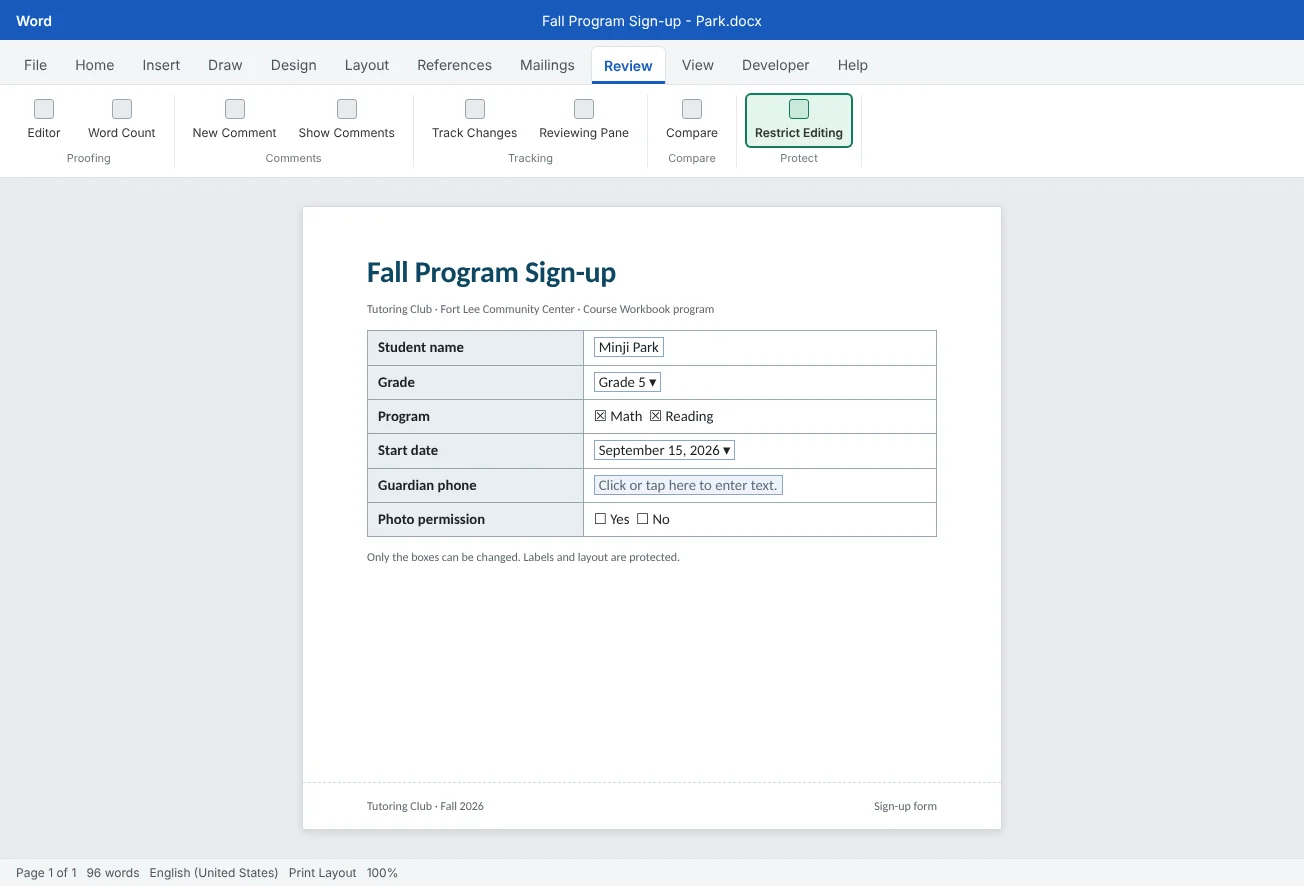
- Build a form layout in a table with text, check box, drop-down and date controls
- Set control properties such as Title, Tag, list items and locking, and edit placeholder text in Design Mode
- Protect the form so only the controls can change, and know which protection fits content controls
- Save the form as a template, test it as a family would, and plan for Mac and Word for the web
Example file
Advanced Word - Forms and Content Controls.docx
Download the practice document used in this tutorial and follow along in Word.
Word document (.docx) · 37 KB
The Tutoring Club hands out two forms every term: a sign-up sheet at the start and a short workbook feedback form at the end. Until now they were plain pages with underlined blanks. Families wrote phone numbers across the label, typed over the instructions, and answered Grade with anything from 5 to fifth to 5th grade (Ms. Ortiz). Counting the answers took longer than collecting them.
Content controls turn those blanks into real fields: boxes that show a hint, check boxes that tick, drop-down lists with fixed choices and a calendar for dates. In this tutorial you will build the sign-up form in a table, set each control's properties, protect the layout so only the fields change, and save it as a template the club can reuse.
Show the Developer tab
Content controls live on the Developer tab, which Word hides by default. Turn it on once and it stays on:
- Go to File
then Options then Customize Ribbon. - In the list on the right, under Main Tabs, check Developer.
- Click OK. The Developer tab now appears on the ribbon.
Two groups matter for forms. Controls holds the control buttons, Design Mode, Properties and Group. Protect holds Restrict Editing, the same command you also find on the Review tab. The rest of the tab (macros, add-ins, XML mapping) isn't needed for this tutorial.
Choose the right control for each answer
Each button in Developer
| Control | What the person can do | Sign-up form example |
|---|---|---|
| Plain Text | Type text with no formatting choices. Can allow several lines if you turn that on | Student name, guardian phone |
| Rich Text | Type and format text, with several paragraphs | Comments in the feedback form |
| Check Box | Tick or clear a box | Program: Math, Reading |
| Drop-Down List | Pick one item from your list, and nothing else | Grade 3 to Grade 8 |
| Combo Box | Pick from your list or type something new | How did you hear about us? (list plus Other) |
| Date Picker | Type a date or pick it from a calendar | Start date, date signed |
| Picture | Click to insert a picture | Student photo for a name badge |
| Repeating Section | Add another copy of a row or block with a plus button | One row per sibling who also signs up |
The Building Block Gallery control lets someone pick a saved block of text, and Legacy Tools holds the older form fields and ActiveX controls. Older forms still use legacy form fields, which work differently, as you'll see in the protection section. For new forms, use content controls.
Build the form layout in a table
A table is the best frame for a form. Labels go in the left column, controls in the right column, and nothing shifts when a long answer is typed. Insert a two-column table, type the labels on the left, then format it with what you learned in the table formatting tutorial: a light header shading, no outside borders, and a fixed column width so the labels line up.
To add a control, click in the right-hand cell and click the control's button in DeveloperMath), then insert the next one in the same cell.
Set control properties
Click a control and choose Developer
| Setting | What it does | Good practice |
|---|---|---|
| Title | A name shown on the control's tab and read by screen readers | Always set it: Student name, Grade |
| Tag | A hidden name used by macros, XML or other tools | Short, no spaces: studentName. Optional for simple forms |
| Show as | How the control's edge looks: Bounding Box, Start/End Tag or None | Bounding Box is clearest for families |
| Content control cannot be deleted | The control stays, but its answer can be changed | Turn on for every field, so nobody deletes a box by accident |
| Contents cannot be edited | Nobody can change what is inside | Only for fixed text. On a field, it blocks the answer |
| Use a style to format contents | Applies a style to whatever is typed | Pick a style so answers match the form's font |
The lower part holds the type's own options:
- Drop-Down List and Combo Box: click Add for each choice. Display Name is what people see (
Grade 5); Value is what is stored for tools that read the form (5). Use Move Up and Move Down to order the list, and remove the default Choose an item. entry if you don't want it as a choice. - Date Picker: choose a display format such as
MMMM d, yyyy, and the locale and calendar type. - Check Box: change the Checked symbol and Unchecked symbol, for example to ☒ and ☐.
- Plain Text: check Allow carriage returns (multiple paragraphs) for an address or a longer answer.
Edit placeholder text in Design Mode
An empty control shows placeholder text, such as Click or tap here to enter text. That hint disappears as soon as someone types. A specific hint is much more helpful: First and last name, Example: (201) 555-0148.
- Click Developer
then Controls then Design Mode. Each control now shows start and end tags with its title. - Click inside a control and replace the placeholder with your own hint. Format it in gray or italics if you like.
- Click Design Mode again to turn it off. Always turn it off before you protect or test the form.
Placeholder text is not an answer. If a field is left empty, the hint still shows on screen, but it prints only in gray, if at all, and anyone reading the returned form can tell it was skipped.
Protect the form so only the fields change
Without protection, anyone can type over your labels, delete a row or break the table. There are three ways to protect a form, and the right one depends on which fields you used:
| Method | How | Use it for |
|---|---|---|
| Group | Select the whole form and choose Developer | Content control forms. Quick, no password, and reversible with Ungroup |
| No changes (Read only) with exceptions | In Restrict Editing, choose No changes (Read only), select the controls (hold Ctrl to select several), and check Everyone under Exceptions | Content control forms where you want a password, or areas of free text that people may edit |
| Filling in forms | In Restrict Editing, choose Filling in forms | Forms built with legacy form fields. It was designed for legacy form fields; content controls are better protected with Group or exceptions |
To use Restrict Editing, open Review
If only part of a long document should be a form, such as a worksheet page inside the Course Workbook, the simplest option is to keep the worksheet in its own file and protect that file. If it must stay inside the workbook, use Group on only the worksheet's text and controls: the rest of the workbook stays editable, and the grouped part can't be changed except in its controls.
Save as a template, test and share
A form is used over and over, so save it as a template: File
Then test it the way a family will use it:
- Double-click the template to create a new form.
- Fill in every control. Try to type over a label, delete a row and type in the drop-down. Each attempt should be blocked.
- Leave one field empty and check how the placeholder looks.
- Open File
then Print and look at the preview. Control borders don't print, so check that the answers still line up with their labels. - Save the test copy with a family name and reopen it to check the answers stayed.
Run Review
Common mistakes
| Mistake | What happens | Fix |
|---|---|---|
| Using underscores as blanks | Typed answers push the line and break the layout | Put labels and content controls in a two-column table |
| Typing over the default placeholder text instead of using Design Mode | The hint becomes fixed text, or the control is deleted | Turn on Design Mode, edit the placeholder, then turn it off |
| Checking Contents cannot be edited on a field | Nobody can type an answer or pick from the list | Use Content control cannot be deleted for fields |
| Protecting a content control form with Filling in forms | Controls can behave oddly, because that mode was designed for legacy fields | Group the form, or use No changes (Read only) with exceptions |
| Leaving controls without a Title | Screen readers announce only edit, and the tags are hard to tell apart | Set a Title for every control in Properties |
| Sharing the .docx master for families to fill in | Someone fills in and saves over the only copy | Save the form as a .dotx template |
| Expecting the password to keep data private | Anyone determined can remove protection or copy the text | Treat protection as a guard against accidents only |
Practice
Practice
Turn the paper sign-up sheet into a fillable form
Guided practice
Download the example file above. It contains the club's sign-up sheet and workbook feedback form as plain text with labels and underlined blanks. You will rebuild it with content controls, protect it and save it as a template.
- Developer tab: turn it on in File
then Options then Customize Ribbon if you haven't already. - Table: under the sign-up heading, insert a two-column table with one row per label. Move each label into the left column and delete the underscores.
- Text fields: add Plain Text controls for student name, guardian name and guardian phone. Allow carriage returns for the address.
- Choices: add a Drop-Down List for grade (Grade 3 to Grade 8), two Check Boxes for Math and Reading, and a Combo Box for How did you hear about us? with School, Friend, Library and Other.
- Date: add a Date Picker for the start date with the format
MMMM d, yyyy. - Properties: give every control a Title and turn on Content control cannot be deleted. In Design Mode, replace the placeholders with helpful hints, then turn Design Mode off.
- Protect: select the whole form and use Developer
then Controls then Group then Group. Try to type over a label to check it is locked. - Template and test: save as
Fall Program - Sign-up Form.dotx, double-click it, fill in a test form for the Park family, and check the print preview.
Independent challenge: The feedback form with Restrict Editing
Build the workbook feedback form from the second page of the practice file: a drop-down for the most helpful unit (Units 1 to 6), check boxes for too easy, about right and too hard, and a Rich Text control for comments. This time protect it with Review
Reflect: which questions on your own paper forms get the most inconsistent answers, and which control would make a wrong answer impossible?
Check your understanding0 of 4 correct
Pick an answer to see whether it's right and why.
Families should pick their child's grade from a fixed list and nothing else. Which control fits?
A drop-down list allows only the items you added. A combo box also lets people type their own answer.
Your form uses only content controls. Which is a recommended way to stop people from editing the labels?
Grouping locks the text outside the controls while the controls keep working. Tracked changes still lets people edit the labels; it only records the edits.
You want a field's hint to say First and last name instead of the default text. What do you use?
In Design Mode you can click into a control and edit its placeholder text. Turn Design Mode off when you're done.
Which property should every content control have so screen readers and Design Mode show a clear name?
The Title appears on the control's tab and is read by assistive technology. The Tag is a hidden name for tools and macros.
You're ready to move on when
Tick each one off as you go. Your ticks are saved in this browser only.
Related
Sources and further reading
Was this guide helpful? Spot a mistake? Send feedback · admin@arumsoft.com