Advanced Word · Tutorial 2 of 9
How to Build a Custom Word Template and Style System
Turn your formatting decisions into a .dotx template: theme fonts and colors, a named style set, page layouts, and placeholder text people can't easily break.
- Level
- Advanced
- Time
- 15 min read
- Updated:
- Applies to:
- Word for Microsoft 365, Word 2024, Word 2021, Word for the web
What you'll learn
- Design a small, named style set and decide how each style inherits from Normal or from no style
- Set custom theme fonts and colors, and know what Set as Default really changes
- Show only the styles people should use, and copy styles between files with the Organizer
- Put margins, headers, a cover page and hard-to-break placeholder text into the template
- Save, test and version a .dotx template without breaking documents already made from it
Example file
Advanced Word - Style System.docx
Download the practice document used in this tutorial and follow along in Word.
Word document (.docx) · 37 KB
In Intermediate Tutorial 7 you saved a document as a template. That works for a flyer. A 25-page workbook written by several volunteers needs more: a deliberate set of styles, each with one job, so nobody has to format anything by hand and every unit looks like it came from the same place.
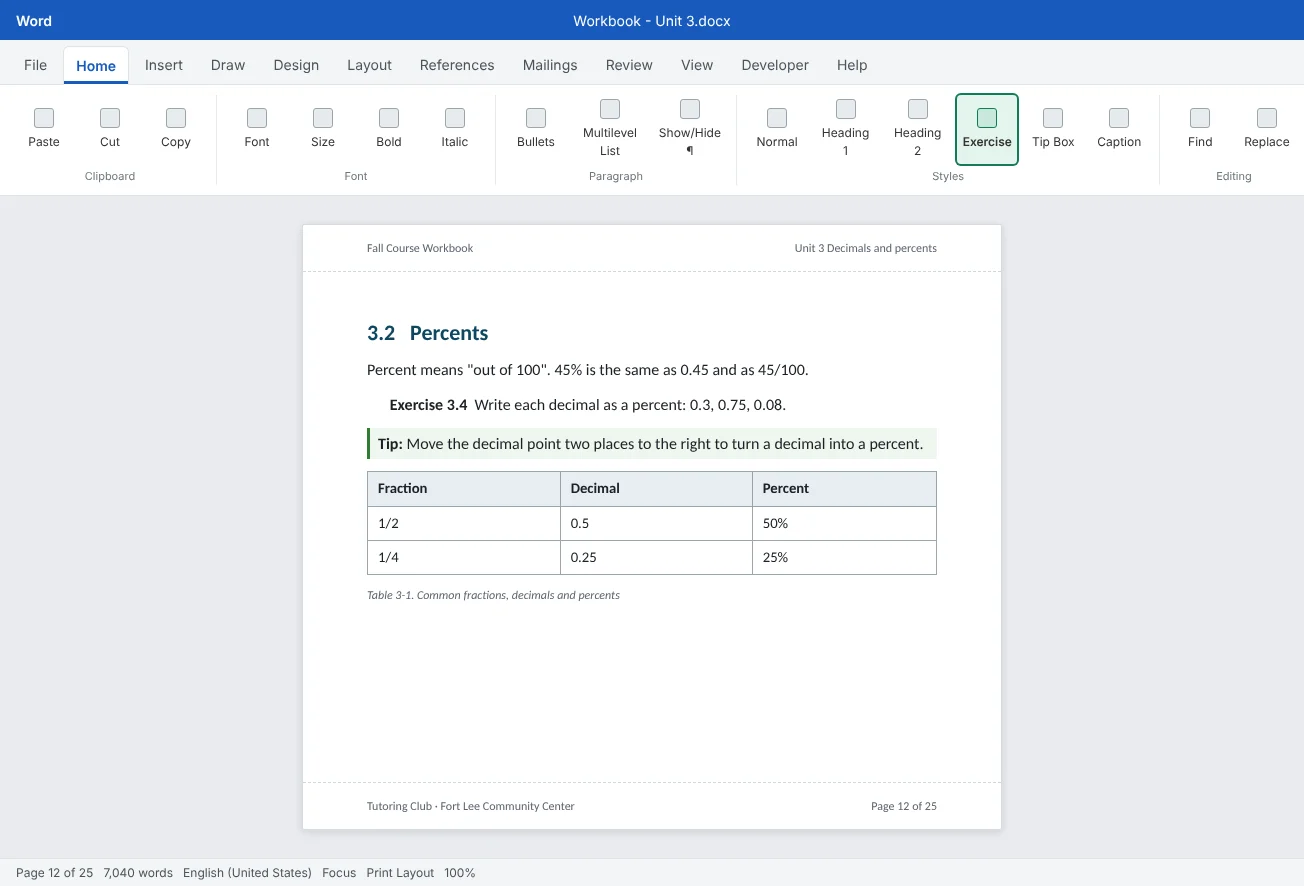
In this tutorial you will turn a sample unit of the Course Workbook, formatted by hand from top to bottom, into a style system and a .dotx template. You will plan the styles, build them so they inherit sensibly, add theme fonts and colors, lock down the style list, set up the pages, and test the template the way a new volunteer would use it.
Design a small style set
A style system is a short list of styles where each one has a single job. If volunteers can't tell which style to use in under a second, the list is too long. For the workbook, eight styles cover almost every paragraph:
| Style | Job | Based on | Style for following paragraph |
|---|---|---|---|
| Normal (body) | All ordinary body text. The root of the system | (no style) | Normal |
| Heading 1 to 3 | Unit, section and topic titles, numbered as in Tutorial 1 | Normal | Normal |
| Exercise | The instruction line of each exercise | Normal | Normal |
| Tip Box | Short tips in a shaded box with a left border | Normal | Tip Box |
| Caption | Labels under tables and pictures (the built-in style, modified) | Normal | Normal |
| Table Text | Text inside table cells, with no space after | Normal | Table Text |
Two rules keep the set small and robust:
- Use the built-in styles where one exists. Keep the names Heading 1 to 3 and Caption. The Navigation Pane, tables of contents, captions and accessibility tools look for those exact styles. Change how they look, not what they are called.
- Create a style only for something that repeats. A one-off sign on the cover doesn't need a style. Exercises, which appear 60 times, do.
Build the styles with inheritance
Every style has a Style based on setting. A style stores only the ways it differs from its base and inherits everything else. The Modify Style box shows this in plain words, for example Normal + Bold, Indent: Left 0.25". That is powerful and also the main source of surprises.
| Base the style on | What happens when Normal changes | Good for |
|---|---|---|
| Normal | It follows every Normal setting it doesn't override, such as font, language or color | Most styles. Change the body font once and Exercise, Tip Box and Table Text all follow |
| (no style) | Nothing. The style defines everything itself | Styles that must never shift, such as a fixed-size worksheet line. You maintain every setting by hand |
| Another custom style | It follows that style, which follows Normal | Variants, such as Tip Box Warning based on Tip Box with a red border |
Normal itself is based on (no style): it is the root. Keep the chain short, one or two steps, so you can always predict what a change will touch.
To build Tip Box:
- Open the Styles pane and click New Style.
- Name it
Tip Box. Set Style type to Paragraph, Style based on to Normal and Style for following paragraph to Tip Box, so a two-paragraph tip stays inside one box. - Click Format
then Border: add a left border and a light theme-color shading. - Click Format
then Paragraph: add space before and after, and on Line and Page Breaks tick Keep lines together. - Leave Automatically update unticked and click OK.
Consecutive paragraphs with the same border settings share one box, which is why Tip Box follows itself. Exercise works the other way: after the instruction line you want ordinary text for the answer, so its following style is Normal. Build Table Text with 0 pt after and single line spacing, so table rows don't inherit Normal's extra space.
Set theme fonts and colors
Don't type font names and color codes into each style. Point the styles at the theme instead, so the whole workbook can change look from one place.
- Theme fonts. In Customize Fonts, choose a Heading font and a Body font and name the pair
Tutoring Club. In the Modify Style box, pick the font marked (Headings) or (Body) at the top of the font list, not the font by name. - Theme colors. In Customize Colors, set the club's green as Accent 1 and a dark gray for Text/Background - Dark 2. Choose colors for styles from the theme rows of the color picker, not from More Colors.
- Save the theme. Design
then Document Formatting then Themes then Save Current Theme saves a .thmxfile, so other templates (certificates, family letters) can use the same fonts and colors.
Test it: pick a different color set from the Colors gallery. If every heading, tip border and table header changes, your styles are connected to the theme. Anything that stays the same was set with a fixed color; fix it in the style.
Show the right styles and copy them between files
Word ships with dozens of styles. If volunteers see all of them, someone will pick Intense Quote for a tip. The Manage Styles box (the button at the bottom of the Styles pane) controls what people see.
| Tab in Manage Styles | What to do there |
|---|---|
| Recommend | Select your eight styles and click Show; select the rest and click Hide until used. Use Move Up / Move Down to set the order. Then in the Styles pane choose Options |
| Restrict | Mark styles as restricted and tick Limit formatting to permitted styles. It only takes effect once you protect the document with Review |
| Edit | Modify any style, including hidden ones |
| Set Defaults | Font, size and spacing used when a style doesn't set its own |
For a writing template, Recommend is usually enough: it guides people without stopping them. Save Restrict for fill-in documents where the layout must not change.
Copy styles with the Organizer. A volunteer already wrote Unit 4 in an old file. Rather than rebuilding styles there, copy them in:
- In the Styles pane, click Manage Styles, then Import/Export. The Organizer opens on the Styles tab.
- The left side shows the current file and the right side shows Normal. Under the right side, click Close File, then Open File.
- Change the file type to All Word Documents (or Word templates), find the workbook template and open it.
- Select the styles you need and click Copy. Confirm when Word asks to overwrite styles with the same name.
Add page layouts and placeholder text
A template carries more than styles. Anything already in the .dotx appears in every new document made from it, so set up the parts each unit file needs:
- Margins and paper with Layout
then Page Setup then Margins then Custom Margins, for example a wider inside margin if the workbook will be bound. - Headers and footers with the page number, the workbook name and a StyleRef field for the unit title. Tick Different First Page so the cover has none.
- A cover page on page 1, from Insert
then Pages then Cover Page or one you design yourself. - Numbered headings from Tutorial 1. The multilevel list lives in the heading styles, so it travels with the template.
- Prompt text disappears on typing
- Hard to delete by accident
Placeholder text people can't break by accident. Typed prompts such as [Type unit name here] get half-deleted, left in, or formatted by accident. Content controls are better: they show gray prompt text, select it all with one click, and vanish when the person types.
- No extra tab needed: Insert
then Text then Quick Parts then Document Property and choose Title or Author. These controls are linked to the file's properties, so the title typed on the cover also appears in the header. - Custom prompts: the Developer tab adds plain text, date and drop-down controls, and can lock a control so it can't be deleted. You will build these in Tutorial 6 of this level, on fillable worksheets.
Save, test and version the template
Save the file as a template: FileTutoring Club Workbook.dotx. Word switches to your personal templates folder. Choose Word Macro-Enabled Template (*.dotm) only if the template must carry macros.
Test it like a volunteer. Close the template, then:
- Go to File
then New, open the Personal tab and click the template. The title bar should say Document1 or similar, not the template's name. If you see the template name, you opened the template itself. - Fill in the cover controls and check that the title appears in the header.
- Type a heading, an exercise, a tip and a small table using only the Styles gallery. Check the numbering, the page breaks and that only your recommended styles show.
- Paste a paragraph from a web page with Ctrl+Shift+V (Keep Text Only) and check that it picks up Normal.
- Write down anything that felt unclear, fix it in the template, and test again.
| Versioning habit | Why |
|---|---|
| Keep one stable file name in the shared folder | Volunteers always find the current version in the same place |
Move the old version to an Old templates folder as Tutoring Club Workbook v1.2.dotx | You can go back if a change goes wrong |
| Note the version and date in File | Anyone can tell which version a document came from |
| Remember: documents keep their own copy of the styles | Changing the template does not change units already written. Use the Organizer to bring the new styles into them |
Common mistakes
| Mistake | What happens | Fix |
|---|---|---|
| Creating a new style for every small variation | Volunteers can't tell which to use, and pick the wrong one | Keep a short set; one style per repeating job |
| Renaming or replacing Heading 1 to 3 with custom heading styles | The Navigation Pane, table of contents and captions stop working as expected | Modify the built-in headings instead of replacing them |
| Choosing fonts and colors by name inside styles | Changing the theme doesn't restyle the workbook | Pick (Headings)/(Body) fonts and theme colors |
| Clicking Set as Default to fix one document | Every future blank document changes | Change styles Only in this document, or in the template on purpose |
| Leaving all of Word's styles visible | People apply random built-in styles | Use Manage Styles > Recommend and show Recommended styles |
| Opening the .dotx to start a new unit | The unit gets written into the template itself | Start from File |
| Leaving Automatically update document styles on | Local style changes are undone every time the file opens | Use it once to update, then untick it |
Practice
Practice
Turn a hand-formatted unit into a style system and template
Guided practice
Download the example file above and open it in Word. It is a sample unit of the Course Workbook where every heading, exercise, tip, table and caption was formatted by hand with different fonts, colors and spaces.
- Audit: open the Styles pane (Alt+Ctrl+Shift+S) and click through the paragraphs. Use Style Inspector or Shift+F1 to list each kind of hand formatting you find.
- Theme: in Design
then Document Formatting, create custom theme fonts and colors named Tutoring Club. - Root style: modify Normal to use the (Body) font and the spacing you want for body text.
- Build styles: create Exercise, Tip Box and Table Text based on Normal, and modify Heading 1, Heading 2 and Caption. Set each style's following paragraph as in the table in this tutorial.
- Apply and clean: apply the styles, using Home
then Editing then Select then Select Text with Similar Formatting for repeated items. Then press Ctrl+A, Ctrl+Space to strip leftover character formatting, and delete the spaces used for indents. - Limit choices: in Manage Styles, show your styles on the Recommend tab, hide the rest until used, and set the Styles pane to show Recommended styles.
- Pages: set margins, add a header with the workbook name and a footer with page numbers, and add a cover page with a Title document property control.
- Save and test: delete the sample body text, save as
Tutoring Club Workbook.dotx, close it, and create a new document from Filethen New then Personal. Type one exercise and one tip to test.
Independent challenge: Version 1.1
Save a document made from the template as Unit 1 test.docx. Then open the template itself, change Tip Box to a blue border, and save it as version 1.1 (archive the old one). Open Unit 1 test.docx: did the tip change? Bring the new Tip Box in with the Organizer, and explain to a volunteer, in two sentences, why the document didn't update by itself.
Reflect: which document do you remake by hand every year, and which five or six styles would its template need?
Check your understanding0 of 4 correct
Pick an answer to see whether it's right and why.
Exercise is based on Normal and doesn't set its own font. You change Normal's font. What happens to Exercise paragraphs?
A style based on Normal inherits every setting it doesn't override. That is why one change to Normal can update a whole style system.
Why should Tip Box use itself as the style for the following paragraph?
Pressing Enter keeps you in Tip Box, and consecutive paragraphs with the same borders share one box.
You want volunteers to see only the workbook's eight styles in the Styles pane, without blocking them from bold text. What do you use?
Recommend controls what the Styles pane and gallery show. Restrict, enforced with Restrict Editing, also blocks most direct formatting.
You updated the template's Heading 1. Units written last month still show the old Heading 1. Why?
A template's styles are copied into each new document. To update older documents, copy the styles in with the Organizer.
You're ready to move on when
Tick each one off as you go. Your ticks are saved in this browser only.
Related
Sources and further reading
Was this guide helpful? Spot a mistake? Send feedback · admin@arumsoft.com