Advanced Word · Tutorial 8 of 9
How to Clean Up Documents with Advanced Find and Replace and Wildcards in Word
Find and replace formatting, styles and special characters, match patterns with wildcards, and clean up pasted text in minutes instead of hours.
- Level
- Advanced
- Time
- 14 min read
- Updated:
- Applies to:
- Word for Microsoft 365, Word 2024, Word 2021, Word for the web
What you'll learn
- Open the full Find and Replace dialog and choose the right search options for the job
- Find and replace formatting and styles, such as turning bold red text into a Key Term style
- Use special characters like ^p, ^t and ^l to clean up pasted text in a few passes
- Match patterns with wildcards and rearrange text with \1 and \2
- Select or highlight every match at once, and run big replacements safely
Example file
Advanced Word - Find and Replace.docx
Download the practice document used in this tutorial and follow along in Word.
Word document (.docx) · 38 KB
The Course Workbook is assembled from emails, school rosters and old handouts. Pasted text brings its mess along: double spaces, empty paragraphs used for spacing, line breaks in the middle of sentences, names written Last, First, dates in four formats and key terms made bold and red by hand. Fixing that one occurrence at a time across 25 pages takes an afternoon.
In this tutorial you will go far beyond Find and Replace for words. You will search for formatting and invisible characters, use wildcards to match patterns, and rearrange text automatically. You will also learn the habits that keep a powerful Replace All from damaging the document.
Open the full Find and Replace dialog
Ctrl+F opens the search box in the Navigation Pane, which is great for finding words. For everything in this tutorial you need the full dialog: press Ctrl+H or click Home
Click More >> at the bottom left. The dialog grows to show the Search Options and three buttons: Format, Special and No Formatting.
The buttons on the right do different things:
- Find Next jumps to the next match without changing anything.
- Replace replaces the current match and moves to the next one.
- Replace All replaces every match and then tells you how many replacements it made.
See or select every match. In the Navigation Pane, Word highlights every match in yellow and lists them under Results. In the dialog's Find tab, Reading Highlight > Highlight All does the same until you choose Clear Highlighting. Find In > Main Document goes further: it selects every match at once, so you can apply a style or formatting to all of them with one click.
Choose the right search options
The Search Options decide what counts as a match. Most mistakes with Replace All come from leaving one of these on, or off, without noticing.
| Option | What it does | Example |
|---|---|---|
| Search (All, Down, Up) | Searches the whole document or only in one direction from the cursor | Use Down to fix only the units after the one you're editing |
| Match case | Upper and lower case must match exactly | May finds the month but not may |
| Find whole words only | Skips matches inside longer words | art finds art but not start or party |
| Use wildcards | Turns on pattern matching (see the wildcards section) | [0-9]{4} finds any four digits |
| Sounds like (English) | Finds words that sound similar | there also finds their |
| Find all word forms (English) | Finds every form of a word | read also finds reads and reading |
| Match prefix / Match suffix | Only matches at the start or end of a word | Suffix ing finds reading, not ingredient |
| Ignore punctuation / Ignore white-space characters | Treats periods, commas or spaces as if they weren't there | ex 3 also finds ex. 3 |
Find and replace formatting and styles
The Format button adds formatting to whatever box the cursor is in: Font, Paragraph, Tabs, Language, Frame, Style or Highlight. The chosen formatting appears in small text under the box, such as Format: Font: Bold, Font color: Red. You can leave the text box empty to search for formatting alone.
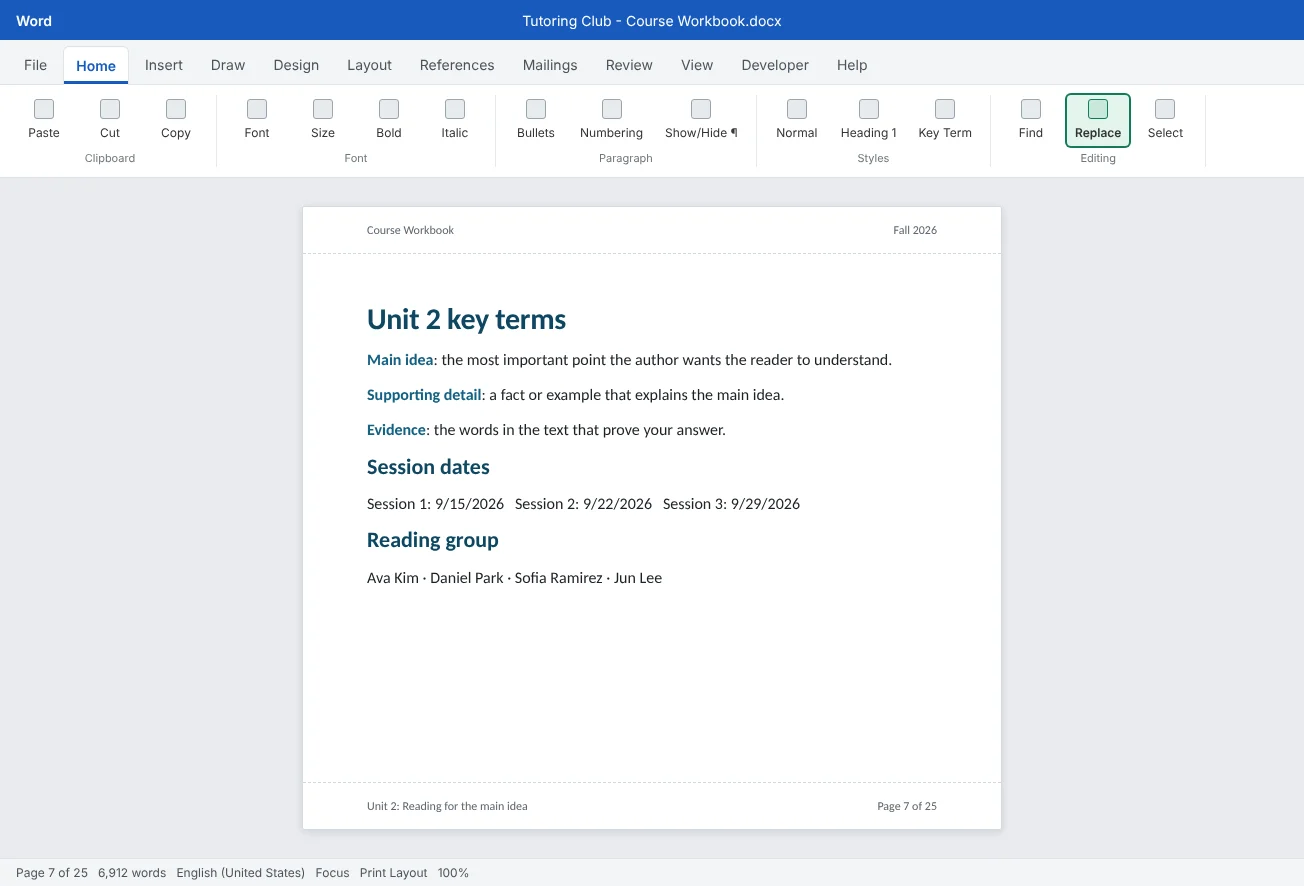
In the Course Workbook, volunteers marked key terms by making them bold and red by hand. Replace that with a proper character style, so the look is consistent and you can change it later in one place (styles are covered in Intermediate Tutorial 1):
- Create a character style called Key Term, for example bold in the document's accent color. In the Create New Style from Formatting dialog, set Style type to Character.
- Press Ctrl+H. Click in Find what, delete any text, then choose Format
then Font and set Bold and the font color Red. - Click in Replace with, leave it empty, and choose Format
then Style then Key Term. - Click Find Next and Replace a couple of times to check, then Replace All.
Formatting search is exact. A slightly different red (such as Dark Red) or a term that is red but not bold won't match. After Replace All, search again for Font color: Red alone to find the stragglers.
Find invisible marks with special characters
Paragraph marks, tabs and line breaks are characters too, and Find and Replace can search for them. Type a caret code into the box, or pick it from the Special button. Turn on Home
| Code | Finds | Code | Finds |
|---|---|---|---|
^p | Paragraph mark (¶) | ^? | Any one character |
^t | Tab | ^# | Any one digit |
^l | Manual line break (Shift+Enter) | ^$ | Any one letter |
^m | Manual page break (Ctrl+Enter) | ^w | White space: any run of spaces and tabs |
^s | Nonbreaking space | ^^ | A real caret (^) |
Two codes only work in Replace with:
^&puts back whatever was found. FindRoom 204and replace with^& (second floor)to add a note after every mention.^cinserts what is on the clipboard, even a picture. Copy the club logo, find the placeholder[LOGO], replace with^c.
Codes can be combined with text and with each other: ^p^p is an empty paragraph, ^w^p is spaces at the end of a paragraph, and Exercise ^# finds Exercise 1 to Exercise 9.
Cleanup recipes for pasted text
These recipes fix most pasted text. Run them in this order, with Use wildcards off, and press Replace All again until Word reports zero replacements.
| Problem | Find what | Replace with | Notes |
|---|---|---|---|
| Double spaces | ·· (two spaces) | · (one space) | Repeat until 0, so triple spaces disappear too |
| Spaces at the end of paragraphs | ^w^p | ^p | Invisible, but they push text around when justified |
| Line breaks in the middle of sentences | ^l | · (one space) | Check addresses and poems first; there the break is wanted |
| Empty paragraphs used for spacing | ^p^p | ^p | Repeat, then add space with Spacing Before/After in your styles |
| Tabs used as a first-line indent | ^p^t | ^p | Then set a first-line indent in the Normal style instead |
| Spaces before punctuation | ·, and ·. | , and . | Search for each one separately |
Straight and smart quotes. Pasted text often mixes straight quotes (") and curly ones (“ ”). Word's Replace uses your AutoFormat As You Type setting when it types the replacement quote. Check File" and replace with ": every quote becomes curly. Turn it off and do the same to make every quote straight. Do the same for the apostrophe '.
Match patterns with wildcards
Tick Use wildcards and some characters stop meaning themselves and start describing patterns. This is the most powerful part of Find and Replace.
| Wildcard | Means | Example |
|---|---|---|
? | Any one character | s?t finds sat, set, sit |
* | Any run of characters, even across words | s*d finds sad and started |
[ ] | One of these characters, or a range | [0-9] any digit, [A-Z] any capital |
[! ] | Any character except these | [!0-9] anything that isn't a digit |
{n} {n,} {n,m} | Exactly n, at least n, or n to m of the previous item | [0-9]{4} a four-digit year |
@ | One or more of the previous item | [A-Za-z]@ a whole word of letters |
< > | Start and end of a word | <un finds words starting with un |
( ) and \1 \2 | Group part of the match, then reuse it in Replace with | See the name swap below |
\ | Treat the next character as itself | \? finds a real question mark, \( a real bracket |
Swap "Last, First" to "First Last". The school roster lists students as Kim, Ava. With wildcards on:
Read the pattern from left to right: a group of one or more letters, a comma and a space, another group of letters. The replacement writes group 2, a space, then group 1. Check hyphenated names such as Lee, Ji-won first: the pattern stops at the hyphen and would produce Ji Lee-won, so fix those by hand.
Make dates consistent. To turn 9-29-2026 and 10.6.2026 into 9/29/2026 and 10/6/2026, find ([0-9]{1,2})[!0-9]([0-9]{1,2})[!0-9]([0-9]{4}) and replace with \1/\2/\3. Dates with month names need their own pass, for example find Sept. ([0-9]{1,2}), ([0-9]{4}) and replace with 9/\1/\2.
Run big replacements safely
One Replace All can change hundreds of places in a second, so a small mistake in the pattern spreads as fast. These habits keep it under control:
- Test on a copy. Before a big cleanup, use File
then Save a Copy, or try the pattern on a few pasted paragraphs in a new document. - Replace one at a time first. Click Find Next, look at the match, then Replace. Do this for the first three or four matches before you trust Replace All.
- Limit the area. Select the text first, such as only the roster, and Word replaces only inside the selection. When it asks whether to search the rest of the document, answer No. The name-swap pattern would otherwise turn First, students read into students First read.
- Read the count. Replace All reports how many replacements it made. If you expected 6 and Word says 214, undo.
- Undo in one step. Ctrl+Z undoes a whole Replace All at once.
- Track it. For a document others own, turn on Track Changes (Ctrl+Shift+E) before Replace All. Every replacement is then marked and can be reviewed and rejected later, as in Intermediate Tutorial 6.
Common mistakes
| Mistake | What happens | Fix |
|---|---|---|
| Forgetting formatting is still set in the Find box | Searches for plain words find nothing | Click in each box and press No Formatting |
| Running Replace All without testing | A wrong pattern changes hundreds of places | Use Find Next and Replace a few times first, and read the count |
Typing ^p with wildcards on | Word says it isn't a valid special character | Use ^13 in Find what when wildcards are on |
Replacing ^p^p only once | Runs of three or more empty paragraphs remain | Press Replace All again until it reports zero |
| Swapping names across the whole document | Phrases like First, students get swapped too | Select the list first and answer No to searching the rest |
| Leaving Use wildcards on for a normal search | Characters like ? and ( act as patterns, and case must match | Untick Use wildcards after a pattern job |
| Replacing hand formatting with more hand formatting | The terms still don't update together | Replace with a character style such as Key Term |
Practice
Practice
Clean up pasted reading notes
Guided practice
Download the example file above. It holds Unit 2 reading notes pasted from three emails and a school roster, with every problem from this tutorial. Turn on formatting marks (Ctrl+Shift+8) and save a copy before you start.
- Spaces: with wildcards off, replace two spaces with one until Word reports zero, then replace
^w^pwith^p. - Breaks and blanks: replace
^lwith a space, then^p^pwith^puntil zero. Replace^p^twith^pto remove the tab indents. - Key terms: create a character style Key Term. Find bold red text (Format > Font) and replace it with the Key Term style. Then click No Formatting in both boxes.
- Select all: on the Find tab, search for
Unit 2, then use Find In > Main Document and make every match italic in one click. - Names: select only the reading group list. With wildcards on, find
([A-Za-z]@), ([A-Za-z]@)and replace with\2 \1. Answer No when Word asks to search the rest. Check that First, students skim... is unchanged. - Dates: with wildcards on, fix Sept. 15, 2026 with its own pattern, then make all other dates M/D/YYYY with the three-group pattern from the wildcards section.
- Quotes: check the AutoFormat As You Type quote setting is on, then turn off wildcards and replace
"with"to make every quote curly. - Check: use Ctrl+F to search for two spaces and for
^l. The Navigation Pane should show no results. Save the file asAdvanced Word - Find and Replace (clean).docx.
Independent challenge: Write your own pattern
The notes mention exercises as ex 3, Ex. 4 and exercise 5. Write one wildcard pattern that finds all three and turns them into Exercise 3, Exercise 4 and Exercise 5. Hint: wildcard searches are case-sensitive, so use a character set like [Ee]. Test it with Find Next before Replace All.
Reflect: which cleanup jobs in your own documents do you still do by hand, and which recipe from this tutorial could do them in one pass?
Check your understanding0 of 4 correct
Pick an answer to see whether it's right and why.
You want to remove empty paragraphs that were used for spacing. What do you find and replace?
An empty paragraph is two paragraph marks in a row. Replacing ^p^p with ^p merges them; repeat to catch longer runs.
Use wildcards is on, and Word says ^p is not valid in Find what. What should you type instead?
With wildcards on, use ^13 for the paragraph mark in Find what. ^p still works in Replace with.
With wildcards on, you find ([A-Za-z]@), ([A-Za-z]@). What does \2 \1 in Replace with do?
Each pair of round brackets is a numbered group. \2 \1 writes them back in reverse order, so Kim, Ava becomes Ava Kim.
After replacing bold red text with a style, a search for a plain word finds nothing. Why?
Formatting stays attached to the Find what box. Click in it and press No Formatting.
You're ready to move on when
Tick each one off as you go. Your ticks are saved in this browser only.
Related
Sources and further reading
Was this guide helpful? Spot a mistake? Send feedback · admin@arumsoft.com