Intermediate Word · Tutorial 9 of 9
Word Intermediate Capstone: Build a 12-Page Tutoring Handbook
Plan, build and share a 12-page handbook with styles, an automatic table of contents, sections, captioned tables and pictures, a tracked review and an accessibility pass.
- Level
- Intermediate
- Time
- 13 min read
- Updated:
- Applies to:
- Word for Microsoft 365, Word 2024, Word 2021, Word for the web
What you'll learn
- Turn a vague request into a page plan, a style plan and a section plan before you start
- Build a long document on styles, an automatic table of contents, captions and cross-references
- Use section breaks for a landscape page, different headers, restarted page numbers and two columns
- Lay out tables and pictures that stay readable and stay put, and save one reusable Quick Part
- Run a tracked review with a partner, pass the Accessibility Checker and share the right version
Before you start
Example file
Intermediate Word - Tutoring Handbook Project.docx
Download the practice document used in this tutorial and follow along in Word.
Word document (.docx) · 40 KB
In this level you learned to control a document instead of decorating it: styles, fields, sections, table and picture settings, review tools and the Accessibility Checker. Each tutorial practiced one of these on its own. A long document needs all of them working together, and the order you add them in matters. This project is where you practice those decisions.
The Tutoring Club needs a 12-page Tutoring Handbook for new volunteers and families. You will plan it, build it in three stages, send it through a review round with a partner, check it for accessibility, share it and score it with a rubric. Every stage links back to the tutorial that taught the skill, so you know where to look when something misbehaves.
The project brief
Here is the request from the club coordinator: "New volunteers keep asking the same questions, and families want to know how sessions work. Can you turn our notes into one handbook? It should be easy to find things in, look like it comes from the club, print well, and work for people who use screen readers. Please have another volunteer check it before it goes out."
That is a lot of wishes in one paragraph. Turn them into requirements you can check off. Each one maps to a tutorial in this level:
| Requirement | Why the handbook needs it | Skill from |
|---|---|---|
| Title page and a style set (Title, Heading 1, Heading 2, Normal) changed to fit the club | One look everywhere; headings drive the contents and navigation | Tutorial 1 |
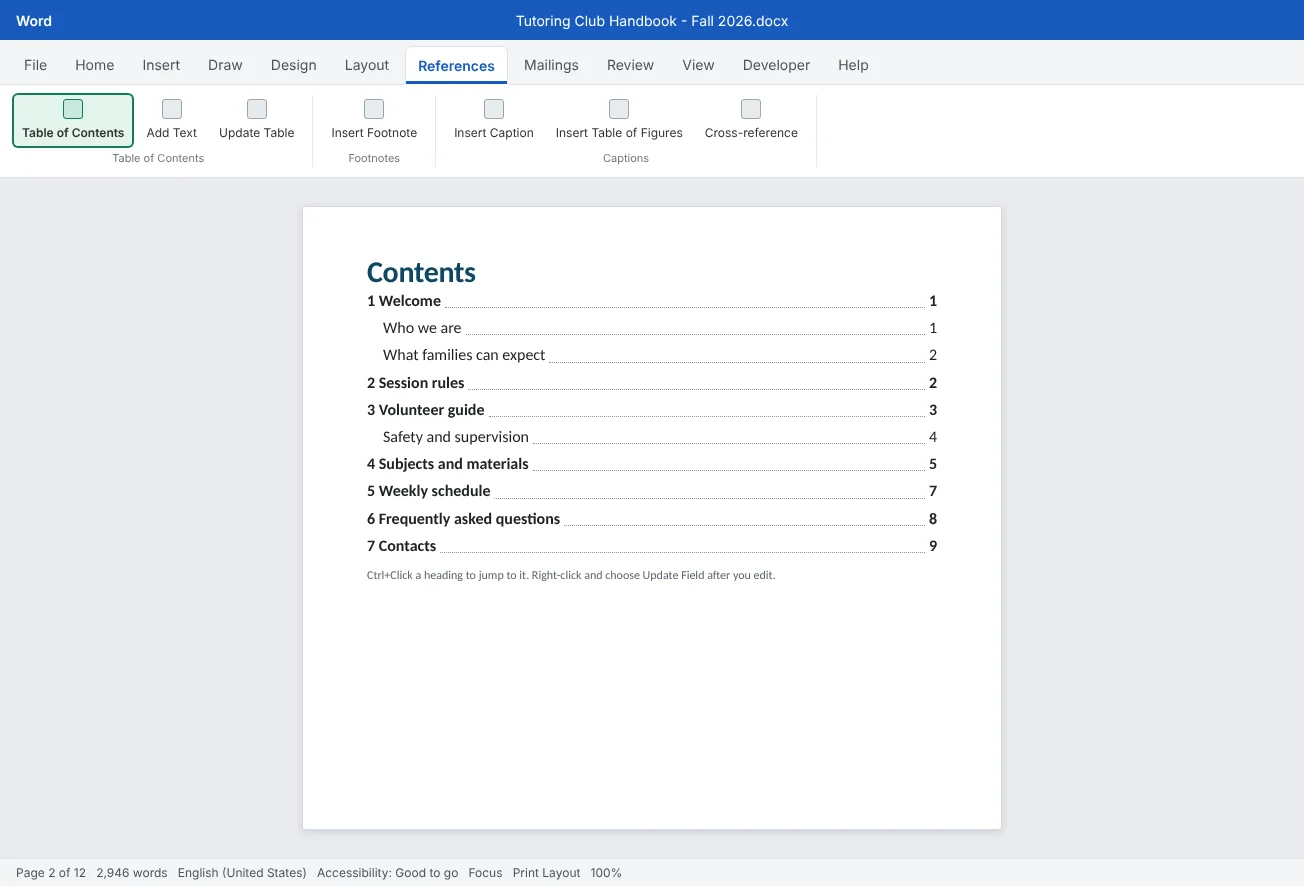
| Automatic table of contents on page 2 | Readers find a chapter in seconds, and page numbers stay right | Tutorial 2 |
| At least 5 chapters as Heading 1, with Heading 2 subsections | A clear outline for the contents and the Navigation pane | Tutorial 1 |
| A caption on every table and content picture, and at least two cross-references | Text can say see Table 2 and stay correct when things move | Tutorial 2 |
| Section breaks: one landscape page for the schedule, restarted page numbers, different headers | A wide table fits, and each part of the book is labeled correctly | Tutorial 3 |
| One two-column page (the FAQ) | Short questions and answers read faster in columns | Tutorial 3 |
| A formatted table with a repeating header row | Columns stay labeled when a table runs onto a second page | Tutorial 4 |
| Pictures positioned with the right wrapping | Pictures support the text and don't jump when you edit | Tutorial 5 |
| A tracked review round with a partner, comments resolved, changes accepted | A second reader catches what you can't see; nobody's edits get lost | Tutorial 6 |
| One Quick Part or template element | The club's contact block is typed once and reused | Tutorial 7 |
| A passing accessibility check, then shared as a link or tagged PDF | Everyone can read it, and you send the right version | Tutorial 8 |
The example file above holds every word of the handbook as plain paragraphs: chapter text, the schedule as tab-separated lines, the materials list as comma-separated lines, the FAQ and the contacts. Markers in square brackets show where pictures, captions and cross-references go. You don't write anything; you spend your time on structure.
Plan the handbook
In a 12-page document, the expensive mistakes are structural: a heading formatted by hand that never reaches the contents, a landscape page that turns the whole book sideways, a header that repeats on the wrong pages. All three are decisions you can make on paper in ten minutes. Make three small plans.
1. The page plan. Your page count will come out a page or two different, and that is fine. What matters is which pages belong to which section. The Pages column counts pages in the file; the numbers printed in the footer start at 1 on Welcome, so the schedule on page 9 of the file shows the number 7.
| Pages | Content | Section | Header and page number |
|---|---|---|---|
| 1 | Title page: title, subtitle, club logo | 1 | None |
| 2 | Contents (automatic table of contents) | 1 | None |
| 3 to 4 | Chapter 1 Welcome, Chapter 2 Session rules | 2 | Tutoring Club Handbook, numbering starts at 1 |
| 5 to 6 | Chapter 3 Volunteer guide (one wrapped picture) | 2 | Same as above |
| 7 to 8 | Chapter 4 Subjects and materials (Table 1, runs onto page 8) | 2 | Same as above |
| 9 | Chapter 5 Weekly schedule (Table 2), landscape | 3 | Weekly schedule, Fall 2026, numbering continues |
| 10 | Chapter 6 FAQ in two columns | 4 to 5 (Continuous section breaks around the columns) | Tutoring Club Handbook again |
| 11 to 12 | Chapter 7 Contacts (Table 3) and the club contact block | 6 | Same as above |
2. The style plan. Decide the look once and put it in styles, not on individual paragraphs. Write down four lines: Normal (font, size, spacing), Heading 1 (size, club color, space before), Heading 2, and Title. One accent color is enough. Readers of a handbook skim, so contrast and space matter more than decoration.
3. The order of work. Build in this order: styles first, then the contents and captions, then sections and layout, then tables and pictures, then review, accessibility and sharing. Each step depends on the one before. The table of contents needs real headings; the page numbers in it only make sense after the sections exist; and the review should look at the finished layout, not a draft that will still move.
Stage 1: Styles, contents and captions
Stage 1 gives the handbook its skeleton. When it's done, the Navigation pane shows every chapter and page 2 lists them.
Change the styles to fit the club (Tutorial 1).
- Turn on Home
then Paragraph then Show/Hide ¶ (Ctrl+Shift+8) and open View then Show then Navigation Pane. - Apply styles top to bottom: Title for the handbook name, Heading 1 (Ctrl+Alt+1) for the seven chapter names, Heading 2 (Ctrl+Alt+2) for the subsections, and leave body text in Normal. Watch the Navigation pane fill up as you go.
- Right-click Heading 1 in the Home
then Styles gallery and choose Modify. Set the size and club color, and under Format then Paragraph give it more space before than after so each heading sits with the text it introduces. Keep Only in this document selected. - Do the same for Heading 2, Title and Normal. If you'd rather format one heading by hand first, select it, right-click the style and choose Update Heading 1 to Match Selection. Every Heading 1 in the book changes at once.
Insert the contents on page 2. Click at the start of the first chapter heading and press Ctrl+Enter twice to make room, then click on the empty page 2. Choose References
Caption every table and picture. Tables and pictures don't exist yet; you add them in Stages 2 and 3. Caption each one as soon as you insert it: select it and use ReferencesTable 2: Weekly schedule, Fall 2026. Word numbers them in order and renumbers them if you add one earlier in the book.
Add at least two cross-references. The practice file has markers like [cross-reference: schedule table]. Delete each marker, then use References
Stage 2: Sections, headers and columns
Sections let one document behave like several: different orientation, different headers, different numbering, different columns. Do this stage carefully and in order, because each section starts as a copy of the one before it (Tutorial 3).
- Split off the front matter. Replace the page break before Chapter 1 with Layout
then Page Setup then Breaks then Section Breaks then Next Page. The title page and contents are now Section 1, the chapters Section 2. - Isolate the schedule. Put a Next Page section break before the Weekly schedule heading and another after the schedule table. Click inside the schedule and choose Layout
then Page Setup then Orientation then Landscape. Only that section turns sideways. - Turn the schedule lines into a table. Select the tab-separated lines and use Insert
then Tables then Table then Convert Text to Table with Tabs as the separator. You format it in Stage 3. - Set the headers. Double-click the header of the first chapter page. In the Header & Footer tab, click Link to Previous to turn it off, then type
Tutoring Club Handbook. Do the same for the footer and insert the page number there. Section 1 now has no header or number. - Restart the numbering. Still in the Section 2 footer, use Insert
then Header & Footer then Page Number then Format Page Numbers and set Start at to 1, so Welcome is page 1. - Label the schedule page. Go to the header of the landscape page, turn off Link to Previous and type
Weekly schedule, Fall 2026. Leave the footer linked so numbering continues. - Fix the section after it. The section after the schedule copied the schedule header. Turn off Link to Previous there and type the handbook name again.
- Its own section, landscape
- Own header, Link to Previous off
- Footer still linked: numbering continues
The two-column FAQ. Select the questions and answers, but not the Frequently asked questions heading, and choose Layout
- Heading full width
- Two columns between Continuous breaks
Before you move on, press Ctrl+A, F9 to update the contents and check View
Stage 3: Tables, pictures and a Quick Part
Stage 3 fills the structure with the parts that tend to misbehave in long documents: tables that run across pages and pictures that drift.
Format the tables (Tutorial 4). Convert the comma-separated materials lines and contacts lines into tables the same way you did the schedule, with Commas as the separator. For each of the three tables:
- Pick one plain style in Table Design
then Table Styles for all three, with Header Row ticked and Banded Rows if the table is long. - Click in the first row and, on the table Layout tab, choose Data
then Repeat Header Rows. The materials table runs onto a second page, so its column names repeat there. This setting is also what tells screen readers which row holds the headings. - In Table Properties
then Row, untick Allow row to break across pages so no row is split in half. - Use AutoFit Window for the landscape schedule so it fills the wide page, and sort the materials table by subject with Data
then Sort.
Place the pictures (Tutorial 5). Each picture marker says what to insert. Choose the wrapping for each job:
| Picture | Wrapping | Why |
|---|---|---|
| Club logo on the title page | In Line with Text, centered; Mark as decorative | It never moves, and it carries no information, so it needs no caption |
| Photo of a tutoring session in Welcome (Figure 1) | In Line with Text with the caption paragraph below it | The steadiest choice for a picture with a caption: picture and caption move together |
| Sign-in desk photo in Volunteer guide (Figure 2) | Square, right side, Move with text | Text wraps beside it; the anchor sits on the paragraph it illustrates |
For the wrapped picture, turn on Show/Hide and check that the anchor icon sits on the paragraph the picture belongs to. If you edit the text above and the picture lands on the wrong page, drag the anchor, not the picture. A caption on a wrapped picture is placed in its own text box, so select the picture and its caption with Shift held, then group them with Picture Format
Save the contact block as a Quick Part (Tutorial 7). The practice file ends with the club's contact block: name, email, phone and hours. Format it once, select it and choose InsertClub contact block. Now insert it at the end of the Welcome and Contacts chapters from Insert
Review, check and share
You can't proofread your own structure well: you know what you meant. A partner reads what's actually there. Run one full review round (Tutorial 6).
- Prepare. Update all fields (Ctrl+A, F9). Share the file with your partner with edit permission, and point them to the Notes for your review partner at the end of the practice file.
- Your partner reviews. They turn on Review
then Tracking then Track Changes (Ctrl+Shift+E) before typing anything, edit wording directly, and use Review then Comments then New Comment (Ctrl+Alt+M) for questions they can't fix themselves, such as Is Room 106 still the science room? - You respond. Reply to each comment with what you did, then Resolve it. Go through the changes one at a time with Review
then Changes then Next and Accept or Reject each one. Don't click Accept All until you've read them. - Clean up. When none are left, turn off Track Changes and delete the resolved comments with Review
then Comments then Delete then Delete All Comments in Document. Remove the partner notes from the end of the file.
Pass the accessibility check (Tutorial 8). Run Review
Inspect, then share. Run File
| Send this | To | How |
|---|---|---|
| A view-only link to the .docx | Volunteers and the coordinator | Share button, set the link so people can view but not edit; they always see the latest version |
| A tagged PDF | Families, and anyone who prints | File |
| An edit link | Only the volunteer who maintains the handbook | Share with edit permission to a named person, not with anyone who has the link |
Score it with the rubric
Score the handbook before you share it, and ask your review partner to score it too. Give each row 0, 1 or 2 points. Use View
| Criterion | Needs work (0) | Good (1) | Great (2) |
|---|---|---|---|
| Styles | Headings formatted by hand | Built-in styles, left at the defaults or a few overrides | Title, Heading 1, Heading 2 and Normal modified for the club; no manual overrides |
| Contents and navigation | Typed contents, or none | Automatic, but out of date or missing chapters | Automatic on page 2, updated; Navigation pane shows every chapter |
| Captions and cross-references | Typed numbers like Table 2, or none | Captions on some items; one cross-reference | Every table and content picture captioned; two or more working cross-references |
| Sections and headers | Whole document landscape, or schedule squeezed | Landscape page works, headers wrong somewhere | Landscape schedule section, right header in every section, numbers start at 1 on Welcome |
| Columns | FAQ columns faked with tabs or a table | Two columns, but the heading is inside them | Two-column FAQ between Continuous breaks, heading full width |
| Tables | Built with tabs or spaces | Real tables, header row not repeating | One consistent style, header rows repeat, no rows split across pages |
| Pictures | Pictures jump when text is edited | Stable, but wrapping or anchors chosen at random | Wrapping chosen per picture, anchors on the right paragraphs, alt text written |
| Reusable part | Contact block pasted by hand | Saved as a Quick Part but not reused | Quick Part saved and inserted in at least two places |
| Review round | No review, or edits made without tracking | Reviewed, but comments or changes left in | Partner reviewed with tracking; every comment answered and resolved, every change accepted or rejected |
| Accessibility and sharing | Checker not run; .docx emailed to everyone | Checker run, some issues left | Good to go, file title set, Document Inspector clean, tagged PDF or view-only link shared |
Total: 20 points. 18 to 20: ready to publish. 14 to 17: fix the rows that scored 0 or 1 and update all fields again. Below 14: take your lowest row back to the tutorial it links to in the project brief, practice that skill in a small test document, then return to the handbook.
Common mistakes
| Mistake | What happens | Fix |
|---|---|---|
| Setting Landscape without section breaks | Every page in the handbook turns sideways | Put a Next Page section break before and after the schedule, then set Landscape inside it |
| Forgetting Link to Previous after the landscape section | The FAQ and Contacts pages say Weekly schedule at the top | Turn off Link to Previous in the section after the schedule and retype the handbook header |
| Typing see Table 2 or page 7 by hand | The text is wrong as soon as a table is added or pages move | Insert a cross-reference and update fields with Ctrl+A, F9 |
| Exporting before updating fields | The contents and captions show old page numbers in the PDF | Update all fields and the entire table of contents right before export |
| Accepting all changes without reading them | A partner's mistaken edit goes into the published handbook | Step through changes with Next and accept or reject each one |
| Choosing No Markup and sending the file | The tracked changes and comments are still in it, only hidden | Accept or reject everything, delete comments, then run Document Inspector |
| Making the first table row bold instead of a header row | The checker flags the table and screen readers can't tell the headings | Set Repeat Header Rows on the first row |
Practice
Practice
Build the Tutoring Club Handbook
Guided practice
Download the example file above. It holds all the text for the handbook with no formatting: seven chapters as plain paragraphs, the schedule as tab-separated lines, the materials and contacts as comma-separated lines, the FAQ, the contact block and notes for your review partner. Markers in square brackets show where pictures, captions and cross-references go. Use your own photos or icons for the pictures.
- Plan: save the file to OneDrive as
Tutoring Club Handbook - Fall 2026, then write your page plan, style plan and section plan on one sheet of paper. - Styles: apply Title, Heading 1, Heading 2 and Normal everywhere, then modify each style to fit the club. Check the Navigation pane shows seven chapters.
- Contents: make page 2 empty and insert an automatic table of contents there.
- Sections: add the Next Page section breaks, make the schedule section landscape, set the headers with Link to Previous off where needed and restart page numbers at 1 on Welcome.
- Columns and tables: put the FAQ in two columns, convert the three lists to tables, style them consistently and set repeating header rows.
- Pictures and captions: insert the logo and two photos with the right wrapping, write alt text, caption every table and photo and replace the markers with cross-references.
- Quick Part: save the contact block as a Quick Part and insert it in Welcome and Contacts. Update all fields.
- Review and share: run the tracked review with a partner, resolve and accept, pass the Accessibility Checker, inspect the document, share a view-only link or tagged PDF and score it with the rubric.
Independent challenge: Turn the handbook into next semester's template
Next semester someone will need a new handbook, and they shouldn't have to rebuild your sections and styles. Save a copy with File[Type this semester's dates]. Save the contact block as a Quick Part in the template itself by choosing the template in the Save in box. Then start a new document from it with File
Reflect: which stage forced you to go back and redo work from an earlier stage, and what would you plan differently next time?
Check your understanding0 of 4 correct
Pick an answer to see whether it's right and why.
The schedule table needs a landscape page, but the rest of the handbook must stay portrait. What should you do?
Orientation is a section setting. Section breaks on both sides of the schedule let that one section turn sideways while the rest of the handbook stays portrait.
After you add the landscape section, the FAQ and Contacts pages show the header Weekly schedule. What is the fix?
A new section copies the header of the section before it while Link to Previous is on. Unlinking the section after the schedule lets it have its own header again.
Your partner's review left 14 tracked changes and 6 comments. What should you do before you share the handbook?
No Markup and turning off tracking only hide or stop markup; the changes and comments stay in the file. Deciding each one and inspecting the document is the only way to share a clean version.
The Accessibility Checker says the materials table has no header row, even though its first row is bold. What is the best fix?
Bold is only a look. Repeat Header Rows marks the first row as the header, so it repeats on every page and screen readers know which cells are column headings.
You're ready to move on when
Tick each one off as you go. Your ticks are saved in this browser only.
Related
Sources and further reading
Was this guide helpful? Spot a mistake? Send feedback · admin@arumsoft.com