Advanced Word · Tutorial 4 of 9
How to Build an Index, Table of Figures, and Bookmarks in Word
Mark index entries, generate an index and a table of figures, and use bookmarks and hyperlinks so readers can move around a long document.
- Level
- Advanced
- Time
- 14 min read
- Updated:
- Applies to:
- Word for Microsoft 365, Word 2024, Word 2021, Word for the web
What you'll learn
- Decide what belongs in an index and mark entries, subentries and See references
- Index a topic that runs across several pages with a bookmark page range
- Insert, format and update an index without breaking page numbers
- Build separate tables of figures and tables from captions
- Use bookmarks, internal hyperlinks and cross-references so readers can move around
Before you start
Example file
Advanced Word - Index.docx
Download the practice document used in this tutorial and follow along in Word.
Word document (.docx) · 39 KB
A table of contents tells readers where each unit starts. An index answers a different question: "where does the workbook talk about unit rate?" In a 25-page workbook with a glossary, families and volunteers will look things up far more often than they read front to back.
In this tutorial you will mark the workbook's key terms, generate a two-column index at the back, add a list of figures and a list of tables built from captions, and connect the document with bookmarks and links. It builds on captions and cross-references from Intermediate Tutorial 2.
How a Word index works
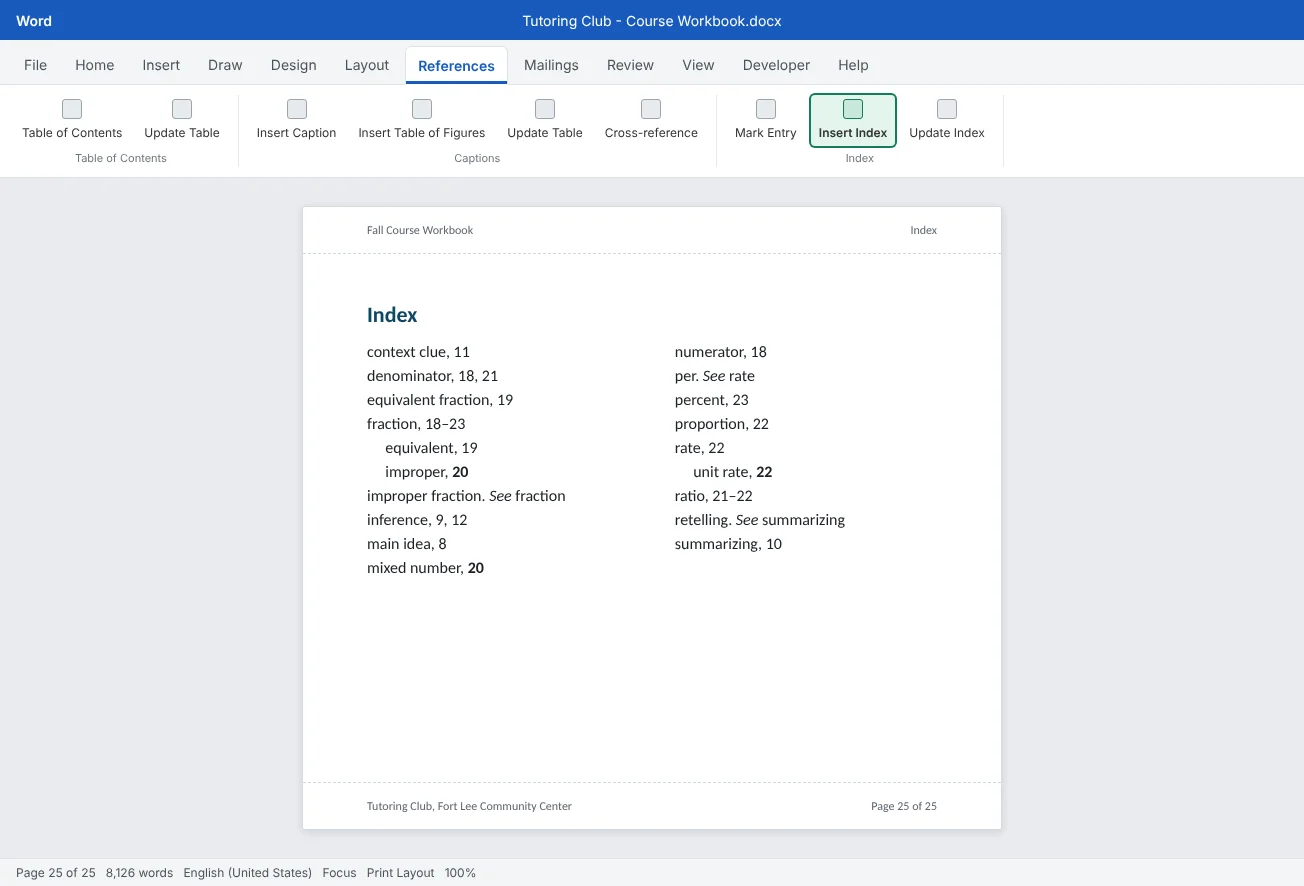
An index has two parts. Throughout the document you mark entries: each mark is a small hidden field, { XE "ratio" }, that says "index this spot under ratio". At the back, an INDEX field collects every mark, sorts them and prints the page numbers. Change the text, update the index, and the page numbers follow.
The work is in choosing entries, not in the clicks. A good index lists the places where a reader learns something about a term, not every page where the word appears. It also uses the reader's words: a parent may look up per or retelling, even if the workbook calls them rate and summarizing.
| Kind of entry | Looks like | Use it for |
|---|---|---|
| Main entry | ratio, 21 | Every term a reader might look up |
| Subentry | fraction improper, 20 | Grouping related terms under one heading |
| Cross-reference | per. See rate | Sending readers from their word to yours |
| Page range | ratio, 21–22 | A topic covered across several pages |
| Bold page number | mixed number, 20 | Marking the page with the main definition |
Mark index entries
Select the word or phrase in the text, then choose References
- Edit Main entry if needed, for example to make it singular or lower case.
- For a subentry, type it in Subentry. To put improper under fraction, Main entry is
fractionand Subentry isimproper. You can also typefraction:improperin Main entry; the colon makes the next level. - Leave Current page selected for a normal entry.
- Under Page number format, tick Bold for the page with the definition, such as the glossary entry.
- Click Mark to mark this spot, or Mark All to mark the text everywhere it appears.
Mark vs Mark All. Mark All marks the first match in each paragraph that contains exactly the same text with the same capitalization. It is fast for technical terms such as denominator, but noisy for common words: rate would also mark passing uses such as "first-rate". For those, use Mark on the spots that matter.
The dialog doesn't close after marking. Click in the document, select the next term, and click in the dialog again: the new selection appears in Main entry.
Add See references and page ranges
See references. In Mark Index Entry, type the reader's word in Main entry (for example per), choose Cross-reference, and type the term to send them to after the word See: See rate. The entry prints per. See rate with no page number. For a related term that also has its own pages, replace See with See also.
Page ranges. Section 4.3 on ratios runs from page 21 to 22. Marking every page separately gives ratio, 21, 22; a range gives ratio, 21–22 and stays right when the section grows.
- Select the whole passage, from the section heading to its last paragraph.
- Choose Insert
then Links then Bookmark, type a name such as Ratios_sectionand click Add. - Click anywhere, press Alt+Shift+X and type
ratioin Main entry. - Choose Page range, pick
Ratios_sectionin the Bookmark list, and click Mark.
- Hidden text: never printed
- Hide with Ctrl+Shift+8 before checking pages
To change an entry, edit the text inside the quotation marks of its XE field. To remove one, select the whole field, braces included, and press Delete. Then update the index.
Insert, format and update the index
Hide formatting marks first (Ctrl+Shift+8). Put the cursor on a new page at the end of the workbook under a heading such as Index, then choose References
| Setting | What it does | Workbook choice |
|---|---|---|
| Type | Indented puts each subentry on its own line; Run-in runs them into one paragraph | Indented, easier to scan |
| Columns | Number of columns; Word adds section breaks around the index for you | 2 |
| Right align page numbers | Moves numbers to the right edge with a Tab leader | Off for a short index, on for a formal look |
| Formats | Ready-made looks such as Classic, Modern or Formal, or From template to use your Index styles | From template, so your template's Index 1 and Index 2 styles apply |
| Modify | Edit the Index 1, Index 2... styles (only with From template) | Match the workbook's fonts |
Updating. The index is a field, so it doesn't change on its own. After you mark new entries or the pages move, click in the index and choose References
Build tables of figures and tables
A table of figures is a contents list built from captions instead of headings. It only works with real captions from References
The workbook gets two lists on the page after the table of contents: one for pictures, one for tables.
- Type a short heading such as Figures in a style that isn't a heading style, so it doesn't appear in the table of contents.
- Choose References
then Captions then Insert Table of Figures. - Set Caption label to Figure. Keep Include label and number, Show page numbers and Right align page numbers ticked, and pick a Tab leader. Click OK.
- Add a second heading, Tables, and repeat with the caption label Table.
Update them like the table of contents: click a list and choose References
Bookmarks, internal links and cross-references
A bookmark is a named, invisible marker on a spot or a selection. You already used one for a page range. Bookmarks are also targets for links and cross-references, for places that aren't headings or captions, such as a tip box or a single exercise.
- Select the text (or click a spot) and choose Insert
then Links then Bookmark. - Type a name: it must start with a letter, can contain letters, numbers and underscores, and can't contain spaces, for example
Unit_rate_tip. - Click Add.
To see bookmarks, turn on Show bookmarks in File_Ref and _Toc, for cross-references and the table of contents. Leave those alone.
| Tool | How | Result |
|---|---|---|
| Link to a heading or bookmark | Select text, Insert | Clickable text such as Back to the glossary; add a ScreenTip to explain where it goes |
| Cross-reference to a bookmark | Insert | Inserts the bookmark's text, page number or above/below, which update with the document |
| Go To | Ctrl+G or Home | Jumps there yourself while editing |
The difference matters in print. A link is only useful on screen: on paper, "Back to the glossary" leads nowhere. A cross-reference such as "see the tip on page 22" works both on screen (Ctrl+click) and on paper. For the workbook, use cross-references in the printed pages and links in the PDF-only extras.
Common mistakes
| Mistake | What happens | Fix |
|---|---|---|
| Checking page numbers with XE fields showing | The index looks wrong or pages seem to shift | Hide formatting marks (Ctrl+Shift+8) before checking or updating |
| Using Mark All on common words | The index fills with pages that only mention the word | Use Mark on the passages that teach the term |
| Editing the index text by hand | The next update throws the change away | Change the XE field, then update the index |
| Indexing with inconsistent wording | Ratio, ratios and ratio appear as separate entries | Agree on singular, lower-case entries and edit Main entry |
| Typing captions as plain text | Insert Table of Figures finds nothing | Use References |
| Putting figures and tables in one list | Readers can't find a table quickly | Insert one table of figures per caption label |
| Linking with text like "click here" in a printed workbook | Readers on paper can't follow it | Use a cross-reference with a page number |
Practice
Practice
Index the fractions unit and add lists and links
Guided practice
Download the example file above and open it in Word. It is Unit 4 of the Course Workbook, with headings, a glossary, two picture placeholders, two tables, typed captions, empty pages for the lists and the index, and a list of terms to index on the last page.
- Captions: the four captions are typed. Delete each one and insert a real caption with References
then Captions then Insert Caption (Figure for pictures, Table for tables). - Mark: work through the term list. Select each term in the text, press Alt+Shift+X, edit Main entry to match the list, and use Mark All only where the list says so.
- Subentries and bold: mark improper fraction as Main entry
fraction, Subentryimproper. In the glossary, mark each defined term again with Bold page numbers. - See references: mark
perwith Cross-referenceSee rate, andretellingwithSee summarizing. - Page range: select section 4.3, bookmark it as
Ratios_section, and markratiowith that Page range. - Index: press Ctrl+Shift+8 to hide the XE fields, click under the Index heading, and insert an index with 2 columns. Then mark one more term and use Update Index.
- Lists: on the Figures and tables page, insert one table of figures with the Figure label and one with the Table label.
- Bookmarks and links: bookmark the unit rate tip as
Unit_rate_tip. In Exercise 4.6, replace the typed page number with a cross-reference to its page number, and make Back to the glossary a link to the Glossary heading.
Independent challenge: Try a concordance file
Delete the index (not the XE fields) and make a new document with a two-column table of ten terms and their index entries. Use AutoMark in the Insert Index dialog, insert the index again and compare it with your hand-marked one. Which entries got better, and which became noise? Remove the noisy XE fields and update.
Reflect: for a document you know well, which five terms would readers look up first, and which words would they use to look them up?
Check your understanding0 of 4 correct
Pick an answer to see whether it's right and why.
You marked several entries and now the page numbers on screen look wrong. What is the most likely reason?
XE fields are hidden text. While formatting marks are showing, they take up space. Hide them with Ctrl+Shift+8 before checking pages or updating the index.
Readers may look up "per", but the workbook uses "rate". What should you add?
A See cross-reference sends readers from their word to the term the index actually uses, without a page number.
How do you make an index entry show a page range such as 21-22?
A page range entry points to a bookmark that covers the passage. When the passage grows or moves, the range updates with the index.
Insert Table of Figures says no entries were found. What is wrong?
A table of figures is built from caption labels. Typed captions have no label or number field, so the list can't find them.
You're ready to move on when
Tick each one off as you go. Your ticks are saved in this browser only.
Related
Sources and further reading
Was this guide helpful? Spot a mistake? Send feedback · admin@arumsoft.com