How to Proofread, Print, and Save a Word Document as PDF
Use Editor to catch spelling and grammar issues, check the word count, preview pages before printing, and save a clean PDF to share.
- Level
- Beginner
- Time
- 14 min read
- Updated:
- Applies to:
- Word for Microsoft 365, Word 2024, Word 2021, Word for the web
What you'll learn
- Read Word's red and blue underlines and fix them from the right-click menu
- Run Editor and choose between Ignore Once, Ignore All and Add to Dictionary
- Set the proofing language for Spanish, Korean or other text, and check the word count
- Proofread like a person: hear your text with Read Aloud and check names, dates and numbers
- Print exactly the pages you need and save a clean PDF that is ready to share
Before you start
Example file
Word Basics - Proofreading.docx
Download the practice document used in this tutorial and follow along in Word.
Word document (.docx) · 37 KB
A single typo in a flyer or a wrong date in a letter to families can undo all your careful formatting. Word catches many mistakes for you, but not all of them, and it sometimes flags words that are perfectly correct. The trick is to use Word's tools first and then do a short check of your own.
In this tutorial you will proofread the Tutoring Club fall newsletter, fix the planted mistakes, print the page you need, and save a PDF to send to families.
Read the red and blue underlines
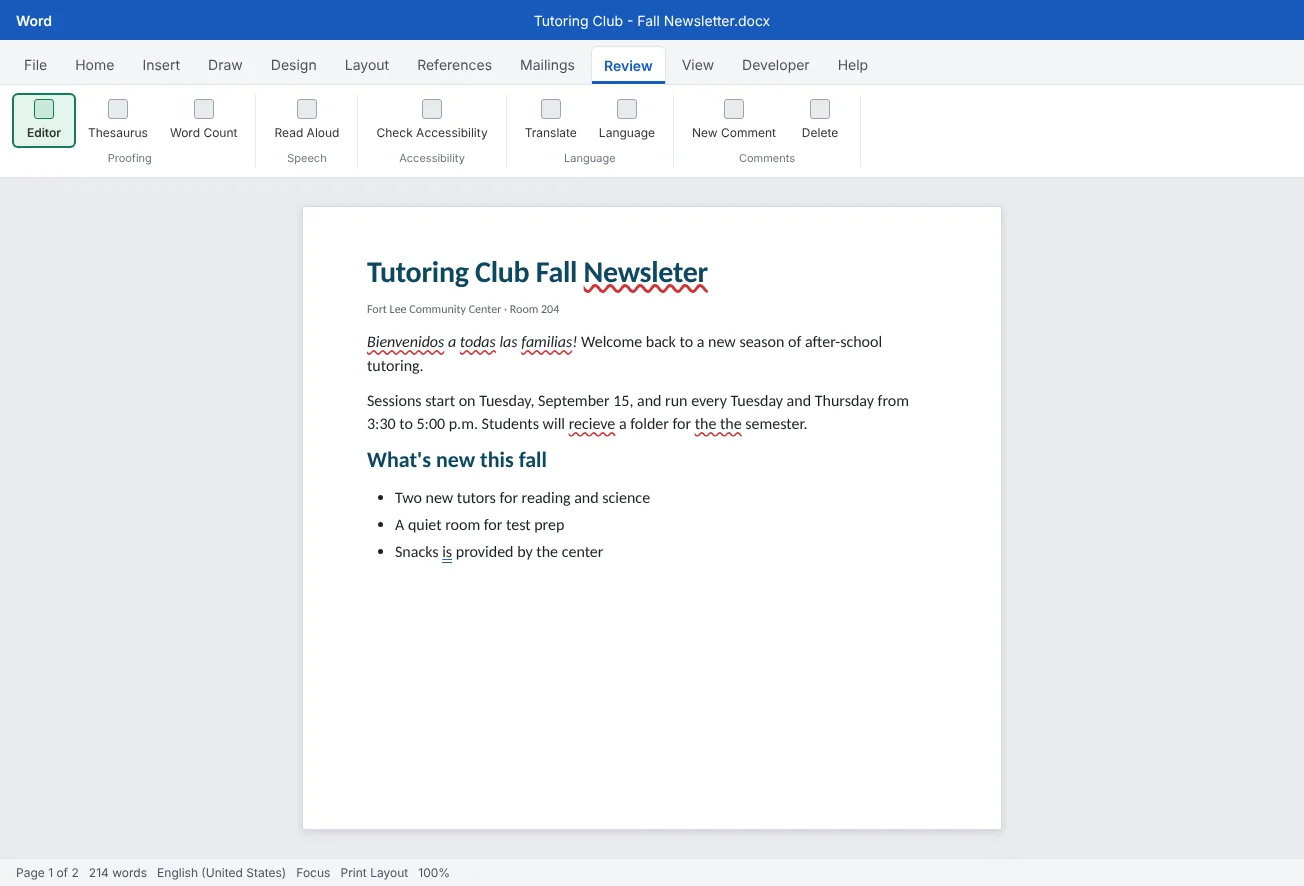
As you type, Word checks your text in the background and marks problems with underlines. They appear only on screen and never print.
| Underline | What it means | Example |
|---|---|---|
| Red squiggle | A possible spelling mistake, a repeated word, or a word Word doesn't know | recieve, the the, a person's name |
| Blue double underline | A possible grammar or punctuation problem | Snacks is provided |
| Other colors or dotted lines | Style suggestions, such as wordy phrases, in some versions | in order to |
To fix one, right-click the underlined word. A short menu shows Word's suggestions at the top. Click the right one and Word replaces the word. For a repeated word, the suggestion is Delete Repeated Word.
Don't accept a suggestion without reading it. Word's first guess is usually right for typos, but it can be wrong for names, places and words from other languages.
Check the whole document with Editor
Right-clicking works for one word at a time. To go through the whole document in order, press F7 or click Review
The Editor pane lists Corrections (spelling and grammar) and, in many versions, Refinements such as clarity and conciseness. Click a category to step through each issue. Some versions also show an overall score. Refinements and the score depend on your version and Microsoft 365 subscription, so don't worry if yours looks a little different. Spelling and grammar are always there.
| Choice | What it does | Use it when |
|---|---|---|
| A suggestion | Replaces the word with the one you click | Word found a real mistake |
| Ignore Once | Skips this one place only | It's correct here but might be a mistake elsewhere |
| Ignore All | Skips the word everywhere in this document | A name or term that appears many times in this document |
| Add to Dictionary | Teaches Word the word for every document, from now on | A word you use often and always spell this way, such as your own name or your street |
When Editor has nothing left to show, it tells you so. That means Word found nothing more it can check, not that the document is perfect. The human check later in this tutorial covers what Word can't see.
Set the proofing language for other languages
Word checks each piece of text against one language. If your English newsletter includes a Spanish greeting or a Korean sentence, Word may mark every word in it with a red squiggle, because it is checking them as English.
To fix this, select only the Spanish or Korean text and go to Review
The same box has two more options worth knowing. Do not check spelling or grammar tells Word to skip the selected text completely, which is useful for a list of names, web addresses or code. Detect language automatically lets Word guess the language as you type, which works well for whole paragraphs but less well for one or two words.
Check the word count and listen with Read Aloud
The status bar shows a running word count. For more detail, click it or go to Review
The box also has an Include textboxes, footnotes and endnotes option. Tick it if your limit counts those too.
Read Aloud is one of the best proofreading tools in Word. Your eyes skip over missing words and doubled words because your brain knows what you meant to write. Your ears don't. Click where you want to start and choose Review
Listen with the document in front of you and pause whenever something sounds wrong. A slightly slower reading speed makes mistakes easier to hear.
Proofread like a person
Word checks spelling and grammar. It can't know that the first session is on the 15th, not the 17th, or that you wrote Room 240 when the club meets in Room 204. Real words used in the wrong place, like form for from, often get through too. After Editor, do one slow pass with this checklist.
| Check | What to look for |
|---|---|
| Names | Every person's name spelled the same way every time, and spelled the way that person spells it |
| Dates and days | The weekday matches the date on a calendar. Times and years are right |
| Numbers | Room numbers, phone numbers, prices and totals. Check them against the original source |
| Consistency | One style for times (3:30 p.m. or 3:30 PM), headings, and capital letters |
| Headers, footers and captions | Editor checks them, but people forget to read them |
| The very top | Titles and headings. Big text is where typos hide in plain sight |
Preview and print
Press Ctrl+P or go to File
| Setting | What to choose |
|---|---|
| Copies | How many of each page. Set this at the top, next to the Print button |
| Printer | The printer to use. Check it's the right one, especially on a shared computer |
| Print All Pages | Click to change to Print Current Page, Print Selection, or Custom Print |
| Pages | Type exact pages, such as 1 or 1-3, 5. Word switches to Custom Print for you |
| Print One Sided | Change to Print on Both Sides if the printer can, or Manually Print on Both Sides, where Word tells you when to turn the paper over |
| Collated | With several copies, prints each full set in order (1, 2, 3, 1, 2, 3) |
| Orientation, paper size, margins | Quick changes for this printout. It's better to set these in the document itself, as in Tutorial 5 |
Print one copy first and check it on paper before you print fifty. It is cheaper to find a mistake on one sheet.
Save a PDF to share
A PDF looks the same on every phone, computer and printer, and people can't change it by accident. It is the right format for a finished flyer, a newsletter or anything you send to families or post online. Keep the .docx too, so you can edit it later.
There are two ways, and both give the same result:
- Save As: go to File
then Save As (or Save a Copy), choose a folder, and change Save as type to PDF. - Export: go to File
then Export then Create PDF/XPS Document and click Create PDF/XPS.
Before you click Save or Publish, look at the options in the same box:
- Optimize for: Standard is best for printing and most uses; Minimum size makes a smaller file for email or web.
- Options… opens Page range (all pages, the current page or a range, for example to leave out a sign-up slip) and the extra information to include. Keep Document structure tags for accessibility ticked so screen readers can follow the headings, lists and alt text. Create bookmarks using Headings adds clickable bookmarks in the PDF.
- Open file after publishing opens the PDF right away so you can check it.
| Method | Links and bookmarks | Accessibility tags | Verdict |
|---|---|---|---|
| File | Kept | Kept, when the option is ticked | The best choice |
| File | Lost | Lost | Works in a pinch, but the PDF is a flat picture of the pages |
Always open the PDF before you send it. Check that every page is there, pictures and tables look right, nothing moved, and the file name is clear, such as Tutoring Club - Fall Newsletter.pdf. If something is wrong, fix the Word file and save the PDF again.
Common mistakes
| Mistake | What happens | Fix |
|---|---|---|
| Clicking the first suggestion every time | Correct names and words change into wrong ones | Read each suggestion; use Ignore Once or Ignore All for correct words |
| Adding a misspelling to the dictionary | Word never flags that mistake again, in any document | Remove it in File |
| Leaving Spanish or Korean text set to English | Every word is underlined and real errors hide among them | Select it and use Set Proofing Language |
| Trusting Editor to catch everything | Wrong dates, rooms and names go out to families | Do a human pass for names, dates and numbers, and use Read Aloud |
| Printing all copies without a test | Fifty copies with the same mistake | Check the preview, print one copy, then print the rest |
| Making the PDF with Microsoft Print to PDF | Links, bookmarks and accessibility tags are lost | Use File |
Practice
Practice
Proofread, print and export the fall newsletter
Guided practice
Download the example file above. It is a two-page Tutoring Club newsletter with planted mistakes: typos, a repeated word, a grammar error, a Spanish greeting, a wrong date and a few details that don't match. Page 2 is a sign-up slip.
- Underlines: right-click three of the red or blue underlined words and fix them from the menu. Use Delete Repeated Word on
the the. - Editor: press F7 and work through the rest. Use Ignore All for the tutor names that Word doesn't know, and don't add anything to the dictionary.
- Language: select the Spanish greeting and set its proofing language to Spanish with Review
then Language then Language then Set Proofing Language. Watch the squiggles disappear. - Word count: select the Message from the coordinator paragraph and press Ctrl+Shift+G. Is it under 80 words?
- Listen: click at the start of page 1 and use Review
then Speech then Read Aloud. Pause and fix anything that sounds wrong. - Human check: find the wrong date (check a 2026 calendar), the room number that doesn't match, and the tutor name spelled two ways. Fix them so the whole newsletter agrees.
- Print preview: press Ctrl+P, page through the preview, and set it to print only page 2 (the sign-up slip), 20 copies. Print one copy only if you have a printer handy.
- PDF: use File
then Export then Create PDF/XPS Document. In Options…, set the page range to page 1 only and check that Document structure tags for accessibility is ticked. Name it Tutoring Club - Fall Newsletter.pdfand open it to check.
Independent challenge: Swap with a partner
Plant five new mistakes in a copy of your own newsletter: one typo, one repeated word, one wrong date, one wrong number and one name spelled two ways. Swap files with a friend or another volunteer and see who finds all five first. Which ones did Editor catch, and which needed a human?
Reflect: which kinds of mistakes does Word catch for you, and which ones will you always check yourself before you send a document?
Check your understanding0 of 4 correct
Pick an answer to see whether it's right and why.
A tutor's name, spelled correctly, has a red squiggle and appears ten times in this document. What is the best choice?
Ignore All skips the word everywhere in this document without teaching it to Word for every other document.
Your English letter has a Spanish greeting, and every Spanish word is underlined in red. What should you do?
Set Proofing Language makes Word check the greeting with a Spanish dictionary, so only real mistakes are flagged.
Editor finds no more issues. Which mistake might still be in the document?
Word checks spelling and grammar, not facts. Dates, numbers and names need a human check.
Which way of making a PDF keeps links and accessibility tags?
Save As PDF and Export keep links, bookmarks and structure tags. Printing to a PDF printer makes a flat copy of the pages.
You're ready to move on when
Tick each one off as you go. Your ticks are saved in this browser only.
Related
Sources and further reading
Was this guide helpful? Spot a mistake? Send feedback · admin@arumsoft.com