How to Add Pictures, Shapes, and Simple Tables in Word
Insert and resize pictures, choose a simple text wrap, add shapes and icons, and build a basic table for schedules or lists.
- Level
- Beginner
- Time
- 15 min read
- Updated:
- Applies to:
- Word for Microsoft 365, Word 2024, Word 2021, Word for the web
What you'll learn
- Insert pictures from your computer, stock images or online pictures
- Resize pictures without stretching them, and crop out what you don't need
- Choose a simple text wrap and add alt text so everyone can understand the picture
- Add shapes and icons, and type text inside a shape
- Build a simple table, add and delete rows and columns, and give it a clean style
Example file
Word Basics - Pictures and Tables.docx
Download the practice document used in this tutorial and follow along in Word.
Word document (.docx) · 36 KB
A page of plain text is fine for a letter, but a flyer or handout works better with a picture people notice and a table they can scan in two seconds. Word makes both quick, as long as you know a few rules: keep pictures in proportion, choose how text flows around them, and use a real table instead of lining things up with spaces.
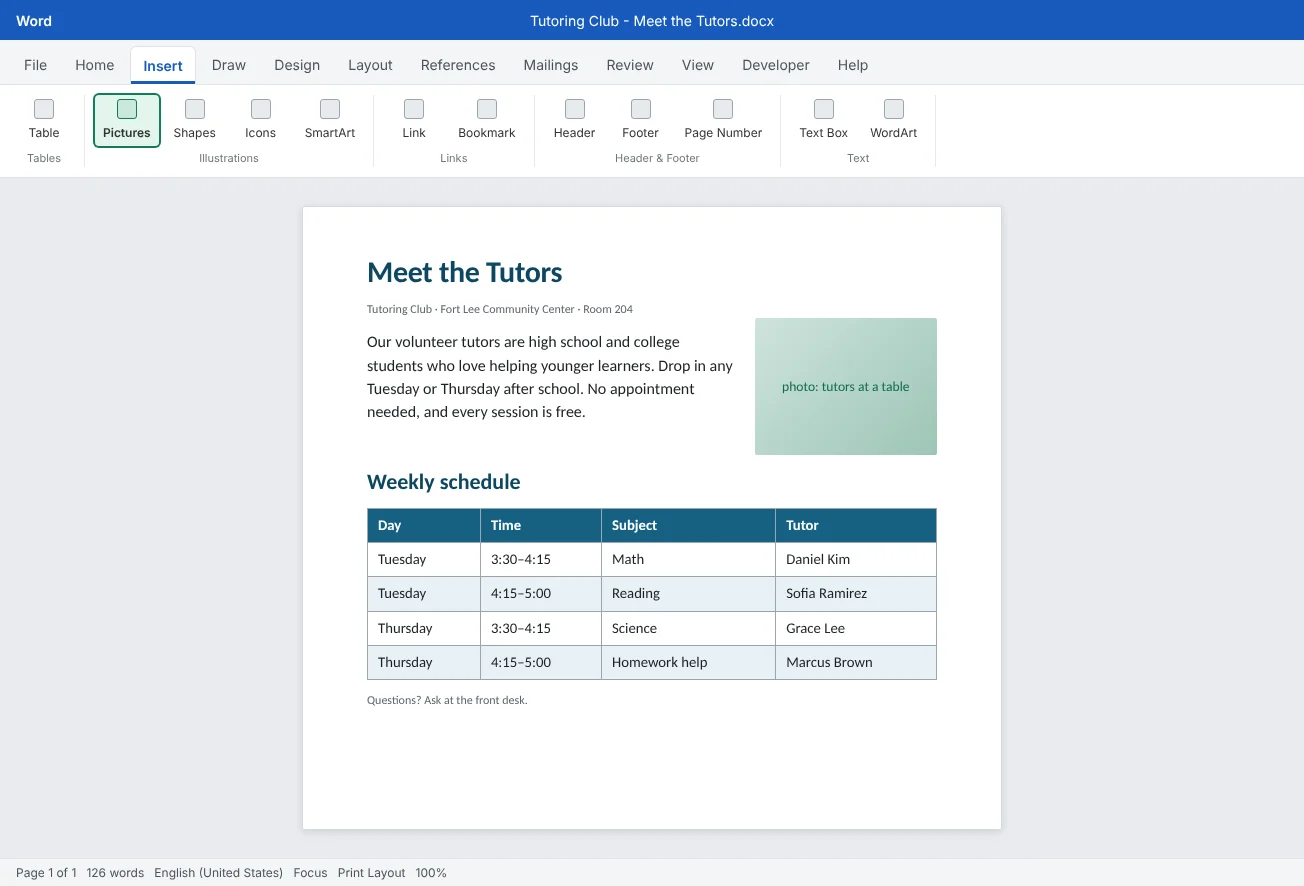
In this tutorial you will make a one-page Meet the Tutors flyer for the Tutoring Club, with a picture or icon at the top and the weekly schedule as a table.
Insert a picture
Click where you want the picture to go, at the start of a paragraph or on an empty line. Word puts the picture at the insertion point, so placing the cursor first saves moving it later.
| Choice | Where the picture comes from | Good for |
|---|---|---|
| This Device | A file on your computer or in a OneDrive folder | Your own photos, such as a picture of the tutors |
| Stock Images | A library of photos, icons, stickers and illustrations from Microsoft | Clean, ready-to-use pictures when you don't have your own |
| Online Pictures | A Bing image search | Finding something specific. Check the license before you use it |
You can also drag a picture file from a folder straight onto the page, or copy a picture and paste it with Ctrl+V.
When you click a picture, a Picture Format tab appears on the ribbon. Almost every picture command in this tutorial lives there, so if you can't find it, click the picture first.
Resize and crop a picture
A selected picture has eight small circles around it, called sizing handles, and a round arrow on top for rotating.
- Drag a corner handle to make the picture bigger or smaller. Word keeps the proportions, so faces and logos stay the right shape.
- Avoid the side handles. The handles in the middle of each edge stretch the picture in one direction only, which makes people look too thin or too wide.
- Type an exact size in Picture Format
then Size with the Height and Width boxes. Change one and Word changes the other to match.
Cropping cuts away the parts of a picture you don't need, like an empty wall or a stranger at the edge. Select the picture and click Picture Format
Cropping only hides the cut part. You can crop again later and drag the handles back out. The small arrow under the Crop button has more options, such as Crop to Shape (for a round photo) and Aspect Ratio (for an exact square or 4:3 shape).
Choose how text wraps around a picture
A new picture is placed In Line with Text: Word treats it like one very large letter sitting on a line of text. That is the most stable choice, since the picture moves with the words around it, but text can only sit above and below it, never beside it.
To change this, select the picture and click the Layout Options button that appears next to its top-right corner. The same choices are in Picture Format
| Wrap option | What it looks like | Use it for |
|---|---|---|
| In Line with Text | Picture sits on its own line, like a big character | Most pictures. Nothing moves unexpectedly |
| Square | Text flows around the picture's rectangle | A small photo or icon beside a paragraph |
| Top and Bottom | Text stops above the picture and starts again below it | A wide picture you want to drag up or down freely |
| Behind Text / In Front of Text | The picture floats under or over the words | Rarely needed in a beginner document. You can lose track of it |
Once a picture is wrapped, you can drag it anywhere on the page, and Word ties it to a nearby paragraph with a small anchor icon. Controlling exactly where a wrapped picture stays, with anchors and position settings, is covered in the Intermediate tutorial on positioning pictures and wrapping text. For now, keep it simple: In Line for most pictures, Square for one small picture beside text.
Add alt text to every picture
Alt text (alternative text) is a short description of a picture. Screen readers read it aloud for people who are blind or have low vision, and it is used when a picture can't be shown. It is also kept when you save the document as a PDF.
Select the picture and click Picture Format
Word may suggest alt text automatically. Always read it and rewrite it if it is wrong or vague. If a picture is only decoration, such as a border or a divider line, tick Mark as decorative instead, so screen readers skip it.
Add shapes and icons
Shapes are simple drawings such as rectangles, circles, arrows, stars and callouts. Click Insert
To put words in a shape, select it and start typing. The text stays inside the shape and moves with it, which is handy for a label such as Free! or New this fall. Use the Shape Format tab to change the fill color, the outline, or pick a ready-made look from Shape Styles.
Icons are small, simple symbols, such as a book, a pencil or a clock. Click Insert
Insert a simple table
Whenever information has rows and columns, such as a schedule, a sign-up list or a price list, use a table. A table keeps columns lined up even when you change the font or the text gets longer, which spaces and tabs can't do.
- Click where the table should go.
- Click Insert
then Tables then Table and move the pointer across the grid. For the schedule, choose 4×3 (four columns, three rows) and click. - For an exact size or a bigger table, choose Insert Table under the grid and type the number of columns and rows.
- Type in the first cell. Press Tab to move to the next cell and Shift+Tab to go back.
- In the very last cell, press Tab again. Word adds a new row, so you never have to plan the exact number of rows.
Inside a table, Enter starts a new line in the same cell. It does not move to the next cell, so use Tab for that.
Add rows and columns and style the table
When you click inside a table, two extra tabs appear: Table Design (colors and borders) and Layout (rows, columns and sizes). This Layout tab is different from the page Layout tab, and it sits at the far right of the ribbon.
| To do this | Use | Quick way |
|---|---|---|
| Add a row or column | Layout | Point at the left edge between two rows (or the top edge between two columns) and click the plus sign |
| Delete a row, column or the whole table | Layout | Right-click a cell and choose Delete Cells, or select a row and press Backspace |
| Make columns fit the text | Layout | Double-click the border between two columns |
| Give the table a look | Table Design | Point at a style to preview it, click to apply |
| Bold first row, stripes | Table Design | Tick or untick the boxes |
Selecting a whole table and pressing Delete only empties the cells. To remove the table itself, select it with the small four-way arrow at its top-left corner and press Backspace, or use Layout
Pick a simple table style, keep Header Row ticked so the first row stands out, and use Banded Rows on longer tables to help eyes follow a row across. Avoid styles with many colors or very dark cells; the schedule should stay readable on a black-and-white printout.
Merging cells, repeating the header row on every page and sorting are covered in the Intermediate tutorial on building and formatting tables.
Common mistakes
| Mistake | What happens | Fix |
|---|---|---|
| Dragging a side handle to resize | The picture stretches and faces look wrong | Drag a corner handle, or type a size in Picture Format |
| Pressing Enter many times to make room beside a picture | The text moves whenever anything above it changes | Use Layout Options |
| Using In Front of Text for everything | Pictures cover words and are hard to select | Use In Line with Text or Square on beginner documents |
| Leaving alt text empty or as a file name | Screen reader users don't know what the picture shows | Write a short description, or mark decorative items as decorative |
| Lining up a schedule with spaces | Columns break as soon as text or fonts change | Use Insert |
| Pressing Delete to remove a table | The cells empty, but the table stays | Select the table and press Backspace, or use Delete Table |
Practice
Practice
Make a Meet the Tutors flyer
Guided practice
Download the example file above. It has the text for a one-page flyer, a spot for a picture, and a schedule typed with tabs that you will turn into a table.
- Picture: delete the note in brackets, click at the start of the paragraph below it, and insert a picture with Insert
then Illustrations then Pictures. Use one of your own photos or a Stock Image of a book or classroom. - Size: drag a corner handle until the picture is about a third of the page width. Then crop away any empty space with Picture Format
then Size then Crop. - Wrap: click the Layout Options button and choose Square. Drag the picture to the right side so the paragraph flows beside it.
- Alt text: open Picture Format
then Accessibility then Alt Text and write one sentence describing the picture. - Table: select the five schedule lines (from Day to the last Thursday line) and choose Insert
then Tables then Table then Convert Text to Table with Tabs. Delete the instruction line above it. - New row: click in the last cell and press Tab. Add Saturday, 10:00–11:00, Essay writing, Grace Lee.
- Style: pick a style from Table Design
then Table Styles, keep Header Row and Banded Rows ticked, and use Layout then Cell Size then AutoFit then AutoFit Window so the table fits the page. - Shape: draw a rounded rectangle with Insert
then Illustrations then Shapes, type Free! inside it, and place it near the title. Save the file and check it in View then Zoom then One Page.
Independent challenge: Add a tutor list with icons
Below the schedule, add a two-column table with one row per tutor: an icon on the left (a book for reading, a calculator or ruler for math) and the tutor's name and subject on the right. Keep every icon the same size, add alt text to each one or mark them as decorative, and remove the table borders with Table Design
Reflect: which of your own documents has information lined up with spaces that would be clearer as a table?
Check your understanding0 of 4 correct
Pick an answer to see whether it's right and why.
You want to make a photo smaller without making people look stretched. What do you do?
Corner handles keep the picture's proportions. Side handles stretch it in only one direction.
You inserted a small photo and want the paragraph text to flow beside it. Which wrap option fits best?
Square wraps text around the picture's rectangle. In Line with Text keeps text only above and below it.
You are typing in the last cell of a table and need another row. What is the quickest way?
Pressing Tab in the last cell adds a new row. Enter only starts a new line inside the same cell.
What should alt text for a photo of tutors helping students say?
Alt text should tell someone who can't see the picture what it shows and why it matters in the document.
You're ready to move on when
Tick each one off as you go. Your ticks are saved in this browser only.
Related
Sources and further reading
Was this guide helpful? Spot a mistake? Send feedback · admin@arumsoft.com