Intermediate Word · Tutorial 4 of 9
How to Build and Format Tables That Read Well in Word
Merge and split cells, repeat header rows across pages, control column widths, sort rows, and apply table styles that stay readable.
- Level
- Intermediate
- Time
- 15 min read
- Updated:
- Applies to:
- Word for Microsoft 365, Word 2024, Word 2021, Word for the web
What you'll learn
- Merge and split cells, and know when merged cells cause problems
- Repeat the header row on every page and stop rows from splitting across pages
- Control column widths with AutoFit, fixed widths and Distribute Columns, and align text inside cells
- Sort table rows by one or two columns without mixing up the header
- Apply a table style with restraint, convert between text and tables, and add alt text
Example file
Intermediate Word - Format Tables.docx
Download the practice document used in this tutorial and follow along in Word.
Word document (.docx) · 38 KB
In Tutorial 6 of Word Basics you built a small schedule table and gave it a style. Real documents bring bigger tables: a roster that runs over three pages, a price list someone typed with tabs, a sign-up sheet pasted from an email. Without a few settings, page 2 has no column headings, a row splits in half, and the names are in no order at all.
In this tutorial you will fix the volunteer roster at the back of the 12-page Tutoring Handbook: repeat its header row, tidy its column widths, sort it by name, style it so it stays readable in black and white, and make it work for screen readers.
The two table tabs
Click anywhere in a table and two extra tabs appear at the right end of the ribbon: Table Design, for the look (styles, shading, borders), and Layout (called Table Layout in newer builds), for the structure (rows, columns, sizes, sorting). This Layout tab belongs to the table and is different from the page Layout tab you used for section breaks.
| Group on the table Layout tab | What's in it | Covered here |
|---|---|---|
| Table | Select, View Gridlines, Properties | Table Properties for rows and alt text |
| Rows & Columns | Insert and delete rows and columns | In Word Basics |
| Merge | Merge Cells, Split Cells, Split Table | Merge and split cells |
| Cell Size | AutoFit, Height, Width, Distribute Rows, Distribute Columns | Column widths |
| Alignment | Nine alignment buttons, Text Direction, Cell Margins | Alignment and margins |
| Data | Sort, Repeat Header Rows, Convert to Text, Formula | Sorting, headers, converting |
Most commands act on the cells you have selected, so select first. Click the four-way arrow at the top-left corner of the table to select all of it, or use Layout
Merge and split cells
Merging joins selected cells into one. Select two or more neighboring cells and choose Layout
Merging is tempting for a title that spans the whole table, or to group rows such as all the Tuesday tutors under one big "Tuesday" cell. Use it sparingly:
- Screen readers read a table cell by cell and announce the column heading for each one. Merged and split cells break that grid, so a listener can lose track of which column they are in.
- Sorting doesn't work on a table with vertically merged cells. Word shows an error instead.
- Repeat Header Rows and column widths get unpredictable when the header row is merged.
If a title must stay above the table, type it as a normal paragraph, a heading or a caption (Tutorial 2 of this level covers captions). To undo a merge, click the merged cell and use Split Cells with the original number of columns and rows.
Repeat the header row on every page
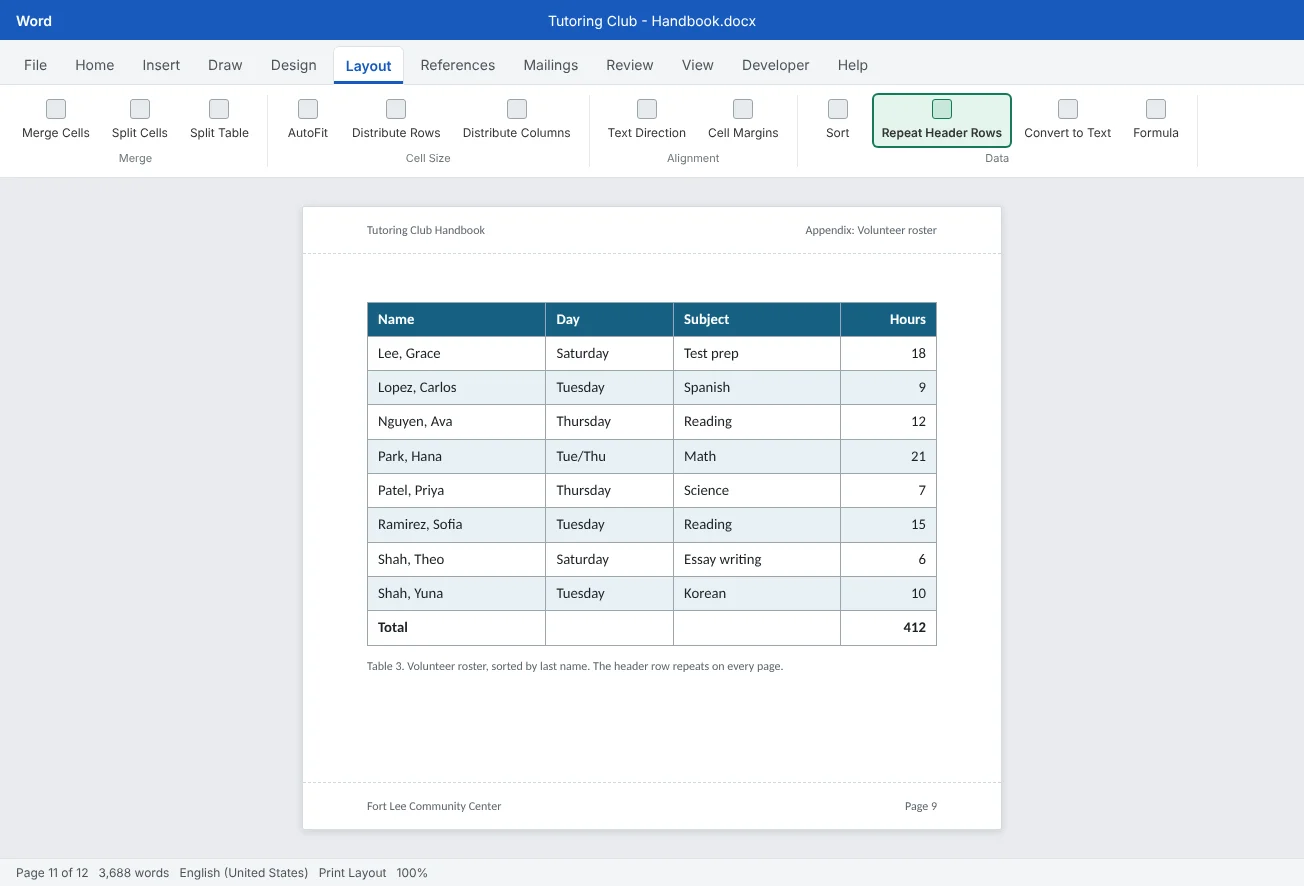
When a table runs onto a second page, readers on page 2 see a list of names and numbers with no column headings. Word can repeat the header row automatically:
- Click in the first row of the table (or select the first two rows if your header takes two).
- Choose Layout
then Data then Repeat Header Rows.
The header now appears at the top of every page the table reaches, and it stays one row: edit the first row and every copy changes. The same setting is in Layout
Keep rows in one piece. By default a tall row, such as one with a long note, can start at the bottom of one page and finish on the next. Select the table, open Layout
Control column widths and alignment
A pasted or quickly built table often has a wide column for a two-letter code and a narrow one that wraps every name onto two lines. Fix the widths before you style anything.
| Command | Where | What it does |
|---|---|---|
| AutoFit Contents | Layout | Shrinks or grows each column to fit its text |
| AutoFit Window | Layout | Stretches the table to fill the space between the margins |
| Fixed Column Width | Layout | Freezes the current widths so typing doesn't resize columns |
| Distribute Columns | Layout | Makes the selected columns equal width (Distribute Rows does the same for height) |
| Width box | Layout | Sets an exact width for the selected column |
| Drag or double-click a border | Between two columns | Drag to resize; double-click to fit that column to its text |
A good order for the roster: AutoFit Contents to see what each column really needs, then AutoFit Window so it fills the page width, then widen the Notes column by dragging so short columns stay compact.
Alignment inside cells. The nine buttons in Layout
Cell margins. Layout
Sort the rows
Click anywhere in the table and choose Layout
- At the bottom of the dialog, under My list has, choose Header row. The header stays on top, and the column names appear in the Sort by list.
- In Sort by, choose Day, and check that Type is Text. For numbers choose Number, and for dates Date, so 10 comes after 9 and dates sort in calendar order.
- In Then by, choose Name, so tutors on the same day are in alphabetical order.
- Choose Ascending (A to Z, smallest first) or Descending, and click OK.
Word sorts by the first word in each cell. A Name column that reads Daniel Kim sorts by first name. To sort by last name, type names as Kim, Daniel, or give last names their own column.
Style the table with restraint
Table Design
| Option | Effect | Use it on the roster? |
|---|---|---|
| Header Row | Formats the first row differently | Yes |
| Banded Rows | Shades every other row | Yes, for a long table |
| First Column | Makes the first column bold or shaded | Only if the first column labels the rows, like names |
| Total Row | Formats the last row as a total | If you add a total row |
| Last Column, Banded Columns | Highlights the last column, shades every other column | Rarely |
For a table that will be printed, often in black and white, choose a light style with a clear header and soft banding. Avoid very dark cells under black text and styles that color every column. One accent color is enough.
For small touches, use the Borders group on the Table Design tab: Borders adds or removes lines on the selected cells (for example, No Border for a borderless layout table), and Line Style, Line Weight and Pen Color set how new lines look. Shading, in the Table Styles group, fills selected cells. If you remove all borders, turn on Layout
Convert, total and describe the table
Text to table. Text typed with tabs or commas between items turns into a table with Insert
A quick total (optional). Word tables can do simple math. Click in an empty cell below a column of numbers and choose Layout=SUM(ABOVE); click OK. The result is a field, so it doesn't recalculate on its own: after changing a number, select the total and press F9. For anything more than a sum, use Excel.
Alt text for tables. Right-click the table, choose Table Properties and open the Alt Text tab. Type a short Title and a Description that says what the table holds, for example Volunteer roster: name, day, subject, phone, start date and hours for 46 tutors, sorted by day and then by name.
Common mistakes
| Mistake | What happens | Fix |
|---|---|---|
| Copying the header row onto each page by hand | The copies drift into the middle of pages after edits | Use Layout |
| Merging cells to group rows | Sorting fails and screen readers lose their place | Repeat the value in each row; keep a simple grid |
| Sorting with No header row selected | The header ends up somewhere in the middle of the list | Undo with Ctrl+Z, then choose Header row under My list has |
| Sorting Daniel Kim-style names and expecting last-name order | The list comes out in first-name order | Type names as Kim, Daniel or give last names their own column |
| Adding colors and thick borders cell by cell | The table is busy on screen and muddy in print | Apply a light table style with Header Row and Banded Rows |
| Expecting a formula total to update itself | The total is wrong after a change | Select the total and press F9 |
| Leaving rows free to break across pages | A tutor's note is split between two pages | Untick Allow row to break across pages in Table Properties |
Practice
Practice
Fix the volunteer roster
Guided practice
Download the example file above and open it in Word. It holds the handbook's volunteer roster: 46 tutors in no particular order, columns of uneven width, a header that only appears on page 1, and a materials list typed with tabs below it.
- Look: scroll through the roster in Print Layout. Notice that page 2 has no headings and that some notes wrap onto three lines.
- Header: click in the first row and choose Layout
then Data then Repeat Header Rows. Check page 2. - Rows: open Layout
then Table then Properties, go to the Row tab and untick Allow row to break across pages. - Widths: use Layout
then Cell Size then AutoFit then AutoFit Contents, then AutoFit Window. Drag the border before Notes so the Notes column gets the extra space. - Sort: click in the table, choose Layout
then Data then Sort, select Header row, sort by Day then by Name, both ascending. - Style: pick a light style in Table Design
then Table Styles and keep only Header Row and Banded Rows ticked. Right-align the Hours column. - Convert: select the tab-separated materials list below the roster and turn it into a table with Insert
then Tables then Table then Convert Text to Table, separated at Tabs. - Alt text: right-click the roster, choose Table Properties, and on the Alt Text tab add a title and a one-sentence description. Save the file.
Independent challenge: Add a total row
Add a row at the bottom of the roster, type Total in the first cell, and use Layout=SUM(ABOVE) in the Hours column. Tick Total Row in Table Style Options. Then change one tutor's hours, select the total, press F9 and watch it update. Finally, sort by Hours with Type set to Number, and check that the total row moved with everyone else, which is why a total row is usually added after sorting.
Reflect: which table you have made or received was hard to read, and which one change from this tutorial would have helped it most?
Check your understanding0 of 4 correct
Pick an answer to see whether it's right and why.
Your roster table runs onto three pages and pages 2 and 3 have no column headings. What is the best fix?
Repeat Header Rows shows the first row at the top of every page the table reaches, updates when you edit it, and marks the header for screen readers.
You sorted the roster by name and the header row ended up halfway down the list. What went wrong?
With No header row, Word treats the header as data and sorts it in. Undo, then sort again with Header row selected.
Why should you avoid merging cells to group the Tuesday tutors under one big cell?
Vertically merged cells block sorting, and screen readers lose track of rows and columns. Repeat the day in each row instead.
You used =SUM(ABOVE) for total hours, then changed a number. The total didn't change. What do you do?
A formula in a Word table is a field. Fields update when you select them and press F9, not automatically.
You're ready to move on when
Tick each one off as you go. Your ticks are saved in this browser only.
Related
Sources and further reading
Was this guide helpful? Spot a mistake? Send feedback · admin@arumsoft.com