Intermediate Word · Tutorial 8 of 9
How to Check Accessibility and Share a Word Document
Add alt text and real headings, run the Accessibility Checker and Document Inspector, then share with the right permissions or as a PDF.
- Level
- Intermediate
- Time
- 15 min read
- Updated:
- Applies to:
- Word for Microsoft 365, Word 2024, Word 2021, Word for the web
What you'll learn
- Explain who reads your documents with screen readers, zoom and phones, and what they need
- Run the Accessibility Checker and understand its errors, warnings and tips
- Fix the common problems: fake headings, missing alt text, "click here" links, tables without header rows, empty paragraphs and low contrast
- Clean out comments, tracked changes and personal information with the Document Inspector
- Share with the right permissions, as a link, a copy or an accessible PDF, and know what Restrict Editing and Mark as Final can and can't do
Before you start
Example file
Intermediate Word - Accessibility.docx
Download the practice document used in this tutorial and follow along in Word.
Word document (.docx) · 38 KB
The Tutoring Handbook goes to volunteers, families and the community center office. Some of them will read it on a phone on the bus, some will zoom to 200 percent, and some will listen to it with a screen reader. A document that only looks right is not finished. It also needs a structure that people and their tools can follow.
In this tutorial you will fix the Volunteer guide chapter so it passes Word's Accessibility Checker, remove hidden information you don't want to send, and share the handbook with the right people in the right way.
Why accessibility matters
An accessible document is one that more people can use, in more ways. Think about who reads the handbook:
| Reader | How they read | What they need from you |
|---|---|---|
| A volunteer who is blind | A screen reader reads the text aloud and lets them jump from heading to heading or link to link | Real heading styles, alt text for pictures, links that make sense on their own, tables with header rows |
| A grandparent with low vision | Zooms in a lot, or uses high-contrast colors | Enough color contrast, text that reflows, no meaning carried by color alone |
| A parent on a phone | Reads in a narrow window, often in Word's mobile view or a PDF | Real structure instead of spacing tricks, so the text reflows cleanly |
| Everyone in a hurry | Skims headings and the Navigation pane | Clear, ordered headings and descriptive link text |
The good news is that most fixes are the same habits that make a long document easier to manage: styles instead of hand formatting, real lists and tables, and spacing set in the paragraph settings. You learned many of them in Tutorial 1 of this level. Accessibility is mostly about using Word's features the way they were designed, and then checking.
Run the Accessibility Checker
Go to Review
| Result | What it means | Examples |
|---|---|---|
| Errors | Content that is very hard or impossible for some people to use | A picture with no alt text, a table with no header information |
| Warnings | Content that is hard for many people to use | Link text such as click here, hard-to-read text contrast, repeated blank characters |
| Tips | Things that could be clearer, though not wrong | Checking that the reading order makes sense |
Click an issue to jump to it in the document. Many issues have a Recommended Actions menu (or a fix button in the Assistant) that applies the fix for you, such as Add a description or Mark as decorative. Read the explanation at the bottom of the pane the first few times; it says why the problem matters.
The checker is a start, not a stamp of approval. It can't tell that a bold, 16 pt line was meant to be a heading, or that alt text saying picture is useless. That's why the next sections show what to fix by hand. To keep it watching while you write, tick Keep accessibility checker running while I work in the pane or in File
Use real headings and real spacing
A screen reader user moves around a long document by jumping between headings, the same way you use the Navigation pane. Text that only looks like a heading (bold, bigger, maybe a different color) is invisible to that. Apply real heading styles instead: Home
- Keep the order. One Heading 1 per chapter, Heading 2 for its parts, Heading 3 inside those. Don't jump from Heading 1 to Heading 3 because you like how Heading 3 looks; change the style instead.
- Check it in the Navigation pane. View
then Show then Navigation Pane shows the outline that a screen reader user hears. If a heading is missing there, it isn't a real heading. - Use real lists. Typed
1.or-at the start of a line is read as plain text. Use Homethen Paragraph then Bullets or Numbering, so readers hear "list of 4 items". - No empty paragraphs for spacing. Each empty ¶ is announced as blank, and it breaks the layout on small screens. Set Spacing Before and After in Home
then Paragraph or in the style, and use Ctrl+Enter for a new page.
Alt text, meaningful links and table headers
Alt text (alternative text) is a short description that a screen reader reads instead of the picture. Right-click a picture and choose View Alt Text (in some versions Edit Alt Text), or use Picture Format
If a picture is only decoration, such as a border or a background shape, tick Mark as decorative. The screen reader then skips it instead of reading a file name.
Links should say where they go. Screen reader users often pull up a list of all links in the document, and a list of five click here links is useless. Select descriptive words, press Ctrl+K (or Insertwww.example.org/volunteer-policy works, but it's read out letter by letter.
Tables need a header row, so a screen reader can say "Day: Thursday, Time: 3:30 to 5:00" instead of reading a stream of cells. Click in the first row and turn on Repeat Header Rows in Layout
Color, contrast, title and language
Contrast. Light gray text on white looks elegant and is hard to read for many people, on any screen in sunlight, and on a cheap printer. Keep body text dark, such as Automatic or black in Home
Don't rely on color alone. "Sessions in red are canceled" means nothing to someone who can't tell red from black, or who hears the text. Add a word or a symbol as well: Canceled: Thursday, November 26. Color can still help, as long as it is not the only signal.
Document title. Go to Filehandbook_v7_FINAL.docx.
Language. A screen reader uses the document's language to choose how to pronounce words. If the handbook has a paragraph in Spanish or Korean, select it and set its language with Review
Inspect the document before sharing
A document can carry more than you see: old comments, tracked changes you forgot to accept, the author names of everyone who edited it, hidden text, and notes in headers. Before the handbook leaves the club, run the Document Inspector.
- Save a copy first with File
then Save a Copy or File then Save As. Some removals can't be undone. - Go to File
then Info then Check for Issues then Inspect Document. - Leave the boxes ticked and click Inspect.
- For each category that found something, read the result and click Remove All if you want it gone.
| Category | What it finds | Think before removing |
|---|---|---|
| Comments, Revisions and Versions | Comments and tracked changes | Finish the review in Tutorial 6 of this level first. Removing revisions here doesn't let you choose change by change |
| Document Properties and Personal Information | Author names, the last person who saved it, and other properties | This also clears properties such as the Title. Fill the title in again afterwards if you need it |
| Headers, Footers, and Watermarks | Everything in headers and footers | Usually keep these: the handbook needs its page numbers |
| Hidden Text and Invisible Content | Text formatted as hidden, objects set to invisible | Check what it is first; it might be an old draft you meant to delete |
Share, send a PDF and protect
Click Share at the top right of the Word window. If the file isn't on OneDrive or SharePoint yet, Word asks you to upload it first, because people can only open a link to a file that is online.
- Who can use the link: click the link settings to choose, for example, Anyone with the link, people in your organization, or Specific people. For a handbook with volunteers' phone numbers, choose specific people.
- What they can do: Can edit for the handbook team, Can view for families and the office.
- Type names or email addresses and click Send, or use Copy link to paste it into a message.
| Way to share | What people get | Use it when |
|---|---|---|
| Link (Share) | The one live file. Everyone sees the latest version, and you can change permissions later | The team edits together or you will keep updating it |
| Attached copy (.docx) | Their own separate copy. Your later changes don't reach them | Someone needs to edit offline or outside your organization |
| A fixed copy that looks the same everywhere | Families and the office only need to read or print it |
For the PDF, use File
Restrict Editing. Review
Mark as Final (File
Common mistakes
| Mistake | What happens | Fix |
|---|---|---|
| Making headings bold and bigger by hand | Screen readers and the Navigation pane can't find them | Apply Heading 1, 2 and 3 styles in order |
| Leaving alt text empty or writing "photo" | Screen reader users miss the picture or hear a file name | Describe what the picture shows and why, or mark it as decorative |
| Writing "click here" or pasting bare addresses | A list of links makes no sense | Select descriptive words and press Ctrl+K |
| Pressing Enter several times for space | Each empty paragraph is read as blank and layouts break on phones | Use Spacing Before and After or a page break |
| Using light gray text or color as the only signal | Low-vision and color-blind readers miss information | Use dark text and add a word like Canceled |
| Sharing the working file straight away | Old comments, tracked changes and author names go out with it | Run the Document Inspector on a copy first |
| Trusting Mark as Final to lock the document | Anyone can click Edit Anyway | Share as Can view or as a PDF; use Restrict Editing for limits |
Practice
Practice
Make the Volunteer guide accessible and share it
Guided practice
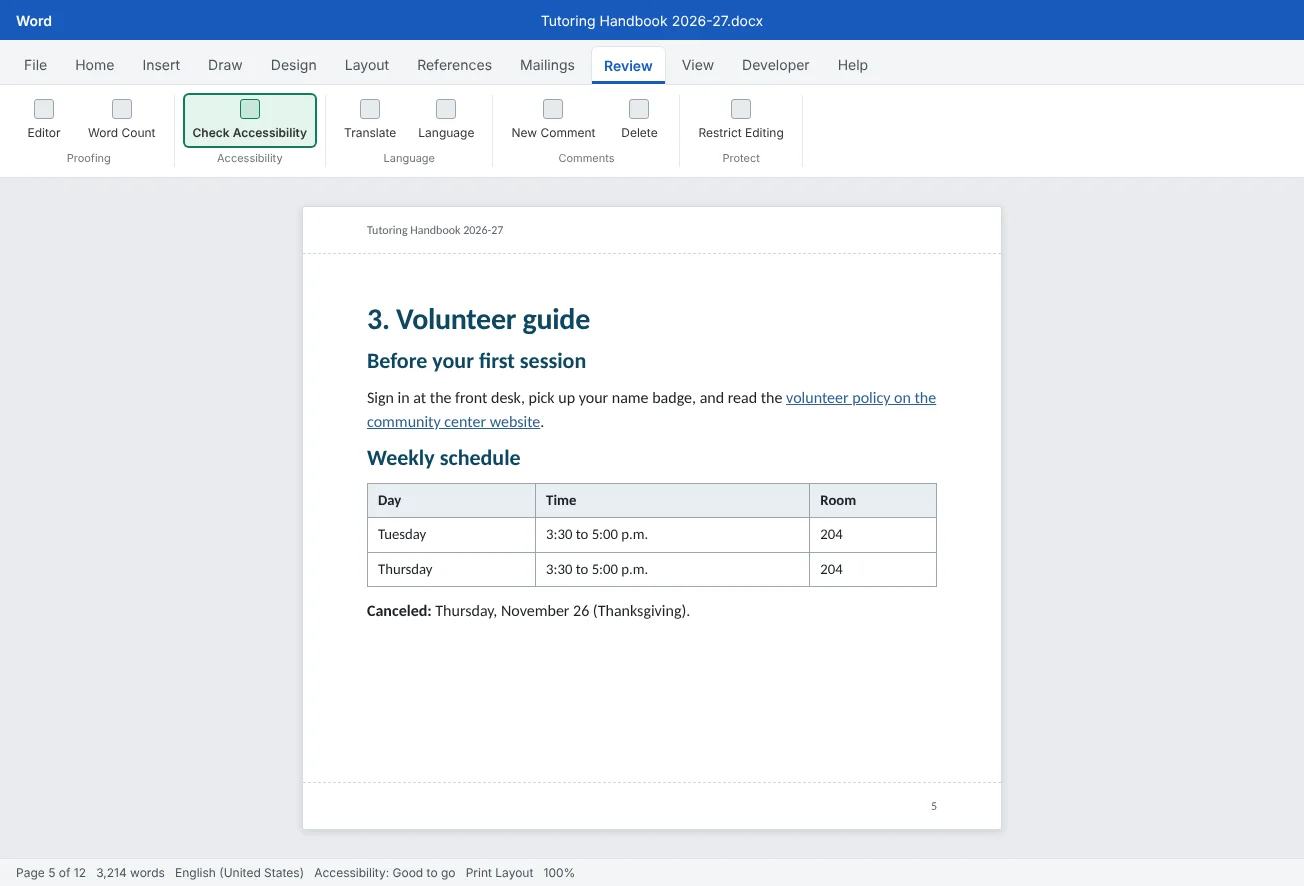
Download the example file above. It is the Volunteer guide chapter of the handbook with planted problems: fake headings, empty paragraphs, typed numbers, a "click here" address typed as text, a table with no header row, light gray text and a canceled date shown only in red.
- Check: run Review
then Accessibility then Check Accessibility and note how many errors and warnings it lists. Then turn on ¶ marks and open the Navigation pane. Count the problems the checker didn't find. - Headings: make the chapter title Heading 1 and the three section titles Heading 2. Check that all four appear in the Navigation pane.
- Structure: delete the empty paragraphs, adding Spacing Before to the headings if you need more room. Turn the typed
1. 2. 3.lines into a real numbered list. - Link: rewrite the "click here" sentence so the words describe the page, select those words, press Ctrl+K and enter
https://www.example.org/volunteer-policyas the address. - Table and color: turn on Repeat Header Rows and Header Row for the schedule table. Change the light gray note to Automatic color, and add the word Canceled: to the red date.
- Picture and title: insert any picture (for example from Insert
then Illustrations then Pictures), write alt text for it, then set the Title in File then Info to Tutoring Handbook: Volunteer guide. Run the checker again until it shows no errors or warnings. - Inspect: add one comment with Ctrl+Alt+M, save a copy for sharing, and run File
then Info then Check for Issues then Inspect Document on the copy. Remove comments and personal information, keep headers and footers. - Share: export the copy as a PDF with Document structure tags for accessibility ticked. If you use OneDrive, also open Share and set up a Can view link for specific people (you don't have to send it).
Independent challenge: Listen to your chapter
Turn on the screen reader that comes with your computer (Narrator on Windows: Ctrl+Windows+Enter; VoiceOver on a Mac: Cmd+F5) and listen to the first page of your fixed chapter, then to the original download. Try jumping by headings. Write down three things that sounded different, and press the same keys again to turn the screen reader off.
Reflect: which of these accessibility habits will you build into your templates and styles, so you don't have to fix them at the end every time?
Check your understanding0 of 4 correct
Pick an answer to see whether it's right and why.
Your chapter titles are bold, 16 pt Normal text. What is the main accessibility problem?
Only real heading styles create the structure that screen reader users jump through. Looks alone aren't enough, and the checker often can't tell.
Which link text is best for the volunteer policy?
Descriptive link text makes sense on its own, even in a list of links. Click here and bare addresses don't.
What happens when you remove Comments, Revisions and Versions with the Document Inspector?
The Inspector removes them permanently. Finish your review first and run it on a copy meant for sharing.
You marked the handbook as final. What can a reader still do?
Mark as Final is a polite signal, not protection. Use a Can view link, a PDF or Restrict Editing to limit changes.
You're ready to move on when
Tick each one off as you go. Your ticks are saved in this browser only.
Related
Sources and further reading
Was this guide helpful? Spot a mistake? Send feedback · admin@arumsoft.com