How to Type, Select, and Edit Text in Word
Select text with the mouse and keyboard, cut, copy and paste cleanly, undo mistakes, and use Find to jump straight to any word.
- Level
- Beginner
- Time
- 14 min read
- Updated:
- Applies to:
- Word for Microsoft 365, Word 2024, Word 2021, Word for the web
What you'll learn
- Move the insertion point anywhere with the mouse and with keyboard shortcuts
- Select a word, sentence, line, paragraph or the whole document in one move
- Delete, cut, copy, paste and drag text, and choose how pasted text is formatted
- Undo and redo mistakes, even several steps back
- Find any word with the Navigation pane and fix a repeated mistake with Replace
Before you start
Example file
Word Basics - Sign-up Notice.docx
Download the practice document used in this tutorial and follow along in Word.
Word document (.docx) · 36 KB
Most of the time you spend in Word is not typing new words. It is fixing the ones already there: moving a sentence, removing a duplicate, correcting the same typo in five places. The faster you can select and move text, the faster every document gets done.
In this tutorial you will clean up a messy sign-up notice for the Tutoring Club. You will learn the selection tricks that save the most time, paste text without bringing odd formatting along, and use Find and Replace to fix a misspelled word everywhere at once.
Move the insertion point
The blinking vertical line in your document is the insertion point. Whatever you type, paste or delete happens there. The mouse pointer is different: it is the I-shaped cursor that moves with your mouse. Moving the mouse doesn't move the insertion point until you click.
Clicking works, but the keyboard is often faster, because your hands are already there. These keys move the insertion point without changing anything:
| Press | To move |
|---|---|
| Left Arrow / Right Arrow | One character left or right |
| Ctrl+Left Arrow / Ctrl+Right Arrow | One word left or right |
| Up Arrow / Down Arrow | One line up or down |
| Ctrl+Up Arrow / Ctrl+Down Arrow | To the start of this paragraph, or the next one |
| Home / End | To the start or end of the line |
| Ctrl+Home / Ctrl+End | To the very start or very end of the document |
| Page Up / Page Down | One screen up or down |
Backspace vs. Delete. Backspace erases the character to the left of the insertion point. Delete erases the character to the right. Add Ctrl to work a whole word at a time: Ctrl+Backspace removes the word before the insertion point, Ctrl+Delete the word after it.
Select text with the mouse
Before Word can cut, copy, delete or format something, you have to select it. Selected text gets a shaded background. Dragging across text works, but it often grabs one letter too many. These clicks select exactly the right amount:
| To select | Do this |
|---|---|
| A word | Double-click it |
| A sentence | Hold Ctrl and click anywhere in the sentence |
| A paragraph | Triple-click anywhere in it |
| A line | Move the pointer into the left margin until it becomes an arrow, then click |
| Any amount of text | Click at the start, then hold Shift and click at the end |
| Several separate pieces | Select the first, then hold Ctrl and select the others |
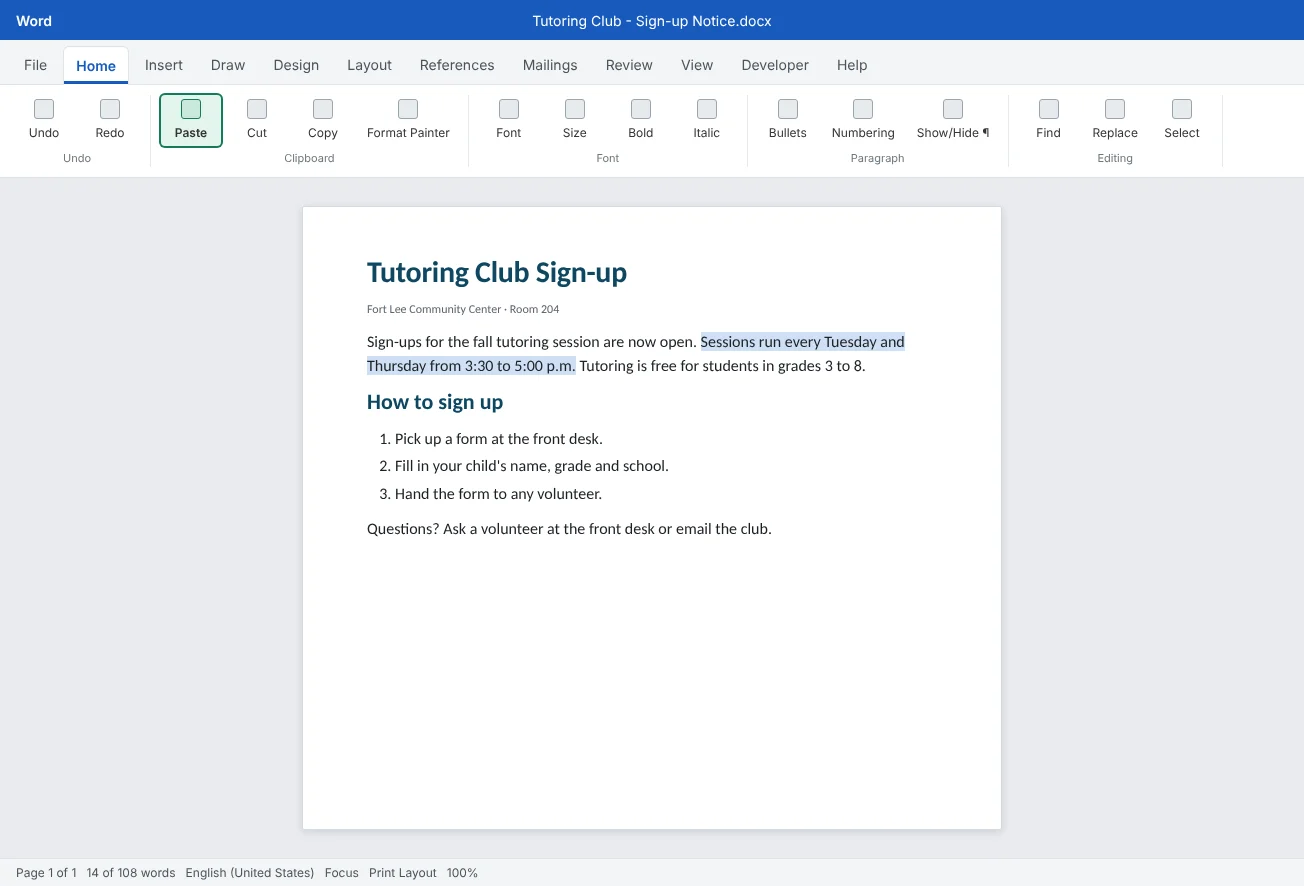
- Whole sentence, no stray letters
- Ready to cut, copy or retype
Shift+click is the hero for long selections. To select three paragraphs, click just before the first word, scroll down, then Shift+click after the last word. No dragging past the bottom of the screen and watching the page race away.
Select text with the keyboard
Every movement key from the first section becomes a selection key when you add Shift. The insertion point moves the same way, and everything it passes over is selected.
| Press | To select |
|---|---|
| Shift+Right Arrow / Shift+Left Arrow | One more character at a time |
| Ctrl+Shift+Right Arrow / Ctrl+Shift+Left Arrow | One more word at a time |
| Shift+Down Arrow / Shift+Up Arrow | One more line at a time |
| Ctrl+Shift+Down Arrow | To the end of the paragraph |
| Shift+End / Shift+Home | To the end or start of the line |
| Ctrl+Shift+End / Ctrl+Shift+Home | To the end or start of the document |
| Ctrl+A | The whole document |
The keyboard is the more precise tool. Click just before a phrase, then tap Ctrl+Shift+Right Arrow until exactly the words you want are selected. If you go one word too far, tap Ctrl+Shift+Left Arrow once to shrink it again.
To cancel a selection, press any arrow key without Shift or click anywhere in the text. Nothing is changed.
Cut, copy and paste
Cut removes the selection and keeps it on the clipboard. Copy leaves it in place and puts a copy on the clipboard. Paste puts whatever is on the clipboard at the insertion point. The shortcuts are worth learning on day one: Ctrl+X cut, Ctrl+C copy, Ctrl+V paste. The same commands are on Home
Choose how pasted text looks. Text copied from a website, an email or another document brings its own font, size and color with it. Right after you paste, a small Paste Options button appears next to the text (you can also press Ctrl to open it). It offers these choices:
| Paste option | What you get | Use it when |
|---|---|---|
| Keep Source Formatting | The text looks exactly as it did where you copied it | You are copying between your own documents and want the look to stay |
| Merge Formatting | The text takes on the formatting around it, but keeps simple things like bold and italic | You want it to match, but bold words should stay bold |
| Picture | A picture of the text that you can't edit | Rarely; avoid it for normal text |
| Keep Text Only | Plain words with all formatting removed, matching the paragraph you paste into | You copy from the web or an email. This is the cleanest choice |
To skip the menu and paste plain text straight away, press Ctrl+Shift+V. In current Word for Microsoft 365 that pastes as Keep Text Only.
Drag to move. For short moves on the same screen, select the text, point at the selection, and drag it to its new place. Watch the small gray insertion point that follows the pointer: that is where the text will land. Hold Ctrl while you drag to copy instead of move.
Undo and redo
Press Ctrl+Z to undo your last action. Press it again to undo the one before, and so on. Word remembers many steps, so deleting a paragraph by accident ten minutes ago is not a disaster. Redo (Ctrl+Y) brings back what you just undid.
The Undo and Redo buttons sit at the far left of the Home tab in current Word (older versions keep them on the Quick Access Toolbar). Click the small arrow beside Undo to see a list of recent actions. Click an item lower in the list to undo everything back to that point in one go.
When there is nothing left to redo, Ctrl+Y (or F4) repeats your last action instead. Make one word bold, select another word and press F4: it turns bold too.
Find and replace text
Find jumps to any word without scrolling. Press Ctrl+F (or click Home
Replace fixes the same thing everywhere. Press Ctrl+H (or click Home
- In Find what, type the wrong text, such as
tutering. - In Replace with, type the right text:
tutoring. - Click Find Next to see the first match, then Replace to fix it and move to the next one. Or click Replace All to fix every match at once. Word tells you how many it changed.
tutering, Replace with tutoring, Replace All.Click More >> in the Find and Replace box for extra options. The two you'll use most are Match case (only finds text with the same capital letters) and Find whole words only (so searching for art doesn't also match start and party).
Common mistakes
| Mistake | What happens | Fix |
|---|---|---|
| Dragging to select long passages | The page scrolls too fast and you select too much or too little | Click at the start, then Shift+click at the end |
| Typing while text is still selected | The selected text is replaced by what you type | Click to clear the selection first; press Ctrl+Z if it happens |
| Pasting from the web with plain Ctrl+V | Odd fonts, colors and sizes appear in the middle of your document | Use Ctrl+Shift+V or Paste Options > Keep Text Only |
| Retyping a sentence to move it | Slow, and you add new typos | Cut and paste it, or drag it to the new spot |
| Fixing a repeated typo by hand | You miss one or two | Use Replace (Ctrl+H) and check the count Word reports |
| Using Replace All on a short word | Parts of other words get changed too | Turn on Find whole words only or replace one at a time |
| Holding Backspace to delete a paragraph | Slow, and you may delete too much | Triple-click the paragraph and press Delete |
Practice
Practice
Clean up the Tutoring Club sign-up notice
Guided practice
Download the example file above and open it in Word. It is a sign-up notice that was put together in a hurry: a sentence appears twice, the steps are in the wrong order, one paragraph was pasted with strange formatting, and the word tutoring is misspelled all through it.
- Navigate: press Ctrl+End to jump to the end of the notice and Ctrl+Home to jump back. Use Ctrl+Down Arrow to step through it one paragraph at a time.
- Remove the duplicate: in the first paragraph, the sentence about session times appears twice. Ctrl+click the second copy to select it, then press Delete.
- Fix the order: the steps under How to sign up are backwards. Triple-click a step to select it, cut it with Ctrl+X, click where it belongs and paste with Ctrl+V. Move the others the same way.
- Drag: the line Questions? Ask a volunteer... is at the top. Select it and drag it to the very end of the notice.
- Clean the paste: one paragraph is in a different font and color. Triple-click it, cut it with Ctrl+X, then paste it back with Ctrl+Shift+V so only the text returns.
- Find: press Ctrl+F and search for
tutering. Note how many results the Navigation pane shows. - Replace: press Ctrl+H, replace
tuteringwithtutoringand click Replace All. Check that the number Word reports matches what Find showed. - Undo and redo: press Ctrl+Z once to undo the Replace All, look at the result, then press Ctrl+Y to redo it. Save the file.
Independent challenge: Edit without the mouse
Add a new paragraph at the end of the notice that says when sign-ups close. Then, without touching the mouse, move that paragraph so it comes right after the first paragraph. Use only Ctrl+Shift+Down Arrow or Shift+Down Arrow to select, Ctrl+X and Ctrl+V to move, and the arrow keys to get around. Time yourself, then try again and beat it.
Reflect: which selection trick from this tutorial do you think will save you the most time, and what were you doing before you knew it?
Check your understanding0 of 4 correct
Pick an answer to see whether it's right and why.
What is the quickest way to select a single sentence with the mouse?
Ctrl+click selects the whole sentence. Double-click selects one word and triple-click selects the whole paragraph.
You copied a paragraph from a website and want it to match your document's font. Which paste option should you use?
Keep Text Only (Ctrl+Shift+V) drops all the website's formatting, so the text takes on the formatting of the paragraph you paste into.
The insertion point is in the middle of a word. Which key removes the character to its right?
Delete erases to the right of the insertion point and Backspace erases to the left.
The word "tutering" is misspelled 12 times. What is the most reliable way to fix all of them?
Replace changes every match in one step and tells you how many it fixed. One Ctrl+Z undoes it if something goes wrong.
You're ready to move on when
Tick each one off as you go. Your ticks are saved in this browser only.
Related
Sources and further reading
Was this guide helpful? Spot a mistake? Send feedback · admin@arumsoft.com