How to Get Started with Word: Workspace, Views, and Saving
Learn what each part of the Word window does, switch between views, and create, save, and reopen documents without losing work.
- Level
- Beginner
- Time
- 13 min read
- Updated:
- Applies to:
- Word for Microsoft 365, Word 2024, Word 2021, Word for the web
What you'll learn
- Name the main parts of the Word window and what each one does
- Find any command with the ribbon, its groups and the Search box
- Switch between Print Layout, Read Mode and Web Layout, and zoom in and out
- Create a new document and save it with a clear name in the right place
- Reopen recent files and recover work after a crash
Before you start
None. This is a good first tutorial.
Word is where most letters, reports, handouts and school assignments start. Before you worry about fonts or page numbers, it pays to know your way around the window and to save your work so it never disappears.
In this tutorial you will create the first document for a small Tutoring Club: a welcome letter for families. You will meet the parts of the screen, try the different views, and save, close and reopen the file the safe way.
The parts of the Word window
When you open a document, Word shows the same layout every time. Learn these six parts and you will always know where to look.
| Part | Where it is | What it does |
|---|---|---|
| Title bar | Very top | Shows the file name, the AutoSave switch and the Search box |
| Ribbon | Below the title bar | Holds every command, sorted into tabs such as Home, Insert and Layout |
| Quick Access Toolbar | Above or below the ribbon | A few buttons you can always reach, such as Save and Undo |
| Ruler | Above and left of the page (when turned on) | Shows margins, indents and tab stops |
| Document area | The middle | The page you type on. The blinking line is the insertion point, where your typing appears |
| Status bar | Very bottom | Shows the page number, word count, language, view buttons and the zoom slider |
Two of these are worth turning on now if you don't see them. For the ruler, use View
The status bar is more useful than it looks. Click the word count to see characters and paragraphs too, and right-click the status bar to choose what else it shows, such as line numbers.
Find commands on the ribbon
The ribbon is organized in three levels: tabs (Home, Insert, Layout…), groups inside each tab (Font, Paragraph, Styles…) and the buttons inside each group. When a tutorial on this site says Home
A few habits make the ribbon easier:
- Hover to learn. Point at any button and wait a second. A tooltip tells you what it does and its keyboard shortcut.
- Use the small arrow. Many groups have a tiny arrow in the bottom-right corner (the dialog box launcher). It opens the full set of options, for example every font setting at once.
- Search instead of hunting. Click the Search box in the title bar, or press Alt+Q, and type what you want, such as "page numbers". Word shows the command and runs it when you click it.
- Get space back. Press Ctrl+F1 to collapse the ribbon to only its tabs, and again to bring it back.
Some tabs only appear when you need them. Click a picture and a Picture Format tab shows up; click a table and you get Table Design and Layout. If a command seems to be missing, check that you have selected the right thing first.
Switch views and zoom
A view changes how the document looks on screen, not how it prints. You can switch with View
| View | Use it to | Good to know |
|---|---|---|
| Print Layout | Write and format | Shows real pages, margins, headers and footers, exactly as they will print |
| Read Mode | Read a long document comfortably | Hides the ribbon and lays pages out like a book. Press Esc to leave |
| Web Layout | See text without page breaks | Lines stretch to the width of the window |
| Outline and Draft | Work on structure or plain text | You'll use Outline later, with headings |
| Focus | Write without distractions | On the status bar or View |
To zoom, drag the slider at the bottom right, or hold Ctrl and turn the mouse wheel. View
Create a new document
When you start Word, the Home screen offers a Blank document, a few templates and your recent files. Inside Word, you have three ways to start something new:
- Press Ctrl+N for a new blank document.
- Go to File
then New then Blank document. - Go to File
then New and pick a template, such as a letter, résumé or flyer. A template is a ready-made starting file; you replace its sample text with your own.
For the welcome letter, start with a blank document. Type the heading Welcome to the Tutoring Club, press Enter, and type a short paragraph. Don't format anything yet. Getting words on the page comes first; formatting is the next two tutorials.
Notice that Word wraps lines for you. Only press Enter when you want to start a new paragraph, never at the end of every line. If you need a line break without a new paragraph, such as in an address, press Shift+Enter.
Save your document the right way
Save early, as soon as the document has a few words, and then let Word or your own habit keep it saved.
- Press Ctrl+S (or click Save on the Quick Access Toolbar).
- The first time, Word asks for a file name and a location. Type a name that says what the file is, such as
Tutoring Club - Welcome Letter. - Choose where it goes: OneDrive (online, and available on your other devices) or a folder on This PC. To pick an exact folder, click More options or Browse.
- Click Save. The new name appears in the title bar.
AutoSave. When a file is saved to OneDrive or SharePoint, the AutoSave switch in the top-left corner turns on, and Word saves every change within seconds. For files saved on your computer, AutoSave is off, so press Ctrl+S often.
Save vs. Save As. Save updates the file you already have. File
| File type | Extension | When to use it |
|---|---|---|
| Word Document | .docx | The normal choice for anything you'll keep editing |
.pdf | Sharing a finished document that should look the same everywhere (covered in Tutorial 7) | |
| Word Template | .dotx | A starting file you'll reuse again and again |
| Word 97–2003 Document | .doc | Only if someone has very old software. Some features are lost |
Open, reopen and recover documents
Press Ctrl+W to close a document. If anything is unsaved, Word asks whether to save it. Read the message before you click: Don't Save throws away your changes.
To get back to a file, go to File
If Word or your computer crashes, don't panic:
- Restart Word. A Document Recovery pane usually lists the files it rescued. Open each one and save it right away.
- For a file you never saved, go to File
then Info then Manage Document then Recover Unsaved Documents. - For files on OneDrive, File
then Info then Version History lets you open or restore an earlier version, which is also how you undo a whole bad editing session.
Behind the scenes, AutoRecover keeps a backup copy every 10 minutes by default. You can make it more frequent in File
Common mistakes
| Mistake | What happens | Fix |
|---|---|---|
| Leaving the name as Document1 | You can't tell files apart later | Name the file the first time you save |
| Not knowing where the file was saved | You can't find it again or attach it to an email | Check the location before you click Save; use Browse to choose a folder |
| Pressing Don't Save by reflex | Your latest changes are gone | Read the close message; choose Save when in doubt |
| Editing the original when you meant to make a copy | With AutoSave on, the old version is overwritten | Use Save a Copy before you start changing it |
| Pressing Enter at the end of every line | Lines break in odd places when you change the font or margins | Let Word wrap lines; press Enter only for a new paragraph |
| Searching the ribbon tab by tab | Slow, and you may give up | Use the Search box (Alt+Q) to find any command |
Practice
Practice
Create, save and reopen your first document
Guided practice
Open Word and start a blank document. You will build the first draft of the Tutoring Club welcome letter.
- Type: enter the heading Welcome to the Tutoring Club, press Enter, and write two or three sentences about when and where sessions happen. Let Word wrap the lines.
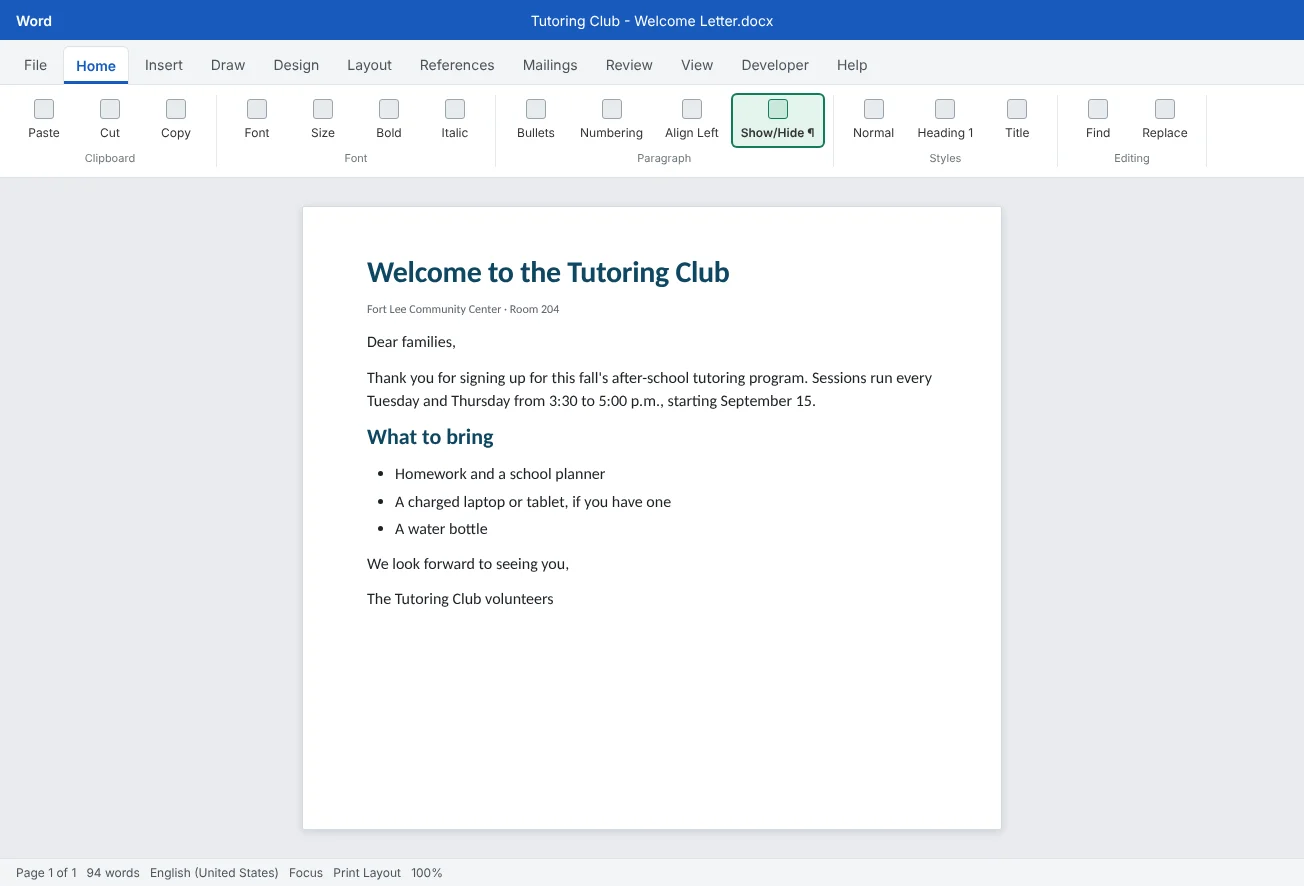
- Formatting marks: turn on Home
then Paragraph then Show/Hide ¶ and find the ¶ marks. Count how many paragraphs you have, then turn the marks off again. - Save: press Ctrl+S and save the file as
Tutoring Club - Welcome Letterin a folder you choose. Check the new name in the title bar. - Views: switch to Read Mode, then Web Layout, then back to Print Layout using the status bar buttons. Use View
then Zoom then One Page to see the whole page. - Search: press Alt+Q, type word count, and open the Word Count box. Compare it with the count on the status bar.
- Close and reopen: add one more sentence, then press Ctrl+W. When Word asks, choose Save. Reopen the file from File
then Open and pin it to the Recent list. - Copy: use File
then Save As (or Save a Copy) to make Tutoring Club - Welcome Letter (Spanish). Close it and check that the original is unchanged.
Independent challenge: Find it three ways
Pick three commands you haven't used yet, such as Line Numbers, Word Count and Page Color. Find each one three ways: on the ribbon, with the Search box, and with its keyboard shortcut if it has one (hover over the button to see it). Write down which way was fastest for each.
Reflect: where will you keep your Word files from now on, and how will you name them so you can find any file in a few seconds?
Check your understanding0 of 4 correct
Pick an answer to see whether it's right and why.
Where do you look to see how many words your document has?
The status bar shows the word count, page number, language, view buttons and zoom. Click the word count for more detail.
You opened last year's flyer to reuse it, and AutoSave is on. What should you do before editing?
With AutoSave on, every change goes straight into the file. Saving a copy first keeps the original untouched.
Which view shows your document exactly as it will print, with margins, headers and footers?
Print Layout shows real pages. It is the default view and the one to use while writing and formatting.
You can't find the command to add line numbers. What is the quickest way to find it?
The Search box in the title bar finds any command by name and runs it for you, so you don't need to know which tab it lives on.
You're ready to move on when
Tick each one off as you go. Your ticks are saved in this browser only.
Related
Sources and further reading
Was this guide helpful? Spot a mistake? Send feedback · admin@arumsoft.com