Intermediate Word · Tutorial 5 of 9
How to Position Pictures and Wrap Text in Word Without Things Jumping Around
Understand in-line versus wrapped pictures, anchor images where they belong, and lay out pictures, text boxes and captions that hold their place.
- Level
- Intermediate
- Time
- 15 min read
- Updated:
- Applies to:
- Word for Microsoft 365, Word 2024, Word 2021, Word for the web
What you'll learn
- Choose between In Line with Text and each text wrapping option, and know when each one fits
- Find a picture's anchor and decide whether it moves with text or stays fixed on the page
- Set an exact position and size in the Layout dialog without stretching the picture
- Align, select, rename, hide and group objects with the Align menu and the Selection Pane
- Keep captions with their pictures and fix pictures that jump when you edit
Before you start
Example file
Intermediate Word - Picture Layout.docx
Download the practice document used in this tutorial and follow along in Word.
Word document (.docx) · 38 KB
Pictures are the part of a long document most likely to misbehave. You add one line of text on page 2, and a photo on page 7 slides onto the next page or lands on top of a heading. This is not random. Word is following rules about wrapping and anchors, and once you know those rules you can make pictures stay exactly where you put them.
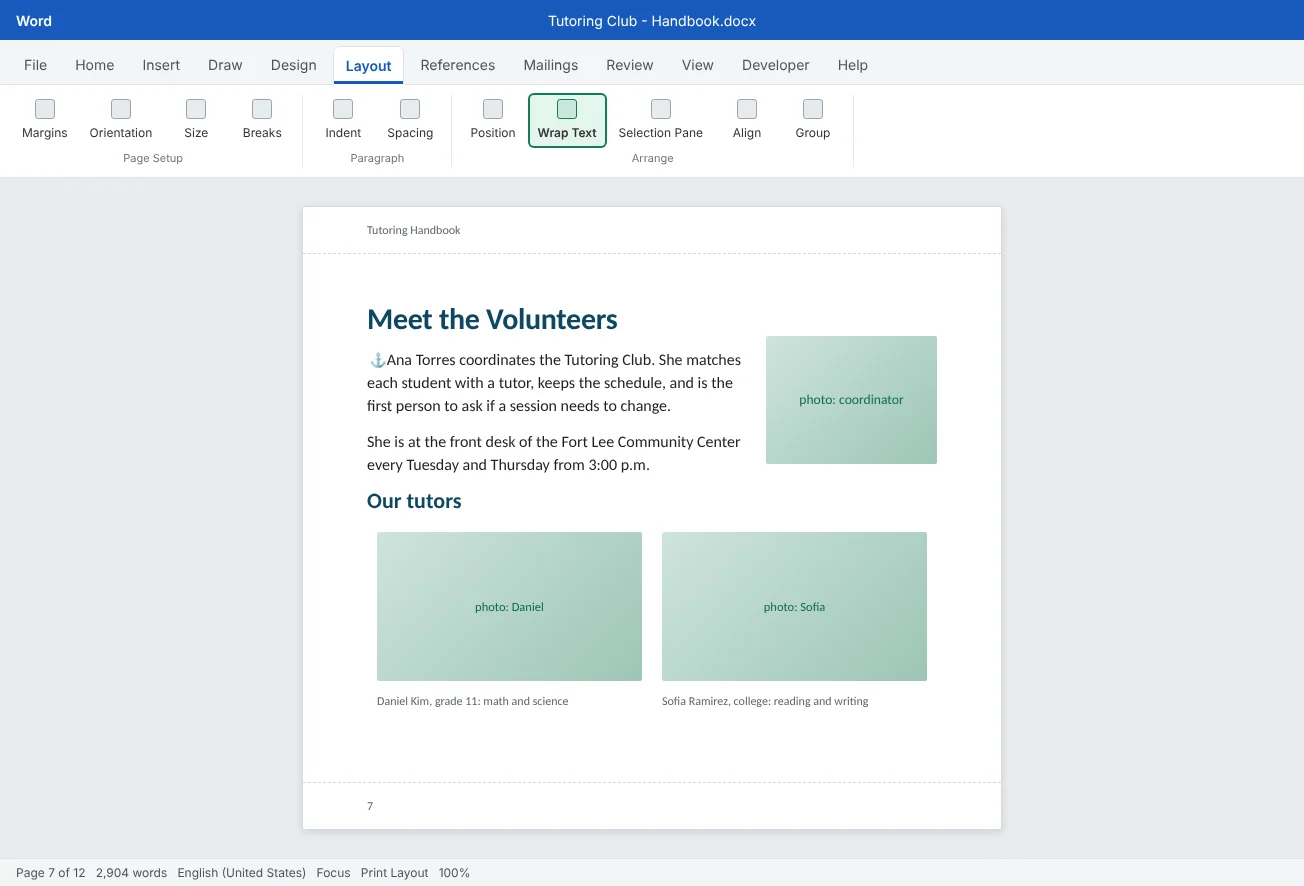
In this tutorial you will lay out the Meet the Volunteers page of the 12-page Tutoring Handbook: one photo beside a paragraph, a grid of tutor photos with captions, and an icon with a text box label. You already know how to insert, resize and wrap a picture from Tutorial 6 of Word Basics. Here you will learn why the layout holds or falls apart.
In line or wrapped: decide on purpose
Every picture in Word is in one of two families. An In Line with Text picture lives inside a paragraph, like a very large letter. It moves when the text moves, and it can never overlap anything. A picture With Text Wrapping floats in a layer above or below the text. You can drag it anywhere, and text flows around it according to the wrap option you choose.
Select a picture and click the Layout Options button beside its top-right corner, or use Layout
| Option | What text does | Use it for |
|---|---|---|
| In Line with Text | Sits above and below the picture, never beside it | Most pictures in a long document, and every picture inside a table cell |
| Square | Wraps around the picture's rectangle | A photo beside a paragraph, like the coordinator's photo |
| Tight | Wraps close to the edges of the picture itself | Icons or cut-out pictures with a transparent background |
| Through | Like Tight, but can also fill open spaces inside the shape | Rarely needed; the difference only shows on unusual shapes |
| Top and Bottom | Stops above the picture and starts again below it | A wide picture you want to place freely without text beside it |
| Behind Text | Runs over the picture as if it weren't there | Watermarks and background shapes |
| In Front of Text | Is covered by the picture | Stamps, arrows or callouts placed on top of something |
A good rule for a long document: use In Line with Text unless you have a reason not to. In-line pictures can't jump, can't hide behind text and always print where the text says. Choose a wrapping option only when you need text beside the picture or need the picture at an exact spot.
Understand the anchor
A wrapped picture still belongs to one paragraph. Word marks that paragraph with an anchor icon in the left margin, which you see when the picture is selected. The anchor is the key to every "jumping" problem: the picture always stays on the same page as its anchor paragraph.
To see anchors all the time, turn on Home
At the bottom of the Layout Options menu you choose how the picture follows its anchor:
- Move with text: the picture keeps the same distance from its anchor paragraph. Add text above, and both move down together. This is right for a photo that belongs beside a particular paragraph.
- Fix position on page: the picture stays at the same spot on the page, measured from the page or margin. But it still goes to whatever page the anchor paragraph is on. This is right for something that belongs at, say, the top-right corner of a chapter's first page.
When you drag a wrapped picture, Word moves its anchor to the nearest paragraph. That is often the wrong one. To stop this, open Layout
Set an exact position and size
Dragging is fine for a rough layout. When a picture must sit in exactly the same spot on several pages, use the presets or the Layout dialog instead.
Position gallery. Layout
Layout dialog. Click More Layout Options at the bottom of the Position or Wrap Text menu, or See more in the Layout Options button. The dialog has three tabs:
| Tab | Main settings | Why it helps |
|---|---|---|
| Position | Horizontal and vertical Alignment or Absolute position, measured relative to the Margin, Page or Column (vertically also Paragraph or Line); options Move object with text, Lock anchor, Allow overlap | "Right of the margin, 0 in below the paragraph" stays correct even if the margins change |
| Text Wrapping | Wrapping style, Wrap text (both sides, left only, right only, largest only) and Distance from text | Gives an even gap between the photo and the words, instead of text touching the picture |
| Size | Exact height and width, Scale in percent, and Lock aspect ratio | With Lock aspect ratio ticked, typing a new width changes the height to match, so faces never stretch |
For the handbook, a consistent rule makes the pages look planned: every volunteer photo 2 in (5 cm) wide, aligned Right relative to the Margin, with 0.13 in (0.3 cm) of distance from text. Set it once in the dialog and repeat it on the next photo.
Align, select and group objects
Align and Distribute. Select two or more wrapped objects by holding Shift or Ctrl and clicking each one. Then open Layout
Selection Pane. Open it with Layout
- Select an object that is hard to click, such as a shape behind text.
- Rename it: double-click the name and type something clear, such as
Photo - Coordinator, instead of Picture 7. - Hide it with the eye icon while you work on what is underneath. Hidden objects don't print, so show them again before you finish.
- Reorder layers by dragging names up or down.
Pictures set to In Line with Text are part of the text: they are listed in the Selection Pane, but you can't hide, reorder or multi-select them there, and they can't be aligned or grouped this way.
Group. Select the objects that belong together, for example an icon and the text box that labels it, then choose Layout
Keep captions with their pictures
A caption typed as a normal paragraph under a floating picture is not connected to it. Move the picture and the caption stays behind. There are two reliable ways to keep them together.
1. A table grid (best for several pictures). Insert a table with one column per picture and two rows: pictures in the top row, captions in the bottom row. Keep every picture In Line with Text inside its cell. Before you insert the pictures, set Layout
2. A grouped text box (best for one floating picture). Draw a text box with Insert
Real captions from References
Why pictures jump, and how to fix it
When a picture does something strange, find its anchor first (select it, or turn on Ctrl+Shift+8), then match the symptom:
| What you see | Why it happens | Fix |
|---|---|---|
| The picture moves to the next page when you add text above it | Its anchor paragraph moved to the next page, and the picture always follows its anchor | Anchor it to a paragraph on the right page, or make it In Line with Text |
| The picture moved when you edited a different part of the page | Dragging it earlier moved the anchor to a nearby paragraph | Drag the anchor to the right paragraph and tick Lock anchor |
| Only a thin slice of an in-line picture shows | The paragraph has Exactly line spacing, so the line is too short for the picture | Set that paragraph's line spacing to Single or At least |
| Two pictures sit on top of each other | Both are floating and Allow overlap is on | Use Align and Distribute, or put them in a table grid |
| You can't click a picture at all | It is Behind Text, or hidden in the Selection Pane | Select it from the Selection Pane and change its wrap |
| A big empty gap at the bottom of a page, with the picture at the top of the next | A large in-line picture didn't fit in the space left on the page | Make it a little smaller, or move a paragraph so the gap fills with text |
The quickest test for a finished page: add a few blank lines at the top of the chapter and watch. Anything that should move with its paragraph should move; anything fixed should stay. Then press Ctrl+Z to undo the test.
Common mistakes
| Mistake | What happens | Fix |
|---|---|---|
| Wrapping every picture by habit | Pictures float away from their text in a long document | Keep In Line with Text as the default; wrap only when text must sit beside a picture |
| Dragging a floating picture far from its paragraph | The anchor moves to a different paragraph and the picture jumps later | Check the anchor after dragging, and tick Lock anchor |
| Typing the caption as a separate paragraph under a floating picture | The caption stays behind when the picture moves | Use a table grid, or group the picture with a text box caption |
| Resizing with a side handle or unticking Lock aspect ratio | Faces and logos look stretched | Use a corner handle, or type one size in the Size tab with Lock aspect ratio on |
| Hiding an object in the Selection Pane and forgetting it | It doesn't print and seems to have vanished | Open the Selection Pane before you finish and show everything |
| Putting a large photo into an AutoFit table | The column grows and the table runs off the page | Set Fixed Column Width before inserting pictures |
Practice
Practice
Lay out the Meet the Volunteers page
Guided practice
Download the example file above. It is the Meet the Volunteers page of the handbook, with marked spots for three pictures and one icon. Use any photos of your own (or pictures from Insert
- Show anchors: turn on Home
then Paragraph then Show/Hide ¶ so you can see paragraph marks and anchors as you work. - Photo 1: delete the text [Insert photo 1 here] but keep the empty paragraph, insert a picture there, choose Square in Layout Options and pick Move with text. Drag it to the right of the coordinator paragraphs.
- Anchor: find the anchor. If it is not on the first coordinator paragraph, drag it there. Open More Layout Options, tick Lock anchor, and on the Size tab set the width to 2 in (5 cm) with Lock aspect ratio ticked. Delete the empty paragraphs below the text, and the typed line Photo: Ana Torres, coordinator: a caption typed like that won't follow the photo.
- Jump test: click before the heading Meet the Volunteers, press Enter five times and watch the photo move with its paragraph. Undo with Ctrl+Z.
- Grid: click in the two-column table, choose Layout
then Cell Size then AutoFit then Fixed Column Width, then replace each [Insert photo ...] note with a picture. Leave them In Line with Text. Remove the borders with Table Design then Borders then No Border. - Icon and label: replace the icon note with an icon, choose Square, then draw a text box below it with the label Homework help corner and no outline. Shift-click both and choose Layout
then Arrange then Group then Group. - Selection Pane: open Layout
then Arrange then Selection Pane, rename the objects Photo - CoordinatorandIcon - Homework help, hide one and show it again. - Align and save: select the grouped icon and choose Layout
then Arrange then Align with Align to Margin, then Align Center. Check the page in View then Zoom then One Page and save.
Independent challenge: A row of subject icons
Under the grid, add four icons for the club's subjects (math, reading, science, writing), each wrapped Square and the same size. Use Align Top and Distribute Horizontally with Align to Margin so they spread evenly across the page, then group all four. Finally, rebuild the same row as a borderless four-column table with in-line icons. Which version was faster, and which would you trust in a 12-page handbook?
Reflect: which pictures in your own documents really need to float, and which would be safer in line with text or in a table?
Check your understanding0 of 4 correct
Pick an answer to see whether it's right and why.
You add a paragraph near the top of the chapter, and a photo further down jumps to the next page. What is the most likely reason?
A floating picture always stays on the same page as its anchor paragraph. When that paragraph moves to the next page, the picture goes with it.
Which wrap option is safest for most pictures in a long document?
In-line pictures are part of the text, so they move with it, never overlap anything and can't jump on their own.
You want three tutor photos lined up with a caption under each, and you want them to stay put. What works best?
A table grid keeps each picture and caption in their own cells. Nothing floats, so the layout holds when text changes.
The Group command is grayed out when you select a picture and a text box. What should you check?
Only floating objects can be grouped. Change the picture's wrap from In Line with Text to an option such as Square, then group.
You're ready to move on when
Tick each one off as you go. Your ticks are saved in this browser only.
Related
Sources and further reading
Was this guide helpful? Spot a mistake? Send feedback · admin@arumsoft.com