How to Set Up Pages in Word: Margins, Breaks, Headers, Footers, and Page Numbers
Set margins, orientation and paper size, insert page breaks, and add headers, footers and page numbers that stay put as the document grows.
- Level
- Beginner
- Time
- 15 min read
- Updated:
- Applies to:
- Word for Microsoft 365, Word 2024, Word 2021, Word for the web
What you'll learn
- Choose margins, orientation and paper size (Letter or A4) for a document
- Start a new page with a page break instead of pressing Enter many times
- Add a header and footer and edit them by double-clicking
- Insert page numbers, including "Page X of Y", and hide the number on the first page
- Check the whole layout with Print Layout and One Page or Multiple Pages
Before you start
Example file
Word Basics - Page Setup.docx
Download the practice document used in this tutorial and follow along in Word.
Word document (.docx) · 37 KB
A short letter fits on one page without much thought. Once a document runs to several pages, like a handbook or a study guide, the page itself needs attention: margins, where each page starts, and a header, footer and page numbers so readers always know where they are.
In this tutorial you will set up a 3-page Tutoring Club handbook. You will set its margins and paper size, replace stacks of empty lines with real page breaks, and add a header, a footer and page numbers that stay correct as the handbook grows.
Set the margins
Margins are the blank space between the edge of the paper and your text. Change them for the whole document with Layout
| Preset | Margins | Good for |
|---|---|---|
| Normal | 1" on every side | Most documents. It's the default for US Letter |
| Narrow | 0.5" on every side | Fitting a schedule or sign-up sheet on one page |
| Moderate | 1" top and bottom, 0.75" left and right | A little more room without looking crowded |
| Wide | 1" top and bottom, 2" left and right | Short pieces, or room for notes in the margin |
For exact numbers, choose Layout
Choose orientation and paper size
Layout
Layout
| Size | Measurements | Where it's used |
|---|---|---|
| Letter | 8.5 × 11 in (216 × 279 mm) | The United States, Canada and some other countries |
| A4 | 210 × 297 mm (8.27 × 11.69 in) | Korea, Europe and most of the rest of the world |
A4 is a little narrower and taller than Letter. If you send a handout to family in Korea, or receive one from a school abroad, check the size before printing so nothing gets cut off or shrunk. For other sizes, such as a half-page flyer, choose More Paper Sizes at the bottom of the Size menu.
Start a new page with a page break
To start a chapter on a new page, many people press Enter until the cursor reaches the next page. It works until you add or delete one line above it: then every heading after it slides down or up, and pages start in the wrong place.
Instead, click where the new page should start and press Ctrl+Enter, or choose Insert
To remove a page break, turn on Home
Add a header and footer
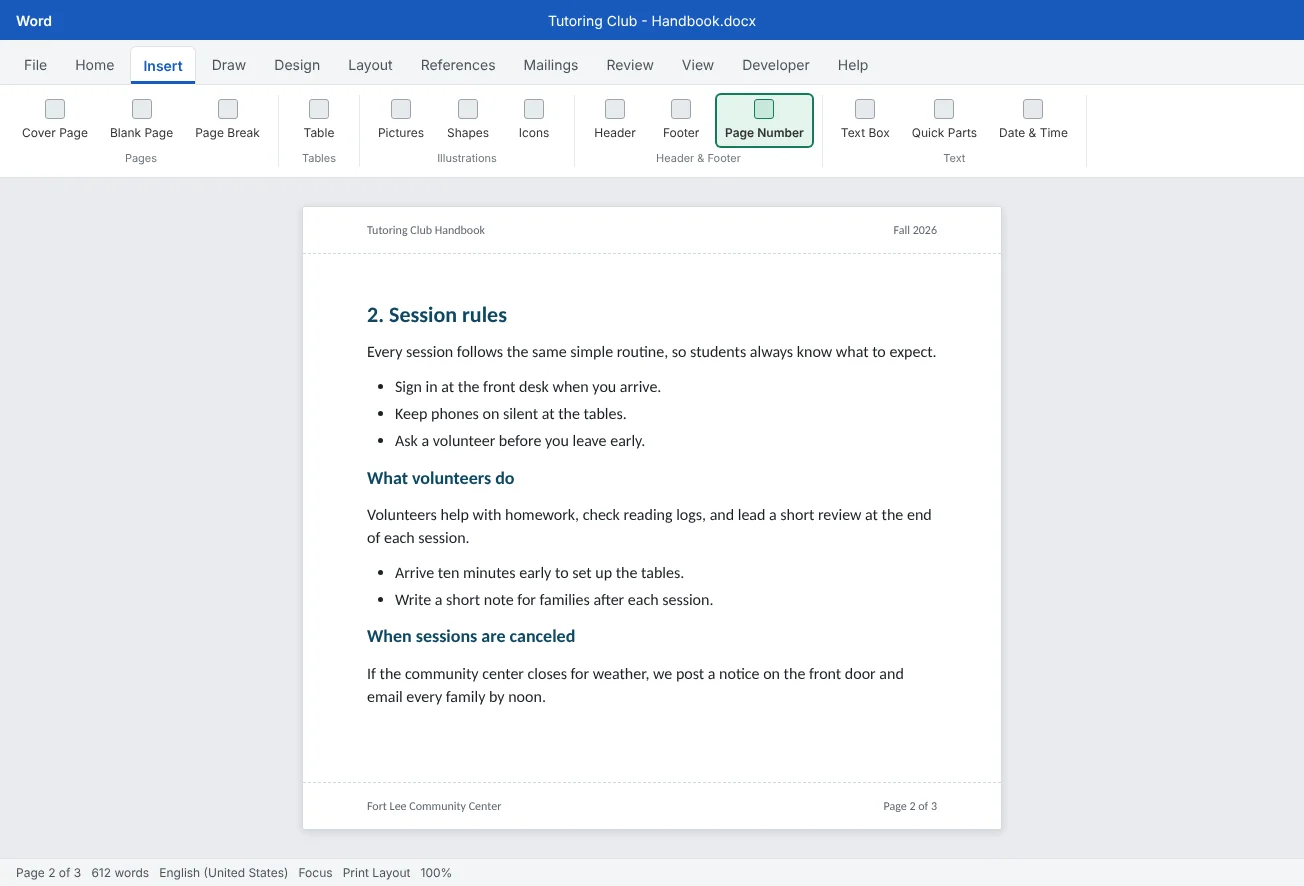
The header is the area in the top margin and the footer is the area in the bottom margin. Whatever you put there repeats on every page: the document title, the club name, a date, page numbers.
- Choose Insert
then Header & Footer then Header and pick a simple design such as Blank, or choose Edit Header at the bottom of the menu. - Type the text, for example
Tutoring Club Handbook. Format it as you would any text: a smaller size and gray color keep it quiet. - To put something at the right side, such as
Fall 2026, press Tab twice. Headers come with a center and a right tab stop already set. - Click Go to Footer on the Header & Footer tab, or scroll down, and type the footer text.
- Click Close Header and Footer, press Esc, or double-click the body of the page.
The fastest way back in is to double-click the top or bottom margin of any page. The body text turns pale while you edit the header, and the header turns pale when you go back to the body. That's normal: it shows which part you are editing.
- Repeats on every page
Add page numbers
Never type page numbers by hand. Choose Insert
For Page X of Y, such as Page 2 of 3, scroll down the Bottom of Page gallery to the Page X of Y designs. Both numbers update as pages are added. You can also type your own footer text first, then choose Insert
Change the style or start number with Insert
- Number format:
1, 2, 3,i, ii, iii,a, b, cand more. - Start at: begin at a number other than 1.
No number on the cover. Double-click the header or footer, then check Different First Page on the Header & Footer tab. The first page now has its own, empty header and footer, while the other pages keep theirs. If you want the page after the cover to show 1, also set Start at to 0 in Format Page Numbers.
| Want | Do this |
|---|---|
| A number at the bottom center | Insert |
| "Page 2 of 3" | Bottom of Page, then a Page X of Y design |
| No number on the title page | Different First Page on the Header & Footer tab |
| Remove all page numbers | Insert |
Check the whole layout
Headers, footers and margins only show properly in Print Layout (View
Use View
- each chapter starting at the top of a page;
- no nearly empty pages and no blank page at the end;
- the header and footer on every page except, if you chose it, the first;
- page numbers that run in order, and a total that matches the status bar.
When it all looks right, return to 100% with View
Common mistakes
| Mistake | What happens | Fix |
|---|---|---|
| Pressing Enter many times to reach a new page | Pages start in the wrong place after any edit above | Delete the empty paragraphs and press Ctrl+Enter |
| Typing page numbers by hand | Numbers are wrong as soon as pages move | Use Insert |
| Typing the title at the top of every page | Copies drift out of line, and some get missed | Put it in the header once; it repeats on every page |
| Printing an A4 document on Letter paper (or the reverse) | Text near the edges is cut off or the page is shrunk | Check Layout |
| Narrowing the text with spaces or indents instead of margins | Headers, tables and pictures don't line up with the text | Change Layout |
| A page number showing on the cover page | The handbook looks unfinished | Check Different First Page, and set Start at to 0 if needed |
| Not finding the header after typing in it | It seems to disappear in Web Layout or Read Mode | Switch to Print Layout and double-click the top margin |
Practice
Practice
Set up the 3-page Tutoring Club handbook
Guided practice
Download the example file above and open it in Word. It is a 3-page handbook draft where each chapter was pushed onto its page with empty paragraphs, and it has no header, footer or page numbers yet.
- Margins and size: check Layout
then Page Setup then Size is Letter (or A4 if that's your paper), then set Layout then Page Setup then Margins to Normal. Watch the chapters slide out of place. - Find the problem: turn on Home
then Paragraph then Show/Hide ¶. Find the stacks of empty ¶ marks before each chapter heading. - Page breaks: delete the empty paragraphs before 2. Session rules, click at the start of that heading and press Ctrl+Enter. Do the same for 3. Volunteer contacts.
- Test the breaks: add three new lines to the welcome section on page 1. Chapters 2 and 3 should still start at the top of their pages.
- Header: choose Insert
then Header & Footer then Header then Edit Header. Type Tutoring Club Handbook, press Tab twice and typeFall 2026. - Footer and numbers: go to the footer, type
Fort Lee Community Center, press Tab twice, and add a page number in Page X of Y form with Current Position (a Bottom of Page design would replace the footer text you typed). - Cover page: check Different First Page, then click Close Header and Footer.
- Check: use View
then Zoom then Multiple Pages to look at all three pages. Fix anything that's off, then save.
Independent challenge: A landscape schedule handout
Make a new one-page document for the weekly schedule. Set it to Landscape with Narrow margins, add a header with the club name, and a footer with the date using Insert
Reflect: which long document you've made before would have been easier to manage with page breaks, a header and automatic page numbers, and what went wrong without them?
Check your understanding0 of 4 correct
Pick an answer to see whether it's right and why.
You want chapter 2 to always start on a new page. What should you do?
Ctrl+Enter (or Insert > Pages > Page Break) inserts a page break. The heading stays at the top of the next page however much you edit above it.
How do you get back into a header to edit it?
Double-clicking the header or footer area opens it for editing. Double-click the body, press Esc, or click Close Header and Footer to go back.
Your handbook has a cover page that should have no page number. Which option do you use?
Different First Page gives page 1 its own, separate header and footer, so you can leave the number off the cover while every other page keeps it.
A friend in Korea will print your handout. Which setting should you check first?
Korea and most countries use A4 paper, which is narrower and taller than US Letter. Checking Layout > Size avoids text being cut off or shrunk.
You're ready to move on when
Tick each one off as you go. Your ticks are saved in this browser only.
Related
Sources and further reading
Was this guide helpful? Spot a mistake? Send feedback · admin@arumsoft.com