Advanced PowerPoint · Tutorial 2 of 9
How to Build a Custom PowerPoint Template and Design System
Turn your design decisions into a reusable PowerPoint template: theme colors and fonts, a grid, a named layout library, clean masters and a .potx file.
- Level
- Advanced
- Time
- 15 min read
- Updated:
- Applies to:
- PowerPoint for Microsoft 365, PowerPoint 2024, PowerPoint 2021, PowerPoint for the web
What you'll learn
- Audit a deck and record its design tokens
- Save custom theme colors and fonts that every object inherits
- Build a grid with locked guides and a type scale in the slide master
- Create a named layout library that fits real content
- Clean a template and save it as a .potx file others can use
- Adapt brand rules and build reusable components without making slides rigid
You can already edit a slide master. The next step is to treat the template as a small design system: a set of named decisions about color, type, grid and components that lets other people produce consistent slides without asking you.
This page walks through building one for a course lesson deck: auditing an existing deck for its tokens, setting theme colors and fonts, adding a locked grid, designing a layout library, cleaning the file and saving it as a .potx template, then adapting brand rules and building reusable components.
Audit a deck and list its design tokens
A design system is the set of visual decisions you make once and then reuse everywhere. Designers call each decision a token: "headings are 32 pt Segoe UI Semibold" is a token, and so is "the accent color is dark teal." When tokens live in the template instead of in people's heads, decks stay consistent without anyone policing them.
The running example on this page is a template for an online tutoring site's course lessons. Lessons need explanation slides, worked examples, practice prompts and short quizzes, and several tutors will build them.
Start by auditing an existing deck (yours or a typical one from your team). Open it in Slide Sorter and write down what you actually see, not what was intended:
| Token | What to record | Typical finding in a messy deck |
|---|---|---|
| Color palette | Every fill, text and accent color used | 11 blues, 3 of them almost identical |
| Typography scale | Font, size and weight for title, body, caption | Titles from 28 to 44 pt |
| Grid | Left margin, columns, gutters | Content starts at four different x positions |
| Spacing | Gaps between title, body and footer | Random, often too tight |
| Icon style | Line or filled, stroke weight, color | Mixed clip art and line icons |
| Chart style | Colors, gridlines, label placement | Default Office colors on every chart |
| Image treatment | Crop ratio, borders, color treatment | Shadows on some, borders on others |
| Footer and page marker | Slide number, logo, section marker | Slide numbers on half the slides |
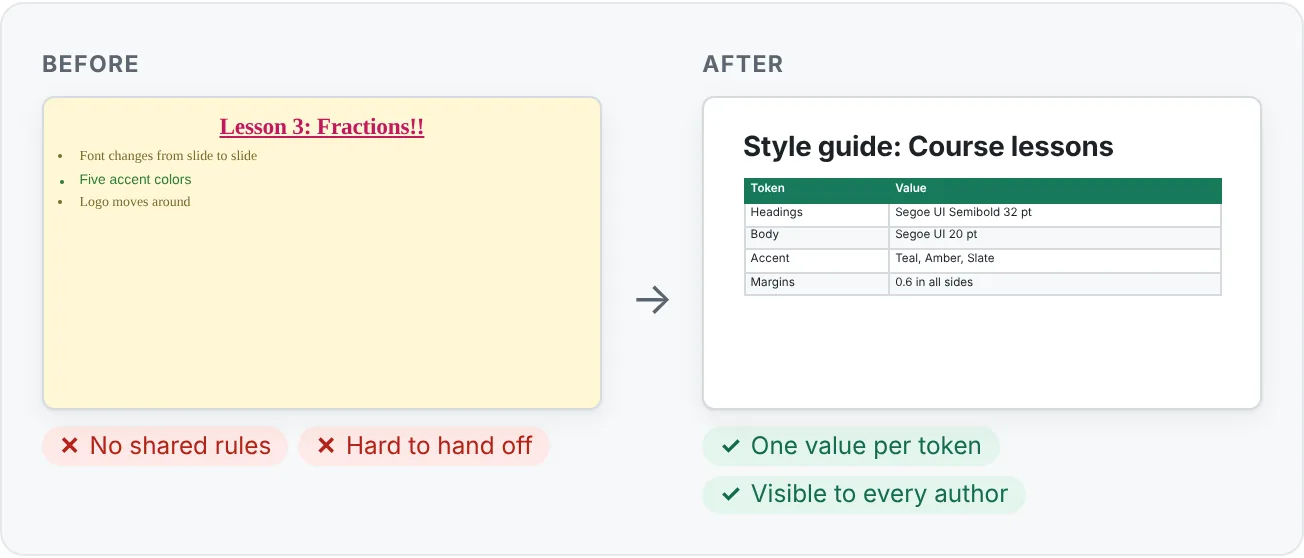
The audit gives you a target. For each row, decide on one value (or a short, named set, such as three accent colors). Write those decisions on a single style guide slide. You will build that slide into the template later so anyone who opens it can see the rules.
Set theme colors and fonts so tokens travel
The theme is where PowerPoint stores your color and font tokens. When you set them here, every new text box, shape, chart and SmartArt graphic picks them up, and the colors appear at the top of every color picker.
Create custom theme colors
- Go to Design then Variants then More then Colors then Customize Colors (the More arrow is at the lower right of the Variants gallery).
- Set Text/Background: Dark 1 and Light 1 to your text color and background. Use a near-black and white, or the brand's equivalents.
- Set Accent 1 to Accent 6 in order of importance. Accent 1 is what charts and shapes use first, so make it your primary brand color.
- Name the set (for example, "Course Lessons") and select Save.
Create custom theme fonts
- Go to Design then Variants then More then Fonts then Customize Fonts.
- Choose a Heading font and a Body font. They can be the same family.
- Name the set and select Save.
Now set sizes in the master (next section) and use the theme fonts, shown as "(Headings)" and "(Body)" at the top of the font list, everywhere. If an author picks a font by name instead, that text stops following the theme.
Build the grid and master text styles
A grid is a few invisible lines that every layout snaps to. Without one, each layout ends up with slightly different margins and columns, and the deck shimmers when you click through it.
- Go to View then Master Views then Slide Master and select the parent master (the large thumbnail at the top of the left pane).
- Turn on guides: View then Show then Guides (the View tab is still available while you are in Slide Master view).
- Right-click the slide (not a placeholder), point to Grid and Guides and choose Add Vertical Guide or Add Horizontal Guide. Drag each guide into place; PowerPoint shows its position as you drag.
- Add guides for the left and right margins, the top of the content area, the footer line and, if you use two or three columns, the column edges.
- Resize the title and body placeholders on the parent master so they sit exactly on the guides.
Guides you add in Slide Master view appear on every slide in Normal view but cannot be moved there. That is what you want: authors can snap to them but cannot nudge the system.
Set the type scale
Still on the parent master, select the title placeholder and set its size and weight. Then select the body placeholder and set the sizes for each outline level (first-level bullets 20 pt, second-level 18 pt, and so on). Keep the scale small: three or four sizes cover nearly every lesson slide. Set paragraph spacing (Home then Paragraph then Line Spacing then Line Spacing Options) here too, so lists breathe the same way on every slide.
Build a layout library for real content
Layouts are where the system meets real slides. Build one layout for each kind of slide your authors actually make. For the course lesson template, nine layouts cover almost everything:
| Layout name | Placeholders | Used for |
|---|---|---|
| One column | Title, text | Explanations |
| Two column | Title, two text or content | Rule and example side by side |
| Three cards | Title, three content | Comparing options or methods |
| Image split | Title, text, picture (half slide) | Introducing a concept with a photo |
| Chart + takeaway | Title, chart, text | Data with an interpretation line |
| Process | Title, SmartArt or content | Step sequences |
| Quote | Large text | Definitions, key quotes |
| Activity | Title, text, timer or picture | "Try it" prompts |
| Quiz | Title, four text | Multiple-choice questions |
To build each one in Slide Master view:
- Select a layout close to what you need and press Ctrl+D to duplicate it, or use Slide Master then Edit Master then Insert Layout for a blank one.
- Add placeholders with Slide Master then Master Layout then Insert Placeholder. Pick the specific type (Picture, Chart, Text and so on) when you know what goes there; it gives authors the right insert button.
- Snap every placeholder to the guides.
- Replace the prompt text with an instruction. Instead of "Click to add text," type "Write the rule in one sentence." The prompt disappears when an author starts typing.
- Rename the layout with Slide Master then Edit Master then Rename. Use names that describe the job: "Quiz: 4 options," not "Custom Layout 3."
Keep the template file clean
A template is a product other people use. Its hygiene determines whether they trust it or work around it.
- Remove unused layouts. In Slide Master view, hover over a layout thumbnail; the tooltip shows which slides use it. Right-click a layout no slide uses and choose Delete Layout. Default layouts like "Vertical Title and Text" usually go.
- Keep one master unless you truly need two. Pasted slides often bring their own masters. Check the left pane for extra parent masters and delete any you did not design.
- Name everything clearly. Rename the master itself (select it, then Rename) and every layout.
- Put tokens in the theme. Colors and fonts come from the theme sets you saved, never from hand-picked values.
- Use placeholders, not loose text boxes, for anything that varies per slide. Loose boxes on a layout cannot be edited by authors and do not flow to Outline view.
- Store sample slides separately. Ship the template empty, or with only a style guide slide. Keep example slides in a companion "sample lesson" file so authors are not deleting your demo content every time.
Save it as a template
- Go to File then Save As (in Microsoft 365 this may be Save a Copy).
- In Save as type, choose PowerPoint Template (*.potx). PowerPoint switches to the Custom Office Templates folder; keep it there for personal use.
- Open it later from File then New, on the Personal tab.
For a team, put the .potx in a shared location your organization manages, so there is one current version. A template emailed around becomes ten templates within a month.
Adapt a brand without making slides rigid
Brand guidelines are usually written for print and websites. Translate them to slides with a few practical rules:
- Logo placement. Put the logo on the parent master, small, in one corner, and remove it from layouts where it competes (title and section slides may use a larger version). In Slide Master view, select a layout and turn on Hide Background Graphics to drop master graphics on that layout only.
- Approved colors. Brands often have more colors than a theme can hold. Map the most-used ones to Accent 1 to 6. Keep rarely used colors on the style guide slide with their hex codes rather than forcing them into the theme.
- Font availability. If the brand font is not installed on every presenter's computer, PowerPoint substitutes another font and line breaks shift. Either choose a widely available fallback for slides, or embed fonts with File then Options then Save and Embed fonts in the file (test the result on the other computers you present from).
- Photography style. Write one sentence ("Real learners, natural light, no posed handshakes") and one crop rule (covered in the image treatment tutorial).
- Chart style. Format one chart in the brand style, then right-click it and choose Save as Template to create a .crtx chart template authors can apply.
- Accessibility constraints. Brand rules never override readable contrast or minimum text size. Note the accessible pairs on the style guide slide.
Create reusable components
Some building blocks are smaller than a layout: a tip box, a callout, a big-number highlight. Build them once on a component sheet slide in your companion sample file, and let authors copy from it.
For the course template, a useful set is:
- Callout: a rounded rectangle with Accent 1 outline and a short label.
- Quote block: large quotation in the body font, attribution underneath.
- Data highlight: one big number with a one-line label.
- Agenda marker: small text or a progress bar that shows where you are in the lesson.
- Section divider: a layout, not a component, but show it on the sheet.
- Tip box: light tint fill, icon, two lines of text maximum.
- Practice prompt: "Try it" label, task, time limit.
Rules that keep components reusable:
- Use theme colors for every fill, outline and text color, so a component changes automatically if the theme changes.
- Group each component (Ctrl+G) and name the group in the Selection Pane (Home then Editing then Select then Selection Pane), for example "Tip box".
- Set text inside components to the theme fonts.
- Authors can pull whole slides from the sample file with Home then Slides then New Slide then Reuse Slides. Leave Use source formatting off so the slides take on the current deck's theme.
Common template mistakes
Designing for the cover slide. Most effort goes into the title slide, which appears once. Spend it on the layouts used 50 times.
Formatting slides instead of layouts. If you fix a margin on a slide, you fix one slide. Fix it on the layout.
Too many layouts. Twenty layouts that differ by a few pixels confuse authors. If two layouts do the same job, delete one.
Hard-coded colors. Hex codes typed into shapes do not change with the theme. Use the theme swatches.
No test by another person. The mastery test for a template is simple: hand it to a colleague with real content and watch. If they move placeholders, resize titles or add text boxes, your layouts do not fit their content yet.
Practice
Practice
Build a course lesson template
Guided practice. Build a template starter for a tutoring site's course lessons.
- Audit one existing lesson deck and fill in the eight-row token table.
- Create and save custom theme colors and fonts named "Course Lessons".
- In Slide Master view, add guides for margins and two columns, and set the title and body styles on the parent master.
- Build at least six of the nine layouts from the library table, with specific placeholder types and instruction-style prompt text. Rename each one.
- Delete every layout you did not build or keep on purpose, and any extra masters.
- Add a style guide slide that lists your tokens.
- Save as PowerPoint Template (*.potx). Create a separate sample file with three example slides and a component sheet.
- Make a new presentation from the template (File then New, Personal) and build a five-slide lesson with real content. Note every time you were tempted to override the design.
Check your work against this rubric:
| Criterion | Emerging | Ready | Strong |
|---|---|---|---|
| Tokens | Colors and fonts chosen by hand | Theme colors and fonts saved | Style guide slide documents every token |
| Layouts | A few generic layouts | Layouts match real slide types | Layouts tested with long, real content |
| Hygiene | Unused layouts and masters remain | Clean, named layouts | Template ships empty with a companion sample file |
| Usability | Author has to override often | Few overrides | A colleague builds a lesson without breaking the design |
Fix this broken template. Take a messy deck (or a downloaded template) with extra masters and unnamed layouts. Clean it to a single master with no more than nine named layouts.
Independent challenge. Hand your template to someone else with a one-paragraph brief. Watch them build three slides without helping. Write down each place they struggled, fix the template, and explain in two or three sentences which changes you made and why.
Check your understanding0 of 4 correct
Pick an answer to see whether it's right and why.
Authors keep moving the title placeholder down on chart slides because long titles overlap the chart. What is the best fix?
When authors repeatedly override a layout, the layout does not fit real content. Fix it once on the layout, tested with a long, realistic title.
A designer typed the brand's hex code into every shape's fill. The brand color changes next year. What would have made the update easiest?
Theme colors are linked. Change Accent 1 once and every object that uses it updates. Hand-typed colors have to be found and changed one by one.
Your template has 14 layouts. Four are used by no slide and two are near-duplicates. What should you do before sharing it?
Every extra layout is a choice authors have to make. A smaller library with clear names is easier to use correctly.
Presenters on other computers report that slide text wraps differently than on yours. The brand font is installed only on design team machines. What is the most reliable fix?
Missing fonts are substituted, which changes line breaks. A common fallback font or embedded fonts (tested on the target machines) keeps layouts stable, while pictures of text break accessibility and editing.
You're ready to move on when
Tick each one off as you go. Your ticks are saved in this browser only.
Related
Sources and further reading
Was this guide helpful? Spot a mistake? Send feedback · admin@arumsoft.com