Advanced PowerPoint · Tutorial 4 of 9
How to Use Morph, Animation Triggers and Advanced Timing in PowerPoint
Use motion to explain: build smooth Morph sequences, name objects so they match, make clickable trigger reveals and polish timing that holds up live.
- Level
- Advanced
- Time
- 15 min read
- Updated:
- Applies to:
- PowerPoint for Microsoft 365, PowerPoint 2024, PowerPoint 2021, PowerPoint for the web
What you'll learn
- Decide which parts of an explanation need motion and which do not
- Build a Morph sequence by duplicating slides and changing objects
- Control Morph matching with Selection Pane names and the !! prefix
- Create clickable reveals with Trigger > On Click of
- Fine-tune Start, Duration, Delay, Smooth start and Smooth end
- Run a motion QA and prepare a no-animation backup
Animation is easy to add and hard to get right. Used well, motion shows how something changes, moves or connects in a way a static slide cannot. Used badly, it just makes a deck slower.
This page treats motion as explanation. You will build a Morph sequence that shows a process step by step, control how Morph pairs objects, create a clickable quiz reveal with triggers, polish timing in the Animation Pane and test everything so it works in front of an audience.
Use motion to explain, not to decorate
At the Intermediate level you learned to keep animation simple. At this level you use motion on purpose: to show something a static slide cannot. The test for every effect is one question: what does this motion teach? If you cannot answer in a sentence, remove it.
Motion earns its place in five situations:
| Purpose | Example | Good tool |
|---|---|---|
| Reveal a sequence | Steps of a process appear in the order you explain them | Fade or Appear, On Click |
| Compare states | A layout before and after a change | Morph between two slides |
| Show movement | A package moving from warehouse to customer | Morph, or a motion path |
| Highlight change | One bar in a chart grows; one line on a timeline turns red | Emphasis effect, or Morph with a color change |
| Zoom into detail | From a full map to one region | Morph with an enlarged picture |
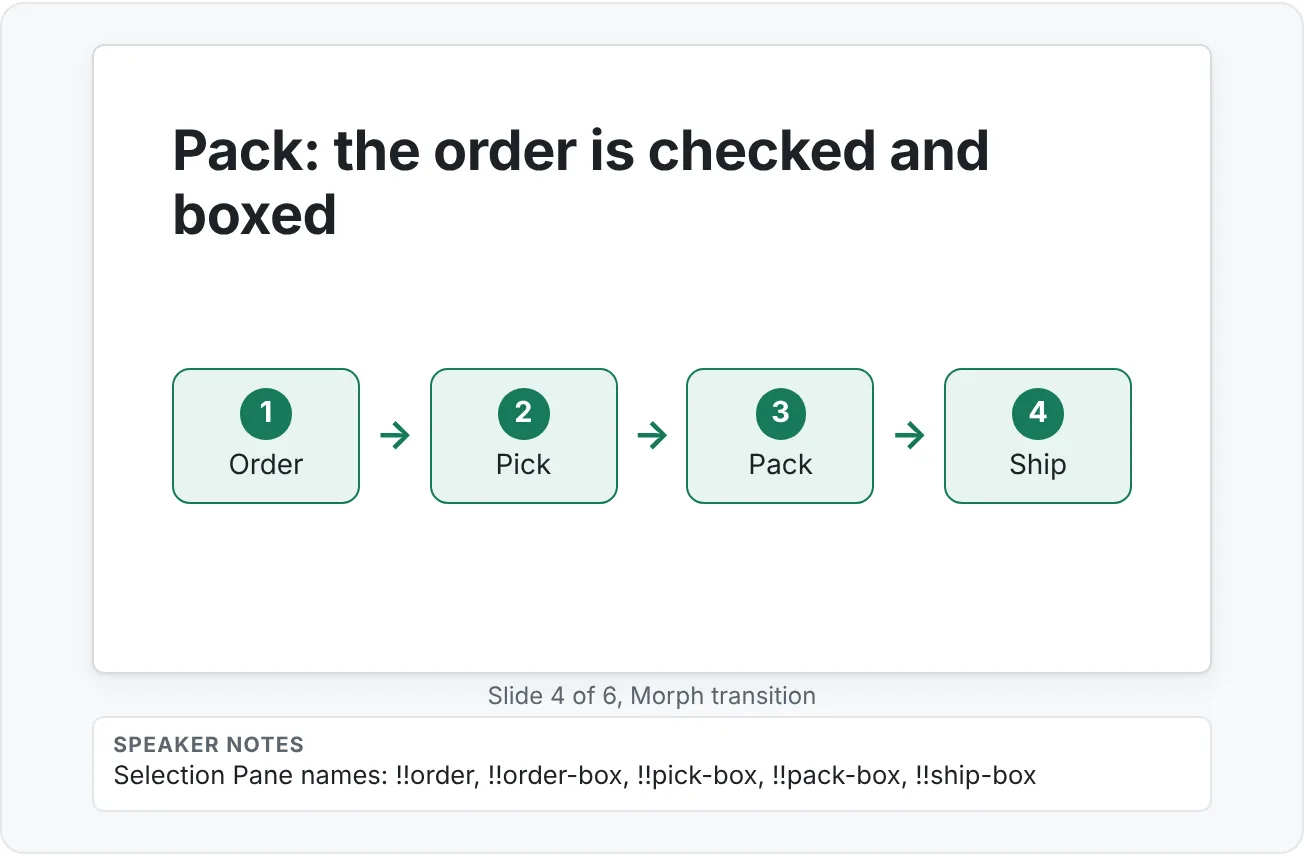
The running example on this page is a six-slide explanation of how an online order moves through a warehouse: Order, Pick, Pack, Ship. A static diagram shows the four boxes. Motion can show the order itself traveling through them.
Before you build anything, sketch which parts should appear one at a time. A good rule: anything you will talk about separately appears separately. Anything you describe as one idea appears together.
Build a Morph sequence
Morph animates the difference between two slides. You design the start and end states as normal slides, and PowerPoint works out the movement. Because each state is a real slide, Morph sequences are easier to edit and more reliable than long chains of motion paths.
- Build the first state. For the warehouse example: four labeled rectangles in a row and a small circle (the order) sitting on Order.
- In the thumbnail pane, select the slide and press Ctrl+D to duplicate it. Duplicating is what keeps object identity; do not rebuild the objects from scratch.
- On the duplicate, change what should move: drag the circle to Pick, enlarge the Pick box slightly and recolor it with Accent 1.
- With the second slide selected, go to Transitions then Transition to This Slide then Morph.
- Set the speed in Transitions then Timing then Duration. Start with about 1 second for movement across the slide.
- Repeat: duplicate slide 2, move the circle to Pack, apply Morph (duplicating a slide that already has Morph keeps the transition). Continue to Ship.
Morph can animate position, size, rotation, color, and shape fill. Objects that exist only on the first slide fade out; objects that exist only on the second fade in.
Effect Options
Transitions then Transition to This Slide then Effect Options gives three choices:
- Objects (default): whole shapes, pictures and text boxes move as units.
- Words: words in matching text boxes move individually. Useful when you reorder a phrase or add a word to a title.
- Characters: individual letters move. Use it sparingly, for example to show one term turning into another.
Three common Morph patterns
- Zoom-in: On the second slide, enlarge a picture (such as a floor plan) so the area of interest fills the slide and the rest extends beyond the edges. Morph flies the camera in.
- Transformation: A shape changes size, color and position to show growth or change (a small box labeled "Pilot" becomes a large one labeled "Rollout").
- Step-by-step story: A diagram evolves one element per slide, as in the warehouse example. Each slide also works as a static step if the deck is printed.
Control which objects Morph matches
Morph pairs objects between slides automatically. Most of the time it guesses right. When it does not, objects cross-fade instead of moving, or the wrong shapes swap places. You can take control with names.
- Open the Selection Pane: Home then Editing then Select then Selection Pane.
- Double-click an object's name to edit it. Rename the order circle on both slides to
!!order. - Give every object you want paired a matching
!!name on each slide, for example!!pick-boxand!!ship-box.
Rules for !! names, from Microsoft's Morph guidance:
- The two exclamation points tell Morph to match objects with the same name, even if they are different shapes (a circle and a square) or hold different text.
- Paired objects must be the same type (shape to shape, text box to text box, table to table).
- A
!!object will not pair with an object that has no!!prefix. - Each
!!name should appear only once per slide. - Charts do not morph; they cross-fade.
Naming also helps the next person who edits your deck. A Selection Pane full of "Rectangle 14" and "Rectangle 15" is hard to debug; "!!order" and "!!pack-box" are not.
Make objects clickable with animation triggers
A trigger makes an animation play when the presenter (or learner) clicks a specific object, instead of on the next general click. That lets you build reveal activities: click an answer to show feedback, click a hotspot on a diagram to show its label, click "Show solution" to reveal a worked step.
Build a clickable quiz reveal for the warehouse lesson: the question "Which step catches a wrong item before it ships?" with three answer boxes (Pick, Pack, Ship) and a feedback callout under each.
- Create the three answer shapes and three feedback callouts ("Not yet: picking finds the item", "Correct: packing checks the item against the order", "Too late: it has already left").
- In the Selection Pane, name the shapes
Answer Pick,Answer Pack,Answer Shipand the calloutsFeedback Pickand so on. Trigger menus list objects by name, so this step saves confusion. - Select Feedback Pick and add an entrance effect such as Animations then Animation then Fade.
- Open Animations then Advanced Animation then Animation Pane.
- With the effect selected, go to Animations then Advanced Animation then Trigger then On Click of and choose Answer Pick.
- Repeat for the other two callouts and their answers.
- Test in Slide Show (Shift+F5 starts from the current slide). Click each answer in different orders.
In the Animation Pane, triggered effects appear in their own group headed Trigger: followed by the object name. That is your quick check that each one is wired to the right shape.
Fine-tune timing
Most animation that feels cheap is a timing problem, not an effect problem. Polish happens in the Animation Pane and the Timing group.
- Start: On Click waits for a click, With Previous starts at the same time as the effect above it, After Previous starts when the one above finishes. Use With Previous to fade a label in with its shape; use After Previous for automatic sequences.
- Duration: Short effects (0.3 to 0.5 seconds) feel responsive. Long ones (over 1 second) feel slow unless something is genuinely traveling a long way.
- Delay: Adds a pause before an effect starts. A 0.2 to 0.3 second delay between three items reads as a deliberate cascade.
- Order: Drag effects in the Animation Pane, or use Move Earlier and Move Later in the Timing group.
For more control, double-click an effect in the Animation Pane to open its Effect Options dialog:
- On the Effect tab, Smooth start and Smooth end (available for many motion and emphasis effects) ease the object in and out so it does not start and stop abruptly. Motion paths look much more natural with both set.
- On the Timing tab, Repeat loops an effect (useful for a gentle pulse on a hotspot), and Rewind when done playing returns the object to its original state.
Polish a three-object sequence
Take the warehouse title slide with three objects: a truck picture, a road line and the title. Set the road to Wipe from left, On Click, 0.5 seconds. Set the truck to a short motion path along the road, With Previous, 0.75 seconds, smooth start and end. Set the title to Fade, After Previous, 0.4 seconds. Play it. Then try the same sequence with every item On Click at default speeds and compare: the polished version feels like one motion.
Test motion before it meets an audience
Animated decks fail in front of people more often than static ones. Run a short motion QA every time:
- Play every click. Start from the beginning with F5 and click through the whole deck exactly as you will present. For trigger slides, click each trigger in more than one order.
- Check the Animation Pane on dense slides. More than five or six effects on one slide is a warning sign. Several effects starting With Previous at once compete for attention.
- Test on another machine. Ideally the one you will present from, or at least one with a different PowerPoint version. Fonts, screen size and version all affect motion.
- Prepare a no-animation backup. Slide Show then Set Up then Set Up Slide Show has a Show without animation option. Click through once with it on: if any slide hides content or makes no sense without its animation, rework that slide so its final state is clear.
- Consider motion sensitivity. Large zooms and spinning effects can be uncomfortable for some viewers. Prefer short, subtle movement and avoid repeating effects that cannot be stopped.
A PDF export or printout shows each slide in its final, fully built state. If your Morph sequence uses one slide per step, the PDF still tells the story, which is another reason to prefer Morph over long on-slide animation chains.
Common motion mistakes
Rebuilding instead of duplicating. Morph needs matching objects. If you delete and redraw a shape on the next slide, Morph may cross-fade it instead of moving it.
Unnamed objects. Trigger lists and Morph matching both depend on names. "Oval 7" is not a name.
One slide doing everything. Fifteen effects on a single slide are hard to edit and easy to break. Split the sequence across Morph slides.
Default timings everywhere. Every effect at the same default duration, all On Click, is how decks end up feeling sluggish.
Motion with no job. Bouncing titles, spinning logos and random transitions add time without adding understanding.
Testing only in Normal view. Previews in the editor do not show trigger behavior or click flow. Always test in Slide Show.
Practice
Practice
Build a 6-slide Morph explanation
Guided practice. Use the warehouse process or a process, timeline or transformation from your own work.
- Write one sentence saying what the motion will teach.
- Build slide 1 with every object the sequence needs. Name each one in the Selection Pane with a
!!prefix. - Duplicate the slide five times. On each duplicate, change one thing: move, resize, recolor or reveal one element.
- Apply Morph to slides 2 to 6 and set a consistent duration.
- Add one slide with a trigger-based quiz reveal: three answers, three feedback callouts.
- Polish one slide's animation with Start, Duration, Delay and Smooth start/end.
- Run the motion QA, including a pass with Show without animation on.
- Check against this rubric:
| Criterion | Emerging | Ready | Strong |
|---|---|---|---|
| Purpose | Motion is decorative | Each effect has a job | Motion reveals the idea better than a static slide could |
| Morph | Objects cross-fade or jump | Smooth movement between states | Named objects, clean zooms and transformations |
| Triggers | Feedback appears in a fixed order | Each answer reveals its feedback | Clear instructions and tested in multiple click orders |
| Reliability | Not tested in Slide Show | Tested on one machine | Tested on the presenting machine with a no-animation backup |
Fix this broken deck. Take a slide where objects fly in from four directions, all On Click, at default speed. Reduce it to one effect type, group items that belong together with With Previous, and tighten durations.
Independent challenge. Build an interactive reveal activity with triggers, such as a labeled diagram where clicking each part reveals its description. Explain in two or three sentences why each piece of motion is there.
Check your understanding0 of 4 correct
Pick an answer to see whether it's right and why.
You want to show a floor plan, then fly in to one room to discuss it. Which approach is most reliable and easiest to edit?
Morph animates between two real slides, so each state is easy to edit and the zoom is smooth. The other approaches are harder to control or to change later.
Your Morph slide cross-fades the order circle instead of moving it. You rebuilt the circle on the second slide. What is the best fix?
Rebuilt objects may not be matched automatically. Matching !! names tell Morph explicitly that the two circles are the same object.
On a quiz slide, learners report that feedback appears before they choose an answer. The feedback has Fade set to On Click. What is missing?
Without a trigger, On Click effects play on any click in sequence. A trigger ties each feedback effect to a click on its own answer.
You present tomorrow on an unfamiliar conference laptop. Which preparation best protects an animation-heavy deck?
Testing on the presenting machine catches version and font issues, and the no-animation pass guarantees the content works even if motion fails. Removing all motion or using a PDF throws away useful explanation.
You're ready to move on when
Tick each one off as you go. Your ticks are saved in this browser only.
Related
Sources and further reading
Was this guide helpful? Spot a mistake? Send feedback · admin@arumsoft.com