Advanced PowerPoint · Tutorial 9 of 9
Advanced Project: Build an 18-Slide Interactive Tutoring Module in PowerPoint
Plan, design, and QA an 18-slide interactive module with a menu, branching quiz, Morph, and narration that works live or self-paced.
- Level
- Advanced
- Time
- 11 min read
- Updated:
- Applies to:
- PowerPoint for Microsoft 365, PowerPoint 2024, PowerPoint 2021
What you'll learn
- Storyboard an 18-slide instructional module with takeaway titles before designing
- Build a custom design system with at least six slide master layouts
- Create an interactive menu and a branching quiz with targeted feedback
- Use Morph to explain a concept and record narration for a self-paced segment
- Run and document a full QA and accessibility review, then score your work with a rubric
This project brings the whole Advanced path together. You'll design one interactive tutoring module that a tutor can present live and a learner can complete alone, with a menu, a branching check for understanding, a Morph explanation, and a recorded segment.
The page gives you the scenario, the required slides, a requirements checklist, a build plan, a rubric, and reflection prompts. Plan on several work sessions: the storyboard alone deserves one.
The scenario
A tutoring program wants one module it can use two ways: a tutor presents it live to a small group, and learners who missed the session work through it alone on the program's website. You're designing that module as an 18-slide interactive PowerPoint deck.
Pick a topic you can teach in about 15 minutes, with one clear skill at the end. The worked example on this page uses absolute cell references in spreadsheets ("lock a cell with $ so a formula copies correctly"), but a science concept, a grammar rule, or a workplace procedure works just as well.
Before you open PowerPoint, write three lines:
- Learner: who they are and what they already know. Adults who can write a simple formula but get wrong results when they copy it.
- Promise: what they'll be able to do at the end. Write a formula that copies down a column without breaking.
- Two modes: what changes when no tutor is present. Instructions, navigation, and feedback must live on the slides.
This capstone pulls together the whole Advanced path: narrative, a design system, image treatment, Morph, interactivity, linked or tabular data, recording, and QA.
Required slides
Your module must contain these nine sections. The slide numbers below are one way to reach 18; you can rebalance as long as every section is present.
| # | Section | Slides | Example title |
|---|---|---|---|
| 1 | Welcome and learner promise | 1 to 2 | "By the end, your formulas will copy without breaking" |
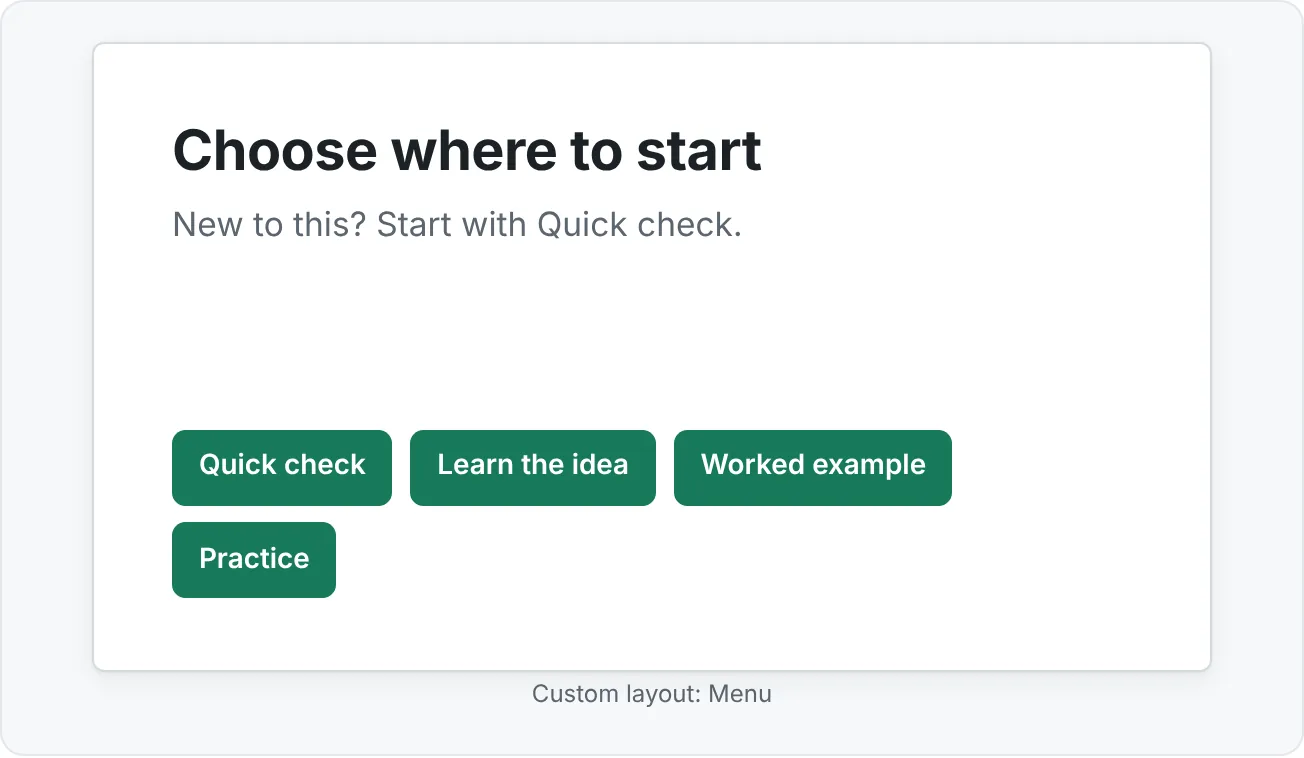
| 2 | Interactive menu | 3 | "Choose where to start" |
| 3 | Diagnostic question | 4 to 5 | "Which formula still works after copying?" |
| 4 | Concept explanation | 6 to 8 | "A $ sign locks the column, the row, or both" |
| 5 | Example sequence | 9 to 10 | "Worked example: one tax rate, twelve rows" |
| 6 | Guided practice | 11 to 12 | "Your turn: fix the discount formula" |
| 7 | Branching check for understanding | 13 to 15 | "Which cell should be locked?" plus correct and try-again feedback |
| 8 | Independent challenge and recap | 16 to 17 | "Three rules to remember" |
| 9 | Next step | 18 | "Next: mixed references like $A1" |
Every content slide also carries a small Menu button, so a learner can always return to slide 3.
Requirements checklist
Tick each item before you call the module finished:
- A title-only storyboard of all 18 slides, written before any design work.
- A custom design system: theme colors, theme fonts, and a short style note (spacing, chart style, button style).
- At least six custom layouts on the slide master (for example: Title, Menu, Concept with image, Question, Feedback, Practice).
- One image-led section with treated, consistently cropped images.
- One chart or table with a source line.
- One interactive menu that jumps to sections.
- One branching quiz path: each answer links to its own feedback slide, and wrong answers lead to a short reteach before retrying.
- One Morph sequence that explains something (not decoration).
- One recorded or self-paced segment: narration on at least the example sequence, or the whole module set up to run without a presenter.
- A full QA checklist covering content, visual, technical, and accessibility passes.
- An accessibility review: checker run, reading order fixed, alt text written, captions or transcript for narration.
Copy this list onto a hidden slide at the end of the deck, so reviewers can see what you claimed to deliver.
Step-by-step build plan
Work in this order. Design comes after structure on purpose: it's much cheaper to move a sticky note than a finished slide.
- Storyboard. In Outline view, type all 18 titles as full-sentence takeaways. Read them in order. If they don't teach the idea on their own, fix the titles first.
- Map the branches. Sketch where every button goes: menu to sections, each quiz answer to its feedback slide, try-again feedback back to a reteach slide, then back to the question.
- Build the design system. Set theme colors and fonts, then create your six or more custom layouts in View then Slide Master. Include fixed positions for the instruction line and navigation buttons.
- Draft content into layouts. Apply a layout to every slide. Add text, then the image-led section, then the chart or table with its source line.
- Add Morph. Duplicate the concept slide, change the object positions or sizes on the copy, and apply Transitions then Morph to the second slide. Make sure the motion shows the idea, such as a $ sign sliding in front of the column letter.
- Wire the interactivity. Add links or action buttons for the menu, the diagnostic, and the branching quiz. Hide feedback slides so they're only reachable by button.
- Record. Script prompts in the notes and record narration for the example sequence (or more) with Slide Show then Record. Re-record any weak slide.
- Set up both modes. For self-paced use, test with Slide Show then Set Up Slide Show › Browsed at a kiosk (full screen) so only your buttons and timings move the learner.
- QA. Run the content, visual, technical, and accessibility passes. Log issues in a QA table and fix every High issue.
- Rehearse the live version with Rehearse with Coach and a real person, then revise.
Rubric
Score yourself (or ask a peer to score you) on each row. Aim for Ready everywhere and Strong in at least two rows.
| Criterion | Emerging | Ready | Strong |
|---|---|---|---|
| Narrative | Topic is organized but not persuasive or instructional. | Deck has a clear learning flow from promise to next step. | Deck creates strong momentum; titles alone teach the idea. |
| Design system | Visuals are polished but inconsistent. | Design system is coherent across all 18 slides. | System (six or more layouts, style note) supports fast, repeatable production. |
| Interactivity | Links exist but feel confusing or lead to dead ends. | Menu and branching quiz work in kiosk mode. | Interactivity gives learners real control and targeted feedback. |
| Motion | Motion is attractive but not always meaningful. | Morph and animations support explanations. | Motion reveals the logic of the concept elegantly. |
| Self-paced delivery | Works only with a presenter. | Recorded or self-paced segment is clear and navigable. | Module works equally well live and alone, with captions or transcript. |
| QA and accessibility | Some checks are informal. | QA is documented; checker issues are fixed. | QA catches content, visual, technical, and accessibility issues, with manual review of key slides. |
Reflection prompts
Answer these in the notes of your final slide or in a short paragraph you submit with the deck. Explaining your choices is part of the skill.
- Which title in your storyboard changed the most once you started building, and why?
- How does your design system make the 19th slide faster to build than the 1st?
- Where does your Morph sequence explain something that a static slide couldn't?
- Walk through the branch for a learner who picks the wrong answer. Is the reteach slide enough to get them right on the retry?
- What did your QA find that you would never have noticed by just scrolling through?
- What would you change if this module had to work on a phone, with no sound?
Common mistakes in advanced projects
- Designing before storyboarding. Polished slides with a weak sequence are the most expensive thing to fix. Titles first, always.
- Feature collecting. Morph, triggers, and menus added because the brief lists them, not because they help the learner. Every feature should answer: what does this make clearer or easier?
- Dead-end branches. A feedback slide with no button forward traps a self-paced learner. Test every path in kiosk mode, not just the correct one.
- Feedback that only says right or wrong. Good feedback says why, and wrong-answer feedback points to a short reteach.
- Layouts in name only. Six layouts that differ only by background color aren't a system. Each layout should hold a different kind of content.
- Narration without a transcript. The recorded segment must still work for someone who can't listen.
- QA as a final glance. Log issues in a table, rate them, fix the High ones, and re-test what you changed.
If you hit Ready on every rubric row, you're working at a professional level. The Expert path builds from here: template kits, automation, governance, and publishing one module across many formats.
Practice
Practice
Build the interactive module
- Write your learner, promise, and two-modes lines.
- Storyboard all 18 slides as takeaway titles in Outline view, and sketch the branch map.
- Set theme colors and fonts and write a short style note.
- Build at least six custom layouts in Slide Master, with fixed spots for instructions and navigation buttons.
- Apply layouts, write the content, and build the image-led section and the chart or table with a source line.
- Create the Morph sequence on the concept slides.
- Wire the menu, diagnostic, and branching quiz with links or action buttons. Hide the feedback slides.
- Record narration for at least the example sequence. Re-record weak slides.
- Test the whole module in kiosk mode using only your buttons.
- Run content, visual, technical, and accessibility QA. Log issues in a QA table and fix every High issue.
- Rehearse the live version with Rehearse with Coach and one real listener, then revise.
- Score yourself with the rubric and answer the reflection prompts.
Check your understanding0 of 4 correct
Pick an answer to see whether it's right and why.
You're halfway through designing slides and realize slides 6 to 8 repeat the same idea. Which step in the build plan would have prevented this?
A titles-only storyboard exposes repetition and gaps when they're cheap to fix, before any design work.
In kiosk mode testing, a learner who picks a wrong quiz answer sees "Not quite" and has no way forward. Which rubric row does this hurt most, and what's the fix?
A dead end is a navigation failure. Wrong-answer feedback should lead to a reteach and back to the question.
Which Morph sequence best meets the capstone requirement?
The requirement is motion that explains. Moving the $ sign shows the concept itself changing.
Your accessibility review passed the checker, but your narration has no captions or transcript. How would you score the QA and accessibility row?
Learners who can't hear the narration lose the segment. A thorough review covers captions or a transcript, not only checker results.
You're ready to move on when
Tick each one off as you go. Your ticks are saved in this browser only.
Related
Sources and further reading
Was this guide helpful? Spot a mistake? Send feedback · admin@arumsoft.com