Intermediate PowerPoint · Tutorial 3 of 9
How to Design Clear Slides in PowerPoint: Hierarchy, Color, Type, and Whitespace
Make slides easy to scan with one message per slide, clear emphasis, a small color palette, a simple type scale, and enough whitespace.
- Level
- Intermediate
- Time
- 15 min read
- Updated:
- Applies to:
- PowerPoint for Microsoft 365, PowerPoint 2024, PowerPoint 2021, PowerPoint for the web
What you'll learn
- Split a crowded slide into focused slides with one main message each
- Direct attention with size, weight, color, and position contrast
- Build a five-color palette and save it as custom theme colors
- Set up a simple typography scale with theme fonts
- Use margins, gutters, and grouping to make slides feel calm
You do not need to be a designer to make slides look designed. Most "ugly" slides share the same few problems: too many messages, everything the same size, random colors, five fonts, and no breathing room.
This page gives you a small, repeatable system for fixing those problems. You will practice on a running example, a tutoring center's slide about "How our study plan works," and finish with a three-slide style sample you can reuse.
One main message per slide
Hierarchy starts before you touch a font. If a slide is trying to say four things, no amount of formatting will make it clear.
Use this test: can you say the point of the slide in one sentence? If yes, make that sentence the title. If you need "and" three times, split the slide.
- Title states the main point. "Weekly check-ins catch problems early" beats "Check-ins."
- Body supports the title. Every bullet, picture, or number should prove or explain the title. Anything else goes elsewhere.
- Move extras out. Background detail goes in the speaker notes. A second idea gets its own slide.
The crowded original becomes three slides: how the plan works, who the tutors are, and what it costs. Three slides with one idea each are faster to present than one slide with three ideas.
Use contrast to create emphasis
Contrast tells the eye where to go first. If everything is bold, nothing is. Pick the single most important element and make it different from the rest using one or two of these levers:
| Lever | How to apply it in PowerPoint | Example |
|---|---|---|
| Size | Make the key item noticeably larger (not 2 points larger) | A 60 pt number with an 18 pt label |
| Weight | Bold only the key words | "Students improved in 6 of 8 units" |
| Color | Accent color on one item, neutrals for the rest | One bar in the accent, others gray |
| Position | Put the key item top-left or center, where eyes land | Main claim as the title, details below |
| Whitespace | Give the key item room around it | A lone number in empty space |
A quick way to check hierarchy: squint at the slide or zoom out until you cannot read the words. Whatever still stands out is what the audience will see first. If that is a logo or a decorative shape, fix it.
Build a simple color system
Random colors make a deck look unplanned. A small palette with clear jobs fixes that. Five roles are enough for most decks:
- Primary: your main brand or deck color, used for titles or headers.
- Neutrals (usually two): a dark gray for body text and a light gray for backgrounds, lines, and "everything else" in charts.
- Accent: one bright color reserved for emphasis. Use it sparingly or it stops working.
- Semantic: a color with a fixed meaning, such as green for "correct" or red for "warning." Keep its meaning the same on every slide.
Save your palette as theme colors
Saving the palette in the theme means every color picker in the deck offers your colors first, and charts, SmartArt, and tables pick them up automatically.
- Go to Design then Variants, open the More arrow, and choose Colors › Customize Colors.
- Set Text/Background - Dark 1 to your dark neutral and Light 1 to white or near white.
- Set Accent 1 to your primary and Accent 2 to your accent. Fill the other accents with tints or related colors.
- Name the set (for example, "Tutoring Center") and click Save.
Check contrast
Color has to be readable, not just pretty. A widely used guideline (WCAG) asks for a contrast ratio of at least 4.5:1 for normal text and 3:1 for large text. Light gray text on white and red text on green usually fail. Run Review then Accessibility then Check Accessibility, which flags some hard-to-read text. It can miss text sitting over the slide background or a picture, so also check by eye on a projector or a dim screen. Never use color as the only way to show meaning: add a label or icon too.
Build a typography system
Type is the biggest part of most slides, so consistency here does the most work.
Use one font family, or one pair. A single family with regular and bold weights is often enough. If you pair, use one font for headings and one for body text, and stop there.
Define four levels and stick to them. Here is a starting scale for a 16:9 deck presented on a screen:
| Level | Size | Weight | Use |
|---|---|---|---|
| Title | 36-44 pt | Bold | One per slide, the takeaway |
| Subtitle | 24-28 pt | Regular | Section names, supporting line |
| Body | 20-24 pt | Regular | Bullets and short paragraphs |
| Label | 14-16 pt | Regular | Chart labels, captions, sources |
Adjust to your fonts and room, but keep the steps clearly different. Body at 20 pt and subtitle at 22 pt is not a hierarchy.
Set theme fonts
Go to Design then Variants, open the More arrow, then Fonts › Customize Fonts. Choose a Heading font and a Body font, name the set, and save. Then set the sizes on the Slide Master's title and body placeholders (View then Master Views then Slide Master) so every slide follows your scale.
Use whitespace and layout to calm the slide
Whitespace is empty space, and it is not wasted space. It separates groups, frames the important item, and makes the slide feel organized.
- Margins: keep a consistent empty border around every slide (about half an inch is a good start). Set it once with guides in Slide Master.
- Gutters: keep the same gap between columns or cards. Use Distribute to make gaps equal.
- Grouping: items that belong together sit close; unrelated items sit farther apart. Distance itself tells the viewer what goes with what.
- Breathing room: leave space around titles, images, and key numbers.
- Do not fill empty space just because it is empty. A stock photo, clip art, or extra bullet added "so it does not look bare" competes with your message.
Notice that the redesign kept the message. Whitespace came from splitting, shortening, and arranging, not from deleting the point.
Put it together: a five-minute design pass
Hierarchy, color, type, and whitespace work best as one routine you run on every slide before you share a deck. Here is the pass, applied to the tutoring center's "How our study plan works" slide.
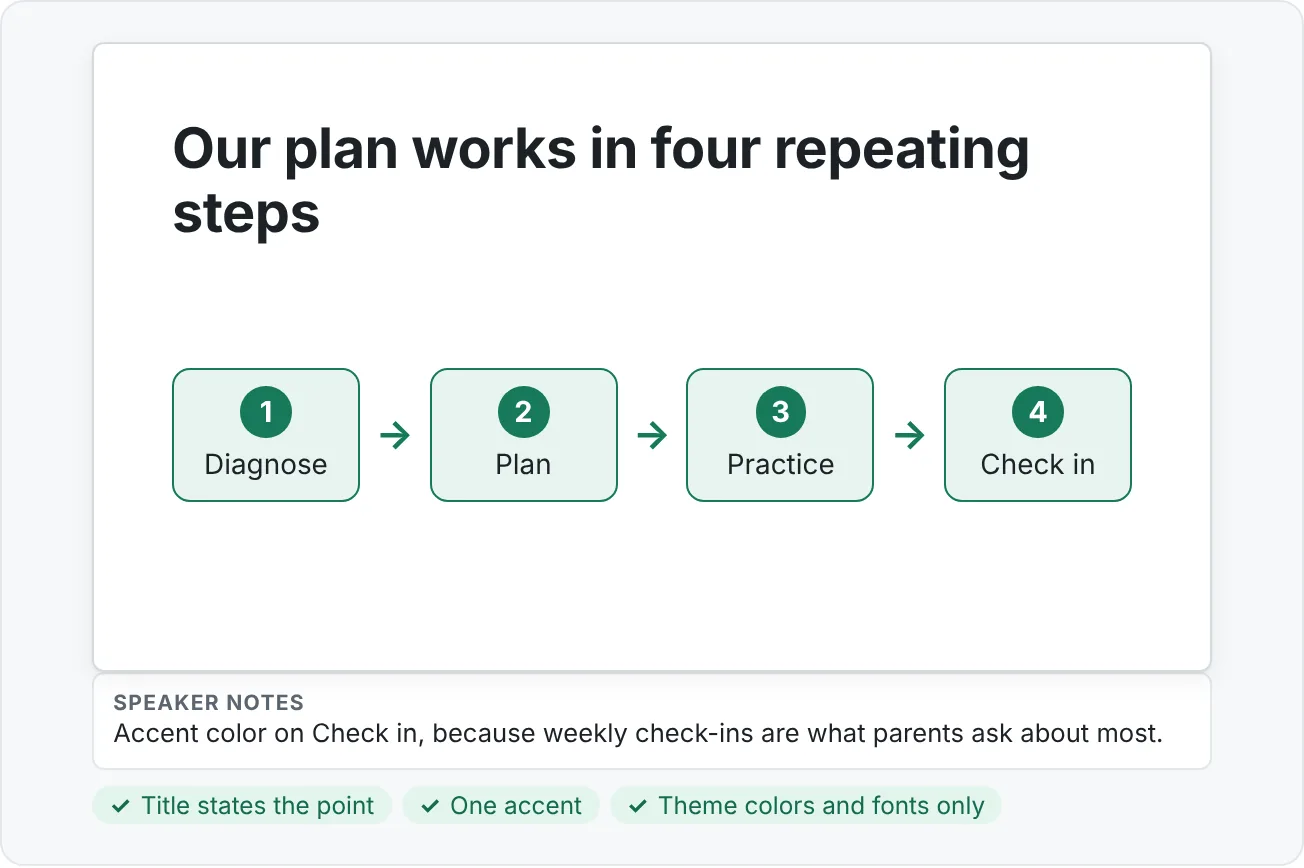
- Message. Read the title aloud. Does it state the point? Rewrite "Study Plan" as "Our plan works in four repeating steps."
- Content. Cross out anything that does not support the title. Move it to notes or another slide.
- Focal point. Decide what the viewer should see first. Give it the most size, weight, or accent color, and only that item.
- Color. Check that every color comes from the theme palette (the top rows of any color picker). Replace stray custom colors.
- Type. Check every text element against your four levels. Anything in between gets snapped to the nearest level.
- Space. Turn on guides and check margins. Use Align and Distribute for equal gutters. Pull related items together.
- Squint test. Zoom out or step back. Is the focal point still the first thing you notice?
Make the pass faster next time
Every decision you make twice should move into the template. Theme colors and fonts live in the theme. Type sizes and margins live in the Slide Master. Card shapes and label styles can be copied with Format Painter or saved on a layout. After a few decks, most of the pass becomes a quick check instead of a rebuild.
Common design mistakes
- Emphasizing everything. Bold, color, and size on every line cancel each other out.
- Using the accent color as a decoration. If the accent appears on borders, icons, and every heading, it no longer signals importance.
- Picking colors by eye on each slide. Save theme colors and choose from the top row of the palette.
- Mixing fonts from copied slides. Pasted slides often bring their own fonts. Use Use Destination Theme when pasting, and check Home then Editing then Replace then Replace Fonts to swap stray fonts deck-wide.
- Shrinking text to fit. If text needs to be 14 pt to fit, the slide has too much content. Split it.
- Low-contrast "stylish" text. Pale gray on white looks elegant on your monitor and disappears on a projector.
- Filling every gap. Empty space is part of the design.
Practice
Practice
Redesign a wall-of-text slide
Guided practice: turn a "wall of text" slide into a clean visual explanation.
- Create a slide titled "Study Plan" with eight full-sentence bullets describing how a tutoring plan works.
- Write the slide's one-sentence message. Make it the new title.
- Move any bullet that does not support that title into the speaker notes or a new slide.
- Reduce what is left to three or four short phrases. Turn them into a row of shapes or a simple process.
- Apply your palette: neutrals for most items, the accent on the single most important step.
- Check sizes against your type scale, then add guides for margins and use Distribute for equal gutters.
- Run Review then Accessibility then Check Accessibility and fix any contrast warnings.
Independent challenge: create a three-slide visual style sample (title slide, content slide, summary slide) for a tutoring deck. Save custom theme colors (five roles) and theme fonts, and use your four-level type scale. Under each slide, write one sentence in the notes explaining your hierarchy choice: what should the viewer see first, and how did you make that happen?
Check your understanding0 of 4 correct
Pick an answer to see whether it's right and why.
A slide titled "Q3 Update" lists sales results, a new hire, and an office move. What is the best first fix?
Three messages compete on one slide. Splitting gives each idea a clear title and room to breathe; formatting cannot fix a slide with no single point.
On a results slide, the logo is the first thing you notice when you squint. What does that tell you?
The squint test shows what dominates. The main result should win, so increase its contrast and tone down decorative elements.
A presenter uses red for "behind target" on slide 4 and red for the company brand header on slide 9. Why is that a problem?
A semantic color should mean the same thing everywhere. Reusing it for decoration makes the warning signal ambiguous.
Your deck uses 18 pt, 20 pt, 22 pt, and 24 pt text across headings and bullets. What is the best improvement?
Sizes that are only 2 points apart do not read as a hierarchy. A small scale with clear steps, set in the master, keeps every slide consistent.
You're ready to move on when
Tick each one off as you go. Your ticks are saved in this browser only.
Related
Sources and further reading
Was this guide helpful? Spot a mistake? Send feedback · admin@arumsoft.com