Advanced PowerPoint · Tutorial 8 of 9
How to QA and Rehearse a PowerPoint Deck Before You Present
Review a deck in content, visual, technical, and accessibility passes, rehearse with timings and Speaker Coach, and turn findings into a revision plan.
- Level
- Advanced
- Time
- 13 min read
- Updated:
- Applies to:
- PowerPoint for Microsoft 365, PowerPoint 2024, PowerPoint 2021, PowerPoint for the web
What you'll learn
- Run separate content, visual, technical, and accessibility review passes on a deck
- Find logic gaps and unsupported claims using titles-only review
- Catch technical risks by testing fonts, media, links, and file size on another device
- Verify accessibility with the checker plus a manual review of key slides
- Rehearse with section timings, cue-word notes, hidden backup slides, and Speaker Coach
- Write a QA report with severities and a revision plan
Most presentation problems are found by the audience: the chart with no source, the video that won't play, the slide that runs four minutes over. Every one of them could have been caught the day before by a structured review.
This page gives you a professional QA process. You'll review a deck in separate passes for content, visuals, technology, and accessibility, rehearse it out loud with timings and Speaker Coach, and finish with a short report that turns findings into fixes. The running example is a 15-slide funding proposal for a community board.
Review in passes, not all at once
When you scroll through a deck "checking everything," you catch the typo on slide 3 and miss that slides 9 to 12 argue the opposite of slide 2. Professionals review in separate passes, each with one question.
| Pass | The question | Best view |
|---|---|---|
| 1. Content | Does the deck answer the audience's question, logically and with evidence? | Outline view, titles only |
| 2. Visual | Does every slide look like it belongs to the same system? | Slide Sorter, then Normal at 100% |
| 3. Technical | Will it work on the delivery device, with every link and video? | Slide Show on another device |
| 4. Accessibility | Can everyone use it, including with a screen reader or no sound? | Accessibility pane, Reading Order pane |
| 5. Rehearsal | Can you deliver it on time and with confidence? | Slide Show, out loud |
Running example: a 15-slide Volunteer Program Proposal deck you'll present to a community board for funding. Work through each pass below, and log every issue you find (the last section shows a simple report format).
Content QA: check the message and the logic
Start with words, not design. Switch to View then Outline View so you see only titles and text. Then ask four questions:
- Does the deck answer the audience question? Write the board's real question at the top of your notes ("Should we fund this, and what will it achieve?"). Read only the titles. Do they answer it?
- Does each slide have one job? If you can't state a slide's job in one sentence, split it or cut it.
- Is the order logical? Each title should follow from the one before. Look for jumps, repeats, and conclusions that arrive before their evidence.
- Are claims supported? Every number needs a source. Every strong word ("most", "doubled", "proven") needs data on the slide or in the notes.
Notice the after slide drops the grades claim entirely. Content QA often means removing things you can't support, not rewording them.
Visual QA: alignment, spacing, color, and type
Open View then Slide Sorter and zoom out until you see 12 to 15 slides at once. Inconsistency jumps out at this size: a title that sits lower, a slide with a different blue, one photo that's darker than the rest. Then go back to Normal view and check slide by slide.
- Alignment: objects line up with each other and with layout guides. Use Shape Format then Arrange then Align to fix strays.
- Spacing: equal gaps between repeated items, consistent margins from the slide edge.
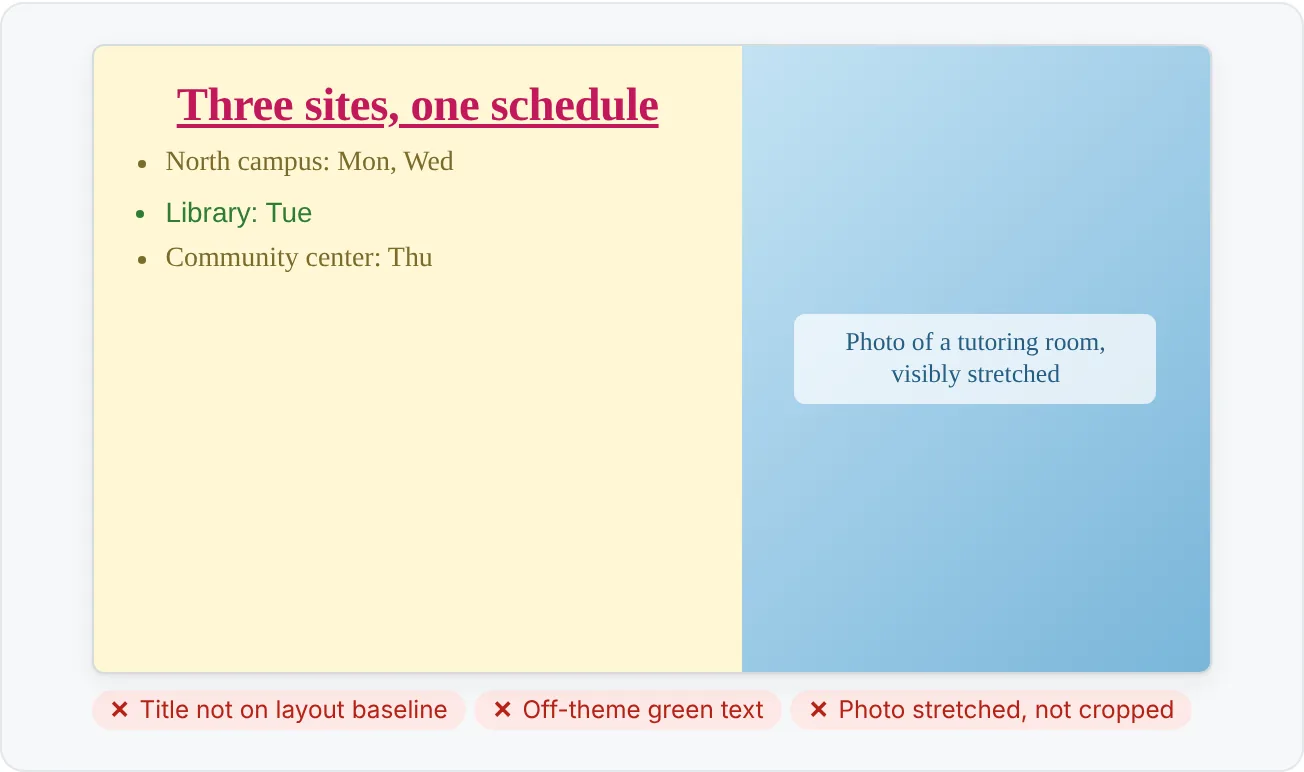
- Color consistency: only theme colors. A near-match blue is an off-system blue.
- Font consistency: only your theme fonts. Use Home then Editing then Replace then Replace Fonts to swap any stray font everywhere at once.
- Image quality: no blurry, stretched, or pixelated pictures at full screen.
- Object overlap: open Home then Arrange then Selection Pane to find hidden or stacked objects, such as an old text box sitting behind a picture.
Mark issues as you go. A simple method: add a comment with Review then Comments then New Comment on each slide with a problem, starting the comment with VISUAL. Later you can filter your fixes by type.
Technical QA: make sure it works on the day
A deck that's perfect on your laptop can still fail on the venue's computer. Check seven risks:
| Check | How |
|---|---|
| Fonts | If you use non-standard fonts, turn on File then Options then Save › Embed fonts in the file. |
| Media | Play every video and audio clip in Slide Show. Use File › Info › Compress Media if the file is huge. |
| Links | Click every hyperlink and action button. Check File › Info › Edit Links to Files for linked Excel content. |
| Animations | Click through every build. Check nothing appears in the wrong order or covers text. |
| Timings | If slides advance automatically, confirm Use Timings is set the way you want on the Slide Show tab. |
| File size | Check the size in File Explorer. Compress pictures with Picture Format then Adjust then Compress Pictures if email or upload limits apply. |
| Compatibility | Use File › Info › Check for Issues › Check Compatibility if someone will open it in an older version. |
Test on another device or account
The only real technical test is opening the deck somewhere else: a colleague's laptop, the venue machine, or PowerPoint for the web under a different account. Missing fonts, unreachable links, and media that won't play all reveal themselves there and nowhere else.
Accessibility QA: verify, then review by hand
Run Review then Accessibility then Check Accessibility and fix every error and warning in the Accessibility pane. Then review by hand, because the checker can't judge whether alt text is good or a link is clear.
- Reading order: open the Reading Order pane (from the Check Accessibility menu on the Review tab) and make sure the title comes first and content follows the order a sighted reader would use.
- Alt text: describe what the image or chart shows and why it's there ("Column chart: volunteer hours rose each quarter, peaking at 540 in Q3"). Mark purely decorative images as decorative.
- Contrast: text over photos or light accent colors is the usual failure. Test at the back of a room if you can.
- Captions: every video with speech needs captions. Add a caption file to the video, or turn on live subtitles under the Slide Show tab for live talks.
- Descriptive links: "Read the funding guidelines" instead of "click here" or a bare URL.
- No text only in images: if a key message lives inside a screenshot or picture, repeat it in real slide text or alt text.
Pick the 3 or 4 most important slides (the ask, the main chart, the summary) and review those with extra care. That's where an inaccessible slide costs the most.
Rehearse out loud, with and without Speaker Coach
A deck isn't finished until you've delivered it out loud at least twice. Silent read-throughs hide the slides you can't explain smoothly.
Structure your rehearsal
- Time sections, not just the total. Use Slide Show then Set Up then Rehearse Timings to see how long each slide takes. If your 10-minute slot runs 14 minutes, you now know which slides to cut. When asked at the end, choose No if you don't want to keep the timings.
- Use notes as prompts. Reduce speaker notes to 2 or 3 cue words per slide. Full sentences tempt you to read.
- Plan your transitions. Write one bridging sentence between sections ("So that's the need. Here's what the money would do."). Transitions are where nervous presenters lose the thread.
- Prepare backup slides. Put detailed answers to likely questions after your closing slide and hide them with Slide Show then Hide Slide. During the show, type the slide number and press Enter to jump straight to one.
Use Rehearse with Coach
Select Slide Show then Rehearse with Coach to start a full-screen practice run. Speaker Coach listens through your microphone and flags things like pacing, pitch, filler words, informal speech, euphemisms, culturally sensitive terms, wordiness, and reading your slide text aloud. When you exit, a rehearsal report summarizes what it noticed and suggests improvements. The report disappears when you close it, so take a screenshot if you want to compare runs.
Speaker Coach is a practice tool, not a judge of your content. Pair it with a human: deliver the deck to one colleague, ask for two things that worked and one thing to change, revise, and run it again.
Write a QA report and revision plan
A QA pass is only useful if it leads to fixes. Log every issue in a simple table (a slide at the end of the deck, a shared document, or a spreadsheet), rate its severity, and assign it.
| Slide | Pass | Issue | Severity | Fix | Owner |
|---|---|---|---|---|---|
| 4 | Content | "Grades improved" has no source | High | Cut or add survey data | You |
| 7 | Visual | Photo stretched | Medium | Re-crop with Crop to Fill | You |
| 9 | Technical | Video won't play on venue PC | High | Re-insert from file, compress media | You |
| 11 | Accessibility | Chart has no alt text | High | Write alt text with the takeaway | You |
| 15 | Rehearsal | Section runs 3 minutes long | Medium | Merge slides 13 and 14 | You |
Use three severities: High (wrong, broken, or inaccessible: fix before delivery), Medium (looks unprofessional or slows delivery: fix if time allows), Low (polish). Fix all High issues first, then re-test only the slides you changed.
Common QA mistakes
- Checking everything at once. You catch typos and miss logic. Run separate passes.
- Testing only on your own computer. Your fonts, files, and network are all there. The venue's machine has none of them.
- Trusting the Accessibility Checker alone. It finds missing alt text, not useless alt text.
- Rehearsing silently. Reading the deck in your head hides timing problems and awkward transitions.
- Fixing without re-testing. A cropped photo can shift a caption; a cut slide can break a hyperlink. Re-check what you touched.
- Sending the file with review leftovers. Run Inspect Document to catch comments and notes you didn't mean to share, and delete hidden slides yourself (the inspector doesn't remove them).
Practice
Practice
Run a full QA pass on a 15-slide deck
Guided practice
- Open a deck of about 15 slides (yours, or the funding proposal example). Write the audience's main question in the first slide's notes.
- Content pass: in Outline view, read only titles. Mark any slide with no clear job, any order jump, and any unsupported claim.
- Visual pass: in Slide Sorter, then Normal view, check alignment, spacing, theme colors, fonts (use Replace Fonts for strays), image quality, and hidden objects in the Selection Pane. Add a comment starting with VISUAL for each issue.
- Technical pass: play every video, click every link and button, check file size, and open the deck on another device or in PowerPoint for the web.
- Accessibility pass: run Check Accessibility, fix every flagged issue, then check reading order and alt text on your 3 most important slides by hand.
- Rehearsal: run Rehearse Timings once, then Rehearse with Coach once. Screenshot the rehearsal report.
Independent challenge
- Build a QA report table with slide, pass, issue, severity, fix, and owner. Fix every High issue and re-test those slides.
- Add two hidden backup slides for likely questions and practice jumping to them by number during the show.
- Deliver the deck to one person, ask for two strengths and one change, revise, and rehearse again.
- Reflect: which pass found the most serious issue, and what will you check earlier next time?
Check your understanding0 of 4 correct
Pick an answer to see whether it's right and why.
Your deck looks perfect on your laptop. Tomorrow you'll present from the venue's computer. Which check matters most today?
Fonts, media, and links often depend on your own machine. Only testing elsewhere reveals what will fail at the venue.
The Accessibility Checker shows no issues, but your main chart's alt text reads "chart1.png". What's the right conclusion?
The checker confirms alt text exists, not that it's useful. A meaningful description of the chart's takeaway is needed.
During a titles-only read, you notice slide 11's title reads "Our results prove the program works" but the data appears on slide 13. Which pass found this, and what's the best fix?
It's a logic and support issue. Evidence should come before or with the claim it supports.
Rehearse Timings shows your 10-minute talk runs 13 minutes, with 4 minutes on two detailed budget slides. What should you do?
Section timing shows where the time goes. A summary slide plus hidden backups keeps you on time and still prepared for questions.
You're ready to move on when
Tick each one off as you go. Your ticks are saved in this browser only.
Related
Sources and further reading
Was this guide helpful? Spot a mistake? Send feedback · admin@arumsoft.com