Advanced PowerPoint · Tutorial 5 of 9
How to Build Interactive PowerPoint Presentations With Links, Zoom and Branching Quizzes
Build non-linear decks: menus with hyperlinks, action buttons and Zoom, branching quiz feedback and navigation tested so nobody hits a dead end.
- Level
- Advanced
- Time
- 15 min read
- Updated:
- Applies to:
- PowerPoint for Microsoft 365, PowerPoint 2024, PowerPoint 2021, PowerPoint for the web
What you'll learn
- Choose an interaction model that fits the audience and situation
- Map navigation before building links
- Link slides, files and web pages with Link and Action Settings
- Build visual menus with Summary Zoom, Section Zoom and Slide Zoom
- Create a branching quiz with feedback slides and return paths
- Test every path and remove dead ends
A normal deck runs in one direction. Some decks work better as a place people move around in: a review menu, an orientation people complete at their own pace, a sales conversation that follows the client's questions, or a quiz that responds to each answer.
This page shows how to plan and build those decks in PowerPoint. You will map the navigation, link slides with hyperlinks and action buttons, build a menu with Zoom, create a branching quiz with feedback slides and run a QA pass so every path has a way forward and a way home.
Decide when non-linear navigation helps
Most decks should be linear: one argument, in order. Interactivity helps when the audience, not the presenter, should decide what comes next, or when the path depends on an answer. Common cases:
| Scenario | Interaction model | Why it helps |
|---|---|---|
| Review session before an exam | Menu of topics | Learners pick what they are weak on |
| Menu-based lesson or orientation | Hub with sections and Home button | People take modules in any order |
| Sales conversation | Summary page plus deep-dive slides | You follow the client's questions instead of a script |
| Choose-your-path tutorial | Branching choices | Each learner sees the path for their situation |
| Kiosk at an event | Self-running menu, no presenter | Visitors explore on their own |
| Quiz deck | Question, feedback, return | Wrong answers lead to help, not a dead end |
If you are presenting a single recommendation to a decision-maker, keep it linear and put deep-dive material in an appendix you can jump to. Interaction is a tool for exploration and practice, not a way to avoid choosing an order.
The running example on this page is a volunteer orientation deck for a community food bank. New volunteers work through three sections (Safety, Check-in, Your first shift) in any order, then take a three-question quiz. It will be used both in a live session and on a laptop at the volunteer desk.
Map the navigation before building it
Interactive decks break when the links are built slide by slide without a plan. Sketch the map first: every slide, and every place each slide can go.
| Slide | Type | Links to |
|---|---|---|
| 1 Welcome | Start | Menu |
| 2 Menu | Hub | Safety, Check-in, First shift, Quiz |
| 3-5 Safety | Section | Next within section; Menu at end |
| 6-8 Check-in | Section | Next within section; Menu at end |
| 9-11 First shift | Section | Next within section; Menu at end |
| 12-20 Quiz | Questions and feedback | See the branching section |
Then decide on navigation rules that apply everywhere:
- One Home button, always in the same corner (bottom right is common), on every slide except the menu.
- Back and Next in the same place on every content slide.
- A visible exit on the menu or final slide ("End" or "Finish").
- Section markers so people know where they are (a small label or a highlighted step in a progress bar).
Link slides with hyperlinks and action buttons
PowerPoint has two tools for links. Both work on text, shapes and pictures in the desktop app.
Link (hyperlink)
Select the text or object, then Insert then Links then Link (or Ctrl+K):
- Place in This Document links to a specific slide. Pick it from the list, which shows slide titles. This is another reason to give every slide a real title.
- Existing File or Web Page links to a file or a URL.
Action
Select an object, then Insert then Links then Action to open Action Settings. On the Mouse Click tab, choose Hyperlink to and pick a destination. The most useful ones for navigation:
| Hyperlink to | Use it for |
|---|---|
| Next Slide / Previous Slide | Forward and back buttons |
| First Slide | A Start over button |
| Last Slide Viewed | A Back button that returns to wherever the learner came from, including a menu |
| Slide... | A specific destination, such as the menu or a section start |
| End Show | An Exit button |
| URL... / Other File... | External resources |
Mouse Over does the same on hover. Avoid it for navigation; accidental hovers send people to the wrong slide.
Action buttons
Action buttons are ready-made shapes with an action already set. Go to Insert then Illustrations then Shapes and scroll to Action Buttons at the bottom of the gallery (Home, Back or Previous, Forward or Next, Beginning, End, Return and others). Draw one, and Action Settings opens with a sensible default. Style it like any shape so it matches your design system.
Build the menu slide
- On slide 2, add four rounded rectangles labeled Safety, Check-in, Your first shift and Quiz.
- Link each to the first slide of its section with Action › Hyperlink to › Slide....
- At the end of each section, add a Back to menu button linked to slide 2.
- Add a Home button on your section layout linked to slide 2.
Navigate visually with Zoom
Zoom creates clickable slide thumbnails that fly into their content with a zoom effect, and optionally fly back. It is the quickest way to build a menu, and it looks polished without extra design work.
Go to Insert then Links then Zoom and choose one of three types:
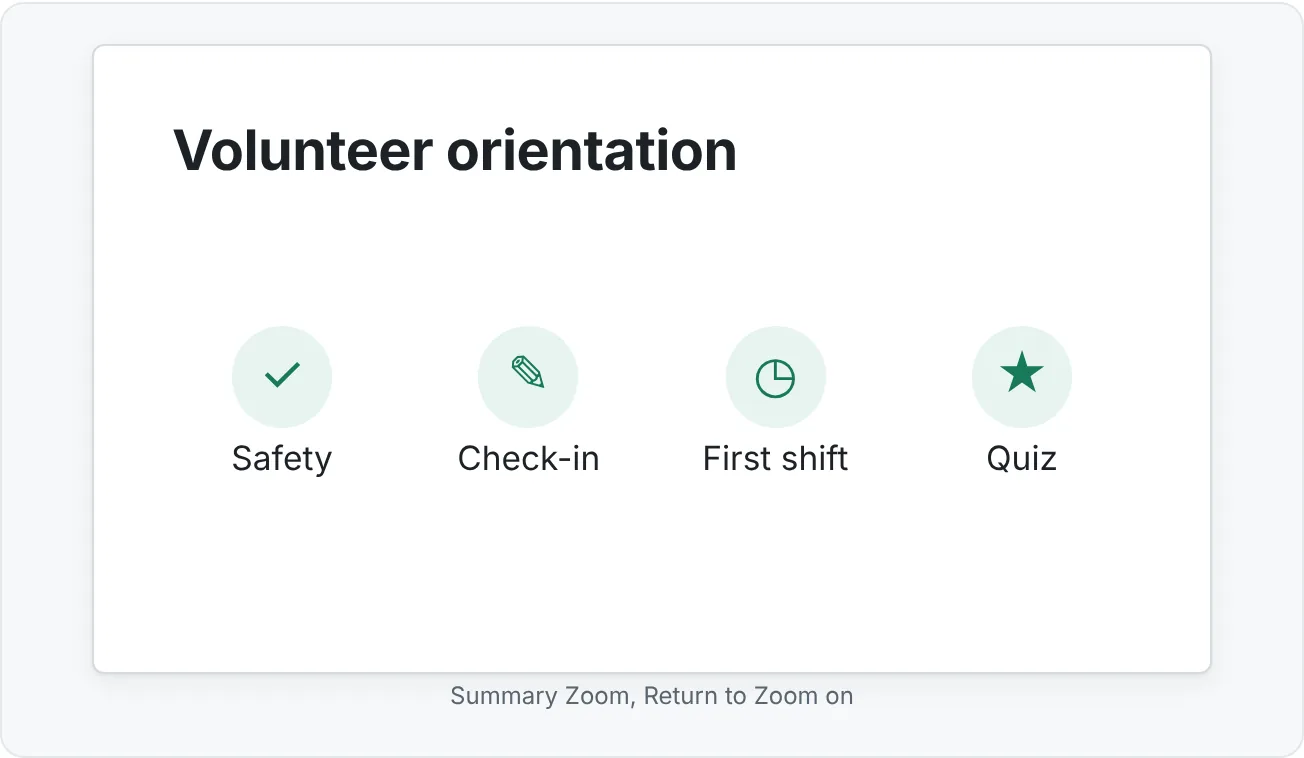
- Summary Zoom creates a new landing slide with one thumbnail per section (it can create the sections for you from the slides you pick). Use it as the menu for a modular deck.
- Section Zoom links to a section that already exists. Add one to a slide to revisit or connect to a section.
- Slide Zoom links to individual slides. Use it to drill into detail, such as three product deep dives on one overview slide.
For the orientation deck, first create sections with Home then Slides then Section then Add Section for Safety, Check-in, First shift and Quiz. Then go to Insert then Links then Zoom then Summary Zoom, pick the first slide of each section and select Insert. PowerPoint adds a summary slide with four thumbnails.
Select a zoom thumbnail to see the Zoom tab:
- Return to Zoom: when on, the show comes back to the summary slide after the section ends. This is your built-in return navigation. Turn it off when the section should flow straight into the next one.
- Zoom Transition: turns the zoom effect on or off and sets its duration.
- Zoom Background: blends the thumbnail into the background of the summary slide for a cleaner look.
- Change Image: replaces the slide thumbnail with a picture or icon, which often reads better than a tiny slide.
Build a branching quiz deck
A branching quiz sends each answer to its own feedback slide, so a wrong answer leads to an explanation and another try, not a dead end. Each question uses three slides:
- Question slide with answer buttons.
- Correct feedback slide explaining why the answer is right, with a Next question button.
- Incorrect feedback slide explaining the misconception, with a Try again button that returns to the question.
For the orientation quiz:
| Slide | Content | Buttons |
|---|---|---|
| Q1 | "A spill is blocking an aisle. What do you do first?" | Mop it yourself / Mark it and tell a lead / Ignore it |
| Q1 correct | "Right: mark it so nobody slips, then tell a lead." | Next question |
| Q1 incorrect | "Not quite: you might not have the right supplies, and others could slip meanwhile." | Try again (to Q1) |
| ... | Repeat for Q2 and Q3 | ... |
| Finish | "You finished orientation. Show this slide at the desk." | Menu / Exit |
Build it like this:
- Create the question slide and its two feedback slides.
- Link the correct answer button to the correct slide, and both wrong answers to the incorrect slide (one shared incorrect slide per question is enough unless each wrong answer needs different feedback).
- On the feedback slides, link Try again to the question and Next question to the next question slide.
- Select all feedback slides in the thumbnail pane, right-click and choose Hide Slide. Hidden slides are skipped in normal advancing but still open from a link, so pressing Space on a question will not jump to the answer.
- Add a simple progress marker on each question slide, such as "Question 2 of 3".
Test every path and remove dead ends
In a linear deck, a broken slide is noticed. In an interactive deck, a broken link may only surface when one particular learner takes one particular path. Run an interaction QA from your navigation map:
- Test in Slide Show. Links do not work with a normal click in Normal view. Press F5 and click every button on every slide, ticking each row of your map.
- Take every quiz path. Choose each wrong answer, then Try again, then the right answer.
- Check return navigation. From every section's last slide, can you get back to the menu? Does Return to Zoom do what you expect?
- Check consistency. Home, Back and Next should sit in the same spot on every slide. Buttons that move are buttons people miss.
- Check the escape route. In kiosk mode, the only way out without a keyboard is your Exit button. Make sure it exists and ends the show.
- Check external links. Links to other files use a file path. If you move or email the deck, those links can break. Keep linked files in the same folder as the deck and test after moving them, or link to a web address instead.
- Check accessibility. Button text should say where it goes ("Back to menu", not "Click here"), and the reading order should put navigation after the content.
Common interactive deck mistakes
Dead ends. A feedback slide with no button forward. In kiosk mode the learner is stuck.
Visible answers. Feedback slides that are not hidden show up when someone presses the arrow key.
Navigation that moves. A Home button in a different corner on every slide forces people to search for it.
Tiny targets. Text links of one word are hard to hit on a touchscreen or with a shaky mouse. Make buttons large and well spaced.
Linking to slide numbers instead of slides. When you use Slide... or Place in This Document, PowerPoint links to the slide itself, so reordering is safe. Next Slide and Previous Slide are relative, so they change meaning when you reorder. Re-test after any reordering.
Interaction for its own sake. If every learner should see every slide in the same order, a linear deck is simpler and more reliable.
Practice
Practice
Build a menu-based lesson with a quiz
Guided practice. Build the volunteer orientation deck or a menu-based lesson on your own topic.
- Write the navigation map: every slide and every link.
- Create sections for three topics and a quiz.
- Build a menu with Summary Zoom or with linked buttons. Turn on Return to Zoom or add Back to menu buttons.
- Add Home, Back and Next buttons to a section layout in Slide Master view.
- Build a three-question branching quiz with correct and incorrect feedback slides, and hide all feedback slides.
- Add a Finish slide with Menu and Exit buttons.
- Set the deck to Browsed at a kiosk and run the full interaction QA from your map.
- Check against this rubric:
| Criterion | Emerging | Ready | Strong |
|---|---|---|---|
| Model | Interaction added without a reason | Model fits the scenario | Navigation makes the content easier to use than a linear deck |
| Navigation | Buttons inconsistent or missing | Home, Back and Next in fixed places | Navigation lives on layouts and is clearly labeled |
| Quiz | Answers revealed on next click | Each answer has feedback | Wrong answers teach and loop back; progress is visible |
| Reliability | Some links untested | All links work in Slide Show | Tested in kiosk mode with no dead ends |
Fix this broken deck. Take an interactive deck with a feedback slide that has no way forward, visible (unhidden) answer slides and a Home button that moves. Fix all three and re-test every path.
Independent challenge. Build a self-paced review deck for a topic you teach or know well, with a menu, three sections and quiz feedback. Hand it to someone without instructions and watch them use it. Write two or three sentences about where they hesitated and what you changed.
Check your understanding0 of 4 correct
Pick an answer to see whether it's right and why.
A sales rep wants to follow the client's questions, jumping to any of five product deep dives and back. Which setup fits best?
A zoom overview lets the rep jump to any deep dive in any order, and Return to Zoom brings the show back to the overview automatically.
In a self-paced quiz, learners pressing the arrow key see the answer slide before choosing. What is the fix?
Hidden slides are skipped by normal advancing but still open from a hyperlink, so learners only reach feedback by answering.
Your 'Back' button should return learners to whichever slide they came from, which might be the menu or a section. Which action should it use?
Last Slide Viewed returns to wherever the learner actually was. Previous Slide always goes to the slide before in the file order, which may not be where they came from.
A kiosk deck works on your laptop, but visitors at the event get stuck on one slide. Which QA step most likely would have caught this?
Only testing each path in Slide Show, in the same mode visitors use, reveals a missing or broken button. In kiosk mode, clicks on the slide do not advance, so a slide without a working button is a dead end.
You're ready to move on when
Tick each one off as you go. Your ticks are saved in this browser only.
Related
Sources and further reading
Was this guide helpful? Spot a mistake? Send feedback · admin@arumsoft.com