Intermediate PowerPoint · Tutorial 1 of 9
How to Use Slide Master and Custom Layouts in PowerPoint
Edit the Slide Master, build reusable custom layouts with placeholders, and organize long decks into sections so you stop fixing slides one by one.
- Level
- Intermediate
- Time
- 15 min read
- Updated:
- Applies to:
- PowerPoint for Microsoft 365, PowerPoint 2024, PowerPoint 2021, PowerPoint for the web
What you'll learn
- Explain what the Slide Master controls and how layouts inherit from it
- Change a title style once in Slide Master and watch every slide update
- Create custom layouts with text, picture, and content placeholders
- Convert a manually rebuilt slide into a reusable layout
- Add footers and slide numbers that stay consistent
- Organize a long deck into named, collapsible sections
If you have ever changed the title font on slide 3, then slide 4, then slide 5, and then noticed slide 17 still looks different, you have met the problem Slide Master solves. Formatting applied slide by slide drifts. Formatting applied in the master stays put.
This page shows you how to treat Slide Master as the control layer of your deck. You will edit the master, build a small set of teaching layouts (objective, example, practice, quiz, recap), learn when to use placeholders instead of loose text boxes, and split a long deck into sections. The running example is a 15-slide lesson called "Fractions in Everyday Life."
Why Slide Master matters
Every PowerPoint file has at least one Slide Master. Think of it as a hidden parent slide. Under it sit several layouts (Title Slide, Title and Content, Section Header, and so on). Every slide you make is based on one of those layouts.
The chain works like this:
- The Slide Master sets shared things: theme fonts and colors, title and body text styles, the background, and anything that should appear on every slide (a logo, a thin color bar).
- Each layout inherits from the master, then adds its own arrangement of placeholders.
- Each slide inherits from its layout. You type into the placeholders.
When you change the master, every layout and slide that has not been manually overridden updates. That is the payoff. The catch is in that last phrase: if you dragged a title on one slide or changed its font by hand, that slide no longer follows the master for that property.
Open Slide Master
In the thumbnail pane, the large thumbnail at the top is the master itself. The smaller, indented thumbnails are the layouts. Hover over a layout to see a tooltip with its name and which slides use it (for example, "Title and Content Layout: used by slide(s) 2-9").
To try it: click the top thumbnail (the master), click inside the title placeholder's border, and change the font on the Home tab or apply bold. Then click Slide Master › Close › Close Master View. Every title in the deck that you did not override by hand now matches.
Edit the master: what to put there and what to leave out
Put on the master only what should be on almost every slide. Good candidates:
- Title and body text styles (size, weight, color, spacing for each bullet level).
- A small logo or course name in a corner.
- A thin accent bar or line that frames the content area.
- Footer, date, and slide number placeholder positions and styling.
Leave out anything that only some slides need. A big photo, a decorative pattern, or a "Practice" label belongs on a specific layout, not on the master.
If a layout should not show the master's background graphics (for example, a full-bleed photo layout), select that layout and check Hide Background Graphics in the Background group of the Slide Master tab.
Footers and slide numbers
The master only decides where footers and numbers sit and how they look. To actually show them, close Master View and go to Insert then Text then Header & Footer. Check Slide number and Footer, type your footer text (for example, "Grade 5 Math | Unit 3"), check Don't show on title slide, and click Apply to All.
Create core layouts for a teaching deck
Built-in layouts are generic. If you build the same kind of slide over and over, give it its own layout. For a lesson deck, these seven cover most needs:
| Layout | What it holds | Why it helps |
|---|---|---|
| Title | Lesson name, subtitle, presenter | Consistent opening |
| Section divider | Big section name, small number | Signals a change of topic |
| Objective | Title, 2-3 "You will" statements | Same spot every lesson |
| Example | Title, picture placeholder, short caption | Image and text never collide |
| Practice | Title, task text, timer or icon area | Learners recognize "your turn" |
| Quiz | Question, 3-4 answer boxes | Answers always line up |
| Recap | Title, 3 takeaways | Clean close |
Build a custom layout
- Open View then Master Views then Slide Master.
- In the thumbnail pane, click the layout just above where you want the new one to go.
- On the Slide Master tab, click Edit Master › Insert Layout. You get a new layout with a title and footers.
- Click Master Layout › Insert Placeholder and pick a type (Content, Text, Picture, Chart, Table, SmartArt, Media, Online Image). Drag on the layout to draw it.
- Type a prompt inside a text placeholder, such as "Type the practice task here." That prompt shows on new slides and disappears when someone types.
- Click Edit Master › Rename, and give it a clear name like "Practice". Clear names matter because they appear in the New Slide and Layout galleries.
- Close Master View.
Now Home then Slides then New Slide lists your Practice layout. Every practice slide in every lesson will start in the same shape.
Placeholders vs manual objects
A placeholder is a box defined on a layout. A manual object is a text box or picture you drew on one slide. They look alike, but they behave very differently.
| Placeholder | Manual text box | |
|---|---|---|
| Follows master formatting | Yes | No |
| Moves when you switch layouts | Yes, content reflows | No, stays put |
| Shows in Outline view | Yes (title and body) | No |
| Read in order by screen readers | Yes, predictable | Often out of order |
| Title recognized by Accessibility Checker | Yes | No, flagged as missing title |
That last row matters. A slide whose "title" is a manual text box technically has no title. Screen reader users navigating by slide title will hear nothing useful, and the Accessibility Checker will flag it.
The four placeholder types you will use most:
- Text placeholder: titles, captions, short prompts.
- Picture placeholder: click the icon, pick an image, and PowerPoint crops it to fill the frame. Every example image ends up the same size and position.
- Content placeholder: accepts text or any object (table, chart, picture, SmartArt, video) through its icon row.
- Footer placeholders: footer text, date, and slide number.
Convert a repeated manual slide into a layout
Suppose every "Example" slide in your deck was built by duplicating a slide with a text box on the left and a pasted photo on the right. Here is how to turn it into a layout:
- Note the positions you like (select the photo, then check Shape Format › Size, or just eyeball them).
- In Slide Master, insert a new layout named "Example."
- Add a Text placeholder on the left and a Picture placeholder on the right in those positions.
- Close Master View. On each example slide, choose Home then Slides then Layout › Example.
- Cut the manual text into the new placeholder and re-insert the picture by clicking the picture placeholder's icon. Delete the old loose objects.
Organize a long deck with sections
Sections are named folders for slides. They do not change what the audience sees. They make the deck easier for you to navigate, reorder, and share work on.
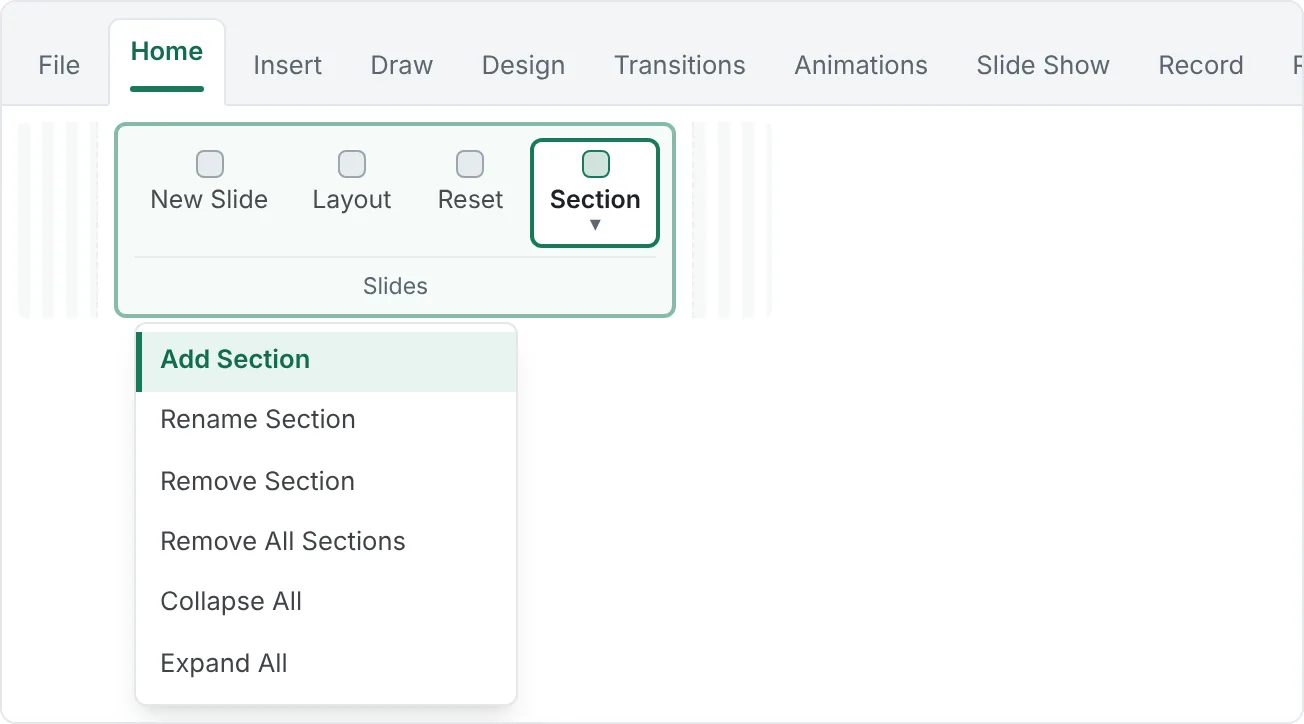
Add and rename sections
- In the thumbnail pane (Normal view), click the first slide of a group, for example slide 1.
- Click Home then Slides then Section then Add Section.
- Type a name in the Rename Section box, such as "Introduction", and click Rename.
- Repeat at slide 4 ("Concept"), slide 8 ("Practice"), slide 12 ("Review"), and slide 15 ("Next step").
Collapse, reorder, and remove
- Click the small arrow next to a section name to collapse or expand it. Section › Collapse All gives you a one-line-per-section outline.
- Drag a collapsed section name to move all its slides at once, or right-click it and choose Move Section Up or Move Section Down.
- Remove Section deletes the section label only, not the slides. (Right-click › Remove Section & Slides deletes both, so be careful.)
Sections also show up in View › Slide Sorter, which is the easiest place to check the overall flow of a 30-slide deck.
Common mistakes with masters and layouts
- Formatting slides instead of the master. If you change the same thing on more than two slides, stop and change it in the master or layout.
- Drawing text boxes instead of using placeholders. It looks fine until you switch layouts, run the Accessibility Checker, or view the outline.
- Too many layouts. Ten near-identical layouts confuse everyone. Aim for 6 to 10 clearly named ones and delete unused layouts (select it in Slide Master and click Delete; PowerPoint will not delete a layout that slides still use).
- Unnamed layouts. "Custom Layout" and "1_Custom Layout" tell nobody anything. Rename them.
- Multiple accidental masters. Pasting slides from another deck with Keep Source Formatting can bring in a second master. Check the top of the Slide Master thumbnail pane, and use Use Destination Theme when pasting if you want slides to adopt your master.
- Putting the logo on every slide by hand. Put it on the master once.
- Forgetting to close Master View. If your edits seem to change every slide, check whether you are still in Slide Master.
Practice
Practice
Build a mini lesson template
Guided practice: build a template with four reusable layouts.
- Start a new blank presentation and apply any theme (Design then Themes).
- Open View then Master Views then Slide Master. Click the master thumbnail and make the title bold. Set the theme fonts with Background › Fonts.
- Add a small text label "Grade 5 Math" to the bottom-left of the master.
- Insert four layouts and rename them Objective, Example, Practice, and Recap. Give each a title plus suitable placeholders (Example: text left, picture right; Recap: one text placeholder with the prompt "Three takeaways").
- Close Master View. Add one slide of each layout with Home then Slides then New Slide and fill them with content about fractions.
- Turn on slide numbers with Insert then Text then Header & Footer, hiding them on the title slide.
- Go back to Slide Master, change the title color, and confirm all slides update.
Independent challenge: open a 12-slide deck you built earlier (or any old deck). Find every piece of repeated manual formatting (fonts, logos, repeated text boxes). Move each into the master or a custom layout, switch the slides to those layouts, use Reset to clean them up, and divide the deck into at least three named sections. Then write two sentences explaining which change will save you the most time next month, and why.
Check your understanding0 of 4 correct
Pick an answer to see whether it's right and why.
You need every slide title in a 40-slide deck to switch from regular to bold. Most slides use the Title and Content layout. What is the most reliable fix?
Changing the master's title style updates every layout and slide that follows it. Resetting catches slides where someone overrode the formatting by hand.
A colleague's slide shows a title, but the Accessibility Checker says the slide has no title. What is the most likely cause?
PowerPoint only treats text in the title placeholder as the slide title. A drawn text box looks the same but has no title role.
Your team builds a weekly report where every slide has a photo on the right and three bullets on the left. Photos keep ending up different sizes. What should you build?
A picture placeholder crops every inserted photo to the same frame and position, and the text placeholder keeps the bullets consistent.
You clicked Remove Section on the "Practice" section. What happens to its five slides?
Remove Section removes only the label. The slides stay where they are and become part of the previous section. Remove Section & Slides is the command that deletes them.
You're ready to move on when
Tick each one off as you go. Your ticks are saved in this browser only.
Related
Sources and further reading
Was this guide helpful? Spot a mistake? Send feedback · admin@arumsoft.com