Advanced PowerPoint · Tutorial 7 of 9
How to Record a PowerPoint Lesson and Build Self-Paced Decks
Redesign slides for learners without a presenter, record narration slide by slide, export to video, and package a lesson for a website or LMS.
- Level
- Advanced
- Time
- 13 min read
- Updated:
- Applies to:
- PowerPoint for Microsoft 365, PowerPoint 2024, PowerPoint 2021, PowerPoint for the web
What you'll learn
- Convert live lecture slides into self-paced slides with context, instructions, practice, and feedback
- Build button navigation and set up a kiosk show that works without a presenter
- Record narration per slide, use the teleprompter, and re-record problem slides
- Control pacing with slide timings, animation clicks, ink, and the laser pointer
- Export a narrated deck to video at the right quality and plan captions
- Package a lesson as video, PDF, deck, quiz, and transcript for a website
A deck that works brilliantly when you present it can fall apart when you're not in the room. Learners don't know what to click, the slides assume your voice, and a 20-minute recording with one mistake at minute 18 means starting over.
This page shows you how to redesign slides for self-paced learning, record narration one slide at a time, control pacing, export a clean video, and package everything a learning website needs. Your running example is a short spreadsheet lesson you'll turn into an asynchronous module.
Redesign slides for a learner with no presenter
A live slide is half of a conversation. You fill in the context out loud, notice confused faces, and say "click here next." A self-paced slide has to do all of that on its own. When you convert a deck, check each slide for five things the presenter used to supply:
- Context: one sentence that says why this slide matters, not just a two-word label.
- Navigation: visible buttons, and a clear signal for what to do next.
- Instructions: what the learner should do, in the slide itself ("Try it, then select Check answer").
- Practice: a prompt that asks the learner to do something, not only read.
- Feedback: a screen that tells them whether they got it right and why.
Running example: a live lecture slide from a spreadsheet basics lesson, converted for a self-paced module on a learning website.
Self-paced slides can hold more words than live slides, but not more ideas. Keep one idea per slide and split rather than shrink the font.
Build navigation that works without you
In a self-paced deck, the learner moves through the content by clicking buttons you built, not by pressing a key you would have pressed for them.
- Add buttons with Insert then Shapes then Action Buttons (Back, Forward, Home) or draw your own shapes and add Insert then Links then Link or Action to them.
- Link each button to a specific place: Next Slide, Previous Slide, a menu slide, or a feedback slide. Name your slides with clear titles so the link list is easy to read.
- Add a Home or Menu button on every content slide so learners never get stuck.
- Test every button in Slide Show, not Normal view. Links only work while the show is running.
Lock the show to your buttons
If the deck will run on a shared screen or in a viewer where clicking anywhere should not advance the slide, set it up as a kiosk.
In the Set Up Show dialog, under Show type, choose Browsed at a kiosk (full screen). The show runs full screen and loops until someone presses Esc. Ordinary clicks no longer advance slides, so every slide needs either a working button or a slide timing. A slide with neither is a dead end.
Script lightly and record slide by slide
Narration turns a deck into a lesson. PowerPoint records audio (and optionally camera video) per slide, which is the feature that makes it forgiving: a mistake on slide 7 means re-recording slide 7, not the whole lesson.
Before you record
- Script lightly. Write 2 to 4 short prompts per slide in the speaker notes, not a word-for-word essay. Reading a full script sounds flat.
- Keep segments short. Aim for under about 90 seconds per slide. If a slide needs longer, it probably holds two ideas.
- Check your microphone. Use a headset or USB mic if you can, close the door, and record a 10-second test, then play it back.
Record
- Go to the Record tab (or Slide Show then Record) and choose to record from the beginning or from the current slide.
- In the recording window, check the camera and microphone at the top. Turn the camera off if you only want voice.
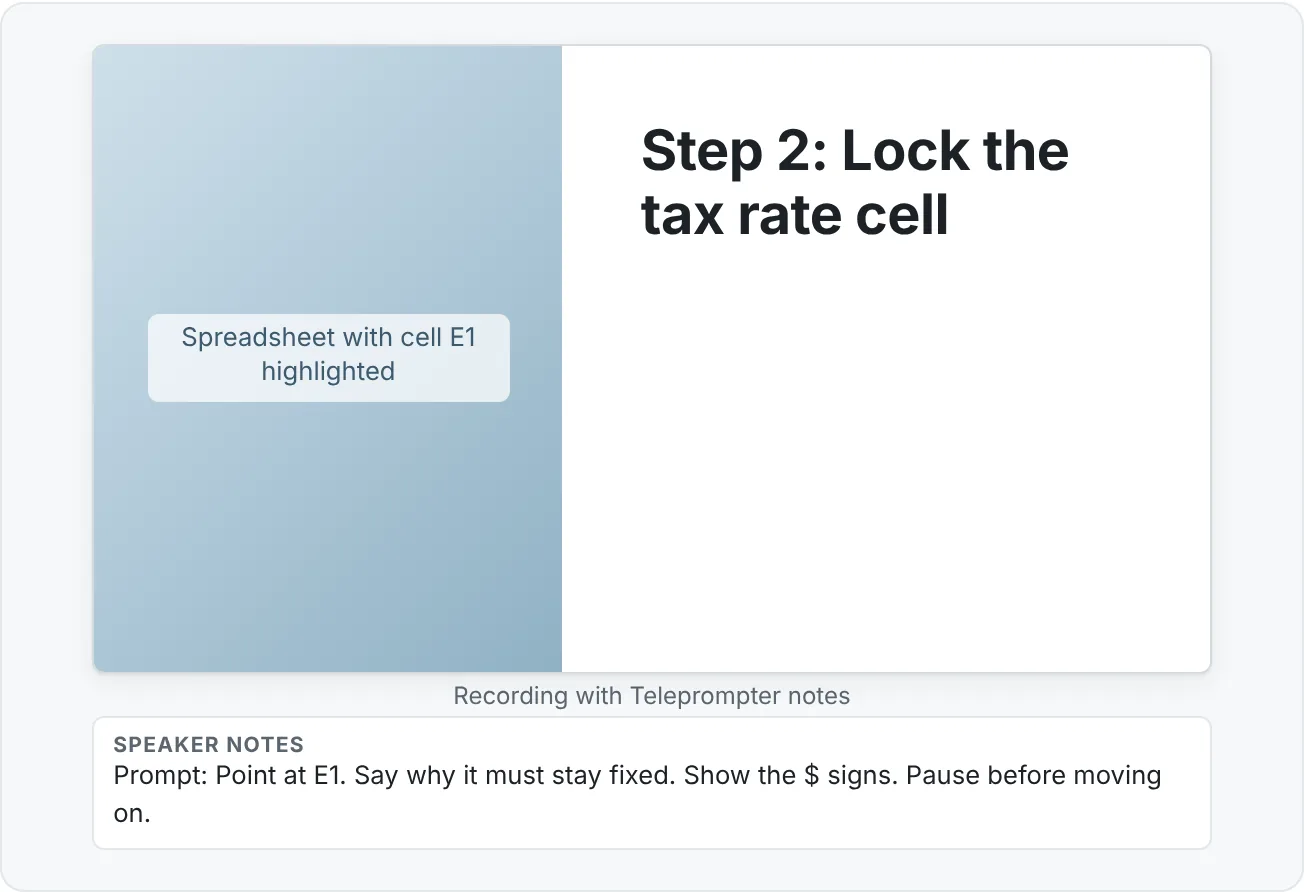
- Use the Views menu to switch to Teleprompter if you want your notes to scroll beside the camera.
- Start recording. After the countdown, speak. Use the arrows beside the slide to move on.
- Wait for each transition to finish before you start talking. Narration isn't recorded while a slide transition plays.
- Select Stop when you're done, then use Play to review.
Re-record a problem slide
Go to that slide in the recording window, clear its recording (you can clear the current slide or all slides), and record it again. Your other slides keep their narration and timings.
Control pacing with timings, ink, and the laser pointer
A recorded lesson moves at the speed you set. Pacing problems are the most common reason learners abandon videos.
- Slide timings are saved automatically while you record. You can see them under each slide in Slide Sorter view. To set a timing by hand, use Transitions then Timing › After and enter seconds.
- Animation timings matter too. If your bullets appear on click, the recording captures when you clicked. Rehearse the click points so a worked example builds in step with your voice.
- Ink and the laser pointer are in the tray below the slide while you record. Ink you draw is saved with that slide's recording, and the laser pointer movement is captured too. Use them to point at the exact cell, word, or bar you're talking about.
- Clear and redo. If your annotation gets messy, erase it or clear the slide's recording and try again. A clean worked example is worth a second take.
On the Slide Show tab, the Use Timings and Play Narrations check boxes control whether a show uses what you recorded. If a recorded deck suddenly waits for clicks, check that Use Timings is still selected.
Export to video
When the recording is good, publish it as a video. Save the .pptx first, then use Record then Export to Video or File then Export then Create a Video.
Make two choices:
| Quality | Resolution | Choose it when |
|---|---|---|
| Ultra HD (4K) | 3840 × 2160 | Large displays only; biggest file |
| Full HD (1080p) | 1920 × 1080 | Most website and LMS lessons |
| HD (720p) | 1280 × 720 | Smaller files for slower connections |
| Standard (480p) | 852 × 480 | Phones and tight upload limits |
- For timing, choose Use Recorded Timings and Narrations to include your voice and pacing. If you choose Don't Use Recorded Timings and Narrations, every slide shows for the value in Seconds spent on each slide (5 seconds by default) and your narration is left out.
- Select Create Video, then save as MPEG-4 Video (.mp4) for the widest compatibility.
Long or media-heavy decks can take a while to render. The progress shows in the status bar. When it's done, check the file size and watch the whole video once. Look for cut-off words at slide changes, silent slides, and animations that fire too early.
Plan captions and a transcript
Don't treat captions as an afterthought. Your speaker notes are the start of a transcript: tidy them into full sentences after recording. Many video hosts and learning platforms can attach a caption file to an uploaded video, or generate captions you then correct. Plan who checks the captions and when, so the lesson is usable without sound.
Package a lesson for a website or LMS
A finished self-paced module is rarely one file. Learners use different formats for different jobs, so package a small set:
| Asset | Made with | What it's for |
|---|---|---|
| Video lesson (.mp4) | Export to Video | Watching the narrated walkthrough |
| PDF handout | File then Export then Create PDF/XPS Document | Note taking, printing, quick reference |
| Downloadable deck (.pptx) | Save a clean copy without hidden drafts | Learners who want to practice in the file |
| Quiz or practice page | Your LMS quiz tool or an interactive slide section | Checking understanding |
| Transcript | Edited speaker notes | Search, review, and learners who can't listen |
| Accessibility notes | A short text page | What's captioned, alt text status, known limits |
Name the files consistently (for example L03-absolute-references-video.mp4, L03-...-handout.pdf) so an upload to a website or LMS stays organized. Interactive buttons and branching don't survive in a video, so if your lesson depends on choices, publish the .pptx or a quiz page alongside it.
Common mistakes in self-paced decks
- Recording a live deck unchanged. Terse slides plus narration still leave learners without instructions or practice. Convert the slides first.
- One long take. A 20-minute single recording is painful to fix. Record per slide and re-record only what's wrong.
- Talking over transitions. The first words of the slide are lost. Wait for the transition to finish.
- Exporting without recorded timings. Every slide flashes by in 5 seconds with no audio. Check the timing setting before Create Video.
- Dead-end slides in kiosk mode. A slide with no button and no timing traps the learner.
- No captions or transcript. The lesson becomes unusable in a quiet library, on a noisy bus, or for learners who are deaf or hard of hearing.
Practice
Practice
Make a 5-minute self-paced tutorial
Guided practice
- Take 5 to 6 slides from a lesson you've taught live. Rewrite each title as a sentence and add a one-line instruction for the learner.
- Add Back, Next, and Menu buttons with Insert then Shapes then Action Buttons, and one practice slide followed by a feedback slide.
- Write 2 to 4 short prompts per slide in the speaker notes.
- Record narration from the beginning with the Teleprompter view. Keep each slide under about 90 seconds and wait for transitions before speaking.
- Use the pen or laser pointer on at least one worked example slide.
- Play it back. Clear and re-record any slide with a stumble or a long silence.
- Add a recap slide and record it.
Independent challenge
- Export to Full HD (1080p) with Use Recorded Timings and Narrations. Note the file size and watch the full video.
- Export a PDF handout, save a .ppsx copy, and turn your notes into a transcript.
- Convert one full instructor-led deck into an asynchronous package: video, handout, deck, quiz page, transcript, and a short accessibility note.
- Reflect: which slides needed the most rewriting for self-paced use, and why?
Check your understanding0 of 4 correct
Pick an answer to see whether it's right and why.
You recorded a 12-slide lesson and stumbled badly on slide 8. What's the most efficient fix?
PowerPoint stores narration per slide, so clearing and re-recording one slide keeps the rest of your work.
Your exported video shows each slide for exactly 5 seconds and has no voice. What most likely happened?
With that option, PowerPoint ignores your narration and uses the default seconds per slide, which is 5.
A self-paced deck runs in kiosk mode. A tester says she got stuck on slide 6 and couldn't continue. What's the most likely cause?
In kiosk mode, clicks don't advance slides. Each slide needs a button or a timing, or it's a dead end.
Which slide is better suited to a self-paced lesson?
It explains itself, gives the learner a task, and offers clear navigation, which replaces what a live presenter would supply.
You're ready to move on when
Tick each one off as you go. Your ticks are saved in this browser only.
Related
Sources and further reading
Was this guide helpful? Spot a mistake? Send feedback · admin@arumsoft.com