Expert PowerPoint · Tutorial 1 of 9
How to Build a PowerPoint Template Kit and Layout Library Your Team Can Use
Turn a good-looking deck into a template kit: a tested layout library, placeholder rules, sample slides and a one-page guide others can follow.
- Level
- Expert
- Time
- 15 min read
- Updated:
- Applies to:
- PowerPoint for Microsoft 365, PowerPoint 2024, PowerPoint 2021, PowerPoint for Mac
What you'll learn
- Audit a template from the point of view of the people who will use it
- Plan and build a 12 to 13 layout library in Slide Master view
- Decide what belongs in placeholders, on layouts, and on the master
- Write a one-page style guide with word budgets, image ratios and chart rules
- Stress-test a template on purpose and fix what breaks
- Package and distribute the kit as a versioned .potx
Most templates fail quietly. They look great in the designer's hands, then six weeks later you open a team deck and find stretched logos, titles in four sizes, and pictures pasted on top of empty placeholders. The template wasn't wrong, it just wasn't built for the people who had to use it.
This page treats a template as a product with users. You'll plan a layout library, set placeholder rules that are hard to break, write a short style guide, stress-test the whole thing, and ship it as a versioned kit. The running example is a template kit for a tutoring website's course team: about a dozen writers who each build lesson decks every term.
Treat the template as a product, not a pretty deck
A deck is something you present. A template is something other people build with, often under deadline, often without your design training. That changes what "good" means. A good template makes the right slide the easy slide.
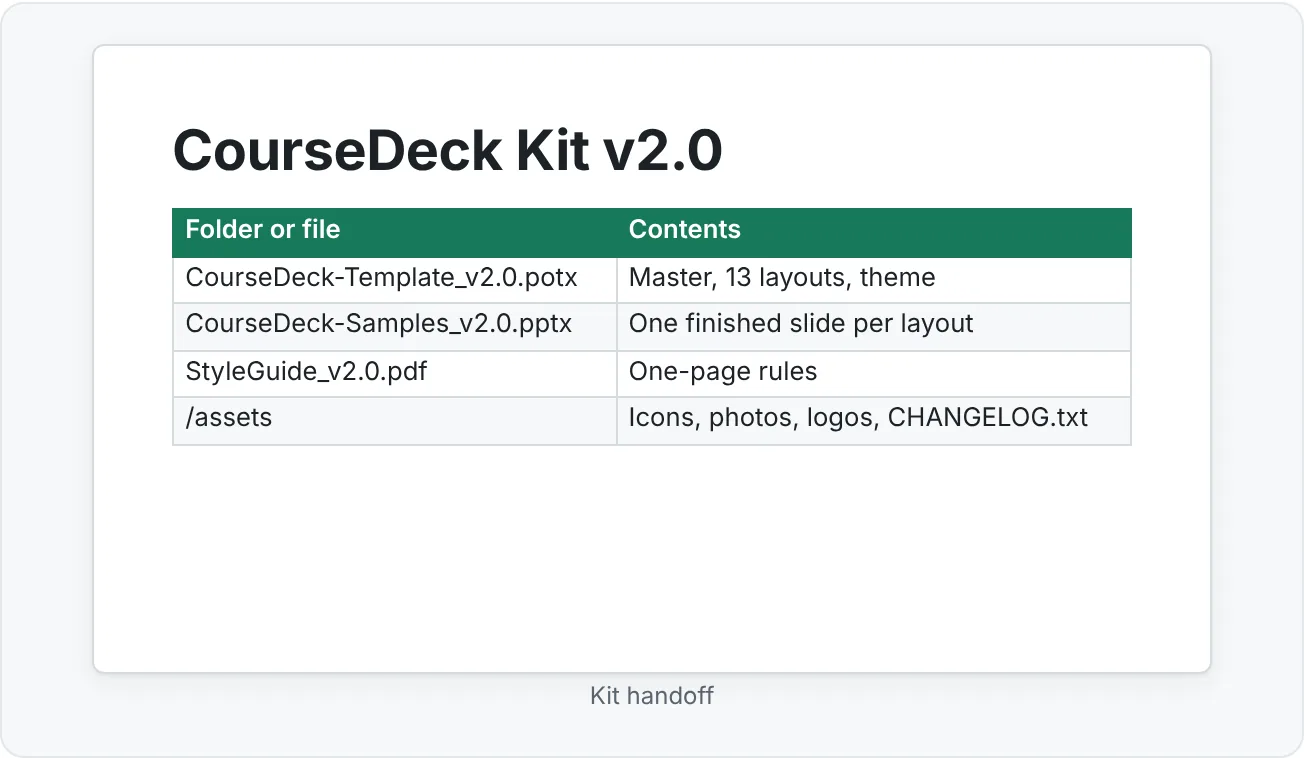
A complete template kit has four parts:
- The .potx file with a slide master, named layouts, theme colors and theme fonts.
- A sample deck that shows every layout filled in correctly with realistic content.
- A one-page style guide with rules people can check: word budgets, image ratios, chart rules, accessibility reminders.
- An asset folder with approved icons, photos, logos and a changelog.
Before you build anything, audit the template you have (or a competitor's) from the user's side. Open it as if you were a writer with 40 minutes to build a lesson.
| Audit question | What a failing answer looks like |
|---|---|
| Can I find the right layout from its name? | Layouts called "Custom Layout 3" and "1_Title and Content" |
| Does content go in placeholders? | Writers draw their own text boxes because the placeholder is the wrong size |
| What happens when I paste text from Word? | Fonts and colors from the source document come along |
| Is there an example of each layout in use? | Only an empty master and a cover slide |
| Does it say what not to do? | No rules, so every deck invents its own |
Plan the layout library
A layout library is the set of slide layouts users can pick from Home then Slides then Layout. Too few and people improvise. Too many and they pick the wrong one. For most teams, 12 to 15 well-named layouts cover nearly everything.
Here is a library for the course team. Each row is one layout in the master.
| Layout name | Use it for | Key placeholders |
|---|---|---|
| 01 Cover | Lesson title, level, author | Title, subtitle, picture |
| 02 Agenda | What the lesson covers | Title, body (max 5 items) |
| 03 Section divider | Starting a new part | Title, section number |
| 04 One column | One idea with short support | Title, body |
| 05 Two column | Compare two things | Title, two body placeholders |
| 06 Three cards | Three options or features | Title, three text + three icon placeholders |
| 07 Data | One chart with a takeaway title | Title, chart, source line |
| 08 Image | A photo or screenshot that does the work | Title, picture (16:9) |
| 09 Quote | A learner or expert quote | Quote text, attribution |
| 10 Process | Steps in order | Title, SmartArt or 3 to 5 step placeholders |
| 11 Exercise | Practice instructions | Title, numbered body, timer text |
| 12 Quiz | One question with options | Question title, four option placeholders |
| 13 Closing | Recap and next step | Title, body, contact |
The number prefixes keep layouts in a predictable order in the Layout gallery and make support easier ("use layout 07 for that").
Build the library in Slide Master view.
- Open View then Master Views then Slide Master.
- Delete layouts you won't support. Unused layouts become the ones people misuse.
- Use Slide Master then Edit Master then Insert Layout for each new layout, then Slide Master then Edit Master then Rename to give it the numbered name.
- Add placeholders with Slide Master then Master Layout then Insert Placeholder. Pick the specific type (Text, Picture, Chart, Table, SmartArt) rather than Content when the layout has one job.
- Close with Slide Master then Close then Close Master View and check every layout in the Layout gallery.
Decide what goes on the master, the layout and the slide
Placeholder strategy is where templates succeed or fail. Use one simple rule: things that never change go on the master, things that change by slide type go on the layout, and content goes in placeholders.
| Element | Where it belongs | Why |
|---|---|---|
| Theme fonts and colors | Theme (Slide Master then Background then Fonts and Colors) | Users pick from the palette instead of guessing hex codes |
| Logo, footer rule, page number position | Slide master | Appears everywhere, nobody should move it |
| Section label, decorative band | Individual layout | Only some slide types need it |
| Titles, body text, pictures, charts | Placeholders on layouts | Content changes every slide, and placeholders keep it in the right spot |
Watch for the opposite mistake too. Don't put content people must edit only on the master. If the course name is typed on the master, a writer reusing the template for another course has to find Slide Master view to change it, and most won't. Use a placeholder (or the built-in footer, Insert then Text then Header & Footer) for anything that varies by deck.
A few placeholder settings make layouts much harder to break:
- Picture placeholders crop to fit. A photo inserted into a picture placeholder fills it, so set the placeholder to the exact ratio you want (for example 16:9 or 1:1). Users get a consistent crop without touching Crop.
- Autofit is a policy decision. Select a body placeholder on the layout, open Home then Drawing then Format Shape (or right-click and pick Format Shape), then Text Options › Text Box. Shrink text on overflow hides problems by making text smaller. Do not Autofit lets overflow show, which is easier to catch in review. Many teams choose Do not Autofit for titles so long titles are visible.
- Lock the decoration, not the content. Recent PowerPoint for Microsoft 365 versions include Lock on the right-click menu for objects. Locking decorative shapes on sample slides helps, but anything on the master is already out of reach in Normal view, which is the stronger protection.
Add sample slides and guardrails
People copy examples far more than they read rules. Your sample deck is the most important teaching tool in the kit.
Build a sample deck from the template with one finished slide per layout, using realistic course content (not lorem ipsum). Then add guardrails:
- Notes as instructions. In each sample slide's speaker notes, write two or three lines: when to use this layout, the word budget, and a common mistake.
- A do and don't pair for the layouts people misuse most. For the course team, that's usually the Data layout (people paste screenshots of charts) and Three cards (people add a fourth card).
- A "start here" slide at the top that explains how to apply layouts (Home then Slides then Layout) and how to fix a slide that drifted (Home then Slides then Reset).
Write a one-page style guide
The style guide turns your design judgment into rules other people can check. Keep it to one page (or one slide) so people actually open it. Every rule should be testable: "keep titles short" is a wish, "titles are 10 words or fewer" is a rule.
Cover these for each layout or group of layouts:
| Rule area | Example for the course kit |
|---|---|
| Purpose | 07 Data: one chart that supports one finding |
| Word budget | Titles 10 words max. Body 40 words max per slide. Card text 15 words max |
| Image ratio | Image layout 16:9. Cover photo 1:1. No stretched images |
| Chart rules | Native charts only. Title states the takeaway. Source line under every chart. Highlight one series |
| Type and color | Theme fonts only. Body text 18 pt minimum. Accent 2 is for highlights only |
| Accessibility | Every slide has a unique title. Alt text on meaningful images. Mark decoration as decorative. Run Check Accessibility before review |
Add three or four do and don't examples as small before/after images. A writer who sees a bad slide next to its fixed version understands the rule faster than any paragraph.
Stress-test the template by breaking it
A template is only as good as its worst day. Before release, try to break it on purpose. Build a test deck that uses every layout with hostile content:
- Long title. Paste a 20-word title into each layout. Does it wrap cleanly, overflow, or shrink to 12 pt?
- Missing image. Leave a picture placeholder empty and run a slide show. Empty placeholders don't show in Slide Show, but does the layout still look intentional, or is there a hole?
- Extra bullet. Add a seventh bullet to the body placeholder. What happens to spacing?
- Wide chart labels. Insert a chart with category names like "Independent practice completion rate". Do the labels rotate or collide?
- Paste from outside. Paste text from Word, a web page and Google Docs. Use Home then Clipboard then Paste and check whether Use Destination Theme keeps your fonts.
- Export to PDF. Use File then Export then Create PDF/XPS Document and check that fonts, transparency and footers survive.
- Accessibility check. Run Review then Accessibility then Check Accessibility on the test deck.
- Other platforms. Open the test deck on a Mac and in PowerPoint for the web. Missing fonts are the most common surprise.
Fix the template, not the test deck. If a long title breaks the Data layout, make the title placeholder taller, set its autofit policy, and put the word budget into its prompt text.
Then run the real test: ask someone who didn't build the template to make five slides from a short brief while you watch without helping. Every place they hesitate is a design flaw in the kit, not a skill gap in the user.
Package, version and distribute the kit
When the template passes testing, save it as a real template file:
- Go to File then Save As then Browse.
- In Save as type, choose PowerPoint Template (*.potx). On Windows, PowerPoint suggests the Custom Office Templates folder in Documents. Templates saved there appear under File › New › Personal.
- Name it with a version:
CourseDeck-Template_v2.0.potx.
A .potx opens as a new, untitled presentation, so users can't accidentally overwrite the master file. That alone prevents a lot of damage.
For a team, distribution matters as much as design:
- One source of truth. Store the current kit in one shared location. If your organization uses Microsoft 365, a SharePoint admin can set up an organization assets library so approved templates appear directly in PowerPoint's New screen.
- A changelog. Keep a short text file in the kit folder: version, date, what changed, who approved it. "v2.1: Data layout title taller; added Quiz layout."
- Version rules. Bump the minor number for fixes (2.0 to 2.1) and the major number when layouts are added, removed or renamed (2.x to 3.0), because renamed layouts can change how existing decks map when someone applies the new template.
- A retirement date. Tell people when the old version stops being supported.
Common mistakes with template kits
- Shipping the master without examples. Users copy what they see. No sample deck means every deck invents its own style.
- Too many layouts. Forty layouts with near-identical names guarantees the wrong pick. Cut to the ones you'll support.
- Using generic Content placeholders everywhere. A layout meant for a chart should have a Chart placeholder, so the one-click path produces the right result.
- Typing editable text on the master. Course names, dates and presenter names belong in placeholders or footers.
- Hiding overflow with shrink-to-fit. A 12 pt title passes visual review at a glance and fails in the room. Let overflow show, and enforce word budgets.
- Never testing with a novice. The person who built the template is the worst tester of it.
- No version number. "Template_FINAL_new.potx" in five shared folders is how brand drift starts.
Practice
Practice
Build and stress-test a course template kit
Guided practice:
- Start a new blank presentation and open View then Master Views then Slide Master.
- Set theme fonts and colors with Slide Master then Background then Fonts and Colors.
- Delete unused layouts, then create at least 12 numbered layouts from the library table on this page.
- Use specific placeholder types (Picture, Chart, Text) and write the word budget into each placeholder's prompt text.
- Save as
CourseDeck-Template_v1.0.potx. - Create a sample deck with one finished slide per layout and usage notes in the speaker notes.
- Run the eight stress tests from this page and fix the template (not the test deck) for each failure.
- Write a one-page style guide covering purpose, word budget, image ratio, chart rules and accessibility.
Independent challenge:
- Give the kit to someone who hasn't seen it, plus a short brief: "Build a five-slide lesson on keyboard shortcuts."
- Watch without helping. Note every hesitation and every hand-drawn text box.
- Revise the template and guide, bump the version to v1.1, and record the changes in a changelog.
- Reflection: which single change made the biggest difference for your tester, and why?
Check your understanding0 of 4 correct
Pick an answer to see whether it's right and why.
A writer reuses your template for a different course and complains they can't change the course name in the corner of every slide. What's the best fix?
Content that varies by deck belongs in a placeholder or footer, where users can edit it in Normal view. Text typed on the master is effectively locked to most users.
During stress testing, a 20-word title on the Data layout shrinks to 13 pt and still overlaps the chart. Which change addresses the cause?
Fix the template, not each slide. A taller placeholder plus visible overflow and an in-place word budget prevents and exposes the problem.
Your team has 38 layouts and decks look inconsistent. Several layouts differ only by a few pixels. What should you do first?
Too many near-identical layouts guarantees wrong picks. A smaller, clearly named library makes the right layout the easy choice.
Which item belongs in the one-page style guide as a checkable rule?
A rule someone can verify (size, presence of a source line) can be checked in review. The others are wishes that every reader interprets differently.
You're ready to move on when
Tick each one off as you go. Your ticks are saved in this browser only.
Related
Sources and further reading
Was this guide helpful? Spot a mistake? Send feedback · admin@arumsoft.com