Advanced PowerPoint · Tutorial 6 of 9
How to Link Excel Charts to PowerPoint Without Breaking Your Deck
Choose between linking, embedding and pasting Excel charts as pictures, manage and repair links, document sources, and ship stable decks.
- Level
- Advanced
- Time
- 14 min read
- Updated:
- Applies to:
- PowerPoint for Microsoft 365, PowerPoint 2024, PowerPoint 2021, PowerPoint for the web
What you'll learn
- Choose link, embed, or paste as picture for each chart based on how the deck will be used
- Paste linked Excel charts and objects, and refresh them
- Find, repair, and break links with Edit Links to Files
- Add source, date, owner, and assumption notes to every data slide
- Create a chart style sheet and save a reusable chart template
- Run a five-point risk check and ship a stable PDF version
You update the numbers in Excel, open your PowerPoint deck in the meeting, and the chart still shows last month. Or worse, a colleague opens your deck and gets a security prompt and a chart that won't refresh. Linked data saves hours on recurring reports, but only when you choose it on purpose and manage it.
This page shows you how to decide between linking, embedding, and pasting a picture, how to repair links that break, how to make every chart auditable, and how to check a data-heavy deck before it leaves your hands. You'll build a 5-slide Monthly Program Update deck as you go.
Choose how the data travels: link, embed, or picture
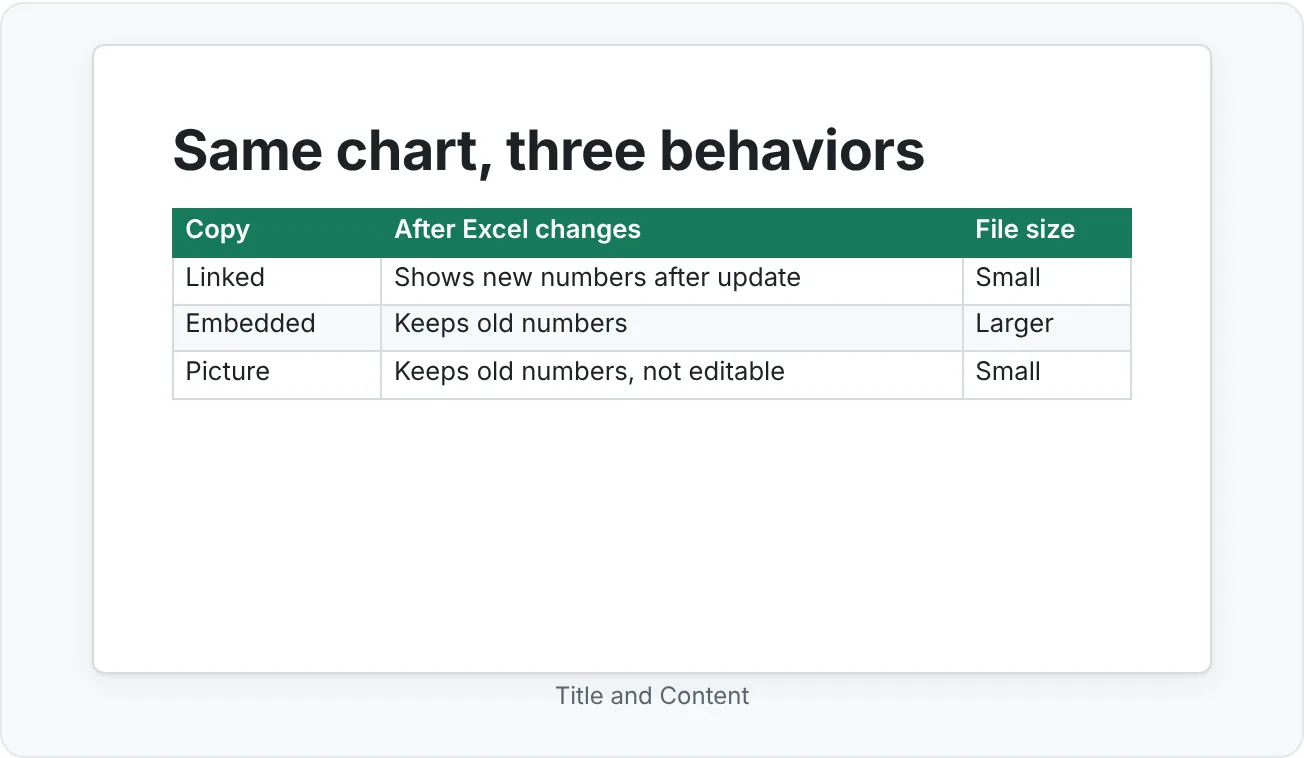
When you move a chart or table from Excel into PowerPoint, you are really choosing what happens later: when the numbers change, when the file is emailed, when someone opens it on a laptop that can't see your network drive. There are three choices, and each one fails in a different way.
| Method | What lives in the deck | Updates when Excel changes? | Main risk | Use it when |
|---|---|---|---|---|
| Link | A connection to the source workbook | Yes, when you update links | Breaks if the workbook moves, is renamed, or isn't reachable | The same chart is refreshed every week or month |
| Embed | A full copy of the workbook data inside the .pptx | No, it is a snapshot you can still edit | Larger file; the hidden workbook may contain data you didn't mean to share | You need to edit the chart inside the deck and the deck travels |
| Paste as picture | An image of the chart | No | Nobody can edit or check the numbers | The deck must look exactly right everywhere, such as a final board pack |
There is no best method in general, only a best method for this deck. A monthly program report that you rebuild every four weeks is a good candidate for links. A conference talk you'll deliver from someone else's laptop is not.
Insert the same chart three ways
The fastest way to understand the difference is to try all three with one chart. Use a running example: a workbook called Program-Metrics.xlsx with a column chart of monthly tutoring sessions, and a 5-slide Monthly Program Update deck.
Paste a linked chart
- In Excel, select the chart (click its border, not a bar) and press Ctrl+C.
- In PowerPoint, go to slide 3 and right-click the slide.
- Under Paste Options, choose Use Destination Theme & Link Data (the chart adopts your deck's fonts and colors) or Keep Source Formatting & Link Data (it keeps Excel's look).
- To refresh it later, select the chart and use Chart Design then Data then Refresh Data. Open the workbook first if PowerPoint asks for it.
Paste a linked object with Paste Special
For a range of cells, or when you want the chart to behave as an Excel object, use Paste Special instead.
- Copy the range or chart in Excel.
- In PowerPoint, choose Home then Paste then Paste Special.
- Select Paste link, then pick the Excel object type in the As list (for example Microsoft Excel Worksheet Object) and select OK.
- Double-clicking the object opens the source workbook in Excel, not a copy.
Embed and paste as picture
- Embed: paste with Use Destination Theme & Embed Workbook or Keep Source Formatting & Embed Workbook. You can edit the data later with Chart Design then Data then Edit Data, but the deck no longer listens to the original file.
- Picture: paste with the Picture paste option. The chart becomes an image. Add alt text, because a screen reader can no longer read the chart's data.
Now change one value in the workbook, save it, and come back. Update the linked copy and watch only that one move. That five-minute test teaches the whole module.
Update, repair, and break links
Links are managed in one place that many people never find: File › Info, in the lower-right corner under Related Documents, select Edit Links to Files. If you don't see Related Documents, save the presentation first.
The Links dialog lists every linked source and its path. With a link selected you can:
- Update Now: pull the current numbers from the source file.
- Open Source: open the workbook to check or edit it.
- Change Source: point the link at a workbook that has moved or been renamed, then select Update Now.
- Break Link: cut the connection. The content stays on the slide but becomes static, so it will never update again.
Diagnose a broken link
Try this on purpose so it never surprises you in a meeting:
- Close both files. Move Program-Metrics.xlsx to a different folder.
- Open the deck. You may see a security notice asking whether to update links. Choose to update, and notice that the linked chart can't refresh.
- Open File › Info › Edit Links to Files. The path in the list still points to the old folder. That's your diagnosis.
- Select Change Source, browse to the new location, and select Update Now.
Save an archive copy before you break links
When a reporting period closes, you usually want a frozen record. Save a copy with a dated name (for example Program-Update-2026-09-FINAL.pptx), open the copy, and use Break Link on each source there. Your working deck keeps its links for next month, and the archive can never change by accident.
Make every chart auditable with source notes
A chart that can't be traced is a chart someone will challenge, usually at the worst moment. Give every data slide a small, consistent source line and fuller details in the notes.
On the slide, in a small text box near the bottom (the same spot on every chart slide), write the source and date: Source: Program-Metrics.xlsx, Sessions tab. Data through 30 Sep 2026.
In the speaker notes, add the rest:
- Owner: who maintains the workbook.
- Refresh schedule: for example, first Monday of each month.
- Assumptions: what is counted and what isn't ("Sessions under 15 minutes are excluded").
- Method: linked, embedded, or picture.
Standardize recurring charts with a chart style sheet
Recurring decks drift. One month the bars are teal, the next they're blue because someone pasted with source formatting. A chart style sheet stops the drift. It's a single slide (or a short page) that records your decisions:
| Element | Decision for the Monthly Program Update |
|---|---|
| Colors | Gray for all bars, accent color for the one bar the title talks about |
| Fonts | Theme body font, 14 pt axis labels, 16 pt data labels |
| Labels | Data labels on the highlighted bar only; no legend for single-series charts |
| Gridlines | Light gray major gridlines, or none if data labels are shown |
| Annotation | One callout shape per chart, theme accent outline, short sentence |
Save a chart template
Once one chart looks right, save it so you can reuse the formatting:
- Right-click the finished chart and choose Save as Template.
- Name it (for example Program-Column.crtx) and save it in the default Charts templates folder.
- Next time, use Insert then Chart, select Templates in the left list, and pick your template.
For linked charts, the cleanest workflow is often to format the chart in Excel with the same template, so it already looks right before you paste. Keep the style sheet as a hidden slide at the end of the deck (Slide Show then Hide Slide) so editors can always find it.
Run a risk check before you share
Most deck failures in a meeting are predictable. Before you send or present a deck with outside data, walk through five risks:
- Missing source files. Open Edit Links to Files and confirm every path points to a shared location the audience or presenter can reach.
- Broken or stale links. Select Update Now on each link and check that the numbers match the workbook and the date in your source line.
- Missing fonts. If you use non-standard fonts and the deck will open on another computer, turn on File then Options then Save › Embed fonts in the file.
- Media not embedded. Linked videos or audio files break just like linked charts. Check File › Info for media options, and test playback on the presenting device.
- Outdated data. Compare each source line date with the reporting period in the title slide.
Ship a stable version alongside the live one
For most audiences, send a PDF, not the linked .pptx. Use File then Export then Create PDF/XPS Document. The PDF freezes every number, opens anywhere, and can't trigger a link prompt. Keep the linked deck as your working file.
Common mistakes with linked data
- Linking by default. If the deck won't be refreshed, a link adds risk with no benefit. Embed or paste a picture.
- Sending the linked deck to an outside audience. They see update prompts or stale charts. Send a PDF.
- Renaming the workbook "just to tidy up." Every link to it breaks. Use Change Source afterward, or don't rename.
- No date on the chart. Viewers can't tell last month's numbers from this month's.
- Pasting with source formatting every month. Fonts and colors drift. Use the destination theme or a chart template.
- Breaking links in the working file. Break links in a dated archive copy instead.
Practice
Practice
Build a monthly metric update deck
Guided practice
- In Excel, create Program-Metrics.xlsx with two small tables: sessions by month (4 months) and volunteers by month. Make a column chart for each.
- Create a 5-slide deck: title slide, sessions chart, volunteers chart, a summary table, and a next-steps slide.
- Paste the sessions chart with Use Destination Theme & Link Data, the volunteers chart with Use Destination Theme & Embed Workbook, and the summary table as a Picture with alt text.
- Write a takeaway title and a source line (source, date) on each data slide. Put owner, refresh schedule, and assumptions in the notes.
- Change one value in Excel, save, and refresh the linked chart with Refresh Data. Confirm the embedded chart did not change.
- Move the workbook to another folder, reopen the deck, and repair the link with File › Info › Edit Links to Files › Change Source.
Independent challenge
- Build a hidden chart style sheet slide and save one chart as a template, then rebuild the volunteers chart from that template.
- Run the five-point risk check from this page and write the results in the first slide's notes.
- Save a dated archive copy, break all links in it, and export it to PDF. You should end with a linked working deck, a frozen archive deck, and a PDF.
- Reflect in two or three sentences: why did you choose each method for each chart?
Check your understanding0 of 4 correct
Pick an answer to see whether it's right and why.
You present the same quarterly sales chart to your leadership team every quarter, always from your own laptop, and the numbers come from a workbook in a shared team folder. Which method fits best?
The chart recurs and the source is reachable, so a link saves rebuilding it. You refresh before each meeting and check the source date.
A colleague opens your deck and the linked chart shows old data and won't update. Edit Links to Files shows a path starting with C:\Users\you\Downloads. What's the real problem?
The link points to a local folder on your machine. Move the workbook to a shared location and use Change Source to repoint the link.
You're sending a deck with an embedded chart to an external partner. The chart shows only regional totals, but the source workbook had customer-level rows. What should you do first?
An embedded workbook can carry more data than the chart shows. Inspect it, and send a picture or PDF when the data is sensitive.
Your monthly report period has closed. You want a permanent record that can never change, but next month you'll reuse the deck. What's the best workflow?
The archive copy is frozen and the working deck stays linked for next month. Breaking links in the working deck would force you to rebuild it.
You're ready to move on when
Tick each one off as you go. Your ticks are saved in this browser only.
Related
Sources and further reading
Was this guide helpful? Spot a mistake? Send feedback · admin@arumsoft.com