Advanced PowerPoint · Tutorial 3 of 9
How to Crop, Mask and Overlay Images and Use Merge Shapes in PowerPoint
Choose strong images, crop to a ratio and focus point, keep text readable over photos, build custom graphics with Merge Shapes and make images look like a set.
- Level
- Advanced
- Time
- 15 min read
- Updated:
- Applies to:
- PowerPoint for Microsoft 365, PowerPoint 2024, PowerPoint 2021, PowerPoint for the web
What you'll learn
- Choose images for relevance, composition, resolution and license
- Crop pictures to a fixed aspect ratio and a deliberate focus point
- Keep text readable over photos with crops, overlays and restrained blur
- Build custom graphics with Union, Combine, Fragment, Intersect and Subtract
- Standardize a set of images so they read as one visual story
You know how to insert and crop a picture. Image-led slides at a professional level depend on a few more decisions: which picture earns the space, where the crop puts the eye, how text stays readable over a photo, and how several images look like they belong together.
This page covers those decisions with a five-slide visual story as the running example. You will also learn Merge Shapes, which lets you build custom badges, cut-out text and photo-filled words without leaving PowerPoint.
Choose images that carry the message
The running example on this page is a five-slide image-led story for a volunteer river cleanup: the problem, the volunteers, the work, the result and the invitation to join next season. Each slide needs one strong image and one short line of text.
Before you touch any crop tool, pick the right picture. Score each candidate on six questions:
| Question | What a strong image does |
|---|---|
| Relevance | Shows the slide's actual claim, not a loose metaphor (a real riverbank, not a generic "teamwork" handshake) |
| Composition | Has one clear subject and a clean area where text can sit |
| Authenticity | Looks like your people and your place; real photos beat polished stock for trust |
| Crop potential | Has enough space around the subject to crop to 16:9, a square or a circle |
| Resolution | Is large enough to fill the slide without blur (a phone photo usually is; a thumbnail from a website is not) |
| Licensing | You have the right to use it: your own photo, a licensed stock image or one with a clear license that allows your use |
Practice the decision. For the "volunteers" slide you might have five options: a group selfie at arm's length, a stock photo of smiling strangers in matching shirts, a wide shot of 40 people along the bank, a close-up of gloved hands lifting a tire, and a blurry action shot. The close-up of hands usually wins: it is authentic, it shows the work, it has a simple subject and there is space above it for a title. The wide shot is a good second choice for the "result" slide.
Crop to a ratio and a focus point
Cropping is composition. A deliberate crop decides what the audience looks at and where your text can go.
Crop to a fixed aspect ratio
- Select the picture and go to Picture Format then Size then Crop then Aspect Ratio.
- Choose a ratio. Use 16:9 for full-slide images and the same ratio (often 1:1 or 3:2) for every image in a set.
- Drag the picture (not the crop handles) inside the crop frame to move the subject. Place it on a third of the frame rather than dead center if you need room for text.
- Press Esc or click outside the picture to finish.
Fill a full slide
For a hero image on a 16:9 slide, crop the picture to 16:9 with Aspect Ratio, then drag a corner handle until it covers the slide exactly (use the Height and Width boxes in Picture Format then Size to match the slide size). If you resize a picture frame to a different shape, Picture Format then Size then Crop then Fill makes the picture cover the frame without distortion, while Fit shows the whole picture and may leave empty space.
Leave negative space for text
Plan where text goes before you crop. If the subject is on the right, keep the left third calm (sky, water, a plain wall). That calm area becomes your text zone and often removes the need for an overlay at all.
Mask pictures with shapes
A mask shows a picture through a shape. PowerPoint gives you two ways to do it.
Crop to Shape is quick: select the picture and go to Picture Format then Size then Crop then Crop to Shape, then choose a shape such as an oval or rounded rectangle. To get a perfect circle, first crop the picture to a 1:1 aspect ratio, then apply the oval.
Picture placeholders are better when the mask is part of the design system. In Slide Master view, add a Picture placeholder to a layout, then draw it as the shape you want (or change it with Shape Format then Insert Shapes then Edit Shape then Change Shape). Every picture an author drops in is masked the same way and crops to fill. If you built a template in the previous tutorial, this is where the image treatment tokens live.
For shapes PowerPoint does not offer, such as a badge, a custom arrow or a word filled with a photo, you need Merge Shapes, covered below.
Put text on images without losing readability
Text over a photo is the most common way image-led slides fail. Photos have uneven brightness, so a title that is readable over the sky becomes unreadable over a white boat. Use these techniques in order, stopping at the first one that works.
1. Move the text to calm space. The crop from the previous section often solves the problem without any effect.
2. Add a solid overlay. Draw a rectangle over the area behind the text (or the whole slide), then:
- Right-click the rectangle and choose Format Shape.
- Under Fill, choose Solid fill, pick a dark theme color (or white for dark text) and set Transparency to around 25 to 45 percent.
- Set Line to No line.
- Right-click and choose Send to Back, then Bring Forward once so it sits between the picture and the text.
3. Use a gradient overlay, subtly. In Format Shape › Fill, choose Gradient fill, use two stops of the same dark color, and set one stop to 100 percent transparency. The overlay fades from solid behind the text to clear over the subject. Keep the solid end under all the text.
4. Blur with restraint. Duplicate the picture, crop the copy to the text area, and apply Picture Format then Adjust then Artistic Effects then Blur. Use Artistic Effects Options to set a modest radius. A heavy blur looks like a mistake.
Check the contrast. Sample the lightest area behind the text and check it against the text color. Aim for at least 4.5:1 for body-size text and 3:1 for large titles. Then do a practical test: project the slide or view it at reduced brightness from across the room.
Create custom graphics with Merge Shapes
Merge Shapes builds new shapes from overlapping ones. It is how you make custom icons, badges, cut-out text and pictures in unusual shapes without leaving PowerPoint.
- Draw or insert the objects so they overlap.
- Select the first object, then hold Shift or Ctrl and select the others. Order matters (see below).
- Go to Shape Format then Insert Shapes then Merge Shapes and choose an option. Hover over each option to preview the result.
| Option | Result | Typical use |
|---|---|---|
| Union | One shape covering all the area, no inner lines | Speech bubble with a custom tail, a cloud |
| Combine | One shape with overlapping areas cut out | Ring, frame, outline of a word |
| Fragment | Separate pieces along every overlap edge | Splitting a circle into segments, a puzzle |
| Intersect | Only the overlapping area remains | Picture inside a custom shape, a lens shape |
| Subtract | The first shape minus the later shapes | Cut-out text, a notch or keyhole |
Selection order controls formatting. The result takes its fill, outline and effects from the first object you selected. For Subtract, the first object is the one that keeps its area; the others are cut away from it.
Build an icon badge
- Insert a circle (Insert then Illustrations then Shapes, hold Shift while drawing) and fill it with Accent 1.
- Insert a text box with a check mark or a short word (for example "2025") in a bold font, and center it on the circle with Shape Format then Arrange then Align.
- Select the circle first, then the text box, and choose Subtract. The text is cut out of the circle, so the background shows through.
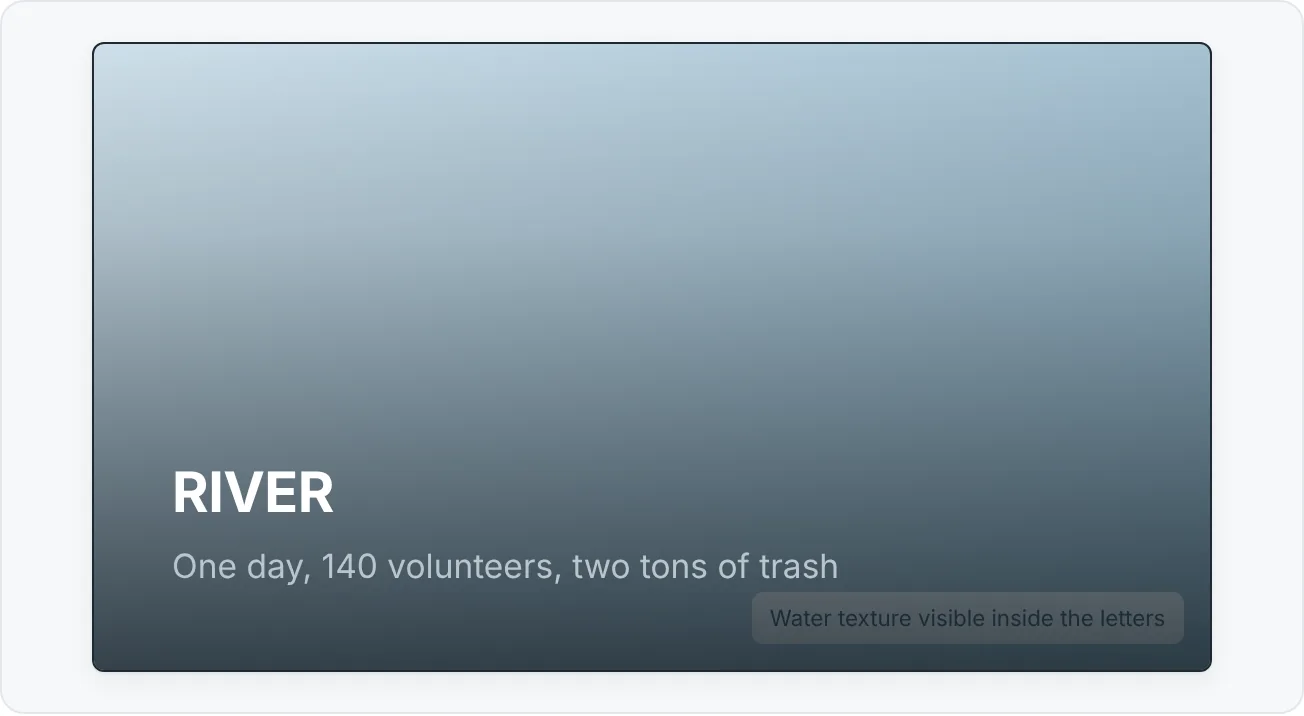
Make a photo-filled word
- Insert the photo and a text box with a short word in a heavy font at a large size (for example "RIVER" at 120 pt). Place the text over the photo.
- Select the photo first, then the text box, and choose Intersect. The result is the word filled with the photo.
Make a set of images look like a set
Five good photos can still look like five random photos. Consistency comes from four decisions applied to every image:
- Same crop ratio. Crop all images to the same aspect ratio, then set identical sizes with the Height and Width boxes in Picture Format then Size (keep Lock aspect ratio on).
- Same color treatment. Use Picture Format then Adjust then Color to apply the same Color Saturation, Color Tone or Recolor option to each. Even a slight desaturation makes photos from different phones feel related. Use Picture Format then Adjust then Corrections to bring very dark or very bright images toward the others first.
- Same border or no border. Decide once. Mixed shadows, frames and soft edges are the most common sign of an unplanned deck.
- Similar subject scale. Faces or objects should be roughly the same size across a row of images. Re-crop rather than resize to achieve this.
Common image treatment mistakes
Decorative stock. A photo that does not show the slide's claim takes up the most valuable space on the slide without saying anything.
Stretched pictures. Dragging a side handle distorts the image. Always resize from a corner, and crop to change shape.
Text over the busiest part of the photo. Crop for calm space first; add an overlay second.
Heavy effects. Strong blur, bevels, reflections and glowing edges date a deck immediately. If an effect is noticeable, it is probably too strong.
Low resolution on a big screen. An image that looks fine on a laptop can be soft when projected. Use the largest version you have, and compress only at the end.
No alt text, or alt text on decoration. Describe meaningful images; mark overlays and merged decorative shapes as decorative.
Practice
Practice
Build a 5-slide image-led story
Guided practice. Use your own photos (or Stock Images) for a topic you know.
- Write the five slide claims first: problem, people, action, result, invitation.
- For each slide, collect three to five candidate images and choose one using the six selection questions. Write one sentence on why it won.
- Crop all five to the same ratio and size. Set each focus point so there is calm space for the title.
- Make at least one slide readable with an overlay, and check the contrast.
- Apply one consistent color treatment to all five images.
- Create one custom graphic with Merge Shapes: an icon badge (Subtract) or a photo-filled word (Intersect).
- Add alt text to every meaningful image and mark overlays as decorative.
- Check against this rubric:
| Criterion | Emerging | Ready | Strong |
|---|---|---|---|
| Selection | Images are generic or loosely related | Images show the slide's claim | Images feel authentic and specific to the story |
| Cropping | Default crops, mixed ratios | One ratio, deliberate focus | Crops create space for text and guide the eye |
| Readability | Text fights the photo | Text readable with overlay | Readable with minimal treatment, contrast checked |
| Consistency | Mixed borders and colors | Same ratio and treatment | The five slides read as one visual story |
Fix this broken slide. Take a slide with white text across a bright, busy photo and a stretched second image. Fix the distortion, re-crop for calm space and add the lightest overlay that makes the text readable.
Independent challenge. Take a deck built from generic stock photos and redesign five of its slides into a coherent visual story with real or better-matched images. Write two or three sentences explaining your crop and color decisions.
Check your understanding0 of 4 correct
Pick an answer to see whether it's right and why.
You need a photo for the slide 'Volunteers removed 300 tires from the river.' Which candidate is the best choice?
It shows the actual claim, looks authentic and has calm space for the title. The others are decorative or unrelated to the claim.
White title text over a photo is readable on the left half but disappears over a bright boat on the right. What should you try first?
Fixing the composition is the lightest solution. Overlays or restrained blur come next if cropping alone does not give enough contrast.
You select a text box first, then a circle, and choose Merge Shapes > Subtract. Nothing useful appears. What went wrong?
Subtract keeps the first selected object and cuts the others out of it. Select the circle first, then the text, to get cut-out letters.
A team page uses five headshots: two circles, one square with a shadow, one sepia and one wide crop. What is the most effective fix?
Consistency comes from the same crop ratio, color treatment, border decision and subject scale. A border alone does not hide mismatched crops and colors.
You're ready to move on when
Tick each one off as you go. Your ticks are saved in this browser only.
Related
Sources and further reading
Was this guide helpful? Spot a mistake? Send feedback · admin@arumsoft.com