Intermediate PowerPoint · Tutorial 7 of 9
How to Use Animations and Transitions in PowerPoint (Without Distracting People)
Use entrance, emphasis, and exit effects, the Animation Pane, and simple transitions to reveal ideas in order and focus attention, then test every click.
- Level
- Intermediate
- Time
- 15 min read
- Updated:
- Applies to:
- PowerPoint for Microsoft 365, PowerPoint 2024, PowerPoint 2021, PowerPoint for the web
What you'll learn
- Tell a transition from an animation and choose which one a slide needs
- Apply entrance, emphasis, exit, and motion path effects for a clear reason
- Control order and timing in the Animation Pane with On Click, With Previous, and After Previous
- Apply one quiet transition consistently across a deck
- Test and debug an animation sequence so nothing jumps or surprises the audience
Motion is the most misused feature in PowerPoint. Spinning titles and random bouncing bullets made a lot of people swear off animation entirely. That is a loss, because the right motion is one of the best teaching tools you have: it shows things in the order you explain them, and it tells the audience where to look.
This page teaches motion with one rule: every movement must help the audience understand something. You will learn the difference between transitions and animations, the four animation types, precise timing in the Animation Pane, restrained transitions, and how to test a sequence before you present. The running example is a four-step process slide from a tutoring lesson.
Transitions vs. animations
These two words get mixed up, but they do different jobs and live on different tabs.
| Transition | Animation | |
|---|---|---|
| What moves | The whole slide, as you go from one slide to the next | One object on a slide (text, picture, shape, chart) |
| Where | Transitions tab | Animations tab |
| Good for | Signaling continuity or a new section | Revealing steps, focusing attention, showing change |
| Typical choice | Fade, Push, Morph | Appear, Fade, Wipe |
A quick test: if the effect happens when you click to the next slide, it is a transition. If it happens to something on the current slide, it is an animation.
Motion should mean something. Ask:
- Sequence: do I want people to see step 1 before step 2?
- Focus: do I want everyone to look at one number or one part of a diagram?
- Change: am I showing something move, grow, or replace something else?
If the answer to all three is no, the slide probably needs no animation at all.
The four kinds of animation effects
Select an object and open the Animations tab. The gallery in the Animation group is color-coded by type:
- Entrance (green): the object appears. Examples: Appear, Fade, Wipe, Fly In.
- Emphasis (yellow): the object, already visible, draws attention. Examples: Pulse, Grow/Shrink, Font Color, Transparency.
- Exit (red): the object leaves. Examples: Disappear, Fade, Wipe.
- Motion Paths: the object moves along a line, arc, or custom path.
Picking from the gallery replaces any existing effect on that object. To stack a second effect (for example, a Fade entrance followed later by a Font Color emphasis), use Animations then Advanced Animation then Add Animation instead.
Effect Options changes the direction of an effect (Wipe From Left) and, for text, whether it animates As One Object, All at Once, or By Paragraph. By Paragraph is how you reveal bullets one at a time.
Choose a small, consistent set
Pick one entrance effect for the whole deck (Fade or Wipe are calm and readable) and one emphasis effect. Using six different entrance styles makes the audience notice the effects instead of the content.
Build a process reveal step by step
Here is the core skill: make each step appear when you talk about it.
Start with a slide titled Four steps turn a rough idea into a finished essay and four shapes (or a converted SmartArt diagram) labeled Plan, Draft, Review, Publish, with arrows between them.
- Select the Plan shape and its arrow (hold Shift to select both) and press Ctrl+G to group them, so they enter together. Do the same for each step.
- Select the first group and choose Wipe in the Animation group. Set Effect Options to From Left, so the motion matches the reading direction.
- With the first group still selected, double-click Animations then Advanced Animation then Animation Painter. Click the other three groups to copy the same effect. Press Esc to stop painting.
- Leave the title and any background shapes unanimated. They are the frame; the steps are the story.
- Press Shift+F5 to present from the current slide and click through.
Use emphasis to point, not decorate
Later, when you say "most students skip this step," add an emphasis to Review: select it, choose Add Animation, and pick Fill Color or Grow/Shrink. Now one click visually points at the step you are talking about.
Use exit and motion paths sparingly
Exit is useful when something should be gone: hide a wrong answer after discussing it, or remove a hint. Motion paths show real movement, such as a blood cell traveling through a vessel or a token moving along a timeline. If the path is just decoration, cut it.
Control order and timing in the Animation Pane
Open Animations then Advanced Animation then Animation Pane. It lists every effect on the slide in the order it plays. This is where you stop guessing.
Each effect has three timing settings, found in the Timing group on the ribbon or by right-clicking an item in the pane:
| Setting | Means | Example |
|---|---|---|
| On Click | Waits for your click or key press | Each step of a process |
| With Previous | Starts at the same moment as the effect above it | An arrow and its label together |
| After Previous | Starts when the effect above it finishes | A caption that follows its picture |
Also in the Timing group:
- Duration: how long the effect takes. For most entrances, 0.25 to 0.75 seconds feels responsive. Long durations feel sluggish.
- Delay: a wait before the effect starts, measured from its trigger.
- Reorder Animation: Move Earlier and Move Later change the order. You can also drag items in the pane.
In the pane, the numbers to the left show click groups: everything under "1" happens on the first click. Items set to With Previous or After Previous have no number of their own.
Staged reveal with three objects
Try this on a slide with a photo, a caption, and a highlight circle:
- Photo: Fade, On Click.
- Caption: Fade, After Previous, Delay 0.25 s. It follows the photo on its own.
- Circle: Wipe, On Click. It waits until you are ready to point.
That is two clicks for three objects, each appearing at a moment you chose.
Use transitions with restraint
Transitions are applied to the slide you are moving to. Select a slide (or several in the thumbnail pane) and pick an effect from Transitions then Transition to This Slide.
Four that cover most needs:
- Fade: a soft change. Works in any deck.
- Push: the new slide pushes the old one out. Good for a sequence that moves forward, like steps in a timeline.
- Wipe: a clean reveal. Good for section dividers.
- Morph: animates matching objects from one slide to the next, so a shape can grow, move, or change color across slides. The advanced path covers it in depth; for now, try it on two slides where one object moves.
Settings that matter, in the Timing group:
- Duration: keep it short (around 0.5 to 1 second for Fade).
- Apply To All: copies the current slide's transition to every slide, the fastest way to be consistent.
- Advance Slide: On Mouse Click for live talks, After a number of seconds for self-running decks.
A sound pattern: Fade on every slide, and maybe a different, still-calm transition (such as Push) only on section divider slides. Save dramatic transitions like Vortex or Curtains for contexts that call for spectacle, such as a celebration slide at an awards night.
Test every click: animation QA
An animation sequence that worked when you built it can break after one edit. Before presenting, run this check.
- Play every slide in Slide Show view, not just with the Preview button. Clicking is what your audience experiences.
- Count clicks. Write the expected number of clicks per slide in your notes ("4 clicks"). If you click and nothing visible happens, there is a hidden or off-slide effect.
- Check order. Objects should appear in the order you explain them, usually left to right or top to bottom.
- Watch for jumps. Text that shifts position, objects that appear and then move, or a picture that flashes before its entrance effect are signs of wrong settings or duplicates.
- Check accessibility of motion. Avoid fast flashing, large zooms, and spinning or bouncing effects. They can be uncomfortable for people sensitive to motion and distracting for everyone.
- Present without animation once. Slide Show then Set Up then Set Up Slide Show has Show without animation. If the slide no longer makes sense, it may depend on motion too much (for example, objects stacked on top of each other).
Common mistakes with motion
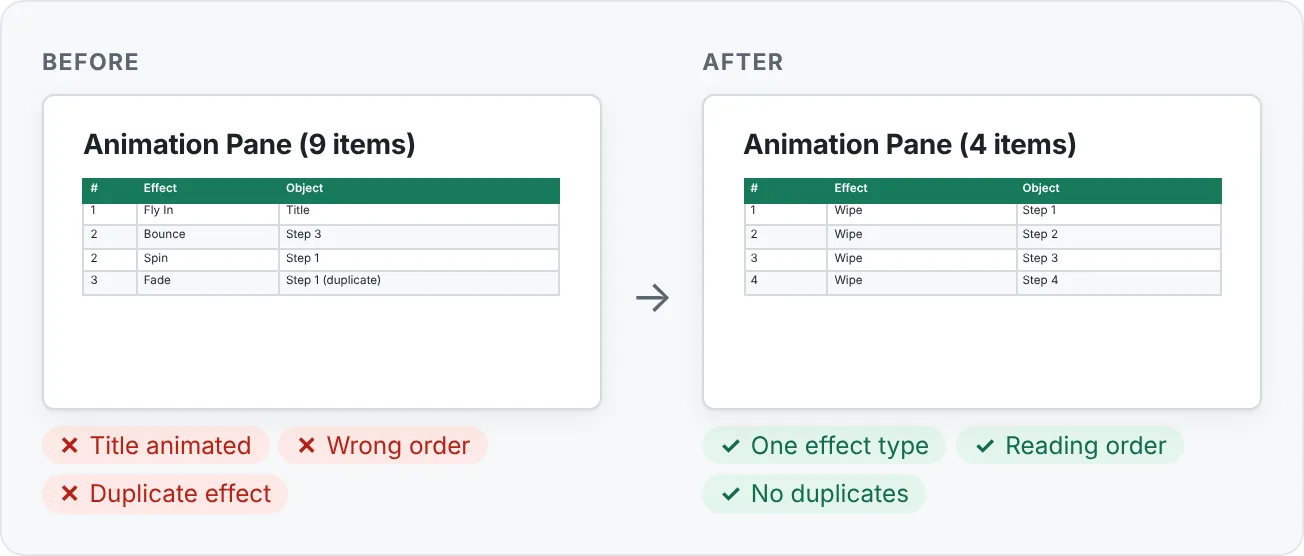
- Animating the title. The title tells people what the slide is about. Let it be there from the start.
- A new effect on every slide. Pick one entrance effect and one emphasis effect for the whole deck.
- Animating for the sake of it. If the slide makes sense all at once and you will not talk through it piece by piece, show it all at once.
- Long, slow effects. A 2-second Fly In on each of six bullets wastes time and patience.
- Everything on separate clicks. Group objects that belong together, or set them With Previous.
- Choosing from the gallery to add a second effect. That replaces the first. Use Add Animation.
- Flashy transitions in a serious deck. Fade is almost always enough.
- Never testing after edits. Copying, deleting, or regrouping objects can scramble the order. Re-run the click test.
Practice
Practice
Animate a process slide and clean up a noisy deck
Guided practice
- Create a slide titled with a takeaway, such as Four steps turn a rough idea into a finished essay, with four labeled step shapes and arrows.
- Group each step with its arrow (Ctrl+G).
- Give the first group a Wipe entrance From Left, then use Animation Painter to copy it to the other three.
- Open the Animation Pane. Confirm the order is 1, 2, 3, 4 left to right and each is On Click with a Duration of about 0.5 seconds.
- Add a Fill Color emphasis to step 3 with Add Animation, set On Click, so you can point at it later.
- Write the expected click count in the slide notes, then press Shift+F5 and click through to check.
- Add two more slides. Apply Fade to one slide and click Apply To All.
Independent challenge
Take a deck with too much motion (or animate a copy of one badly on purpose: spinning titles, bouncing bullets, random transitions). Remove every animation, then add back only reveals that show sequence or focus attention. Apply one consistent transition. Run the full QA checklist.
Reflect: for each animation you kept, write the reason in one line (sequence, focus, or change). For each one you removed, note what it was distracting from.
Check your understanding0 of 4 correct
Pick an answer to see whether it's right and why.
A colleague says 'my animation is too slow' about the effect that happens when the deck moves from slide 4 to slide 5. Where should they fix it?
Movement between slides is a transition, and a transition belongs to the slide you move to, so the Duration on slide 5's Transitions tab controls it.
You want a chart's caption to appear on its own right after the chart fades in, without an extra click. Which setting do you give the caption?
After Previous starts the caption as soon as the chart's effect finishes, so one click shows both in sequence.
A tutor's slide has a title that flies in, five bullets that each bounce, and a picture that spins. Learners say it is hard to follow. What is the best first fix?
Starting from no motion and adding back only purposeful reveals removes distraction; a calm By Paragraph entrance keeps the useful sequencing.
While testing, you click once on a slide and nothing visible happens, then the next click shows step 2. What is the most likely cause?
An invisible click usually means an effect on something you cannot see. The Animation Pane lists every effect so you can find and delete it.
You're ready to move on when
Tick each one off as you go. Your ticks are saved in this browser only.
Related
Sources and further reading
Was this guide helpful? Spot a mistake? Send feedback · admin@arumsoft.com