Intermediate PowerPoint · Tutorial 2 of 9
How to Align, Group, and Layer Objects in PowerPoint
Line up, space, group, layer, and name objects precisely with Align, guides, the Selection Pane, and Format Painter so slides look clean.
- Level
- Intermediate
- Time
- 15 min read
- Updated:
- Applies to:
- PowerPoint for Microsoft 365, PowerPoint 2024, PowerPoint 2021, PowerPoint for the web
What you'll learn
- Align and distribute objects to each other or to the slide
- Use guides, smart guides, gridlines, and rulers to build consistent columns
- Rename, hide, and reorder objects in the Selection Pane
- Group objects and control what sits in front with z-order
- Standardize many objects fast with Format Painter, Duplicate, and Eyedropper
Slides look amateur when edges almost line up. Three boxes sit at slightly different heights, gaps vary by a few pixels, and one label is a shade of blue nobody else uses. The audience may not name the problem, but they feel it.
Dragging and squinting will never fix this reliably. PowerPoint has precision tools for it: Align, Distribute, guides, the Selection Pane, grouping, layering, and Format Painter. This page walks through each one using a running example: a "three ways to study" comparison slide with three columns, three icons, and three labels.
Align and distribute objects
Align lines up the edges or centers of selected objects. Distribute makes the gaps between them equal. Together they fix most messy slides in seconds.
- Select the objects. Click the first, then Shift+click the others (or drag a selection box around them).
- Go to Home then Drawing then Arrange then Align (when a shape is selected, the same menu is on Shape Format › Arrange › Align).
- Pick an option.
What each option does:
- Align Left / Center / Right: lines up the left edges, horizontal centers, or right edges. Use for items stacked vertically, like a list of labels.
- Align Top / Middle / Bottom: lines up top edges, vertical centers, or bottom edges. Use for items in a row, like three columns.
- Distribute Horizontally / Vertically: keeps the outermost objects where they are and spaces the ones between so gaps are equal. You need at least three objects.
Align to slide vs align selected objects
At the bottom of the menu, one of two modes is checked:
- Align Selected Objects (default when two or more are selected): objects line up with each other. Align Top moves everything to the topmost object's top edge.
- Align to Slide: objects line up with the slide edges. Align Center with this mode centers the selection on the slide. With one object selected, PowerPoint always aligns to the slide.
A reliable recipe for a row of three boxes: select all three, Align Top, then switch to Align to Slide and Distribute Horizontally. They are now level and spread evenly across the full slide width. If you want them spread within margins instead, place the left and right boxes first, then use Align Selected Objects with Distribute Horizontally.
Use guides, smart guides, gridlines, and rulers
Align fixes objects relative to each other. Guides fix them relative to a plan, such as consistent margins on every slide.
Turn them on from the View tab:
- Guides (Alt+F9): dashed lines you drag into place. Objects snap to them as you move or resize.
- Gridlines (Shift+F9): a regular grid. Useful for rough layout, noisy for fine work.
- Ruler: shows measurements along the top and left. Handy for approximate spacing, such as "keep everything about 0.5 inch from the edge."
- Smart guides: the red dashed lines that appear automatically when an object lines up with another object's edge or center, or when gaps become equal. They are on by default. If you do not see them, right-click an empty part of the slide, choose Grid and Guides › Smart Guides.
Add custom guides for a two-column slide
- Right-click an empty area of the slide and choose Grid and Guides › Add Vertical Guide. Repeat to get several.
- Drag each guide. While dragging, a small label shows its distance from the center. Set guides for a left margin, a right margin, and a gutter on each side of the center line.
- Add horizontal guides for a top content line and a bottom margin the same way.
- To copy a guide, hold Ctrl while dragging it. To remove one, drag it off the slide.
Draw the left column's text box from the left margin to the left gutter guide and the right column's from the right gutter to the right margin. Both will snap.
Manage complex slides with the Selection Pane
When a slide has ten overlapping objects, clicking the right one becomes a guessing game. The Selection Pane lists every object on the slide.
Open it with Home then Editing then Select then Selection Pane or press Alt+F10. It is also at the bottom of Home then Drawing then Arrange.
In the pane you can:
- Select any object by clicking its name, even if it is hidden behind something. Ctrl+click to select several.
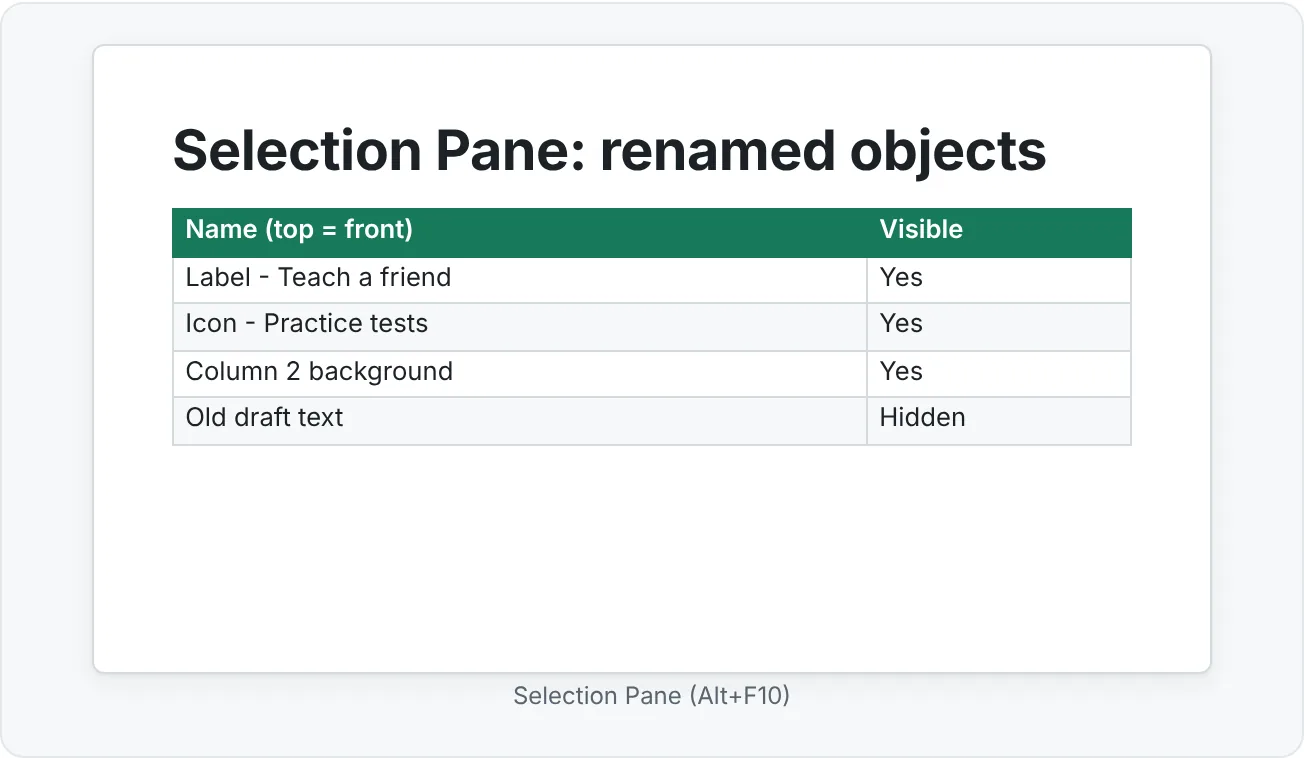
- Rename an object: double-click its name and type something meaningful. "Rectangle 14" becomes "Column 2 background."
- Hide or show an object with the eye icon on the right. Great for working on the back layer, or for building a slide in stages.
- Reorder objects by dragging names up or down. The top of the list is the front of the slide.
Renaming pays off later. Animations list objects by name in the Animation Pane, Morph can match objects by name, and teammates editing your slide can find things.
Group objects and control layering
Group and ungroup
A group lets several objects move, resize, and align as one. In the running example, each column is a background rectangle, an icon, and a label. Group each set so you can align the three columns as whole units.
- Select the objects, then press Ctrl+G or use Home then Drawing then Arrange then Group.
- To ungroup, select the group and press Ctrl+Shift+G or choose Ungroup.
- You can still click into a group to edit one object (click once for the group, click again for the item).
- In the Selection Pane, groups show as expandable entries, so you can rename the group ("Column 1") and its members separately.
Layering and z-order
Every object sits in a stack. Newer objects go on top. Control the stack from Home then Drawing then Arrange:
- Bring Forward / Send Backward: move one step.
- Bring to Front / Send to Back: jump to the top or bottom.
Build a translucent text band over a photo
- Insert a full-slide photo, then send it to the back.
- Draw a rectangle across the bottom third of the slide. Set the outline to No Outline.
- Right-click the rectangle, choose Format Shape, and under Fill › Solid fill pick a dark color and set Transparency to around 30 to 40 percent.
- Add the title text on top of the band (or type directly in the rectangle).
- Check the order in the Selection Pane: photo at the bottom, band in the middle, text on top.
Reuse formatting fast: Format Painter, Duplicate, Eyedropper
Once one object looks right, copy its look instead of rebuilding it.
- Format Painter: select the formatted object, click Home then Clipboard then Format Painter, then click the target. Double-click Format Painter to keep it on, click as many targets as you need, and press Esc to stop.
- Copy and paste formatting with keys: Ctrl+Shift+C copies the format of the selected object, Ctrl+Shift+V pastes it onto another selection. This works across slides.
- Duplicate: Ctrl+D makes a copy of the selection. Move the copy into position, then press Ctrl+D again and PowerPoint repeats the same offset, which gives you evenly spaced copies.
- Eyedropper: to match a color from a logo or photo, select a shape, open Shape Format › Shape Fill › Eyedropper, and click the color you want anywhere on the slide. The same option exists for Shape Outline and Font Color.
Common mistakes when arranging objects
- Aligning to the slide by accident. If Align Left sends everything flying to the slide edge, Align to Slide is checked. Switch to Align Selected Objects.
- Distributing only two objects. Distribute needs three or more. With two, set the position by hand or use guides.
- Nudging with the mouse. Use the arrow keys to nudge a selection. Hold Ctrl with an arrow key for very small moves.
- Never naming anything. "Picture 7" and "TextBox 22" make animations and edits painful later.
- Grouping too early. Align and space parts within a column first, then group. Once grouped, inner alignment is harder to fix.
- Different margins on every slide. Set guides in Slide Master so every slide shares the same content edges.
- Leaving hidden or off-slide objects. Check the Selection Pane and the gray area around the slide before you share.
Practice
Practice
Polish a three-column comparison
Guided practice: build a polished "three-column comparison" slide.
- On a Title Only slide, type the title "Practice tests beat rereading for long-term recall."
- Turn on Guides and Ruler (View then Show). Add vertical guides for left and right margins about 0.5 inch from the edges.
- Draw one rounded rectangle, add an icon (Insert then Illustrations then Icons) and a label text box on it. Style all three.
- Select all three, group them (Ctrl+G), and rename the group "Column 1" in the Selection Pane.
- Press Ctrl+D twice to make two more columns. Change their icons and labels.
- Place the outer columns on the margin guides, select all three, then Align Top and Distribute Horizontally with Align Selected Objects.
- Rename the other groups "Column 2" and "Column 3."
Independent challenge: take a slide where objects overlap, margins differ, and labels use different fonts and colors (make one, or use an old slide). Repair it using only Align, Distribute, guides, the Selection Pane, and Format Painter or Ctrl+Shift+C/Ctrl+Shift+V. Rename every object. Then write one sentence for each fix explaining which tool you used and why it was faster than dragging.
Check your understanding0 of 4 correct
Pick an answer to see whether it's right and why.
You select three boxes and click Distribute Horizontally, but they spread across the whole slide instead of staying between the outer two boxes. What happened?
With Align to Slide checked, Distribute uses the slide edges as the range. Choose Align Selected Objects to distribute between the outermost selected objects.
A slide has a photo, a dark band, and a title. The title has disappeared, but the Selection Pane shows it is still there and visible. What is the best fix?
The title is behind another object in the stack. Moving it up in the Selection Pane (or Bring to Front) restores it without creating a duplicate.
You are about to add entrance animations to 12 objects on one slide. What should you do first to make that work easier?
The Animation Pane lists objects by name. "Label - Step 3" is much easier to find and order than "TextBox 41."
Ten labels on a slide use three different fonts and colors. One label is already correct. What is the fastest consistent fix?
Copying and pasting formatting applies the same font, size, and color to all the selected labels in one step.
You're ready to move on when
Tick each one off as you go. Your ticks are saved in this browser only.
Related
Sources and further reading
Was this guide helpful? Spot a mistake? Send feedback · admin@arumsoft.com