Expert PowerPoint · Tutorial 6 of 9
How to Design Interactive Assessments and Feedback Slides in PowerPoint
Write measurable objectives, build practice ladders and feedback slides that teach, and assess real judgment with scenarios, rubrics and portfolios.
- Level
- Expert
- Time
- 15 min read
- Updated:
- Applies to:
- PowerPoint for Microsoft 365, PowerPoint 2024, PowerPoint 2021, PowerPoint for the web
What you'll learn
- Rewrite vague learning objectives into measurable ones that a slide or task can actually test
- Sequence practice from worked example to transfer task
- Build a feedback path with correct, incorrect, hint and next-challenge slides
- Lock a self-paced quiz deck so learners can only move through your buttons
- Write a scenario-based assessment with constraints, a required artifact and a rubric
- Plan portfolio evidence that proves what a learner can do
You already know how to make a branching quiz deck: hyperlinks, action buttons, maybe Zoom. The hard part at this level isn't the wiring. It's deciding what to test, what the learner sees after a wrong answer, and what evidence proves they can now do the thing on their own.
This page walks through the instructional design side of a PowerPoint assessment. You'll use one running example throughout: a self-paced module called Clean Up a Data Slide that teaches newer team members to fix default charts. By the end you'll have objectives, a practice ladder, a three-question feedback deck, a scenario task with a rubric, and a portfolio structure for it.
Write objectives you can actually assess
An objective is a promise about what the learner will be able to do. If you can't picture the evidence, you can't build the assessment.
Pick a verb at the level you actually need:
| Level | Verb examples | Evidence in a PowerPoint module |
|---|---|---|
| Recognize | identify, spot, select | Learner picks the cluttered chart from three options |
| Apply | format, rebuild, use | Learner removes gridlines and adds a takeaway title |
| Analyze | diagnose, compare, explain why | Learner names the two issues that hide the trend |
| Evaluate | judge, critique, choose | Learner picks the better of two redesigns and justifies it |
| Create | design, build, produce | Learner builds a data slide from a raw table |
Avoid "understand," "know," "learn about" and "be familiar with." They describe something happening inside the learner's head, and no slide can see it. Rewrite them with a verb and a condition:
- Weak: "Understand chart best practices."
- Better: "Given a default Excel chart, remove at least three non-data elements and write a title that states the trend."
- Weak: "Know when to use a table."
- Better: "Choose between a table and a chart for four data sets and explain each choice in one sentence."
Build a practice ladder
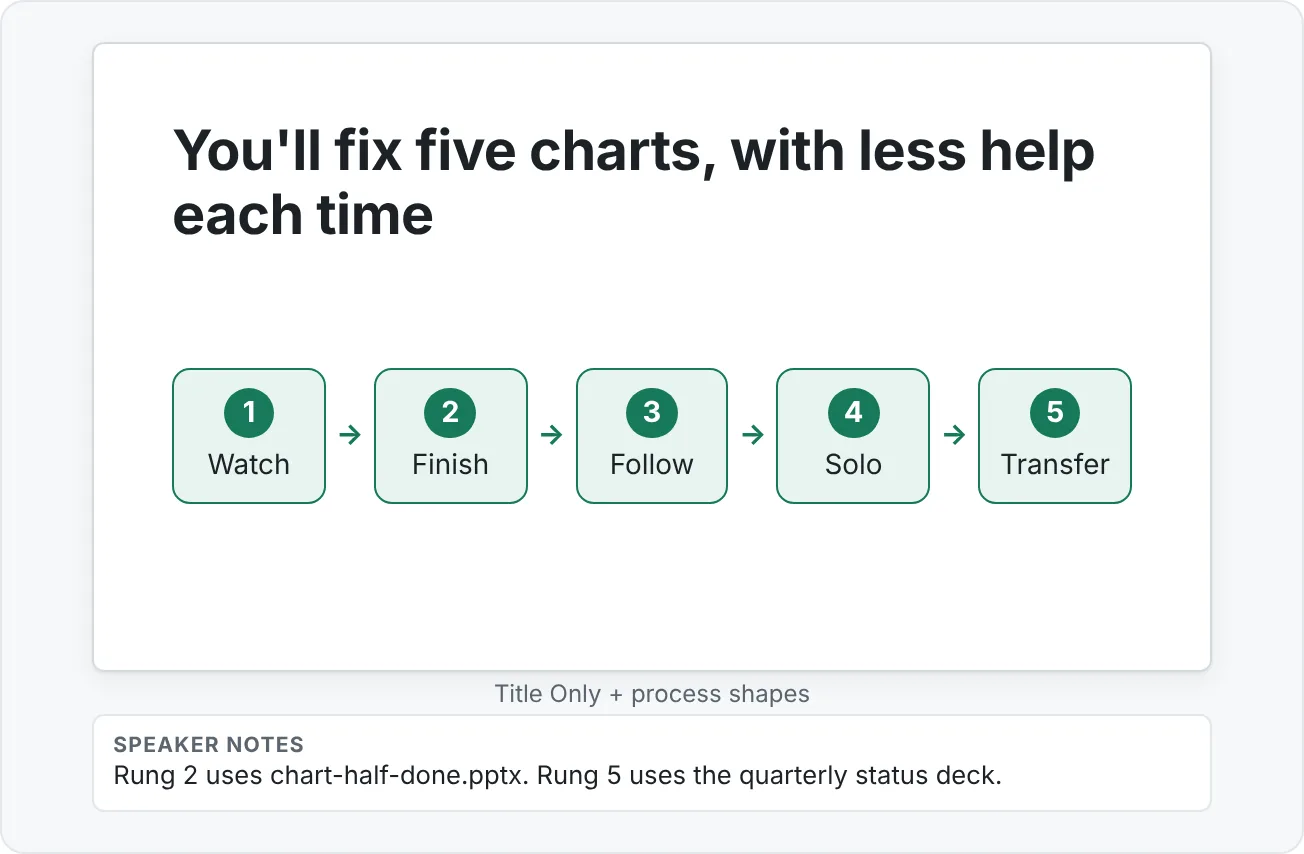
Learners shouldn't jump from watching you to doing it alone. A practice ladder removes support one rung at a time:
- Worked example. You show a finished before/after and narrate each decision.
- Completion exercise. The learner gets a chart that's half fixed and finishes it.
- Guided practice. A fresh chart plus a checklist of steps.
- Independent challenge. A fresh chart, no checklist, a success criterion only.
- Transfer task. A different context, such as a line chart for a status report instead of a column chart for a lesson.
In PowerPoint, build each rung as its own section (Home › Slides › Section › Add Section) so the deck stays easy to reorder and so you can hide or reuse rungs in other modules. Put practice files beside the deck, not inside it, if learners need to edit them: an embedded chart in a quiz deck tends to get edited by accident.
Ask one question when you design the ladder: what changes between rungs? Only one thing should. If rung 3 drops the checklist and switches chart type, a learner who stumbles can't tell which change tripped them.
Design feedback slides that teach
A "Wrong! Try again" slide scores. It doesn't teach. Every question in a self-paced deck needs a small family of slides behind it:
| Slide | What it says | Where it sends the learner |
|---|---|---|
| Correct | Confirms why the choice works, in one sentence | Next question or next challenge |
| Incorrect (per wrong option) | Names the likely misconception behind that pick | Hint slide |
| Hint | A nudge toward the principle, not the answer | Back to the question |
| Explanation | The full reasoning plus a before/after visual | Next question |
| Next challenge | A slightly harder version for learners who got it right fast | Next section |
Write the incorrect feedback per option. If option B is "add more colors so each bar stands out," the feedback for B is about emphasis: "Coloring every bar makes them all equal again. Highlight only the bar that carries the message."
To wire it, select a button shape and go to Insert › Links › Link (Ctrl+K), choose Place in This Document, and pick the target slide. For action buttons, use Insert › Illustrations › Shapes and pick from the Action Buttons row at the bottom; the Action Settings dialog opens so you can choose Hyperlink to › Slide....
Lock down navigation for self-paced use
If learners can click anywhere to advance, they'll skip your feedback. Two settings stop that:
- Go to Slide Show › Set Up › Set Up Slide Show and choose Browsed at a kiosk (full screen). Clicks on the slide no longer advance; only your links, action buttons and timings move the show. Keyboard keys such as Esc still work.
- On the Transitions tab, clear On Mouse Click for the quiz slides so a stray click can't advance them, even if someone later changes the show type.
Then QA every path, not just the happy one. Print a simple map: question slides down the left, every button across, the destination slide in each cell. Click through every cell in Slide Show and tick it. A dead end (a slide with no button out) in kiosk mode traps the learner until they press Esc.
Write a scenario-based assessment
Multiple choice checks recognition. To test applied judgment you need a scenario with four parts:
- A realistic situation. "Your manager sends you a default column chart of regional sales and asks for one slide for Monday's leadership meeting."
- Constraints. "One slide. The leadership template. The audience has 30 seconds. The North region missed target and that's the story."
- A required artifact. "Submit the .pptx slide plus two sentences in the notes explaining your choices."
- A rubric. Published before the learner starts.
Keep the rubric short and tied to the objectives:
| Criterion | Emerging | Ready | Strong |
|---|---|---|---|
| Message (O3) | Title is a topic ("Sales") | Title states a finding | Title states the finding and why it matters |
| Clutter (O1) | Default chart unchanged | Gridlines and legend removed or justified | Every remaining element earns its place |
| Emphasis (O2) | No highlight or everything highlighted | North is highlighted | Highlight, label and title all point to North |
| Rationale | Notes missing | Notes name the choices | Notes explain the effect on the audience |
Turn learning into portfolio evidence
Scores fade; artifacts stay. Ask every learner to collect five pieces of evidence per module:
- Before/after slide side by side, exported as one image (File › Export › Change File Type › PNG Portable Network Graphics, then choose Just This One).
- Final deck as .pptx, with the file name following your naming rule.
- Reflection: three or four sentences answering "Which slide improved the most, and what did you remove?"
- Peer critique: the comments another learner left, exported or screenshotted.
- Revision log: a short table of what changed, why, and who suggested it.
A simple portfolio page structure that works on a website or in a OneNote or SharePoint page:
- Module name and the objectives (O1 to O3).
- Before/after image with a one-line caption.
- Link to the final deck.
- Reflection.
- Peer critique excerpt and the learner's response.
- Revision log.
Match the deck to a website assessment page
If the same module lives on a website, the web quiz and the deck should test the same objectives with the same misconceptions in the wrong options. Keep one source spreadsheet with columns for objective, question, options, correct answer, and the feedback text for each option. Build both the deck and the web page from it, so a fix in one place reaches both.
Common mistakes in PowerPoint assessments
- Testing button-finding instead of judgment. "Which tab has Merge Shapes?" checks recall. "Which of these two slides will a stakeholder read faster, and why?" checks the skill you actually care about.
- One feedback slide for every wrong answer. Different wrong picks come from different misconceptions. Write feedback per option.
- Obvious distractors. If two options are silly, it's a 50/50 guess. Every wrong option should be something a real learner would choose.
- Dead ends in kiosk mode. Every slide needs a way out. Walk every path before release.
- Assessments that drift from objectives. If O2 has no question, either cut O2 or write the question.
- No time to revise. A scenario assessment with no chance to resubmit after feedback measures the first draft, not learning.
- Quiz text as pictures. Questions pasted as images can't be read by screen readers or translated. Keep text in real placeholders and run Review › Accessibility › Check Accessibility before release.
Practice
Practice
Build a three-question feedback deck
Guided practice:
- Pick one PowerPoint skill you teach (for example, aligning objects or cleaning up a chart). Write three measurable objectives for it, numbered O1 to O3.
- Write one multiple-choice question per objective. For each wrong option, write down the misconception it represents.
- Build the deck: a title slide, three question slides, one correct slide and one incorrect slide per wrong option, a hint slide per question, and a summary slide. Give every slide a real title.
- Link every option and button with Insert › Links › Link › Place in This Document.
- Set Slide Show › Set Up Slide Show › Browsed at a kiosk (full screen) and clear On Mouse Click on the quiz slides.
- Draw a path map and click through every path in Slide Show. Fix any dead end.
- Run Check Accessibility and fix the reading order on the question slides.
Independent challenge:
- Write a scenario-based assessment for the same skill: situation, constraints, required artifact, and a four-row rubric.
- Build a matching web assessment page outline that tests the same three objectives with the same feedback text.
- Ask a colleague to take the deck cold. Watch without helping and note every place they hesitate.
Check your understanding0 of 4 correct
Pick an answer to see whether it's right and why.
A colleague's module objective reads: "Learners will understand how to use slide layouts." What's the best rewrite?
It has an observable verb, a condition and evidence you can assess. The others still describe something you can't see.
In a self-paced quiz deck, learners who pick a wrong answer keep clicking past the feedback slide to the next question. What fixes this most reliably?
Kiosk mode stops mouse clicks from advancing, so learners have to use your buttons and see the feedback path you designed.
Your practice ladder has these rungs: worked example, guided practice with checklist, then an independent task on a different chart type with no checklist. Learners keep failing the last rung. What's the most likely design problem?
Changing one thing per rung shows exactly where the learner struggles. Here the checklist and the chart type both changed at once.
Which feedback slide teaches the most after a learner picks "Color every bar differently" as the way to emphasize one region?
It names the misconception, explains the effect on the audience and points to the principle without just handing over the letter.
You're ready to move on when
Tick each one off as you go. Your ticks are saved in this browser only.
Related
Sources and further reading
Was this guide helpful? Spot a mistake? Send feedback · admin@arumsoft.com