Expert PowerPoint · Tutorial 9 of 9
Expert PowerPoint Capstone: Build a Template Kit, Automation and Coaching System
Package a reusable template kit, prove one automation, document governance and publishing, and coach a learner through a mentor-reviewed revision.
- Level
- Expert
- Time
- 13 min read
- Updated:
- Applies to:
- PowerPoint for Microsoft 365, PowerPoint 2024, PowerPoint 2021
What you'll learn
- Ship a template kit with a theme, 12 layouts, 12 example slides, a style guide and accessibility defaults
- Automate or fully specify one repeatable task, with risk notes and an owner
- Document naming, review, accessibility and publishing rules a team can follow
- Coach a learner through a critique and capture a before/after with your rationale
- Assess your own system against the expert rubric
This capstone pulls the Expert path together into one portfolio piece: a reusable PowerPoint tutoring system that a small team could pick up and run without you in the room. It's the proof that you can build systems, not just slides.
Plan for several working sessions. You'll reuse a lot of what you made in earlier Expert tutorials; the job here is to make the pieces fit together, document them, and show that someone else can use them.
The scenario
A tutoring team is launching a free PowerPoint course website. Four volunteer tutors will build lesson decks, publish them as PDFs, videos and web pages, and run weekly critique sessions. Right now every tutor uses their own fonts, file names and export settings, and nobody can tell which version of a deck is current.
You've been asked to build the system they'll all work inside. Your audience is the tutors, not the learners: everything you produce should let a capable tutor who has never met you build, check, publish and teach a consistent lesson.
Required deliverables
You'll submit five packages. Put them in one folder with a short README slide or page that says what each file is for.
1. Template kit
- A theme (.potx) with named theme colors, theme fonts and a clean slide master.
- 12 layouts, each named for its job (for example "Lesson Title," "Objective," "Worked Example," "Before/After," "Practice Task," "Quiz Question," "Feedback: Correct," "Feedback: Try Again," "Data Slide," "Section Divider," "Recap," "Closing").
- 12 example slides, one per layout, showing real content, not lorem ipsum.
- A style guide: type sizes, color roles, image rules, the title-writing rule, and when to use each layout.
- Accessibility defaults: high-contrast theme colors, titles on every layout, sensible placeholder reading order, a minimum body size.
2. Curriculum asset package
Outlines or templates for a level page, a module page, a lesson page, a practice lab, a quiz (with per-option feedback), and a capstone rubric.
3. Automation proof
One automation that works, or one specified fully enough that a developer could build it without asking you questions. Good candidates: export slide titles to a text outline, create section dividers from a list, rename objects in the Selection Pane, report alt text status, or generate slide thumbnails. Include risk notes and a maintenance owner.
4. Governance package
File naming rules, a review workflow with named roles, an accessibility checklist, a publishing checklist, and a version log.
5. Teaching proof: a mentor-reviewed deck
Coach a real learner (or a colleague playing one) through a critique of their deck. Capture the before and after slide, your written feedback, the learner's revision rationale, and a short note from your own mentor or a peer reviewer on how you coached.
Requirements checklist
Before you assess yourself, confirm each item:
- Every layout has a title placeholder and a name that says what it's for.
- No example slide uses a manual text box where a placeholder exists.
- Review › Accessibility › Check Accessibility shows no errors on the 12 example slides.
- The style guide fits on four slides or fewer, and a new tutor can follow it without asking.
- The quiz template includes correct, incorrect, hint and next-challenge slides, wired and tested in kiosk mode.
- The automation runs on a copy of a real deck (or the spec includes inputs, outputs, edge cases and a test plan).
- Risk notes say what the automation can break and how to undo it; a named person owns it.
- File names in your folder follow your own naming rule.
- The publishing checklist covers .pptx, PDF (slides, notes, handouts), video and a web outline.
- The version log has at least two entries: v1.0 and one revision you made after feedback.
- The teaching proof has a before/after slide, feedback in the four-part critique pattern, the learner's rationale, and the mentor's note.
Step-by-step build plan
- Write the system's job. One sentence on who uses it and what they must be able to do. Check every later decision against it.
- Build the master and theme. In View › Master Views › Slide Master, set theme colors and fonts first, then build and name the 12 layouts. Delete layouts you don't use.
- Make the 12 example slides in a separate file based on the template. Fill each with realistic lesson content.
- Stress test. Paste long titles, a 40-row table, a portrait photo and a translated paragraph. Fix any layout that breaks.
- Write the style guide as slides inside the kit, so it travels with the template.
- Build the curriculum templates: lesson page, practice lab, quiz with feedback, rubric.
- Build the automation. Start small. Test on a copy. Write risk notes while you test, not after.
- Document governance: naming rule, reviewer roles, accessibility and publishing checklists, version log.
- Publish one sample lesson through your own checklist: .pptx, three PDFs, a short video and a web outline. Note every step that felt slow.
- Run the coaching session, capture the evidence, and ask your mentor or a peer to review how you coached.
- Hand the kit to someone else and watch them build one lesson without help. Fix what confused them, then log it as v1.1.
Example automation: alt text status report
This VBA macro lists pictures and charts with no alt text. In a copy of the deck, open the editor with Developer › Code › Visual Basic (or Alt+F11), choose Insert › Module, paste the code, and run it with F5.
Sub ReportAltTextStatus()
    Dim sld As Slide, shp As Shape
    Dim missing As Long, checked As Long
    For Each sld In ActivePresentation.Slides
        For Each shp In sld.Shapes
            If shp.Type = msoPicture Or shp.HasChart Then
                checked = checked + 1
                If Len(Trim(shp.AlternativeText)) = 0 Then
                    missing = missing + 1
                    Debug.Print "Slide " & sld.SlideIndex & ": " & shp.Name
                End If
            End If
        Next shp
    Next sld
    MsgBox missing & " of " & checked & " pictures and charts have no alt text." & _
        vbCrLf & "See the Immediate window (Ctrl+G) for the list.", vbInformation
End Sub
Sample risk notes: it only reads the file, so it can't damage it. It skips pictures inside placeholders and groups, so a clean report doesn't mean a clean deck; the Check Accessibility pass is still required. It can't tell which images are decorative. Owner: the template lead, who re-tests it whenever the template version changes. Keep it in a separate macro-enabled file (.pptm) or add-in, and never put macros in the template you distribute.
Expert rubric
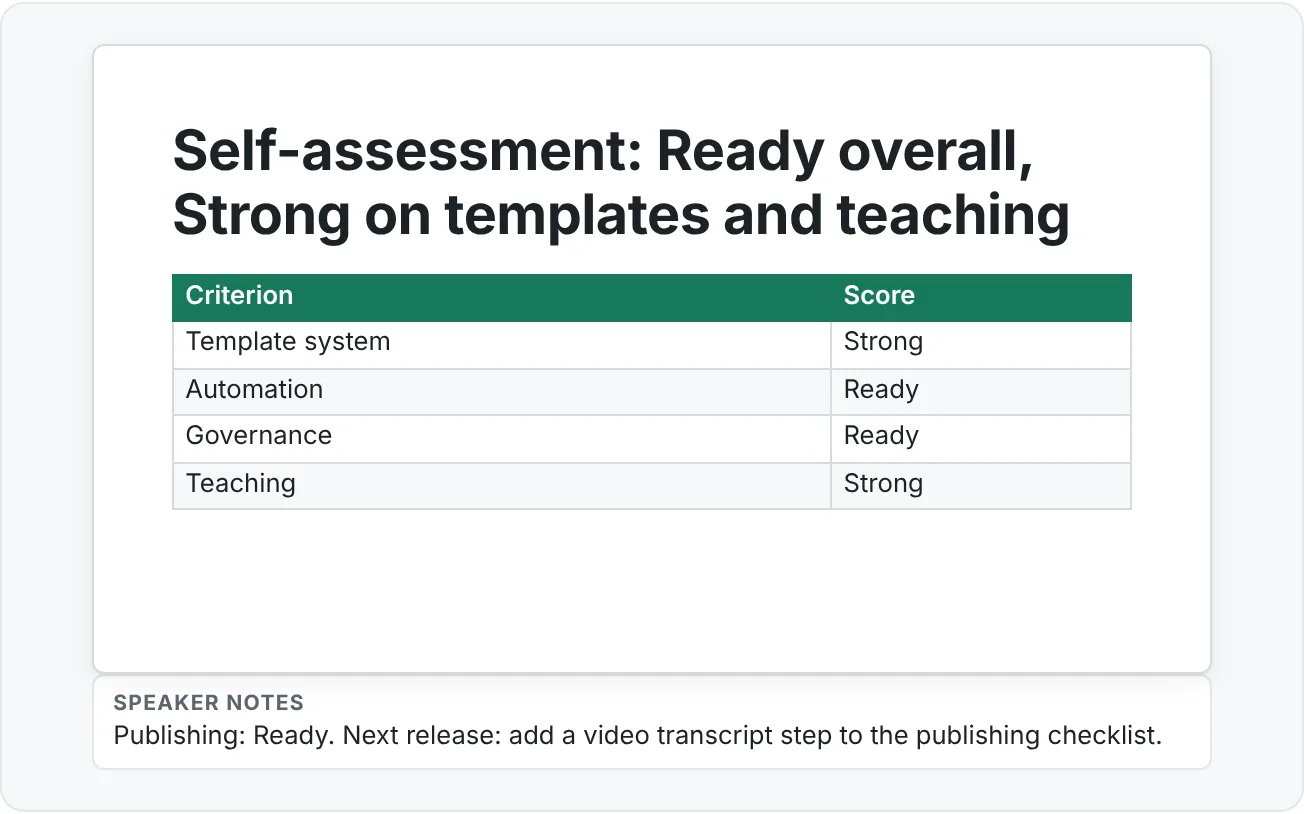
Score each criterion honestly. Ready on every row is a pass; Strong on three or more means the system could serve a real team.
| Criterion | Emerging | Ready | Strong |
|---|---|---|---|
| Template system | Looks good but lacks guidance; layouts unnamed or untested | 12 named layouts, example slides and style rules a new tutor can follow | Behaves like a polished product: stress-tested, accessible by default, documented inside the kit |
| Automation | Idea is vague or untested | One repeatable task is automated or fully specified, with an owner | Saves real time on real decks and includes risk notes, a test plan and an undo path |
| Governance | Rules are informal or live in your head | Naming, review roles and accessibility rules are written down | The system can scale to a team: checklists are in use and the version log is current |
| Publishing | Outputs are inconsistent across formats | Each format is exported with appropriate settings | Publishing is repeatable and traceable from one source of truth |
| Teaching | Feedback is mostly personal preference | Feedback is specific and actionable; the learner made the revision | The learner can explain why the revision works; their judgment improved, not just one slide |
Reflection prompts
Add a short reflection (one paragraph per question) to your portfolio. Answer at least four:
- Which part of the system will save the next tutor the most time, and how do you know?
- What did you decide not to automate, and why?
- What broke during the stress test or the hand-off, and how did you fix it?
- Which PowerPoint feature saved you the most time while building the kit?
- What did you remove from the template, and why?
- In your coaching session, what changed between the learner's first and revised version, and who made the decision?
- What would break if someone else had to update this kit next year?
- What part of the workflow still feels slow?
Then ask your mentor or reviewer the tutor's version of these questions about your own work: "What is this system trying to make tutors able to do? Where does it still depend on you?" Their answers are the start of v1.2.
Practice
Practice
Build and hand off the tutoring system
- Write the system's one-sentence job and name its audience (the tutors).
- Build the theme and slide master with 12 named layouts in View › Slide Master.
- Create 12 example slides with real lesson content and run Check Accessibility.
- Stress test every layout with long titles, big tables, odd images and translated text. Fix what breaks.
- Write the style guide as slides inside the kit.
- Build the curriculum templates: level, module, lesson, practice lab, quiz with feedback, rubric.
- Build or fully specify one automation, test it on a copy, and write risk notes and an owner.
- Write the governance package: naming rule, review roles, accessibility and publishing checklists, version log.
- Publish one sample lesson as .pptx, PDFs, video and a web outline using your checklist.
- Coach a learner through one revision; capture the before/after, feedback, rationale and a mentor note.
- Hand the kit to someone new, watch them build one lesson, fix what confused them, and log v1.1.
- Score yourself on the rubric and write your reflection.
Check your understanding0 of 4 correct
Pick an answer to see whether it's right and why.
Your template looks polished, but a test tutor built a lesson with manual text boxes and the wrong layouts. Where does this put you on the Template system row, and what's the fix?
A template that others misuse lacks guidance. Clear layout names, examples and in-kit rules move it toward a product.
You have time to automate only one task. Tutors spend about 20 minutes per deck checking alt text by hand, and once a year someone renames section dividers. Which should you automate?
Automate frequent, rule-based work whose output you can check. A once-a-year task rarely repays the build and maintenance cost.
In your teaching proof, the after slide is excellent, but your notes show you rebuilt it while the learner watched. How should you score the Teaching row?
The rubric asks whether the learner's judgment improved. A slide you rebuilt proves your skill, not theirs.
A tutor finds three different PDFs of the same lesson on the website, each with a different date. Which part of your system failed?
Traceable releases need one master file, a version log and a rule for retiring old outputs.
You're ready to move on when
Tick each one off as you go. Your ticks are saved in this browser only.
Related
Sources and further reading
Was this guide helpful? Spot a mistake? Send feedback · admin@arumsoft.com