Expert PowerPoint · Tutorial 7 of 9
How to Publish a PowerPoint Deck as PDF, Video, Images and Web Content
Pick the right output for each audience, export clean PDFs, videos and images, turn slides into web lessons, and keep every published version in sync.
- Level
- Expert
- Time
- 15 min read
- Updated:
- Applies to:
- PowerPoint for Microsoft 365, PowerPoint 2024, PowerPoint 2021, PowerPoint for the web
What you'll learn
- Choose an output format based on how each audience will use the content
- Export slide, notes and handout PDFs and check their links and accessibility tags
- Export a narrated video at the right resolution and plan captions and file size
- Produce PowerPoint Shows, picture presentations, slide images and embed links
- Convert a deck into a web lesson outline
- Keep one source of truth with a change log, update dates and retired files
A finished deck rarely ships once. The same training module goes out as a .pptx for the next trainer, a PDF handout for learners, a video for people who missed the session, slide images for the course website, and a notes guide for tutors. Each format loses something and gains something, and each one can drift out of date.
This page treats publishing as a repeatable release, not a last-minute Save As. You'll use one running example: a 12-slide module called Write Takeaway Titles that a training team delivers live, posts as video, and teaches on a website.
Choose formats by how people will use them
Start with the audience's job, then pick the format. Ask: will they edit it, present it, read it, watch it, or find it in search?
| Format | Best for | What you lose |
|---|---|---|
| .pptx | Editing, live delivery, handing to another trainer | Control: anyone can change it |
| PowerPoint Show (.ppsx) | Opening straight into Slide Show, for kiosks or a presenter who shouldn't edit | Nothing technical, but it's still editable in PowerPoint |
| PDF (slides) | Stable reading copy, email, print | Animation, video, audio, transitions |
| PDF (notes pages) | Instructor guide | Readability if the notes are messy |
| PDF or Word handout | Learner note-taking | Detail that lived only in your voice |
| MP4 video | Asynchronous learning | Interactivity: links and triggers don't work |
| PNG or JPEG images | Website previews, thumbnails, social posts | Live text, search, accessibility unless you add alt text on the web page |
| Web lesson | Search, mobile reading, interactive quizzes | Slide layout; it must be rewritten, not pasted |
Try it on five scenarios before reading on:
- A substitute trainer delivers tomorrow. .pptx with full speaker notes.
- Learners want something to review on their phones. PDF of slides, or better, the web lesson.
- A night-shift team can't attend live. MP4 with narration and a transcript.
- A course catalog needs a preview tile. One PNG of the title slide.
- A lobby screen loops the module highlights. .ppsx with timings, or a video.
Export PDFs that read well
Go to File › Export › Create PDF/XPS Document › Create PDF/XPS. Before you click Publish, select Options. This dialog is where most bad PDFs come from.
The settings that matter:
- Range: All, Current slide, or a slide range. Release only the slides that audience needs.
- Publish what: Slides for the reading copy, Notes pages for the instructor guide, Handouts (with Slides per page) for learners. Outline view gives text only.
- Include hidden slides: leave it off for learners, on if hidden slides hold instructor-only answers you do want in the trainer copy.
- Include comments and ink: off for every public file. Review comments in a published PDF are a common leak.
- Document structure tags for accessibility: keep this on. It carries headings, reading order and alt text into the PDF.
- Optimize for: Standard for printing, Minimum size for email or web download.
Make three PDFs from one source in one pass: takeaway-titles_v1.2_slides.pdf, _notes.pdf, _handout-3up.pdf.
Inspect before you send
Open each PDF and check:
- Every hyperlink is clickable. Links typed as plain text without a real hyperlink won't be.
- Text is selectable, not an image. If you can't select it, a screen reader can't read it.
- Slide numbers and footers are correct on notes pages.
- Nothing is cut off: long notes can overflow the notes page.
- If you have a PDF accessibility checker (for example in Adobe Acrobat), run it and compare the result with PowerPoint's Check Accessibility report.
Build instructor guides and learner handouts
Speaker notes are the instructor guide you already wrote. Format them like one: start each slide's notes with the goal of the slide in bold, then the talk track, then any facilitator cue such as "Pause for the poll."
For a fully editable handout, go to File › Export › Create Handouts › Create Handouts. PowerPoint sends the deck to Word with your choice of layout: Notes next to slides, Blank lines next to slides, Notes below slides, Blank lines below slides, or Outline only. Pick Paste for a static copy. Paste link keeps slide images linked to the deck, which is useful while drafting but fragile once files move.
Export narrated video
Go to File › Export › Create a Video (or Record › Export to Video). You choose two things:
Resolution:
| Option | Size | Use |
|---|---|---|
| Ultra HD (4K) | 3840 × 2160 | Large screens; biggest files |
| Full HD (1080p) | 1920 × 1080 | The usual choice for course videos |
| HD (720p) | 1280 × 720 | Web streaming where size matters |
| Standard (480p) | 852 × 480 | Smallest files, small screens |
Timings: Use Recorded Timings and Narrations if you recorded, or Don't Use Recorded Timings and Narrations and set Seconds spent on each slide (5 seconds by default). Fixed timing suits a looping lobby video. A lesson needs recorded timing, because some slides need 10 seconds and others need a minute.
Then select Create Video and choose MPEG-4 Video (.mp4) in Save as type. Long decks can take a while; PowerPoint shows progress in the status bar and you can keep working.
Before you export, check:
- Audio quality. Play the narration on every slide with headphones. Re-record slides with noise, clipping or long silences; you don't need to redo the whole deck.
- What won't come along. Linked media (embed it instead), macros, and OLE or ActiveX controls aren't included. Hyperlinks, action buttons and triggers don't work in a video, so replace "click here to try" with a spoken instruction or a pause.
- Captions or transcript. Plan this outside the export: upload a caption file or correct the platform's auto-captions, and publish a transcript built from your speaker notes beside the video.
- File size. Try 1080p first. Drop to 720p if your hosting platform or learners' connections struggle. Compress large embedded videos first with File › Info › Compress Media.
Use the other outputs: shows, pictures, images and links
PowerPoint Show (.ppsx). Go to File › Save a Copy (or Save As) and choose PowerPoint Show in the file type list. Double-clicking the file opens straight into Slide Show. Good for kiosks and for presenters who should only present. It is not protection; anyone can open it in PowerPoint and edit.
PowerPoint Picture Presentation. Same dialog, choose PowerPoint Picture Presentation. Every slide becomes a single picture inside a .pptx. Use it for a visual archive or to send a deck that should look identical everywhere. Know what you lose: editable text, search, speaker-friendly reuse, and accessibility. Never make it the only version.
Slide images. Go to File › Export › Change File Type, choose PNG Portable Network Graphics or JPEG File Interchange Format, select Save As, then pick All Slides or Just This One. PNG keeps flat graphics and text crisp; JPEG suits photo-heavy slides. When the images land on a web page, the alt text has to be written again there.
Share and embed links. Share › Copy link gives people the live file with the access you set (specific people, your organization, or anyone, depending on your admin's policy). To put a viewer on a web page, open the file in PowerPoint for the web and go to File › Share › Embed; the embed code isn't available in the desktop app. Whether embedding is allowed depends on where the file is stored and your organization's sharing settings. A live embed updates when the file changes, which is great for corrections and risky for unreviewed edits.
Turn a deck into a web lesson
A web lesson is a rewrite, not a screenshot dump. Map each deck element to its web role:
| In the deck | On the web page |
|---|---|
| Slide title (a takeaway) | Section heading |
| Speaker notes | Explanatory paragraphs |
| Diagrams and before/after slides | Web images with alt text and captions |
| Quiz slides and feedback paths | Interactive quiz component with the same feedback |
| Facilitator cues ("pause here") | Tutor notes, kept off the public page |
For a 5-slide mini lesson, the outline looks like this:
- Page title and one-line promise (from the title slide).
- Three sections, one per content slide, each with its takeaway title as the heading, notes rewritten as paragraphs, and the slide exported as an image only if it shows something words can't.
- A quiz component built from the quiz slide.
- A practice task and a link to download the .pptx.
To pull titles and notes out quickly, use File › Export › Create Handouts › Outline only (or Notes next to slides) and edit in Word. For many decks, a small script that reads slide titles and notes saves real time; the Automate PowerPoint tutorial in this path shows how.
Keep published versions in sync
Once a deck has six outputs, the risk is that one of them is wrong. Run every release from these five rules:
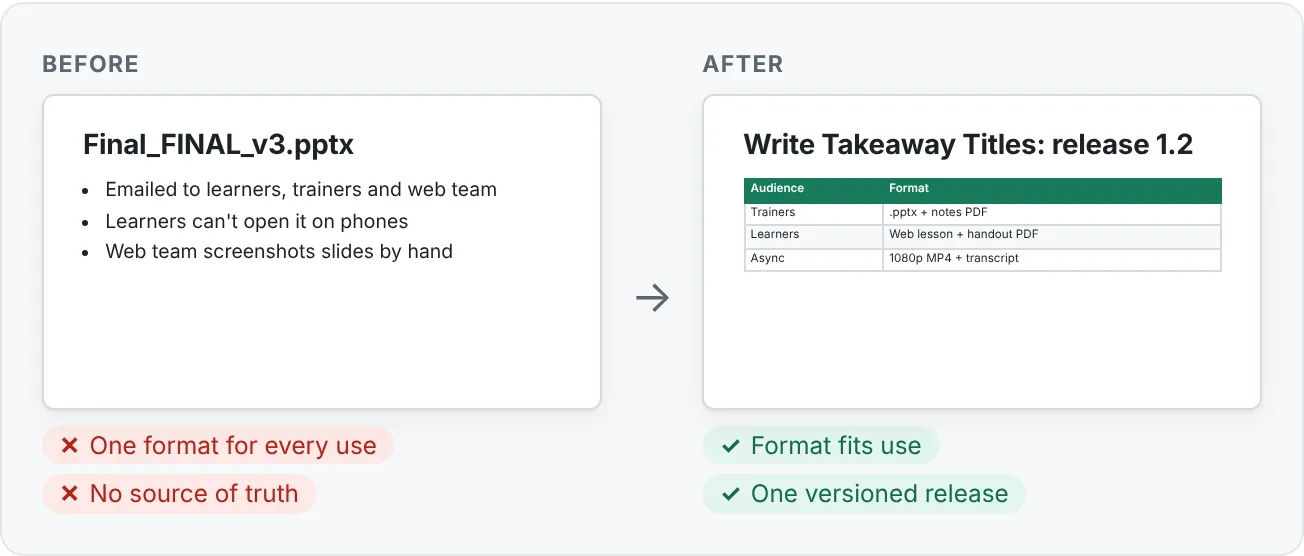
- One source of truth. The .pptx in your shared library is the master. Every other format is generated from it, never edited directly.
- Version history. Use the file's built-in Version History in OneDrive or SharePoint, plus a release number in the file name (
takeaway-titles_v1.2). - Change log. A short table on the last slide or in a sidecar file: version, date, what changed, who approved.
- Update dates. Put "Updated October 2026" on the title slide, the PDF footer and the web page, so learners can tell which copy they have.
- Deprecation. When v1.3 ships, move v1.2 outputs to an archive folder, update every link, and replace old video descriptions with a pointer to the new version.
A release checklist
- Source .pptx passed content, visual and accessibility QA
- Slides, notes and handout PDFs exported with structure tags on, comments off
- Video re-exported if any narrated slide changed; transcript updated
- Changed slide images re-exported and swapped on the web page
- Web lesson text matches the new slide titles and notes
- Change log, version number and update dates match across formats
- Old files archived and links updated
Common publishing mistakes
- Editing the PDF or the web page instead of the source. The next export wipes the fix out.
- Publishing comments or hidden answer slides. Check Include comments and ink and Include hidden slides every time.
- Exporting video from a deck built for clicking. "Click the button to continue" in a video confuses everyone. Make a video-specific version of interactive slides.
- Treating .ppsx or Picture Presentation as security. Neither stops someone from copying or editing content.
- Images with no alt text on the web. Exported PNGs don't carry your PowerPoint alt text with them.
- No date anywhere. If learners can't tell which copy is current, they'll use whichever one they downloaded first.
Practice
Practice
Publish one module in four formats
Guided practice:
- Open a short training deck (5 to 12 slides) with speaker notes. Save it as
module-name_v1.0.pptxin a release folder. - Export three PDFs through File › Export › Create PDF/XPS Document › Options: Slides, Notes pages, and Handouts at 3 per page. Keep Document structure tags for accessibility on and comments off.
- Open each PDF. Click every link, select text on two slides, and check notes pages for overflow.
- Export a 1080p MP4 using recorded timings, or 8 seconds per slide if you haven't recorded. Write a transcript from the notes.
- Export the title slide and one before/after slide as PNG with Just This One.
- Write a web lesson outline: one heading per slide title, a paragraph per notes block, the two images with alt text, and a quiz.
- Add a change log row and an "Updated" date to the title slide.
Independent challenge:
- Write a release checklist for an entire course website: every format, who owns each, what triggers a re-export, and how old versions are retired.
- Change one slide title in the source and run your checklist end to end. Time it and note which step was slowest.
Check your understanding0 of 4 correct
Pick an answer to see whether it's right and why.
A trainer in another office will deliver your module live next week and may need to adjust examples for her group. What should you send?
Live delivery and local edits need the editable source with the talk track. The other formats lock or flatten the content.
Your learner PDF reaches a reviewer and still shows reviewers' comments and an answer-key slide. Which export settings were wrong?
Comments and hidden slides only come along when those two options are on. Structure tags help accessibility and don't add content.
You're exporting an interactive quiz deck to MP4 for asynchronous learners. What will go wrong if you export it unchanged?
Video is linear. Hyperlinks, action buttons and triggers don't work, so make a video version that explains or pauses instead.
Your team fixed a wrong figure on slide 6. The PDF and web page were patched by hand, but the .pptx in the library wasn't. Two months later a new export brings the error back. What rule would have prevented this?
Fixes made downstream are lost at the next export. Fix the master, then regenerate and log the change.
You're ready to move on when
Tick each one off as you go. Your ticks are saved in this browser only.
Related
Sources and further reading
Was this guide helpful? Spot a mistake? Send feedback · admin@arumsoft.com