Expert PowerPoint · Tutorial 4 of 9
How to Set Up PowerPoint Accessibility Standards and Deck Governance for a Team
Build accessibility into templates, alt text standards and a one-page governance policy, then run a repeatable review that catches what the checker misses.
- Level
- Expert
- Time
- 14 min read
- Updated:
- Applies to:
- PowerPoint for Microsoft 365, PowerPoint 2024, PowerPoint 2021, PowerPoint for Mac, PowerPoint for the web
What you'll learn
- Treat reading order, alt text, titles, contrast and captions as quality criteria, not cleanup
- Build accessible defaults into a template so fewer problems reach review
- Write alt text standards for images, charts, diagrams, screenshots and complex graphics
- Draft a one-page deck governance policy with must and should rules
- Run a repeatable accessibility review with a checker pass, manual checks and a remediation log
Fixing accessibility one deck at a time doesn't scale. If forty writers each learn about alt text from a checker warning the night before a deadline, you'll get forty different standards and a lot of "image1.png" descriptions. The fix is to move accessibility upstream: into the template, into written standards and into a review step that runs the same way every time.
This page is for the person who sets the rules. You'll turn accessibility requirements into template defaults, write alt text standards your team can apply consistently, draft a short governance policy, and set up a review workflow with a remediation log. The running example is the tutoring site's course team, which publishes lesson decks and PDF handouts to learners who use screen readers, keyboard navigation and captions.
Treat accessibility as design quality
An accessible slide is usually a better slide for everyone. A real title helps a screen reader user navigate, and it helps a sighted learner scanning the PDF. Good contrast helps low-vision learners and anyone watching on a projector in a bright room.
Seven qualities cover most of what goes wrong in decks:
| Quality | What it means | Why it matters at scale |
|---|---|---|
| Slide titles | Every slide has a unique title in the title placeholder | Screen reader users jump between slides by title; duplicate titles make every slide sound the same |
| Reading order | Objects are read in a logical order | Hand-placed text boxes are often read last, or out of sequence |
| Alt text | Meaningful visuals have a description; decorative ones are marked decorative | Unlabeled images are announced by file name or skipped |
| Contrast | Text stands out clearly from its background | Low contrast fails on projectors and for low-vision learners |
| Captions | Video and audio have captions | Learners who are deaf, hard of hearing or watching on mute |
| Descriptive links | Link text says where it goes | "Click here" means nothing when read out of context |
| No text-only images | Important text isn't trapped in a picture | Screen readers can't read it, and it can't be searched or translated |
Build accessible defaults into the template
The cheapest accessibility fix is the one nobody has to make. A well-built template prevents most problems before a writer types anything.
Built-in layouts with real placeholders. Writers who use layouts get real titles and logical reading order for free. Writers who use Blank and draw text boxes get neither. Make sure every layout in your library has a title placeholder, including image and quote layouts. If a design calls for no visible title, keep the title placeholder and position it just off the slide, so it still exists for screen readers and the slide still has a title in the outline.
Placeholder order. On each layout, the order you insert placeholders sets their default reading order. Add the title first, then content top to bottom, left to right (or in whatever order makes sense to read). Check it after building: open Review then Check Accessibility then Reading Order Pane on a sample slide.
Safe colors. Define theme colors in pairs that pass contrast. The widely used WCAG 2 AA thresholds are 4.5:1 for normal text and 3:1 for large text (about 18 pt, or 14 pt bold). Test every text-on-background combination your template allows, and say in the style guide which accent colors are for shapes only.
Font sizes. Set master text sizes so the smallest body level is still readable when projected and in a PDF. Many teams set 18 pt as the minimum body size and avoid going below about 12 pt even for source lines.
Focus order for interactive slides. On slides with action buttons or hyperlinks, keyboard users tab through objects in reading order. Put navigation buttons in a predictable position in the reading order (for example, after the content and before decorative items) on every interactive layout.
Write alt text standards your team can apply
"Add alt text" isn't a standard. Forty writers will produce forty styles. Give them a short rule per object type and an example of each.
First, the decision every writer makes: is this object meaningful or decorative? If removing it would lose information, it's meaningful and needs alt text. If it's a background flourish, divider line or mood photo that adds nothing to the point, mark it decorative. In PowerPoint for Windows, right-click the object, choose View Alt Text, and check Mark as decorative.
| Object type | Standard | Example |
|---|---|---|
| Simple image | Say what matters on this slide, in a sentence or two. Skip "image of" | "Learner using a laptop at a kitchen table, working through a spreadsheet." |
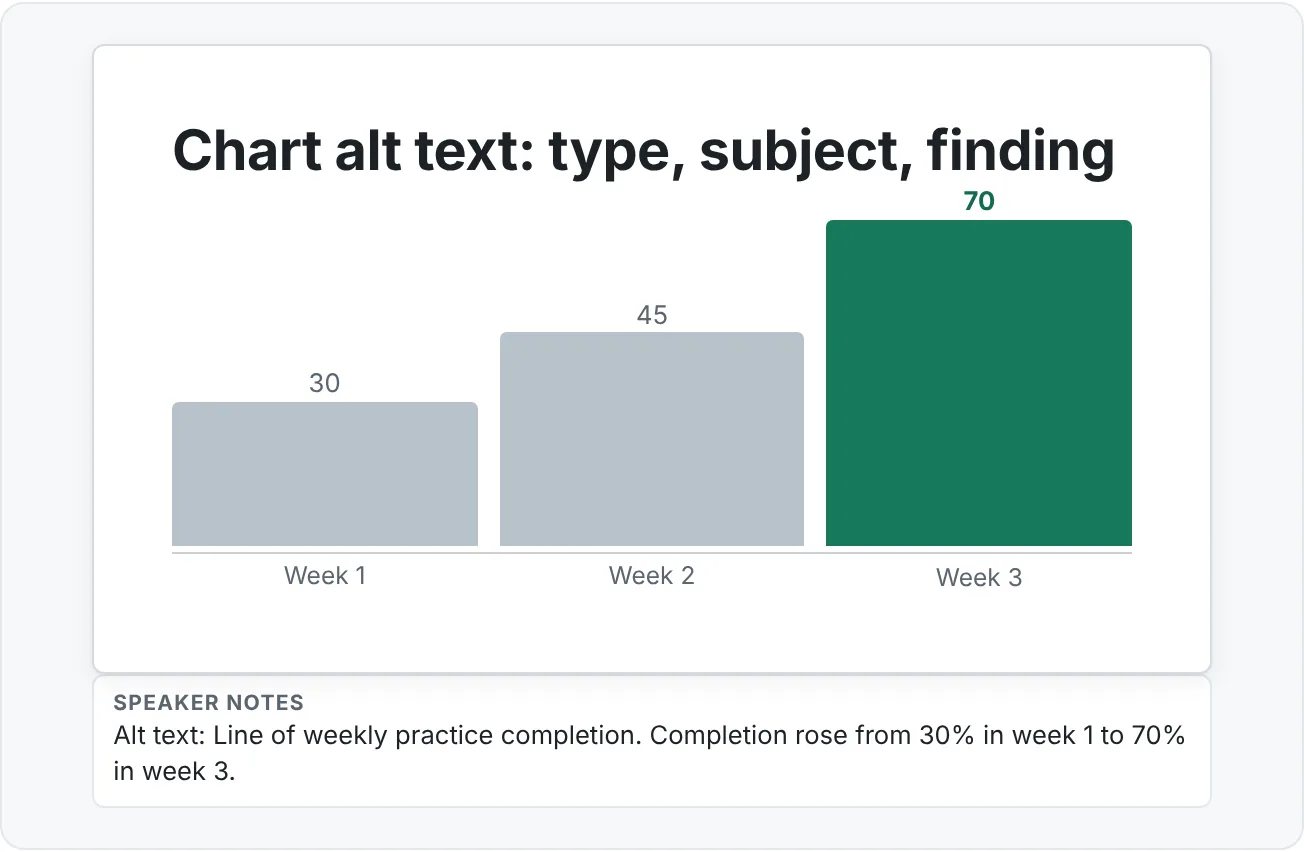
| Chart | Chart type, what it shows, and the key finding with numbers | "Column chart of average errors per learner. Errors fell from 12 before practice to 6 after." |
| Diagram or process | The structure and the sequence | "Three-step process: find the lookup value, choose the return column, set exact match." |
| Screenshot | The purpose, not every pixel | "Excel formula bar showing an XLOOKUP formula that returns a price from a product table." |
| Complex graphic | Short alt text, plus a full description elsewhere | "Map of course enrollment by region. Full description in the speaker notes and on the next slide." |
| Icon next to text | Decorative if the text says the same thing | Mark as decorative |
| Logo | The organization name, once per deck; decorative on repeats | "Course team logo" |
Microsoft's guidance is to keep alt text to a short sentence or two, and not to repeat text that's already on the slide. For complex graphics where a sentence or two isn't enough, put the full description in the speaker notes, the PDF handout or a following slide, and point to it from the alt text.
Write a one-page governance policy
Governance means the rules a team must follow, written down, with an owner. Keep the policy to one page so it actually gets read. Use must for requirements that block publishing and should for strong recommendations.
| Area | Rule (course team example) |
|---|---|
| Approved template | Decks must use the current CourseDeck template (v2.x) from the shared library. Older versions retire 30 days after a new major release. |
| Brand palette | Text must use theme colors only. Accent 3 must not be used for text. |
| Source citations | Every chart and statistic must have a source line on the slide. Images must be licensed, with credits in the project folder. |
| Accessibility standard | Decks must pass Check Accessibility with no errors, and pass the manual checks in the review workflow. Videos must have captions. |
| Export rules | Learner-facing decks must be published as tagged PDF. Source .pptx files should not be shared outside the team. |
| Review requirements | Published decks must have content, subject expert and accessibility sign-off recorded in the project folder. |
| Exceptions | Exceptions must be approved by the policy owner and recorded with a reason and an expiry date. |
| Owner and review | Policy owner: course operations lead. Reviewed each term. |
Two habits keep governance useful rather than bureaucratic:
- Every rule has a reason the team can repeat. "Tagged PDF, because screen readers need structure" sticks. "Because policy" doesn't.
- Every rule is checkable. If a reviewer can't tell whether a deck passes, rewrite the rule.
Run a repeatable accessibility review
The checker is a starting point, not the finish line. It catches missing alt text, missing titles, some contrast problems and objects it thinks are out of order. It can't judge whether alt text is useful, whether reading order makes sense, or whether a video's captions are accurate. Microsoft also notes that the checker can miss contrast problems in some cases, such as transparent text boxes over the background. Run the same five steps on every deck:
- Automated check. Review then Check Accessibility. Fix every error and review every warning. Keep the pane open while you fix things; it updates as you go.
- Manual reading order check. Open Review then Check Accessibility then Reading Order Pane and go through each slide. Does the order match how you'd read the slide aloud? Use the arrows in the pane to reorder.
- Alt text quality check. Read each alt text without looking at the image. Could you understand the slide's point? Does it follow your standard?
- Media caption check. Play each video with sound off. Are captions present, accurate and in sync? In PowerPoint for Windows, you can add a caption file to an inserted video with Playback › Caption Options › Insert Captions (WebVTT format).
- PDF export check. Export with File then Export then Create PDF/XPS Document, click Options, and make sure Document structure tags for accessibility is checked. Open the PDF and confirm text is selectable, the reading order holds and links work.
Then record what you found in a remediation log:
| Deck | Slide | Issue | Fix | Who | Date | Verified |
|---|---|---|---|---|---|---|
| Lookup v2 | 6 | Text box read before title | Moved title to top of reading order | AK | 10-04 | JL |
| Lookup v2 | 11 | Chart alt text says "chart" | Rewrote using chart standard | AK | 10-04 | JL |
| Lookup v2 | 14 | Video has no captions | Added .vtt captions | MP | 10-05 | JL |
The log does more than prove compliance. Review it each term: if the same issue keeps appearing, the fix belongs in the template, the standard or training, not in more reviewing.
Scale it across a team
Once the template, standards, policy and workflow exist, scaling is mostly about feedback loops:
- Automate the finding. A macro or script that lists missing titles and missing alt text across every deck (see the automation tutorial) turns a manual hunt into a report. People still write the fixes.
- Spot-audit published decks. Each term, pick a sample of published decks and run the full five-step review. Compare results with earlier terms.
- Train with real failures. Turn the most common remediation log entries into a short "fix this broken slide" exercise for new writers.
- Close the loop with the template. Each recurring issue becomes a template change, a clearer placeholder prompt or a new example in the sample deck.
Common mistakes with accessibility at scale
- Treating the checker as a pass/fail certificate. A clean checker result can still mean bad reading order and useless alt text.
- Leaving accessibility to the last day. Fixes at the end are rushed and often break layouts.
- Alt text that describes pixels, not purpose. "Blue bars on a white background" tells the listener nothing about the point.
- Deleting titles for design reasons. Keep the placeholder and move it off the slide instead.
- Rules nobody can check. "Make it accessible" isn't a rule. "Checker clean, captions on every video, chart alt text states the finding" is.
- No owner. A policy without an owner and a review date goes stale within a term.
- Fixing the same issue in every deck. If it shows up repeatedly in the remediation log, fix the template.
Practice
Practice
Audit a deck and write the team's checklist
Guided practice:
- Open a real course deck (or a copy) with at least 10 slides, including a chart, a diagram and a video if possible.
- Run Review then Check Accessibility and fix every error.
- Open the Reading Order Pane and fix the order on at least three slides.
- Rewrite every alt text using the standards table on this page. Mark decorative items as decorative.
- Check captions on any video.
- Export a PDF with document structure tags and check it.
- Record every fix in a remediation log with who, when and who verified it.
Independent challenge:
- Write an accessibility checklist for every course deck on the tutoring site, based on the five-step review.
- Write a one-page governance policy with must and should rules, an exceptions process and an owner.
- Build one accessible sample slide for each layout in your template and include a short review report.
- Reflection: which issue in your log should be fixed in the template so it never reaches review again?
Check your understanding0 of 4 correct
Pick an answer to see whether it's right and why.
A deck passes Check Accessibility with no errors, but a screen reader user says slide 6 is confusing. The slide has a title, a chart and two hand-drawn text boxes. What's the most likely cause?
The checker doesn't judge whether reading order makes sense. Hand-drawn text boxes are often read out of sequence, so check the Reading Order Pane.
Which alt text best follows a chart standard?
Good chart alt text gives the chart type, what it shows and the key finding with numbers.
Your remediation log shows the same issue in 15 decks: image layouts with no title. What's the best response?
Recurring issues are template problems. Fixing the layout prevents the problem in every future deck.
Which governance rule is written best?
It's checkable, uses must for a requirement, and gives a reason the team can repeat.
You're ready to move on when
Tick each one off as you go. Your ticks are saved in this browser only.
Related
Sources and further reading
Was this guide helpful? Spot a mistake? Send feedback · admin@arumsoft.com