Expert PowerPoint · Tutorial 2 of 9
How to Automate PowerPoint With VBA, Office Add-ins and Python
Decide which PowerPoint chores are worth automating, then pick the right tool: a VBA macro, an Office JavaScript add-in or a python-pptx script.
- Level
- Expert
- Time
- 15 min read
- Updated:
- Applies to:
- PowerPoint for Microsoft 365, PowerPoint 2024, PowerPoint 2021, PowerPoint for Mac, PowerPoint for the web (add-ins only)
What you'll learn
- Score PowerPoint tasks for automation using setup time, saved time and maintenance
- Read the PowerPoint VBA object model from Application down to TextRange
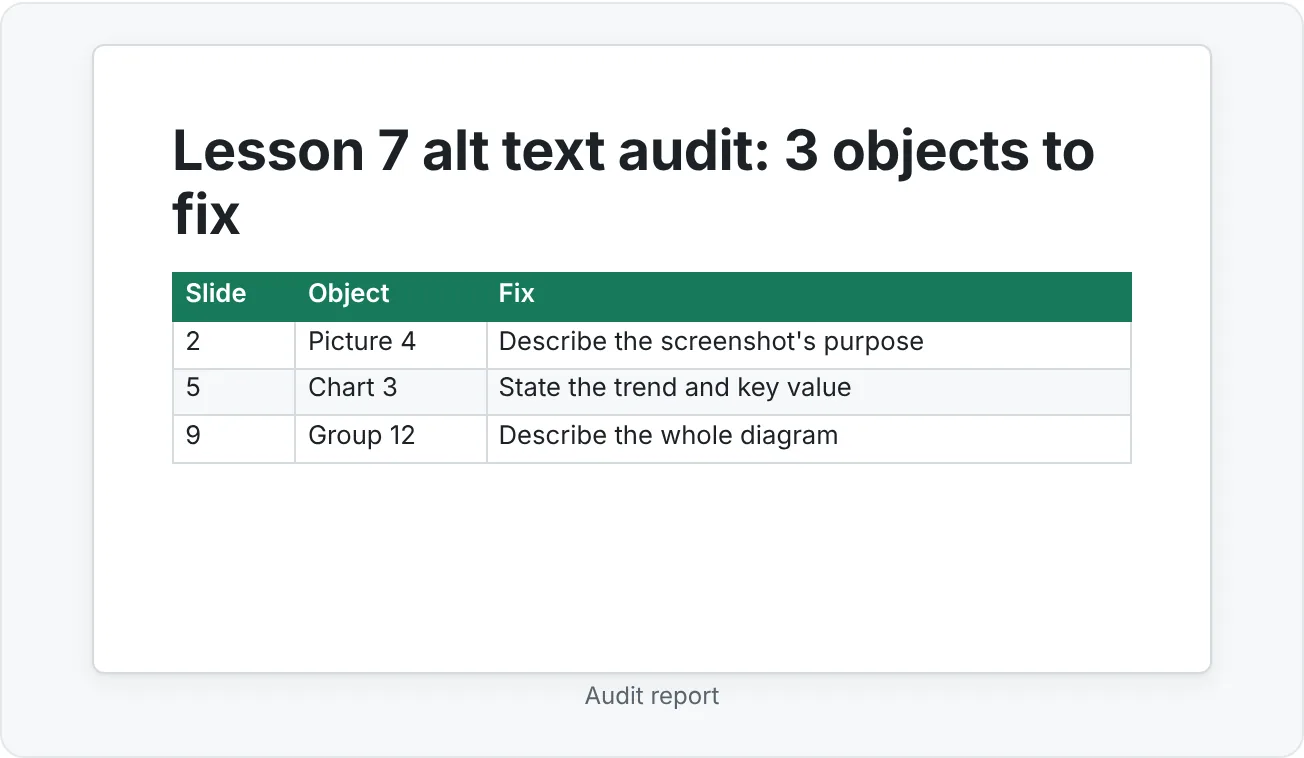
- Run a macro that lists slide titles and one that finds missing alt text
- Explain when an Office JavaScript add-in is a better fit than VBA
- Use python-pptx to report on or generate decks outside PowerPoint
- Write an automation proposal with inputs, outputs, risks and an owner
Once you run a team's deck production, you notice the same chores every week: checking that every slide has a title, hunting for images without alt text, renaming shapes, standardizing footers, collecting titles for a course outline. Each takes minutes. Across forty decks a term, they take days.
This page helps you decide what to automate and which tool to use. You'll run two small VBA macros, see where Office JavaScript add-ins fit, and use python-pptx to work with deck files outside PowerPoint. The running example is the tutoring site's course team from the template kit page, now with a library of lesson decks to maintain.
Decide whether a task is worth automating
Automation is a trade. You spend time building and maintaining something so you can stop spending time on a repeated task. It pays off when the task is repetitive, rule-based and frequent, and when the people who'll run it can actually run it.
Score each candidate task from 1 (poor fit) to 3 (strong fit) on four questions:
- Repetition. Does it happen on every deck, or many times per deck?
- Rules. Could you write the steps down so a stranger gets the same result?
- Payoff. Is the time saved over a term clearly larger than build time plus maintenance?
- Users. Can the people who need it run it safely (permissions, platform, skill)?
Here's the course team's scoring for five tasks:
| Task | Repetition | Rules | Payoff | Users | Verdict |
|---|---|---|---|---|---|
| List slide titles for the course outline | 3 | 3 | 3 | 3 | Automate |
| Find pictures without alt text | 3 | 3 | 3 | 3 | Automate (then write alt text by hand) |
| Standardize footer text across 40 decks | 2 | 3 | 3 | 2 | Automate as a batch script |
| Choose a photo for each lesson cover | 2 | 1 | 1 | 3 | Don't automate |
| Rewrite titles as takeaways | 3 | 1 | 2 | 3 | Don't automate, add it to the style guide |
Notice the alt text row. A script can find the problem reliably. Writing good alt text needs judgment about what the image means on that slide, so a person still does that part.
Learn the PowerPoint object model
Every automation route, VBA, add-ins and file scripts, works with the same basic structure. Learn it once and the code becomes readable.
| Object | What it is | VBA example |
|---|---|---|
| Application | PowerPoint itself | Application.Version |
| Presentation | One open deck | ActivePresentation |
| Slides | All slides in a deck | ActivePresentation.Slides.Count |
| Slide | One slide | ActivePresentation.Slides(3) |
| Shapes | Everything on a slide: placeholders, pictures, charts, tables, groups | sld.Shapes |
| TextFrame / TextRange | The text inside a shape | shp.TextFrame.TextRange.Text |
| Table, Chart | Special content inside some shapes | shp.HasTable, shp.HasChart |
| Selection | What the user has selected right now | ActiveWindow.Selection |
A typical macro is a loop: for each slide, for each shape, check something, then report or change it. Read this small example aloud and you'll see the hierarchy:
Sub MakeTitlesDarkBlue()
    Dim sld As Slide
    For Each sld In ActivePresentation.Slides
        If sld.Shapes.HasTitle Then
            sld.Shapes.Title.TextFrame.TextRange.Font.Color.RGB = RGB(31, 56, 100)
        End If
    Next sld
End Sub
It works, but it's also a good example of what not to automate in a well-built template. If titles need a new color, change the theme or the master once. Use macros for what the template can't control.
Run your first macros: a title report and an alt text audit
Set up
- Show the Developer tab: File then Options then Customize Ribbon, check Developer, click OK.
- Open the Visual Basic Editor with Developer then Code then Visual Basic or Alt+F11.
- In the editor, choose Insert › Module and paste the code below.
- Open the Immediate window with Ctrl+G so you can see the output.
- Click inside a macro and press F5 to run it. You can also run macros from View then Macros then Macros in PowerPoint.
Macro 1: list every slide title
This produces the course outline the team used to copy by hand, and it flags slides with missing or empty titles (which also hurt screen reader navigation).
Sub ListSlideTitles()
    Dim sld As Slide
    Dim titleText As String
    Dim report As String

    For Each sld In ActivePresentation.Slides
        titleText = ""
        If sld.Shapes.HasTitle Then
            titleText = Trim$(sld.Shapes.Title.TextFrame.TextRange.Text)
        End If
        If Len(titleText) = 0 Then titleText = "[MISSING TITLE]"
        report = report & sld.SlideIndex & vbTab & titleText & vbCrLf
    Next sld

    Debug.Print report
End Sub
Macro 2: find meaningful objects without alt text
This checks pictures, charts, SmartArt and groups (including pictures inside placeholders) and skips anything already marked as decorative.
Sub AuditAltText()
    Dim sld As Slide
    Dim shp As Shape
    Dim issues As Long

    For Each sld In ActivePresentation.Slides
        For Each shp In sld.Shapes
            If NeedsAltText(shp) Then
                If Len(Trim$(shp.AlternativeText)) = 0 Then
                    Debug.Print "Slide " & sld.SlideIndex & ": " & shp.Name & " has no alt text"
                    issues = issues + 1
                End If
            End If
        Next shp
    Next sld

    MsgBox issues & " object(s) need alt text. See the Immediate window.", vbInformation
End Sub

Private Function NeedsAltText(shp As Shape) As Boolean
    If shp.Decorative = msoTrue Then Exit Function
    Select Case shp.Type
        Case msoPicture, msoLinkedPicture, msoChart, msoSmartArt, msoGroup
            NeedsAltText = True
        Case msoPlaceholder
            Select Case shp.PlaceholderFormat.ContainedType
                Case msoPicture, msoChart, msoSmartArt
                    NeedsAltText = True
            End Select
    End Select
End Function
The Decorative property needs a current version of PowerPoint for Microsoft 365 or PowerPoint 2021 and later. On an older version, delete that line and the macro still runs.
Save and trust macros
- Macros only stay in a PowerPoint Macro-Enabled Presentation (.pptm). If you save a deck with code as .pptx, PowerPoint removes the code. For a reusable tool, many teams keep macros in one .pptm "toolbox" file and open it alongside the decks they check.
- Macro security lives in File then Options then Trust Center then Trust Center Settings then Macro Settings. Don't lower it for everyone to make a tool work. Use a trusted location or digitally sign the file instead.
- Microsoft 365 blocks macros by default in files that came from the internet (including many email attachments). That's a security feature. Share macro tools through an internal location your IT team has approved.
Know when an Office JavaScript add-in fits better
An Office add-in is a small web app (HTML, CSS and JavaScript) that runs inside PowerPoint, usually as a task pane. The same add-in can work in PowerPoint on Windows, Mac, the web and iPad, as long as each platform supports the APIs you use. That cross-platform reach is the main reason to choose an add-in over VBA.
Choose an add-in when:
- Your team uses PowerPoint for the web or Mac a lot.
- You want a friendly interface, such as a task pane with "Insert approved lesson layout" buttons.
- IT wants central deployment and control. Admins can deploy add-ins to users from the Microsoft 365 admin center.
- The tool needs to talk to a web service, such as a course catalog or an image library.
Choose VBA instead when the tool is for a few desktop power users, needs deep access to the object model, and doesn't justify building and hosting a web app.
Here's what add-in code looks like. This snippet uses the PowerPoint JavaScript API to list the shape names on every slide, which is handy before you rename shapes for animation or reading order work:
await PowerPoint.run(async (context) => {
  const slides = context.presentation.slides;
  slides.load("items");
  await context.sync();

  slides.items.forEach((slide) => slide.shapes.load("items/name"));
  await context.sync();

  slides.items.forEach((slide, i) => {
    const names = slide.shapes.items.map((shape) => shape.name);
    console.log(`Slide ${i + 1}: ${names.join(", ")}`);
  });
});
The pattern is always the same: queue up what you want to read with load, call context.sync() to fetch it, then use the values. You can try snippets like this without building a full add-in by installing Microsoft's Script Lab add-in from Home then Add-ins then Add-ins.
Work with deck files directly: Open XML and python-pptx
A .pptx file is a ZIP package of XML files in the Open XML format. Make a copy of any deck, change the extension to .zip and open it: you'll see folders like ppt/slides, ppt/slideLayouts, ppt/slideMasters and ppt/media. File-level tools read and write those parts directly, without opening PowerPoint.
That makes them good for batch work: auditing 200 decks overnight, generating 30 draft decks from a spreadsheet outline, or pulling every title into a course catalog. Common tools are the Open XML SDK for .NET and python-pptx for Python.
Here's a python-pptx script that reports each slide's number, layout name and title. Run it across a folder of decks and you have a course-wide outline and a list of slides with missing titles:
from pptx import Presentation

prs = Presentation("lesson-07.pptx")
for number, slide in enumerate(prs.slides, start=1):
    title = slide.shapes.title
    text = title.text_frame.text.strip() if title is not None else ""
    print(f"{number}\t{slide.slide_layout.name}\t{text or '[MISSING TITLE]'}")
And here's one that builds a draft deck from an outline file, using the named layouts from your template kit. Each CSV row has layout, title and bullets (separated by |):
import csv
from pptx import Presentation

prs = Presentation("course-template.pptx")  # a .pptx copy of the template, sample slides removed
layouts = {layout.name: layout for layout in prs.slide_layouts}

with open("lesson-07-outline.csv", newline="", encoding="utf-8") as f:
    for row in csv.DictReader(f):
        slide = prs.slides.add_slide(layouts[row["layout"]])
        slide.shapes.title.text = row["title"]
        bullets = [b.strip() for b in row["bullets"].split("|") if b.strip()]
        if bullets:
            body = next(p for p in slide.placeholders if p.placeholder_format.idx != 0)
            body.text_frame.text = bullets[0]
            for b in bullets[1:]:
                body.text_frame.add_paragraph().text = b

prs.save("lesson-07-draft.pptx")
Because the script uses your layouts and placeholders, the draft inherits the template's fonts, colors and reading order. Writers then do the human part: visuals, examples and takeaway titles.
Match each task to the right tool
Use this map when someone asks "can we automate this?"
| Task | Best route | Why |
|---|---|---|
| One-time fix on one deck | PowerPoint UI (Replace Fonts, Reset, Selection Pane) | Fastest, no code to maintain |
| Same check on the deck you have open, desktop only | VBA macro | Quick to write, full object model |
| Tool for a whole team across Windows, Mac and web | Office add-in | Cross-platform, central deployment |
| Batch work on many files without opening them | python-pptx or Open XML SDK | Runs unattended, fits into scripts and pipelines |
| Creative or judgment work (story, image choice, takeaway titles) | People, supported by templates and style guides | Rules can't capture it |
Don't skip the first row. Home › Editing › Replace › Replace Fonts fixes a stray font across a whole deck in seconds, and Home › Slides › Reset fixes drifted placeholders. Knowing the built-in tools stops you from writing code you didn't need.
Common mistakes when automating PowerPoint
- Automating what the template should handle. If a macro reformats titles on every deck, fix the master instead.
- Running code on the only copy. Work on copies until the tool is proven.
- Saving a macro deck as .pptx. The code is removed. Use .pptm (or keep tools in a separate toolbox file).
- Telling people to lower macro security. Use trusted locations, signing and IT-approved distribution instead.
- No owner. Every script needs a named maintainer, a short readme (what it does, inputs, outputs) and a date it was last tested.
- Letting automation write the judgment parts. Scripts flag missing alt text. People write it.
- Building an add-in for three users. A shared macro or script is often enough. Add-ins make sense when reach, interface and deployment matter.
Practice
Practice
Automate a slide title report
Guided practice:
- Make a copy of a real deck with at least 10 slides. Delete one slide's title text and add a picture without alt text.
- Show the Developer tab and open the Visual Basic Editor (Alt+F11).
- Insert a module and paste
ListSlideTitlesandAuditAltTextfrom this page. - Run both. Confirm the empty title shows as
[MISSING TITLE]and the picture appears in the alt text report. - Fix the two problems in PowerPoint and run the macros again to confirm a clean report.
- Save the macros in a file named
DeckTools.pptmand note where you stored it.
Independent challenge:
- List five repeated tasks your team (or a tutoring website content team) does on decks.
- Score each with the four-question framework from this page.
- For the top task, write a one-page automation proposal: inputs, outputs, chosen tool (VBA, add-in or python-pptx) and why, risks, owner, and how you'll test it.
- Reflection: which task did you decide not to automate, and what will you do instead?
Check your understanding0 of 4 correct
Pick an answer to see whether it's right and why.
Your team mostly edits decks in PowerPoint for the web and on Macs. They want a button that inserts an approved lesson layout. Which route fits best?
Add-ins run across Windows, Mac and the web and can be deployed centrally. VBA doesn't run in PowerPoint for the web.
Which task is the weakest candidate for automation?
Picking a fitting photo is a creative judgment with no clear rules. The others are repetitive and rule-based.
A colleague saves a deck containing your audit macro as Lesson7.pptx and the macro disappears. What happened?
Only macro-enabled formats such as .pptm keep VBA. Saving as .pptx removes the code.
You need to audit 300 archived decks for missing titles overnight, without anyone opening PowerPoint. What's the best approach?
File-level tools are built for unattended batch work on many files. Macros and add-ins run inside an open PowerPoint session.
You're ready to move on when
Tick each one off as you go. Your ticks are saved in this browser only.
Related
Sources and further reading
Was this guide helpful? Spot a mistake? Send feedback · admin@arumsoft.com