Expert PowerPoint · Tutorial 8 of 9
How to Teach PowerPoint and Give Slide Critique That Improves Decks
Diagnose what a learner really needs, demonstrate one skill at a time, give specific feedback, and coach revisions without taking over the deck.
- Level
- Expert
- Time
- 14 min read
- Updated:
- Applies to:
- PowerPoint for Microsoft 365, PowerPoint 2024, PowerPoint 2021, PowerPoint for the web
What you'll learn
- Diagnose whether a deck's problem is tool, design, content, story, delivery or workflow
- Demonstrate one PowerPoint skill in five minutes without overwhelming the learner
- Write critique that names the issue, its effect on the audience, and one fix
- Coach a revision with two options while the learner keeps control of the file
- Run a 20-minute tutoring session and design a peer review activity
Being good at PowerPoint and being good at helping someone else get good at it are different skills. The fastest fix is usually to take the mouse and redo the slide. It feels helpful, and the learner leaves with a better slide and no better judgment.
This page gives you a repeatable way to diagnose, demonstrate, critique and coach. The running example is a learner named Priya, a new team lead who sent you her 10-slide onboarding deck with the note "Can you make this look better?"
Diagnose before you fix
"Make it look better" is almost never a design request. Before you touch a slide, sort the problem into one of six types. Each one needs a different kind of help:
| Issue type | What you see | First question to ask |
|---|---|---|
| Tool navigation | Manual text boxes everywhere, spacing fixed with the space bar, "I couldn't find how to..." | "Show me how you added this. What were you trying to do?" |
| Design | Clutter, weak contrast, inconsistent fonts, no clear focal point | "Where does your eye go first?" |
| Content | Missing evidence, wrong level of detail, data that doesn't support the claim | "What is this slide trying to make the audience understand?" |
| Story | Slides in the wrong order, no clear ask, topic titles that don't build | "If they remember one sentence, what is it?" |
| Delivery | Fine slides but she reads them aloud, or the deck only works with her talking | "Is this better as a slide, a note, a handout, or an activity?" |
| Workflow | Five versions in email, broken links, no template | "What would break if someone else had to update this deck?" |
Priya's deck has topic titles ("Benefits," "Tools," "First Week"), nine bullets per slide and a consistent template. That's a story and content problem, not a design one. Redesigning the colors would waste her time and yours.
Demonstrate one skill at a time
When the issue is the tool, teach the skill, not the slide. Use a five-step pattern and keep it to one skill:
- Show a finished example. A slide where the skill is obviously working.
- Explain the principle in one sentence. "Aligned objects read as related; ragged ones read as careless."
- Demonstrate slowly, saying every click out loud.
- Let the learner repeat on their own file while you watch.
- Add a variation that makes them think, not just copy.
Here's what "align and distribute" looks like in five minutes:
| Minute | You do | Learner does |
|---|---|---|
| 0 to 1 | Show a ragged three-icon row next to a clean one | Says which looks more trustworthy and why |
| 1 to 2 | Select all three with Shift+click, then Shape Format › Arrange › Align › Align Middle | Watches |
| 2 to 3 | Align › Distribute Horizontally | Watches |
| 3 to 4 | Hands over the mouse | Repeats on her own slide |
| 4 to 5 | Asks: "What if the row should line up with the title's left edge?" | Tries Align Selected Objects vs Align to Slide and explains the difference |
When you demonstrate on a shared screen, zoom the editing view (Ctrl+mouse wheel) and pause on each menu so the learner can see the ribbon names you're reading out.
Use critique language that changes slides
Vague feedback ("it's busy," "make it pop," "I don't love the blue") makes the learner guess what you want, so they guess your taste instead of learning a principle. Use a four-part pattern:
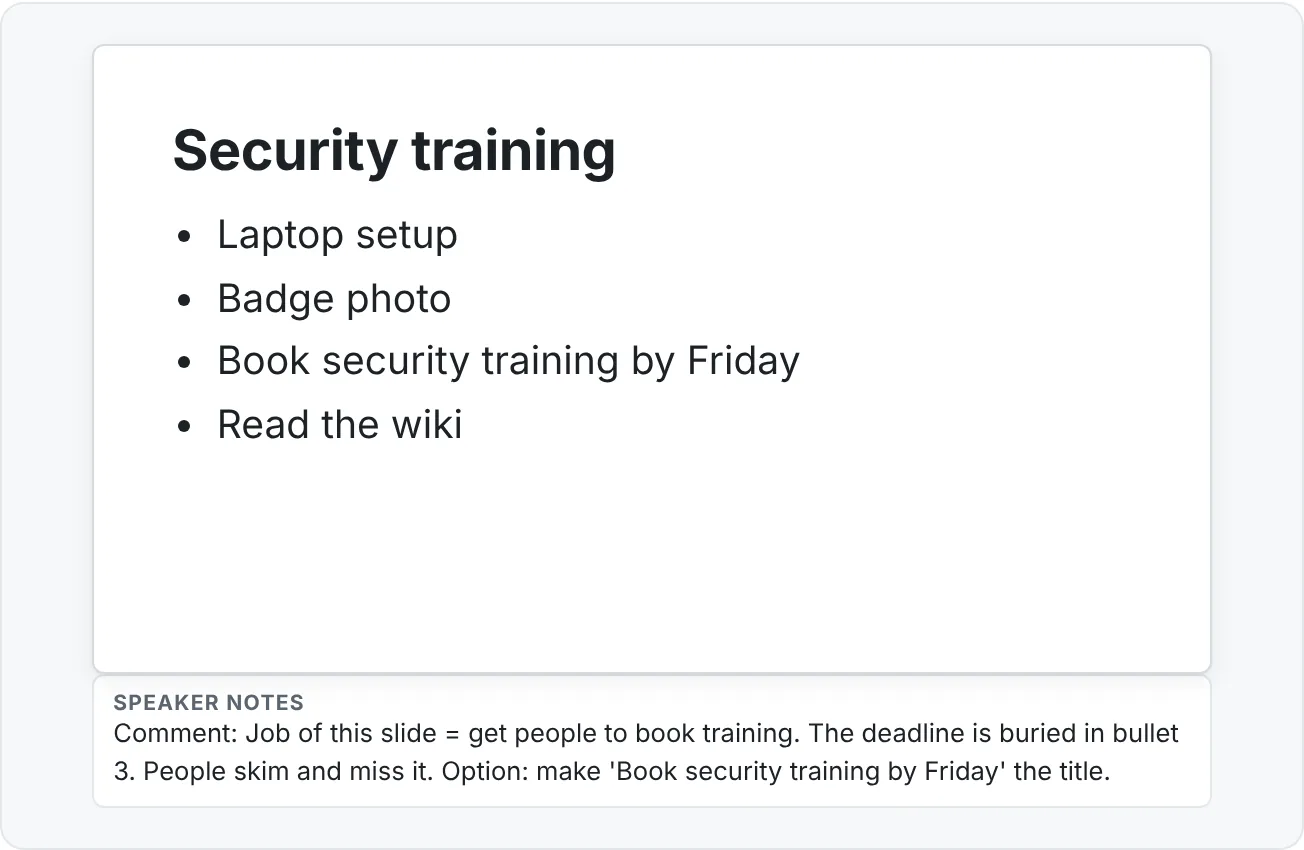
- Start with the slide's job. "This slide should get new hires to book their security training."
- Name the issue. "The training deadline is bullet 7 of 9, in the same size as everything else."
- Explain the effect on the audience. "People will skim the first three bullets and miss the one thing they must do."
- Suggest one improvement. "Try making the deadline the title and moving the rest to the handout."
| Weak feedback | Useful feedback |
|---|---|
| "Too much text." | "This slide asks people to read nine bullets while you talk, so they'll do neither well. Which three matter in the room?" |
| "The chart is confusing." | "The title says satisfaction went up, but the chart shows five lines in similar colors. Highlight the one line that went up and gray the rest." |
| "Make it more professional." | "Three fonts and four title positions make each slide feel like a different deck. Apply the template's Title and Content layout to slides 3 to 8." |
| "I don't like the blue." | "The blue text on the dark photo is hard to read from the back of the room. Add a dark overlay or move the text off the photo." |
Coach the revision without taking over
The learner should make every change. Your job is to make the decision easy to think through:
- Ask what the slide needs to do. Let them say it.
- Offer two options, not one answer. "You could make the deadline the title, or keep the list and highlight the deadline in the accent color."
- Let the learner choose and build it.
- Compare before and after side by side.
- Ask them to reflect. "What changed, and why does it work better?"
Use PowerPoint's review tools so the learner keeps the pen:
- Comments. Select an object and go to Review › Comments › New Comment (Ctrl+Alt+M). Anchor each comment to the object it's about, and @mention the learner so they get notified. They resolve the thread when they've acted on it.
- Version history. In a file stored on OneDrive or SharePoint, File › Info › Version History lets you both open the before version later. That's your before/after evidence for free.
- Compare. If the learner sends a revised copy as a separate file, open the original and use Review › Compare › Compare to see every change in the Revisions pane.
Close the loop with reflection
After the revision, ask one of these and write down the answer in the revision log:
- Which slide improved the most?
- What did you remove, and why?
- What would you do differently in the next deck?
If the learner can explain the change in their own words, the judgment transferred. If they say "because you said so," it didn't, and the next session should revisit the principle.
Run a 20-minute tutoring session
A tight structure keeps a session on one or two improvements instead of a tour of everything wrong:
| Minutes | Step | What you say |
|---|---|---|
| 0 to 3 | Goal | "Who's the audience and what should they do after?" |
| 3 to 6 | Diagnose | Click through quietly, then name the issue type |
| 6 to 9 | Pick one slide | "Let's fix the slide that matters most for that goal." |
| 9 to 15 | Coach the revision | Two options, learner chooses and builds |
| 15 to 18 | Compare and reflect | Before/after side by side; "What changed?" |
| 18 to 20 | Next step | One rule for them to apply to the remaining slides on their own |
The last step is the multiplier. Priya fixes one slide with you and then applies "every title states the takeaway" to the other nine on her own. Ask her to send the result before your next session.
Build a learning community around practice
One session improves one deck. A community keeps people practicing between sessions. Pick two or three of these and run them on a regular rhythm:
- Peer review rounds. Pairs swap one slide each week and use the four-part critique pattern.
- Before/after gallery. Learners post a before/after pair with a one-line rationale. Strong examples become teaching material.
- Weekly challenge. "Fix this broken slide" with a constraint ("no new colors," "three words max in the title").
- Office hours. A recurring open slot for workflow and tool questions.
- Template library. Shared, versioned layouts so learners stop rebuilding the basics.
- Learner portfolio. Each person keeps their before/after pairs, reflections and revision logs in one place.
A simple peer review form keeps critique specific:
| Question | Reviewer answer |
|---|---|
| What is this slide's job? | |
| Where did your eye go first? | |
| One issue and its effect on the audience | |
| One suggested improvement | |
| What could be removed without weakening the slide? |
Common mistakes when teaching and critiquing
- Taking the mouse. You get a better slide; they don't get better. Hands off unless you're demonstrating a click path, and give the mouse back immediately.
- Fixing the symptom. Redesigning a slide that has a story problem produces a prettier confusing slide.
- Taste comments. "I'd use green" is a preference. Tie every comment to an effect on the audience.
- Too many comments at once. Prioritize. Three per slide, one marked as most important.
- Teaching three tools in one demo. One skill, one principle, one variation.
- No reflection. Without "what changed and why," you can't tell if judgment transferred.
- Praising only polish. Call out good decisions too: "Cutting the agenda slide was the right call, the opening now gets to the point in ten seconds."
Practice
Practice
Coach one revision end to end
Guided practice:
- Get a real deck from a colleague or classmate (or use an old deck of your own from a year ago). Ask for one sentence on the audience and goal.
- Click through and classify the main problem using the six issue types. Write down your evidence.
- Pick the one slide that matters most for the goal. Leave no more than three comments on it with Review › Comments › New Comment, each using the four-part pattern.
- Meet for 20 minutes using the session structure. Offer two options; let them choose and build it.
- Put the before and after side by side and ask, "What changed, and why does it work better?" Write their answer down.
- Give one rule for the rest of the deck and agree a date to see the result.
Independent challenge:
- Rewrite five weak comments from a real review (or from the table above) into the four-part pattern.
- Teach "align and distribute" (or another single skill) in five minutes to someone new. Time it.
- Create a one-page critique guide and a peer review form for your team or website community.
Check your understanding0 of 4 correct
Pick an answer to see whether it's right and why.
A learner's deck uses the company template correctly, but every slide is titled with a topic ("Budget," "Timeline," "Risks") and the ask appears only on the last slide. They asked you to "make it more visual." What kind of issue is this mainly?
The slides are built fine; the deck lacks a message and a clear ask. Adding visuals would decorate the confusion.
Which comment is the most useful critique?
It states the slide's job, names the issue, explains the effect on the audience and offers one specific fix.
In a session, the learner is stuck choosing how to emphasize a deadline. What should you do next?
Two options keep the decision with the learner, and the before/after comparison makes the principle visible.
You've shown a learner how to align icons. Which follow-up best checks that the skill transferred?
A variation forces a decision and an explanation. Repeating the same steps only checks memory, and 'did you understand' checks nothing.
You're ready to move on when
Tick each one off as you go. Your ticks are saved in this browser only.
Related
Sources and further reading
Was this guide helpful? Spot a mistake? Send feedback · admin@arumsoft.com