Intermediate PowerPoint · Tutorial 8 of 9
How to Review, Check Accessibility, and Share a PowerPoint Presentation
Use comments, a final preflight check, the Accessibility Checker, and Document Inspector, then export the right format: PPTX, PDF, video, or a share link.
- Level
- Intermediate
- Time
- 16 min read
- Updated:
- Applies to:
- PowerPoint for Microsoft 365, PowerPoint 2024, PowerPoint 2021, PowerPoint for the web
What you'll learn
- Add, reply to, and resolve comments so feedback does not get lost
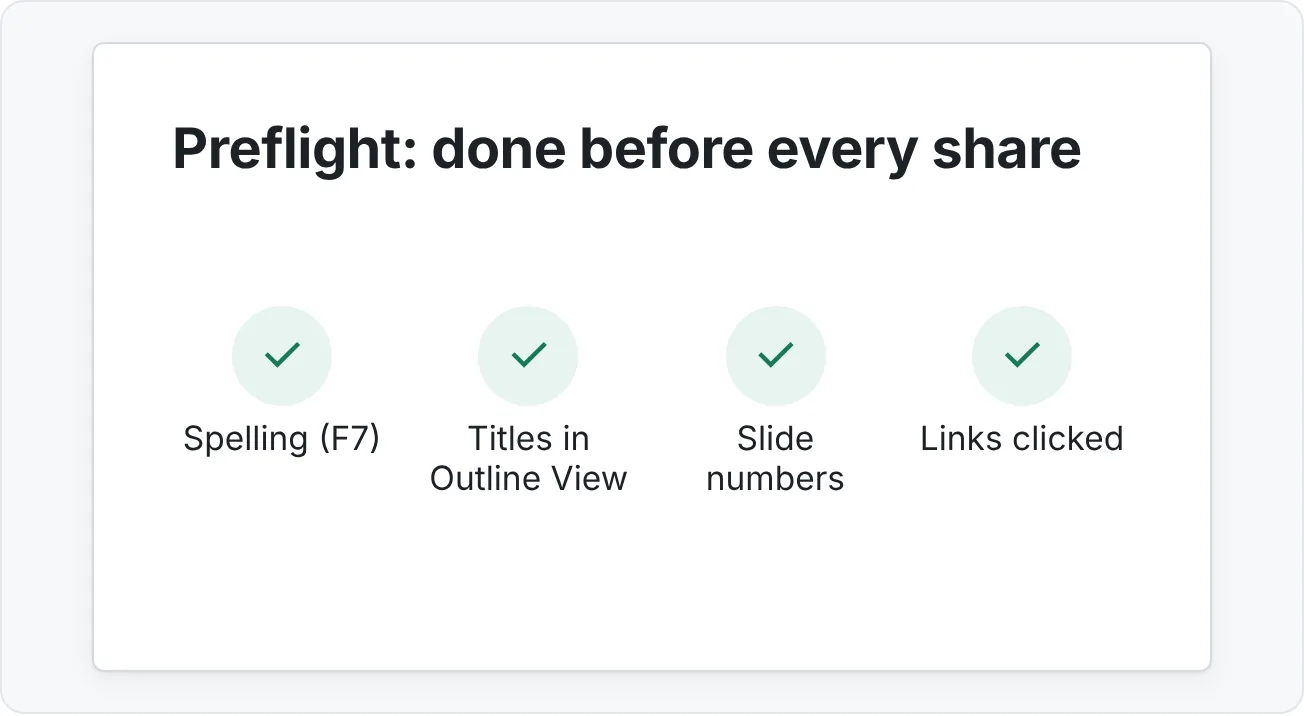
- Run a final preflight check for spelling, titles, slide numbers, repeated elements, and links
- Use the Accessibility Checker to fix alt text, slide titles, reading order, contrast, and link text
- Inspect a deck for hidden data and protect it when appropriate
- Choose and export the right format: PPTX, PDF, video, PowerPoint Show, or a link
A deck is not finished when the last slide is designed. It still needs a second pair of eyes, a typo sweep, an accessibility pass, a check for hidden information you did not mean to share, and the right file format for each person who receives it. Skipping these steps is how a great lesson ends up with a misspelled title on the projector or a client's name left in the speaker notes.
This page gives you a repeatable finishing routine. The running example is a 12-slide tutoring lesson you are about to send to a classmate for review and then share with learners.
Collect feedback with comments
Comments let reviewers point at a specific object or piece of text without changing your slides.
To add one, select the object or text you want to comment on and choose Review then Comments then New Comment (it is also on the right-click menu). Type in the Comments pane and post with Ctrl+Enter. The comment is anchored to that object, so it moves when the object moves.
In the Comments pane you can:
- Reply in the box under any comment, so the whole discussion stays in one thread.
- @mention a colleague (type
@and their name) to notify them by email. This works for work and school accounts on files stored in OneDrive or SharePoint. - Resolve a thread when it is handled. Resolved threads leave the slide but stay in the pane, so you keep a record.
Write comments people can act on
A useful comment names the problem, the location, and a suggestion.
| Weak comment | Useful comment |
|---|---|
| "Confusing." | "Slide 5: the title says 'Results' but the chart shows a drop. Try 'Scores fell 12 points after week 3'." |
| "Fix colors." | "The light gray labels on the dark background are hard to read from the back row. Use white." |
| "Too long?" | "Eight bullets here. Could steps 4 to 8 move to a handout?" |
Keep track of versions
Save shared decks to OneDrive or SharePoint. Then File then Info then Version History shows earlier versions you can open or restore, which beats lesson-final-v3-REAL.pptx. If you must work with local files, use one naming pattern, such as fractions-lesson_2026-10-13.pptx.
Run a final preflight check
Most embarrassing mistakes are easy to catch if you look for them on purpose.
Spelling and grammar. Press F7 or use Review then Proofing then Spelling. PowerPoint checks slides and notes. It will not catch a correctly spelled wrong word ("form" for "from"), so also read titles aloud.
Slide titles. Switch to Outline View (View then Presentation Views then Outline View). Every slide's title appears in a list. Read them in order: together they should tell the story of the lesson. Missing or duplicate titles stand out here.
Slide numbers and footers. Use Insert then Text then Header & Footer to add slide numbers, then click Apply to All. Tick Don't show on title slide if you prefer.
Repeated elements. Logos, footers, and section markers should be in the same place on every slide. If one is drifting, it was probably pasted onto a slide rather than placed on the Slide Master. Fix it on the master.
Links. Run the deck in Slide Show and click every hyperlink and action button. Check that web links still open the right page and that any linked files exist.
Use the Accessibility Checker
Accessible slides work for people using screen readers, people with low vision or color blindness, and anyone reading on a phone or in a bright room. PowerPoint's checker finds many common problems.
Go to Review then Accessibility then Check Accessibility. The Accessibility pane lists issues grouped as Errors (content that is very hard or impossible to use) and Warnings (content that is likely hard to use), with Tips in some versions. Click an issue to jump to the object, then use the Recommended Actions dropdown to fix it.
Here is what the checker typically finds and how to fix it:
| Issue | Why it matters | Fix |
|---|---|---|
| Missing alternative text | Screen readers cannot describe the picture, chart, or diagram | Right-click › View Alt Text and describe what matters, or tick Mark as decorative for pure decoration |
| Missing slide title | Screen reader users navigate by titles | Add a title in the title placeholder. If you do not want it visible, you can position it off the slide |
| Check reading order | Objects are read in the order they were added, not where they appear | Open the Reading Order Pane and drag items into a logical order (title first) |
| Hard-to-read text contrast | Low contrast fails people with low vision and on projectors | Darken the text or lighten the background |
| Unclear hyperlink text | "Click here" means nothing out of context | Use descriptive text, such as "Khan Academy fractions practice" |
| Missing closed captions | Video audio is unavailable to deaf learners | Add a caption file, see the audio and video tutorial |
Write useful alt text
Alt text says what the image means in this slide, in one or two sentences.
- Weak: "chart.png" or "A chart."
- Better: "Column chart: quiz scores rose from 61 in week 1 to 78 in week 4."
For a chart that has its key message in the title, the alt text can be short and repeat the main finding. For a decorative line or background texture, mark it decorative so screen readers skip it.
At the bottom of the pane, you can tick Keep accessibility checker running while I work. The status bar then shows when new issues appear, so you fix them while building instead of all at the end.
Inspect and protect before sharing
A PowerPoint file can carry more than you see on the slides: comments, your name in the document properties, speaker notes with private remarks, off-slide objects, and hidden content.
Inspect the document
- Save a copy of the deck first. Microsoft recommends this because some removed data cannot be restored.
- Go to File then Info then Check for Issues then Inspect Document.
- Leave the boxes ticked for what you want to check (comments, document properties and personal information, off-slide content, presentation notes, and more) and click Inspect.
- Review the results. Click Remove All next to each category you want stripped from this copy.
- Click Reinspect to confirm, then close and save.
Think before removing Presentation Notes: if you are sending the deck to another presenter, they need those notes. Remove them only when the notes are private.
Protect when appropriate
File then Info then Protect Presentation offers several options:
- Always Open Read-Only: asks readers to open without editing. It is a nudge, not a lock.
- Encrypt with Password: no one can open the file without the password. Store the password safely; it cannot be recovered.
- Add a Digital Signature: confirms the file has not changed since you signed it (requires a certificate).
- Mark as Final: tells readers this is the finished version and makes it read-only, but anyone can turn editing back on.
For most lessons, the better tool is sharing permissions: share a link that allows viewing only (see below). Use a password when the content is confidential.
Export and share in the right format
Different people need different files. Pick by asking: will they edit, present, read, or watch?
| Format | How | Use it when | Watch out |
|---|---|---|---|
| PPTX | File then Save As | Someone will edit or present it | They need PowerPoint; fonts may change on their computer |
| File then Export then Create PDF/XPS Document | People will read, print, or annotate | No animation, video, or audio | |
| Video (MP4) | File then Export then Create a Video | A recorded lesson people watch on their own | Hard to update; keep the PPTX |
| PowerPoint Show (.ppsx) | File then Export then Change File Type then PowerPoint Show | It should open straight into Slide Show | Still editable if opened from PowerPoint |
| Link | Share button (top right) | Co-authoring or always-current viewing | Check the link permissions |
PDF options worth knowing
In the PDF save dialog, click Options... to choose what to publish. Slides gives one slide per page. Notes pages puts your speaker notes under each slide, which is a good study handout for learners or a script for another presenter. Handouts puts several slides on a page.
Link sharing
If the file is on OneDrive or SharePoint, click Share in the top-right corner. You can share with specific people or copy a link, and set whether recipients can edit or can view. For learners, viewing is usually right. For a co-presenter, editing is.
Common mistakes when finishing a deck
- Vague comments. "Fix this" wastes the author's time. Name the slide, the problem, and a suggestion.
- Never resolving comments. Old threads pile up and new ones get missed.
- Trusting spell check alone. It misses real words used wrongly. Read the titles aloud in Outline View.
- Alt text that is a file name. "IMG_4032.jpg" helps nobody. Describe what the image shows and why it is there.
- Ignoring reading order. A slide that looks right can be read in a jumbled order by a screen reader.
- Sending private notes. Speaker notes and comments travel with a PPTX. Inspect before you share outside your team.
- Sending a PPTX to people who only need to read it. Send a PDF instead; it looks the same everywhere.
- Editing the exported copy. Make changes in the PPTX master, then export again.
Practice
Practice
Prepare a 12-slide lesson for review and sharing
Guided practice
- Open a lesson deck of about 12 slides (yours, or the one from the capstone).
- On slide 1, add a comment telling reviewers what feedback you want. Send the deck to a classmate, or review a peer's deck and leave five useful comments that name the slide, the problem, and a suggestion.
- Reply to each comment you receive, make the change, and resolve the thread.
- Run F7, then read every title in Outline View. Add slide numbers with Insert then Text then Header & Footer.
- Run Review then Accessibility then Check Accessibility. Fix every error. For each warning, fix it or note why you left it.
- Open the Reading Order Pane on your two busiest slides and put the title first.
- Save a copy, then run File then Info then Check for Issues then Inspect Document and remove comments and personal information from the copy.
- Export the deck three ways: PPTX, PDF with Notes pages, and either a video or a PowerPoint Show.
Independent challenge
Take any deck you did not make and do a complete accessibility and distribution pass. Write a short handoff note (three or four lines) saying which issues you fixed, which you could not fix and why, and which file each audience should receive.
Reflect: which format would you send to (a) a learner who missed class, (b) a substitute tutor, and (c) a parent who wants to see what was covered? Explain each choice in one sentence.
Check your understanding0 of 4 correct
Pick an answer to see whether it's right and why.
The Accessibility Checker reports 'Missing alternative text' for a bar chart whose title says 'Attendance doubled after we moved sessions online'. What is the best alt text?
Good alt text states what the chart shows and the key finding. The chart carries information, so it should not be marked decorative.
You are sending a deck to a board member outside your organization. Your speaker notes include frank remarks about a partner. What should you do first?
Notes and comments travel with a PPTX. Inspecting a copy removes them, while read-only and Mark as Final leave them visible.
A substitute tutor will teach your lesson tomorrow and may need to fix a date on slide 2. Learners also want something to study from. Which pair of formats fits?
The tutor needs to edit and present, so the PPTX. Learners need a stable, readable copy, and notes pages add the explanation under each slide.
Your deck passes the Accessibility Checker with no issues, but one slide shows status only as red and green dots. What is true?
The checker cannot detect meaning carried by color alone. Adding text labels makes the status clear to people who cannot tell the colors apart.
You're ready to move on when
Tick each one off as you go. Your ticks are saved in this browser only.
Related
Sources and further reading
Was this guide helpful? Spot a mistake? Send feedback · admin@arumsoft.com