PowerPoint Basics · Tutorial 7 of 8
How to Present a Slide Show, Use Speaker Notes and Export to PDF in PowerPoint
Start and control a slide show, write speaker notes that help you instead of repeating the slide, use Presenter View, and print or export the right PDF.
- Level
- Beginner
- Time
- 15 min read
- Updated:
- Applies to:
- PowerPoint for Microsoft 365, PowerPoint 2024, PowerPoint 2021, PowerPoint for the web
What you'll learn
- Start a slide show from the beginning or from the current slide, move around and end it
- Write speaker notes with reminders, examples and transitions instead of copying slide text
- Use Presenter View to see your notes, the next slide and a timer while the audience sees only the slide
- Print full-page slides, notes pages and handouts
- Export a PDF with and without your notes
You can build a great deck and still lose your audience in the first minute: the show starts on slide 4, you click past the slide you wanted, you turn your back to read the screen, or the PDF you emailed afterward is missing your notes.
This tutorial covers the delivery side of PowerPoint. You'll practice running a show, write notes that actually help you, use Presenter View, and export the right file for the right person. The running example is a short 4-slide talk called "Three Ways to Save Water at Home."
Start, move through and end a slide show
All the ways to start a show are on the Slide Show tab.
| To do this | Click | Or press |
|---|---|---|
| Start from slide 1 | Slide Show then Start Slide Show then From Beginning | F5 |
| Start from the selected slide | Slide Show then Start Slide Show then From Current Slide | Shift+F5 |
| Next slide or next animation | Click the slide | Right, Space or N |
| Previous slide | Right-click › Previous | Left or P |
| Jump to a slide | Type the slide number, then Enter | |
| Black screen (pause) | B (press again to return) | |
| End the show | Right-click › End Show | Esc |
The Slide Show button on the status bar at the bottom of the window also starts the show, but from the current slide. That's why people sometimes start on slide 4 by accident. When you're presenting for real, use F5 or From Beginning.
Use shortcuts carefully
Shortcuts are fast, but some do more than you expect. Space and Enter also advance past animations, so a double press can skip a slide. If you get lost, type the slide number and press Enter instead of clicking repeatedly. Press F1 during a show to see the full shortcut list.
Write speaker notes that support you, not the audience
Here's the key idea: slides are for the audience, notes are for you. If you put your full script on the slide, the audience reads ahead and stops listening. If you put it in the notes, you have support and the slide stays clean.
Open the notes pane
Click Notes on the status bar at the bottom of the window, or go to View then Show then Notes. A box labeled Click to add notes appears under the slide. Drag its top edge up to make it taller.
What good notes contain
Notes are not a copy of the slide. Useful notes include:
- Reminders: "Ask who has a dripping tap at home."
- Examples and stories: "Mention the leaking tap in our kitchen last summer."
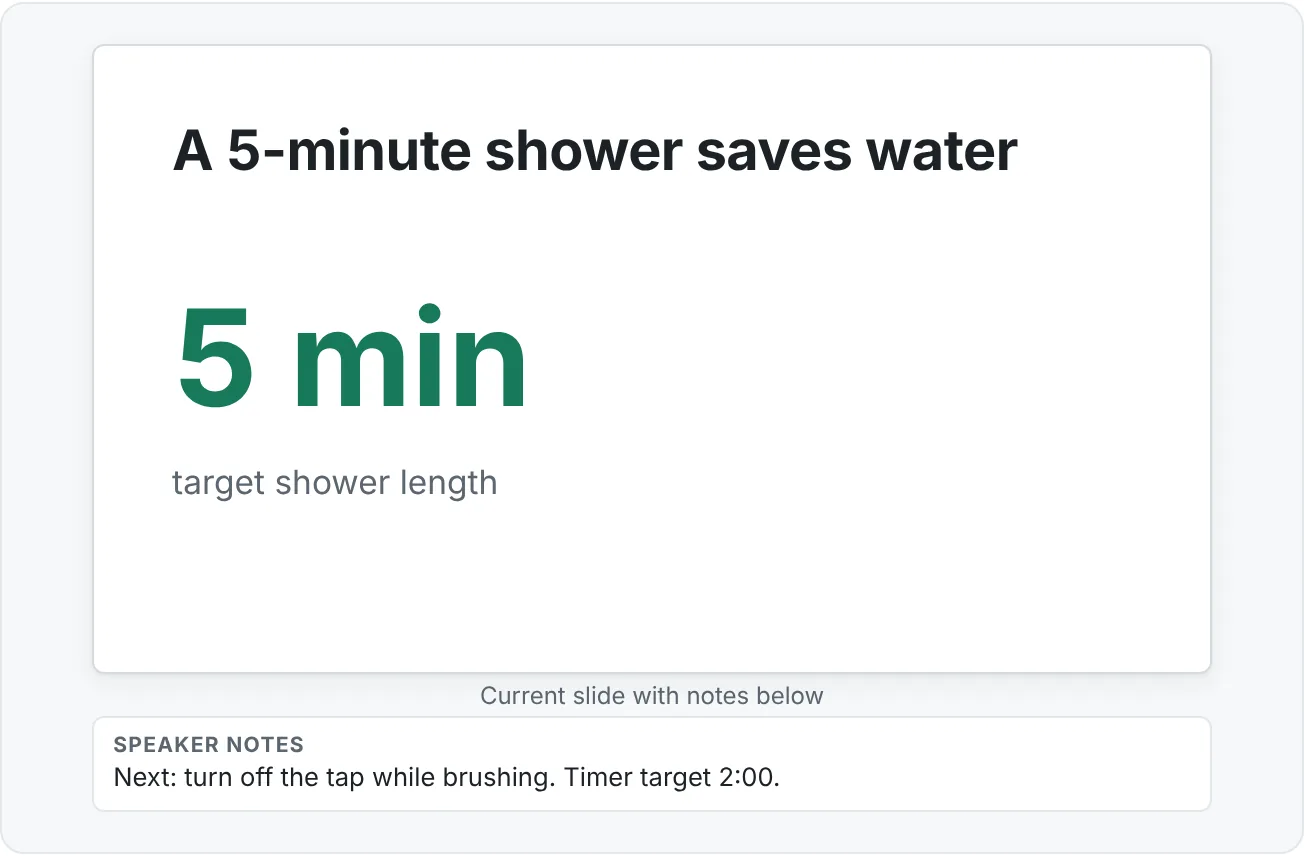
- Transitions: "Next: the shower, which is the biggest one."
- Timing: "Aim to be here by 1:30."
- Exact facts you might forget: names, dates, a number you need to say correctly.
Write notes as short phrases, not paragraphs. You'll glance at them while talking, so you need to find your place in a second.
To see a slide and its notes on one page, use View then Presentation Views then Notes Page. This is also how notes look when you print or export them.
Use Presenter View
Presenter View shows you a private screen while the audience sees only the slide. When your laptop is connected to a projector or second screen, PowerPoint usually turns it on automatically. The setting is a check box on the Slide Show tab.
In Presenter View you'll see:
- Current slide: what the audience sees right now, in the large left area.
- Next slide: a preview on the right, so you can set up the transition before you click.
- Notes: in a pane on the right. Use the two buttons in the lower-left corner of the notes pane to make the text larger or smaller.
- Timer: above the current slide, with pause and restart buttons.
- Tools: under the current slide, including the pen and laser pointer, See all slides, Zoom into the slide and a button to black out the screen.
If the audience sees your notes instead of the slide, use Display Settings at the top of Presenter View and choose Swap Presenter View and Slide Show.
Practice with one screen
You don't need a projector to rehearse. Press Alt+F5 to start the show in Presenter View on your laptop screen. This is the best way to rehearse with your notes and the timer.
Pen and laser pointer
Press Ctrl+L for the laser pointer and Ctrl+P for the pen. Press E to erase all ink on the slide, and Esc to turn the tool off. Use them to point at one number or circle one bar, not to draw all over the slide. When you end the show, PowerPoint asks whether to keep your ink annotations. For a clean file, choose Discard.
Print slides, notes pages and handouts
Go to File then Print. Under Settings, the second drop-down (it starts as Full Page Slides) controls what prints.
| Option | What prints | Use it for |
|---|---|---|
| Full Page Slides | One slide per page | Posting slides on a wall or reviewing them in detail |
| Notes Pages | Slide at the top, your notes below | Your own rehearsal script, or a copy for a co-presenter |
| Outline | Only the text from titles and placeholders | Checking the flow of your titles |
| Handouts (1, 2, 3, 4, 6 or 9 slides per page) | Several small slides per page | Audience takeaways. The 3 Slides option adds lines for writing |
While you choose, the preview on the right updates. For audience handouts, 3 Slides or 6 Slides per page is usually a good balance. Below that drop-down, you can also choose Color, Grayscale or Pure Black and White to save ink.
Export a PDF, with or without notes
A PDF is the safest way to send slides to someone who might not have PowerPoint, or who will view them on a phone. Fonts and layouts stay as you designed them.
PDF of the slides
- Go to File then Export then Create PDF/XPS Document and click Create PDF/XPS.
- Choose where to save and type a file name.
- Make sure Save as type is PDF, then click Publish.
PDF with notes or as handouts
In the Publish as PDF or XPS dialog, click Options before you publish. Under Publish what, choose:
- Slides for a normal slide PDF.
- Notes pages to include your speaker notes under each slide.
- Handouts to put several slides on each page. Choose Slides per page next to it.
The Options dialog also lets you export only some slides (Range) and decide whether to include hidden slides.
Which version should you send?
- Audience members after a talk: slides only, or handouts. Your notes are often too rough to share.
- A teacher, manager or reviewer who wasn't there: notes pages, so they get what you said, not just the slides.
- A co-presenter: the .pptx file plus notes pages.
Rehearse and improve one thing at a time
Running the show once before you present catches most problems: a typo in a title, an animation in the wrong order, a slide you forgot to update. A simple rehearsal routine:
- Press Alt+F5 to start in Presenter View and start the timer.
- Present out loud to an empty room. Don't stop to fix things. Write problems on paper.
- Fix the problems, then run the show a second time.
- Record yourself on your phone (or with the Record tab in PowerPoint for Microsoft 365) and watch it back.
- Pick one improvement for next time, such as "look up from the notes at every new slide" or "slow down on the numbers slide."
One focused improvement per rehearsal works better than a list of ten.
Common mistakes when presenting and exporting
- Starting from the status bar button. It starts from the current slide. Use F5 to start at slide 1.
- Reading the slides aloud. If your slide has full sentences you can read, it has too much text. Move the script into the notes.
- Notes that copy the slide. Notes should add reminders, examples, transitions and timing.
- Audience sees your notes. Use Display Settings › Swap Presenter View and Slide Show.
- Clicking frantically when lost. Type the slide number and press Enter.
- Sending the wrong file. Decide who gets slides, handouts or notes pages before you export.
- Keeping ink by accident. Choose Discard when PowerPoint asks about ink annotations, unless you meant to keep them.
Practice
Practice
Present a 4-slide mini deck with notes
Guided practice
- Create or open a 4-slide deck. Example: (1) Three Ways to Save Water at Home, (2) Fix dripping taps, (3) Take 5-minute showers, (4) Turn off the tap while brushing.
- Open the notes pane with View then Show then Notes. On slides 2, 3 and 4, add one reminder, one example, one transition and one timing note.
- Select slide 3 and press Shift+F5. Confirm it starts there, then press Esc.
- Press F5 and run the full show. Use Left to go back once, type 2 and Enter to jump, and B to black the screen.
- Press Alt+F5 and rehearse the whole talk in Presenter View, aiming for about 3 minutes. Watch the timer.
- Export two PDFs: one with Publish what set to Slides, one set to Notes pages. Open both and compare.
- Print preview the deck as Handouts with 3 Slides per page.
Independent challenge
- Record yourself delivering a 2-minute version of the talk (phone or the Record tab).
- Watch it back and write down one thing that worked and one specific improvement.
- Update your notes to support that improvement, then present once more.
Check your understanding0 of 4 correct
Pick an answer to see whether it's right and why.
You open your deck to slide 5 to fix a typo, then click the Slide Show button on the status bar to begin your talk. The show starts on slide 5. What should you have done?
The status bar button and Shift+F5 start from the current slide. F5 and From Beginning always start at slide 1.
Which speaker note is most useful for a slide titled "Take 5-minute showers"?
Good notes add a reminder, an example, a transition and timing instead of repeating the slide.
Your manager missed your training session and wants to know what you said, not just see the slides. Which export is best?
Notes pages put your speaker notes under each slide, so the reader gets your explanation along with the visuals.
You connect to a projector and the audience sees your notes and timer instead of the slide. What is the quickest fix?
Swap Presenter View and Slide Show moves the audience view to the projector and Presenter View to your laptop.
You're ready to move on when
Tick each one off as you go. Your ticks are saved in this browser only.
Related
Sources and further reading
Was this guide helpful? Spot a mistake? Send feedback · admin@arumsoft.com